# Request for Quotations (RFQ)
Streamline routine purchases with competitive pricing from multiple suppliers
URL: https://www.procureflow.ai/docs/workflows/rfq
import { Step, Steps } from 'fumadocs-ui/components/steps'
import { FAQLinks } from '@/components/faq-links'
The RFQ workflow is designed for routine purchases where you need competitive pricing from multiple suppliers. From requisition to purchase order, ProcureFlow automates sourcing, evaluation, and approval while keeping you in control of key decisions.
Process Overview [#process-overview]
 How It Works [#how-it-works]
Create an RFQ [#create-an-rfq]
How It Works [#how-it-works]
Create an RFQ [#create-an-rfq]
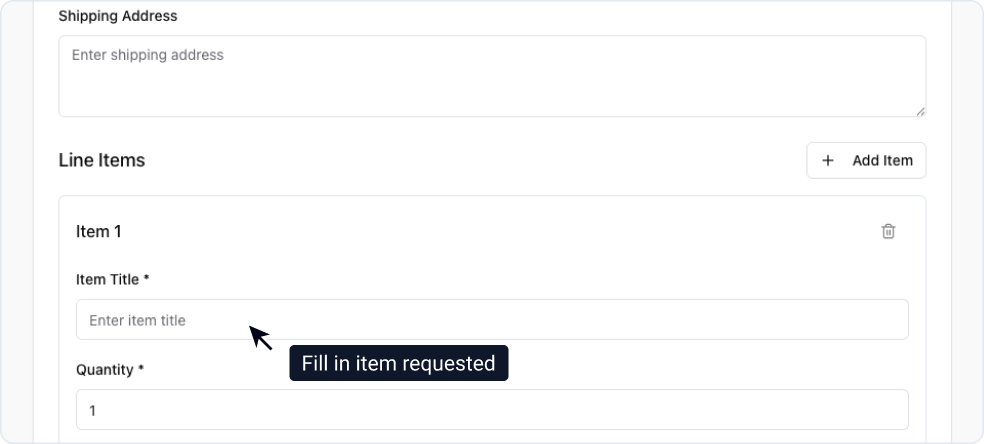 An end user submits a purchase request specifying the items or services needed. The request includes:
* Item descriptions and quantities
* Required delivery date
* Technical specifications (if applicable)
* Budget or estimated value
Once submitted, the RFQ enters the sourcing phase.
An end user submits a purchase request specifying the items or services needed. The request includes:
* Item descriptions and quantities
* Required delivery date
* Technical specifications (if applicable)
* Budget or estimated value
Once submitted, the RFQ enters the sourcing phase.
AI Supplier Sourcing [#ai-supplier-sourcing]
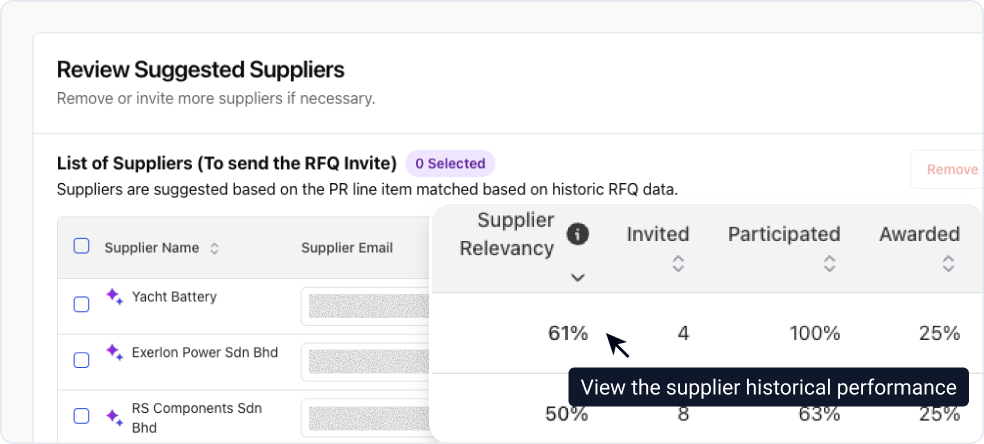 ProcureFlow's AI automatically identifies potential suppliers based on:
* **Historical performance:** Past participation and award rates
* **Category expertise:** Suppliers who have delivered similar items
* **Compliance status:** Active suppliers meeting your organization's requirements
The AI generates a recommended supplier list, saving you hours of manual research.
ProcureFlow's AI automatically identifies potential suppliers based on:
* **Historical performance:** Past participation and award rates
* **Category expertise:** Suppliers who have delivered similar items
* **Compliance status:** Active suppliers meeting your organization's requirements
The AI generates a recommended supplier list, saving you hours of manual research.
Finalize Supplier Invitations [#finalize-supplier-invitations]
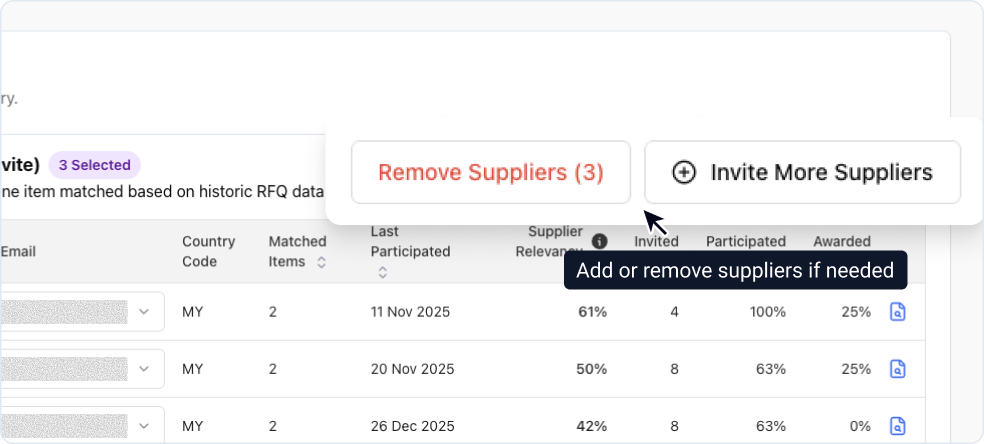 As the procurement officer, you review the AI-recommended suppliers and make the final decision on who to invite. You can:
* Accept the AI recommendations as-is
* Add suppliers from your approved vendor list
* Remove suppliers based on current relationships or capacity concerns
Once finalized, ProcureFlow sends RFQ invitations to all selected suppliers.
As the procurement officer, you review the AI-recommended suppliers and make the final decision on who to invite. You can:
* Accept the AI recommendations as-is
* Add suppliers from your approved vendor list
* Remove suppliers based on current relationships or capacity concerns
Once finalized, ProcureFlow sends RFQ invitations to all selected suppliers.
Suppliers Submit Bids [#suppliers-submit-bids]
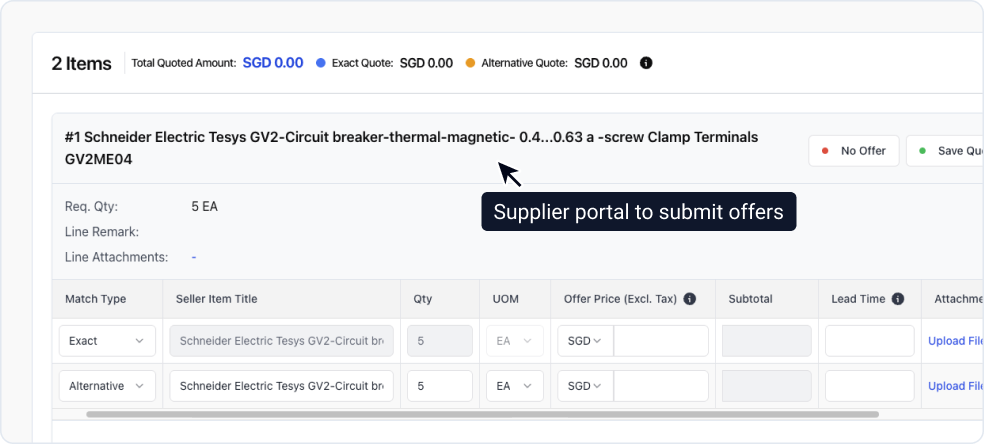 Invited suppliers receive the RFQ details through the Supplier Portal and submit their quotations. Each bid includes:
* Unit pricing and total cost
* Delivery timeline
* Payment terms
* Technical compliance (if specifications were provided)
You can track submission status in real-time and send reminders to suppliers who haven't responded.
Invited suppliers receive the RFQ details through the Supplier Portal and submit their quotations. Each bid includes:
* Unit pricing and total cost
* Delivery timeline
* Payment terms
* Technical compliance (if specifications were provided)
You can track submission status in real-time and send reminders to suppliers who haven't responded.
BAFO Round (Optional) [#bafo-round-optional]
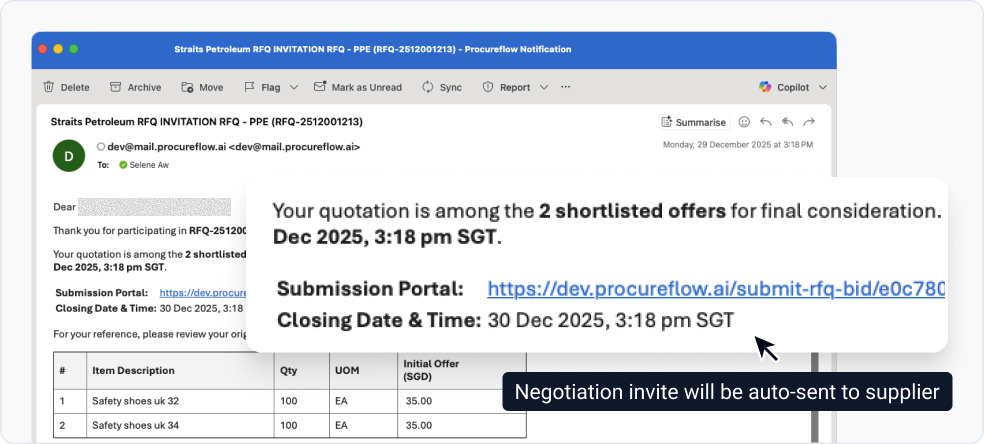 For higher-value purchases or when initial bids are close, you can open a Best and Final Offer (BAFO) round. This gives suppliers one last opportunity to improve their pricing.
> **Note:** BAFO rounds are optional and typically used for purchases above your organization's threshold. For low-value purchases, you can skip directly to evaluation.
Want to automate this step? See [Automatically Triggered Negotiations](https://www.procureflow.ai/docs/core-features/auto-negotiations.md) to configure rules that open BAFO rounds automatically based on RFQ value and other criteria.
For higher-value purchases or when initial bids are close, you can open a Best and Final Offer (BAFO) round. This gives suppliers one last opportunity to improve their pricing.
> **Note:** BAFO rounds are optional and typically used for purchases above your organization's threshold. For low-value purchases, you can skip directly to evaluation.
Want to automate this step? See [Automatically Triggered Negotiations](https://www.procureflow.ai/docs/core-features/auto-negotiations.md) to configure rules that open BAFO rounds automatically based on RFQ value and other criteria.
Evaluate Bids [#evaluate-bids]
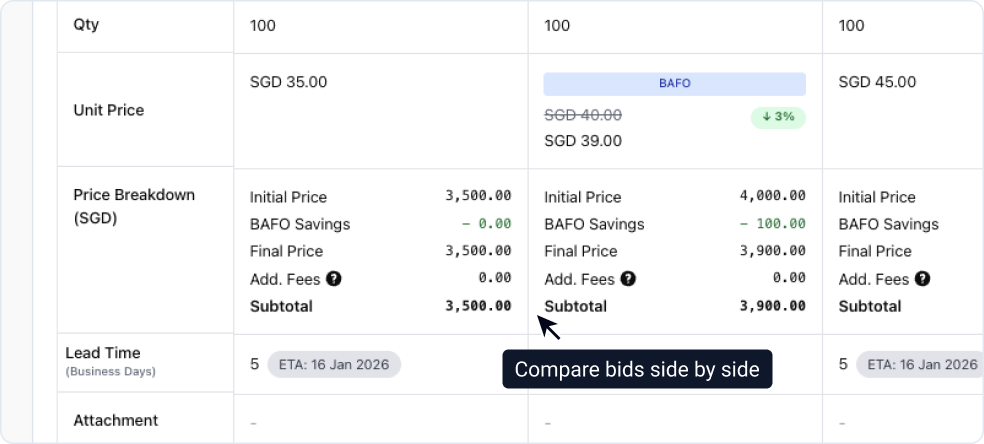 ProcureFlow supports structured bid evaluation with two scoring dimensions:
| Evaluation Type | What It Measures |
| :-------------- | :----------------------------------------------------------- |
| **Technical** | Compliance with specifications, quality, delivery capability |
| **Commercial** | Pricing, payment terms, total cost of ownership |
The system flags anomalies automatically (unusually low bids, missing compliance items, or significant price variations) so you can investigate before making decisions.
ProcureFlow supports structured bid evaluation with two scoring dimensions:
| Evaluation Type | What It Measures |
| :-------------- | :----------------------------------------------------------- |
| **Technical** | Compliance with specifications, quality, delivery capability |
| **Commercial** | Pricing, payment terms, total cost of ownership |
The system flags anomalies automatically (unusually low bids, missing compliance items, or significant price variations) so you can investigate before making decisions.
Award Decision [#award-decision]
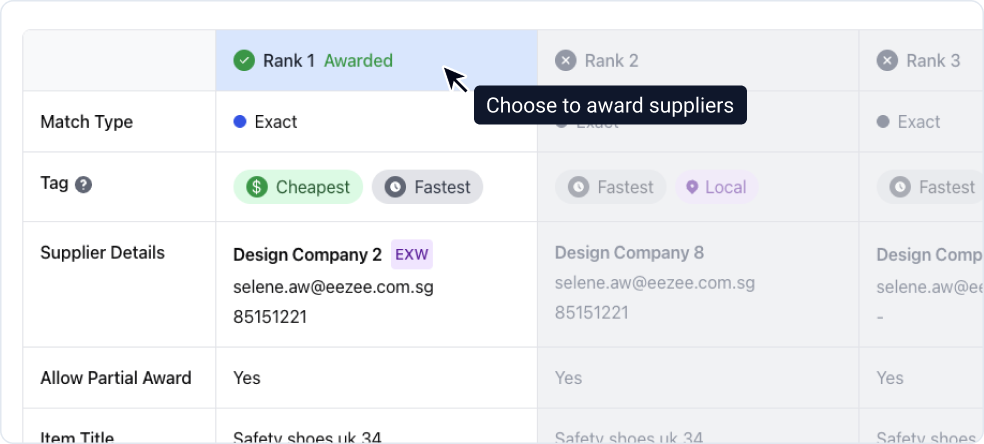 Based on evaluation scores, you decide which supplier(s) receive the award. ProcureFlow supports:
* **Single award:** One supplier wins the entire RFQ
* **Split award:** Divide quantities across multiple suppliers based on capability or risk diversification
The system generates an award recommendation, but the final decision is always yours.
For large RFQs with many line items, use the [Award Optimiser](https://www.procureflow.ai/docs/core-features/award-optimiser.md) to automatically calculate the best allocation across suppliers based on your strategy and constraints. To ensure every award decision is properly documented, the [Compliance Agent](https://www.procureflow.ai/docs/core-features/compliance-agent.md) helps you generate audit-ready justifications.
Based on evaluation scores, you decide which supplier(s) receive the award. ProcureFlow supports:
* **Single award:** One supplier wins the entire RFQ
* **Split award:** Divide quantities across multiple suppliers based on capability or risk diversification
The system generates an award recommendation, but the final decision is always yours.
For large RFQs with many line items, use the [Award Optimiser](https://www.procureflow.ai/docs/core-features/award-optimiser.md) to automatically calculate the best allocation across suppliers based on your strategy and constraints. To ensure every award decision is properly documented, the [Compliance Agent](https://www.procureflow.ai/docs/core-features/compliance-agent.md) helps you generate audit-ready justifications.
Approval Workflow [#approval-workflow]
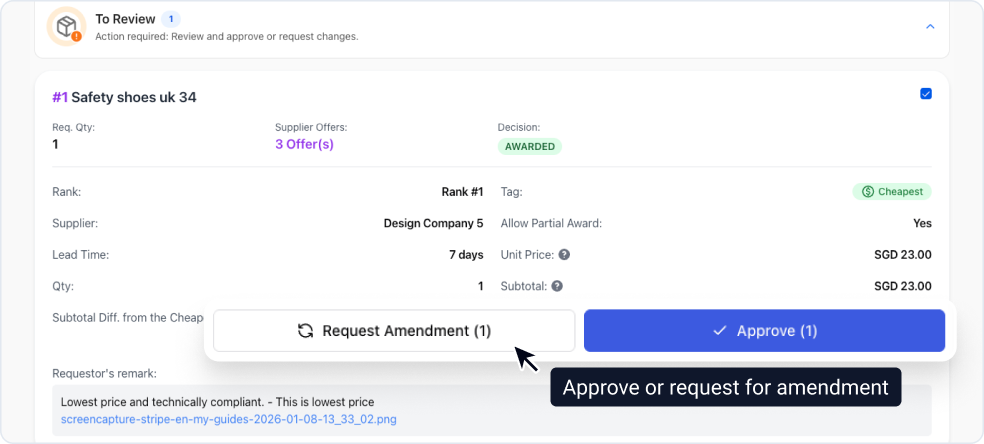 Once you've made the award decision, it routes through your organization's approval chain. Approvers can:
* Review bid comparisons and evaluation scores
* See the justification for the selected supplier(s)
* Approve, reject, or request changes
Approval workflows are configurable based on purchase value, category, or department.
Once you've made the award decision, it routes through your organization's approval chain. Approvers can:
* Review bid comparisons and evaluation scores
* See the justification for the selected supplier(s)
* Approve, reject, or request changes
Approval workflows are configurable based on purchase value, category, or department.
Purchase Order Created [#purchase-order-created]
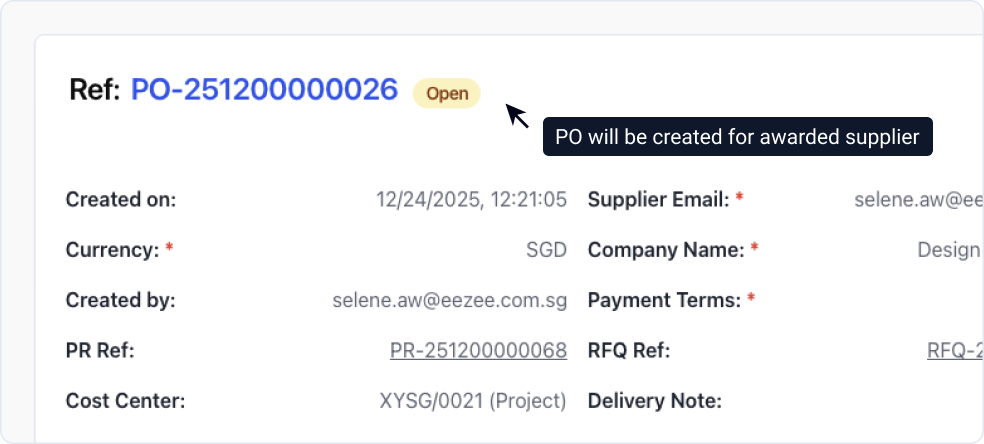 Upon final approval, ProcureFlow automatically generates Purchase Orders for each awarded supplier. The POs include:
* Agreed pricing and quantities
* Delivery schedule
* Terms and conditions
* Reference to the original RFQ for audit trail
Suppliers receive PO notifications through the portal, completing the procurement cycle.
FAQ [#faq]
Upon final approval, ProcureFlow automatically generates Purchase Orders for each awarded supplier. The POs include:
* Agreed pricing and quantities
* Delivery schedule
* Terms and conditions
* Reference to the original RFQ for audit trail
Suppliers receive PO notifications through the portal, completing the procurement cycle.
FAQ [#faq]