Create an Auction
Set up a 3-round sealed-bid reverse auction and invite suppliers.
Last updated 12 October 2026
Who can use this?
Available to Procurement Buyer, Procurement Admin, and Admin.
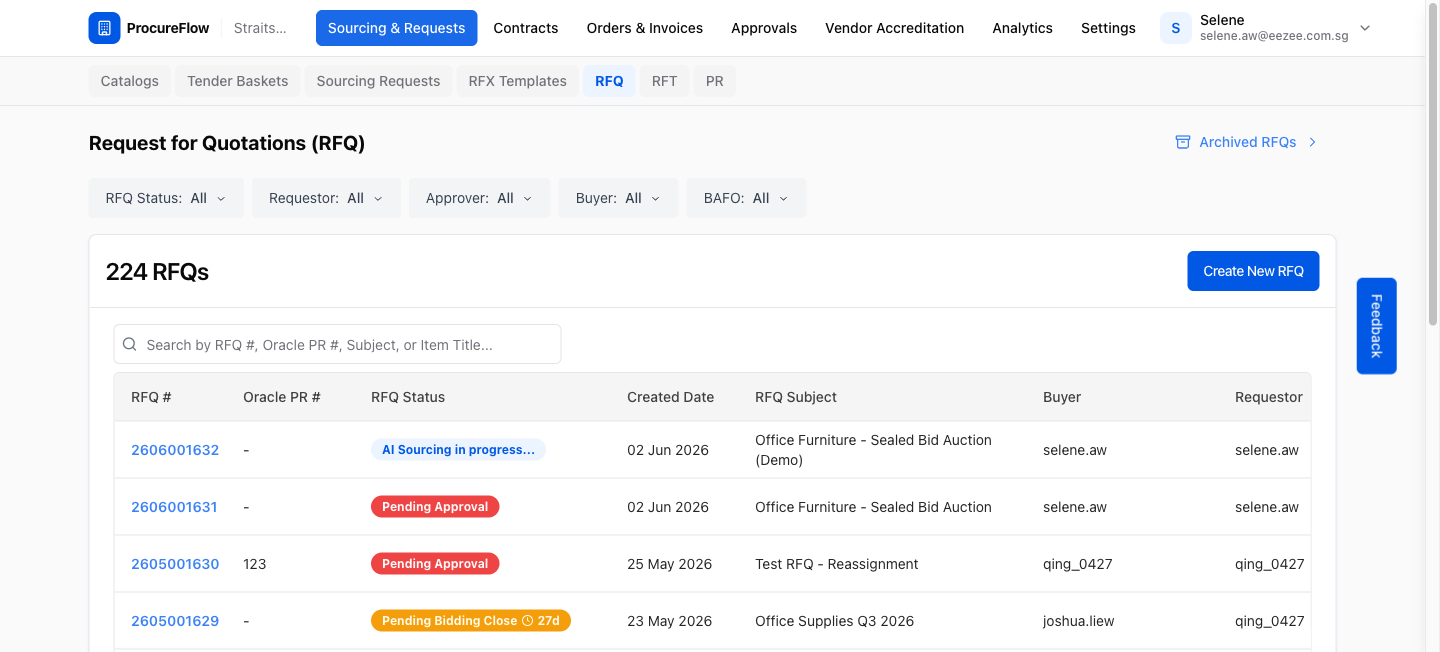
RFQ List
- Navigate to Sourcing & Requests in the top navigation.
- Select RFQ from the sub-menu.
- Click the Create New RFQ button to begin.
Create New RFQ
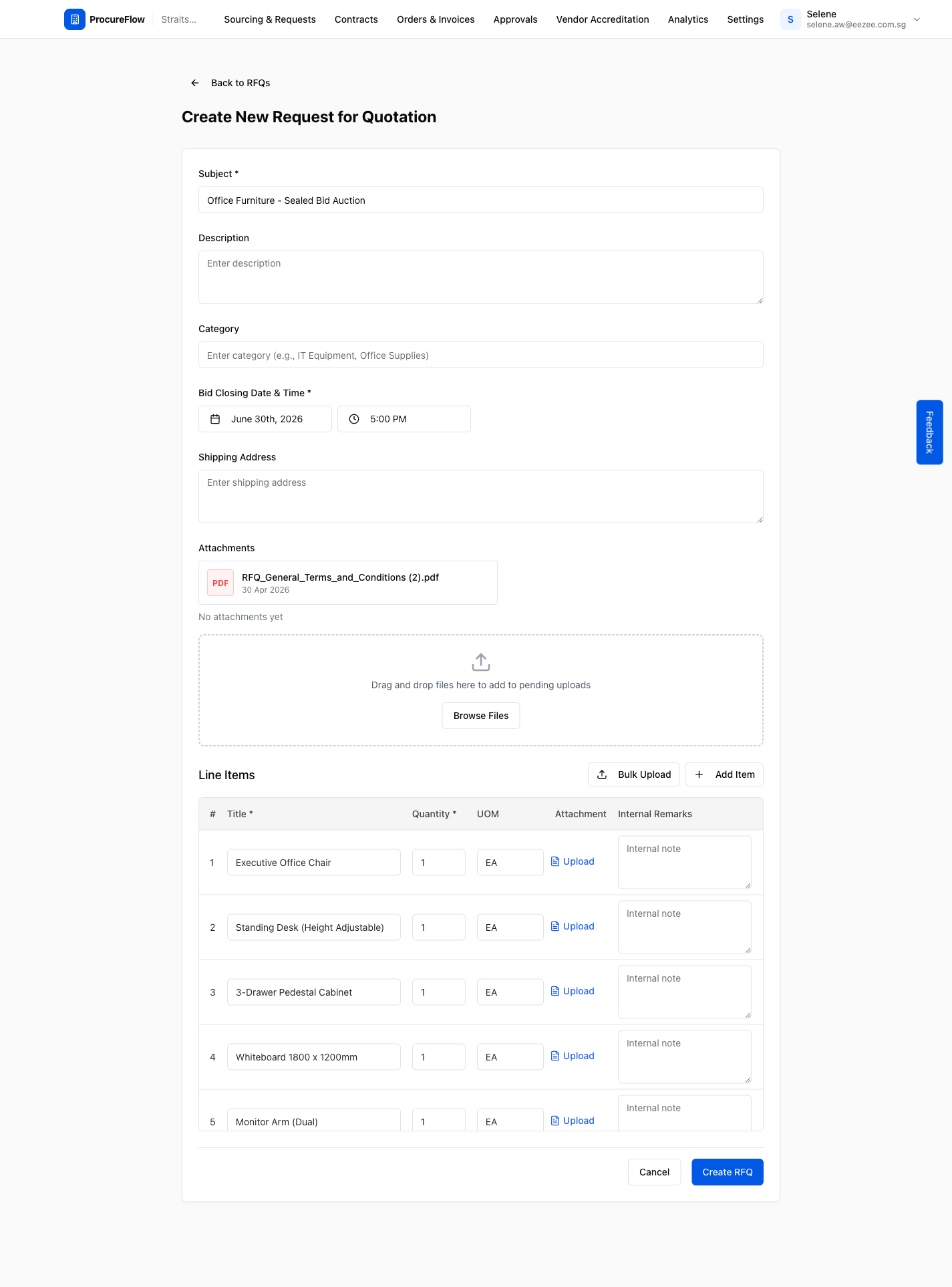
- Fill in the Subject.
- Set the Bid Closing Date & Time.
- Under Line Items, click Add Item to add each item and enter its title and quantity.
- When all items are entered, click the Create RFQ button at the bottom.
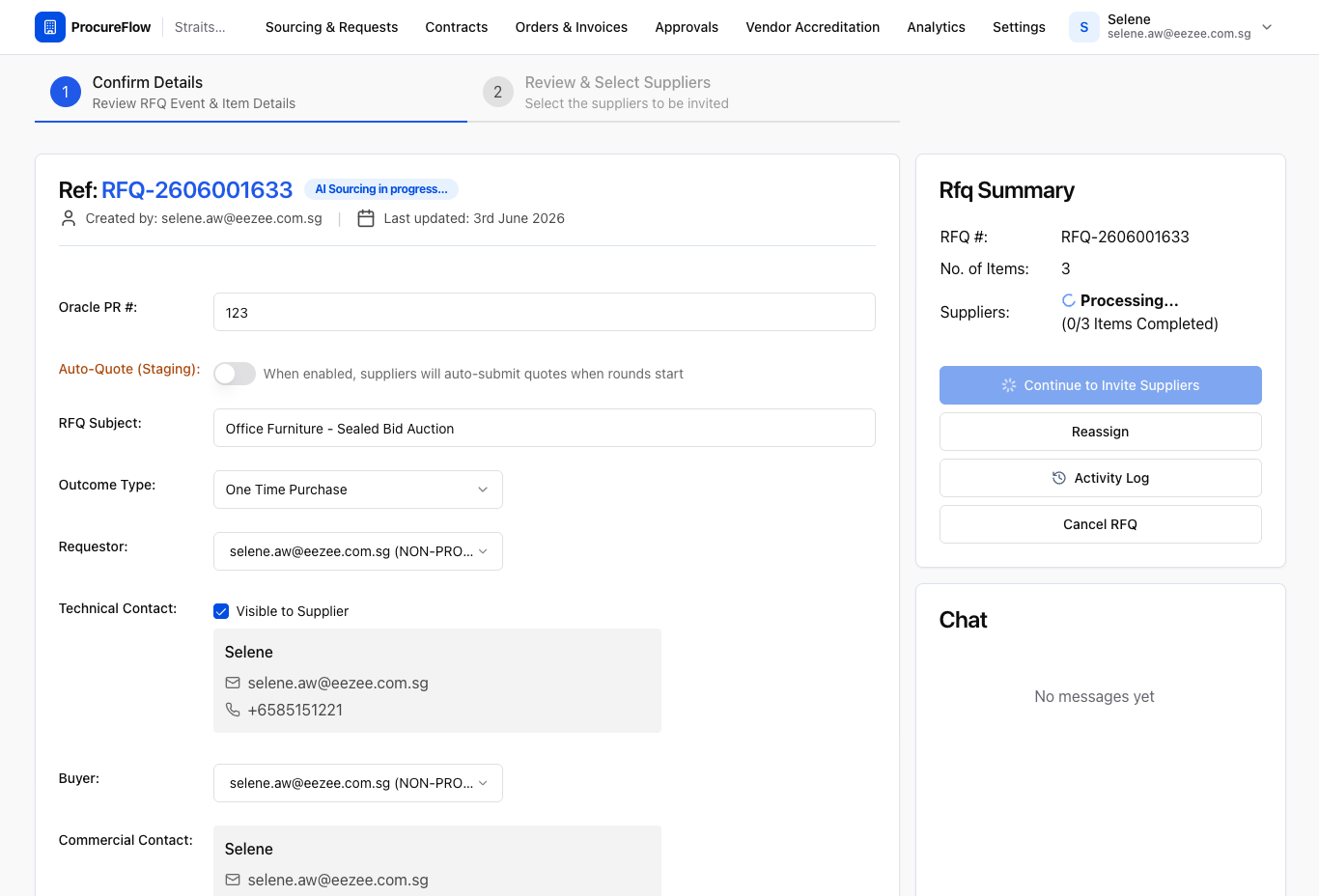
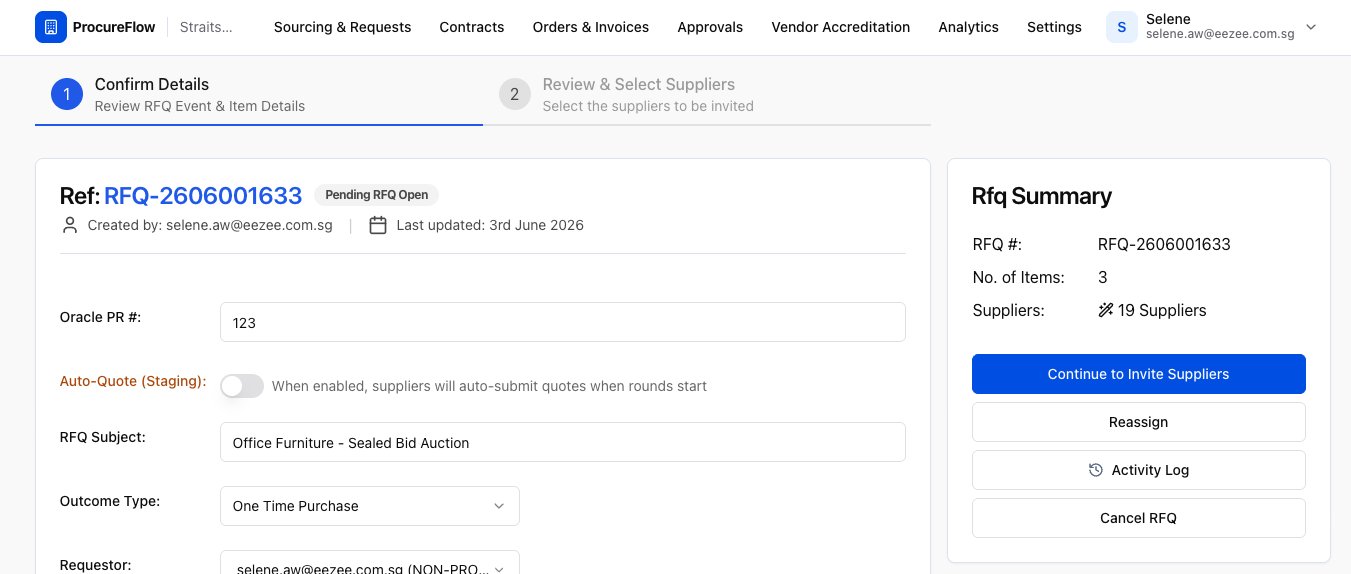
Confirm Details
The RFQ is created and AI sourcing begins.
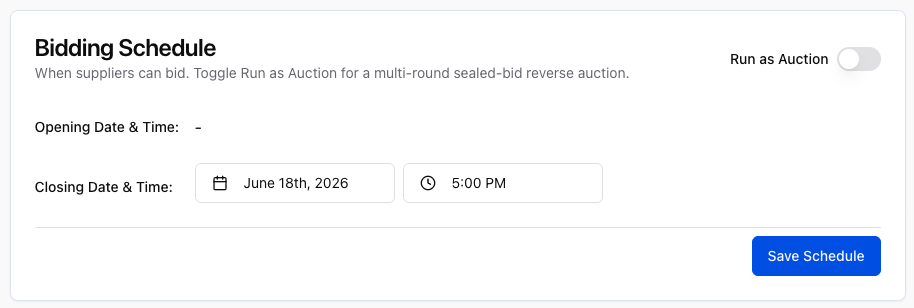
Scroll down to the Bidding Schedule card.
Enable Auction Mode
Toggle Run as Auction to ON.
Auction configuration fields will be expanded.
Configure 3 Rounds
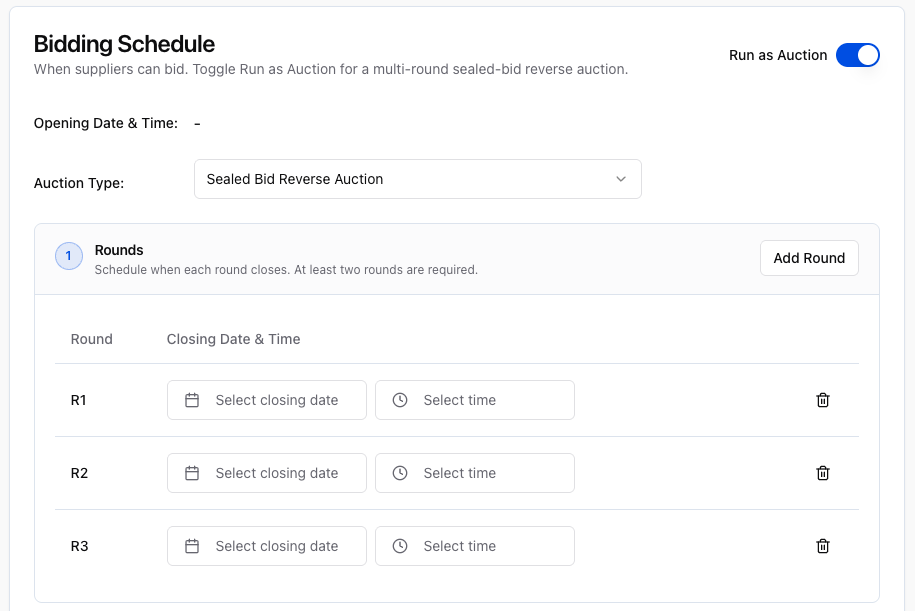
- Select Sealed Bid Reverse Auction as the auction type.
- Set a closing date and time for each round.
- Click Add Round to add more rounds as needed.
Participation Requirement
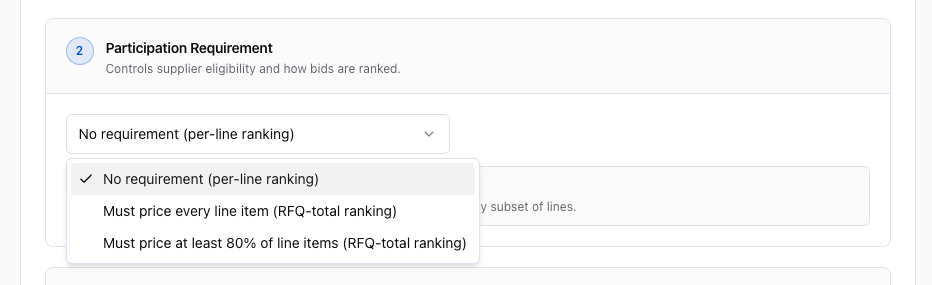
Optionally adjust the Participation Requirement to control how suppliers are eligible to bid and how their bids are ranked. There are three options:
- No requirement (per-line ranking): Each line item is ranked independently. Suppliers may bid on any subset of lines and are still eligible.
- Must price every line item (RFQ-total ranking): Suppliers must submit a price for every line item. Bids are ranked by the total RFQ value.
- Must price at least 80% of line items (RFQ-total ranking): Suppliers must price at least 80% of lines to qualify. Bids are ranked by total RFQ value.
Enter Starting Bid Prices
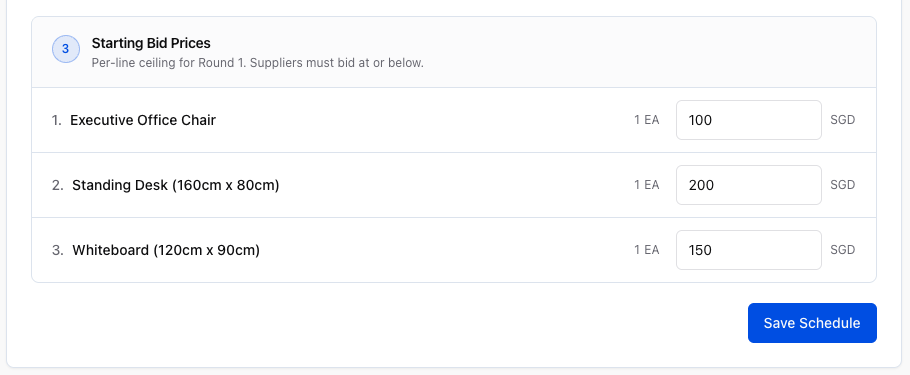
- Under Starting Bid Prices, enter the per-line price ceiling for Round 1.
- Once all prices are filled in, click Save Schedule to confirm the auction configuration.
Note: Suppliers must bid at or below this amount for each line item.
AI Sourcing Complete
AI sourcing finishes and suggests suppliers.
Click Continue to Invite Suppliers.
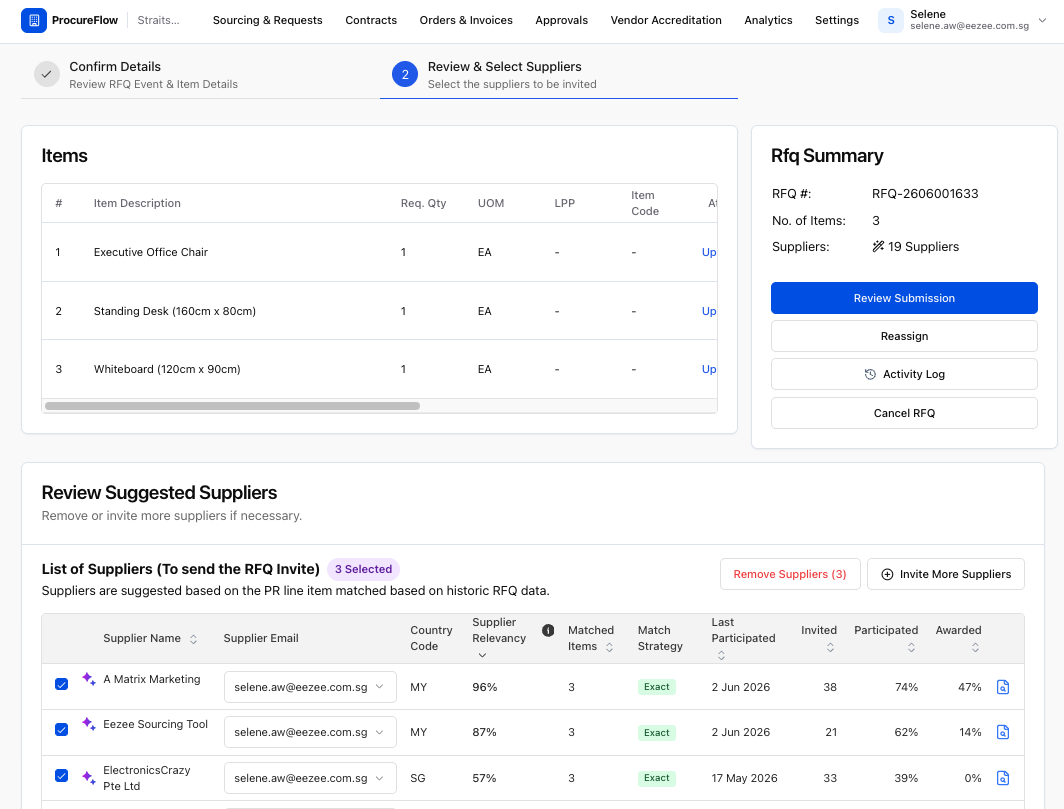
Select Suppliers
- Review the AI-suggested suppliers in the Review Suggested Suppliers table.
- Check the box next to each supplier you want to invite.
- Once you have selected your suppliers, click the Review Submission button to proceed.
Review Send Dialog
- Click Review Submission.
- Verify the auction type, round schedule, starting prices, and invited suppliers.
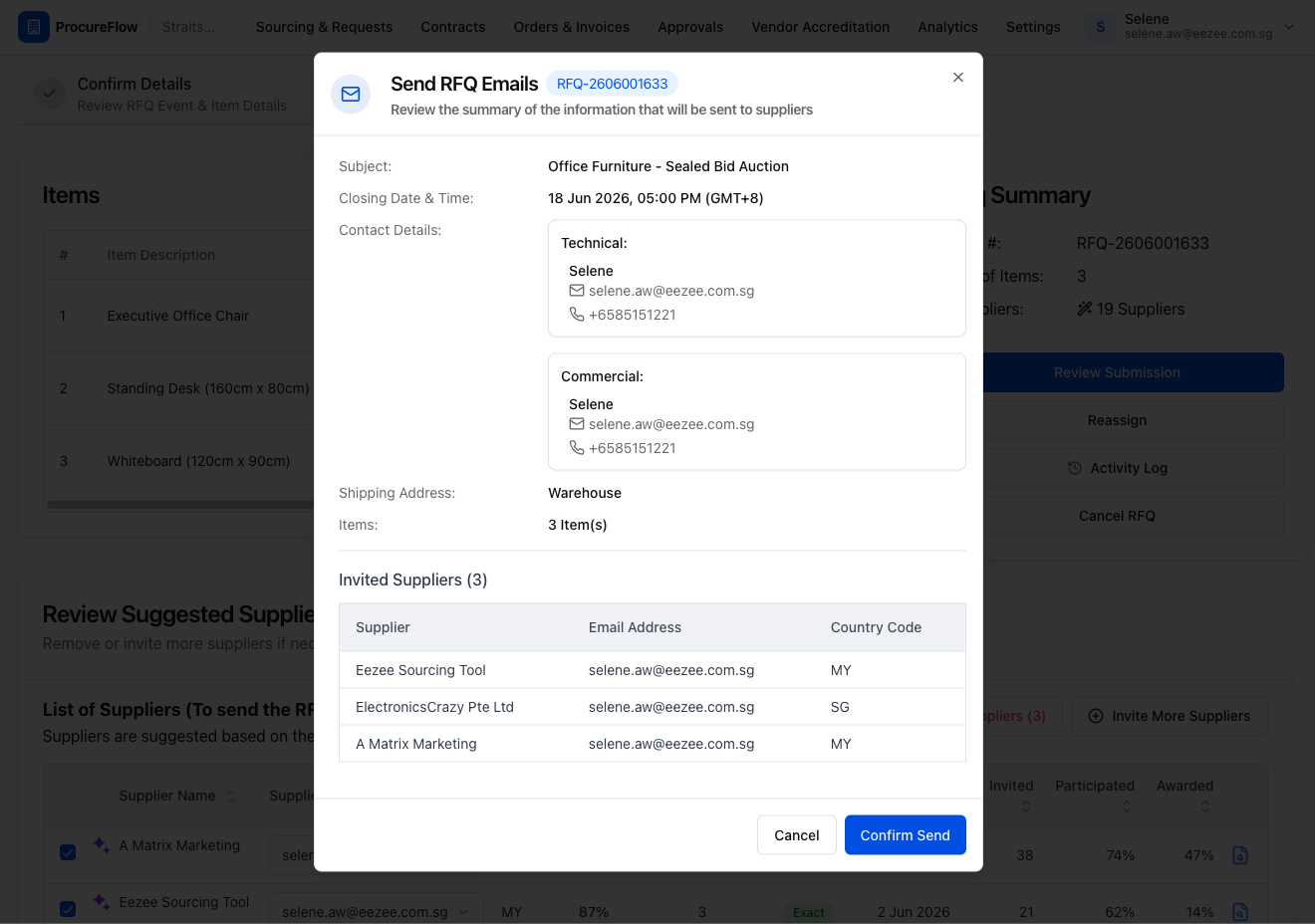
RFQ Sent
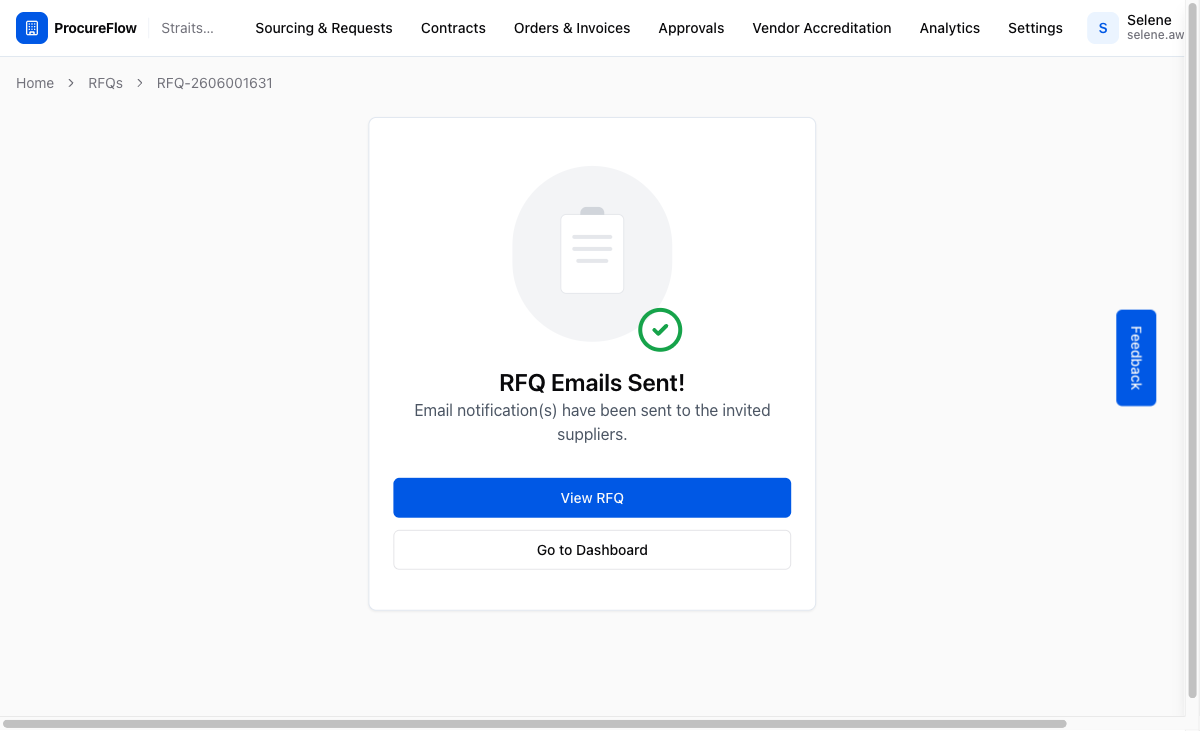
Click Confirm Send.
Invitation emails are dispatched and Round 1 opens immediately.