Review Goods Receipt
Review a supplier's delivery, confirm the items received match the Purchase Order, and accept or reject the goods receipt.
Last updated 12 October 2026
Who can use this?
Available to Requestor users who own the Purchase Order. Only the PO requestor can accept or cancel a supplier's goods receipt.
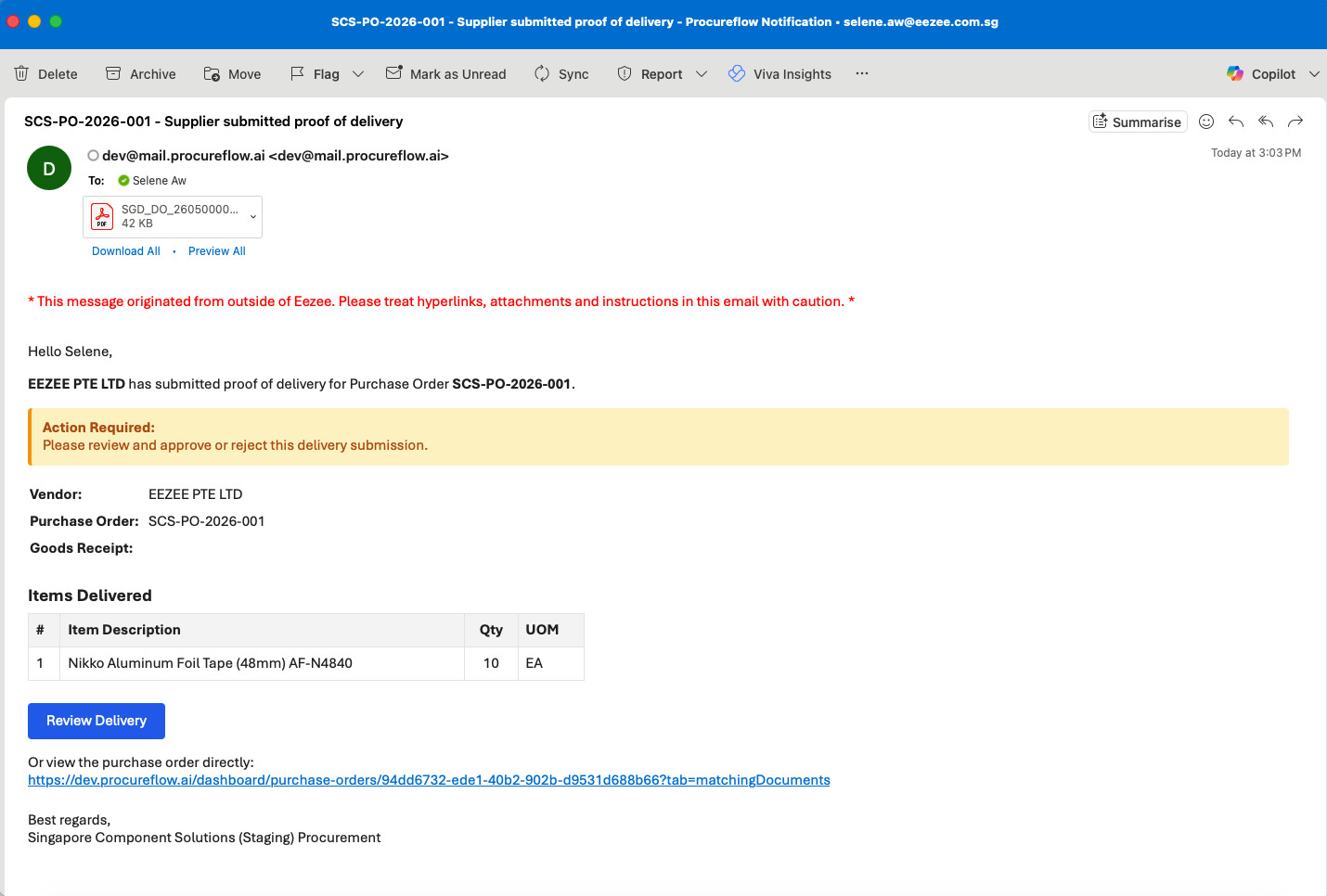
Open the Goods Receipt Notification Email
When a supplier submits a Goods Receipt for your Purchase Order, you will receive a system email from ProcureFlow. The email shows the PO reference, supplier name, and delivered items.
Click the Review Delivery button in the email to go directly to the GR review page.
Open the Goods Receipt Tab
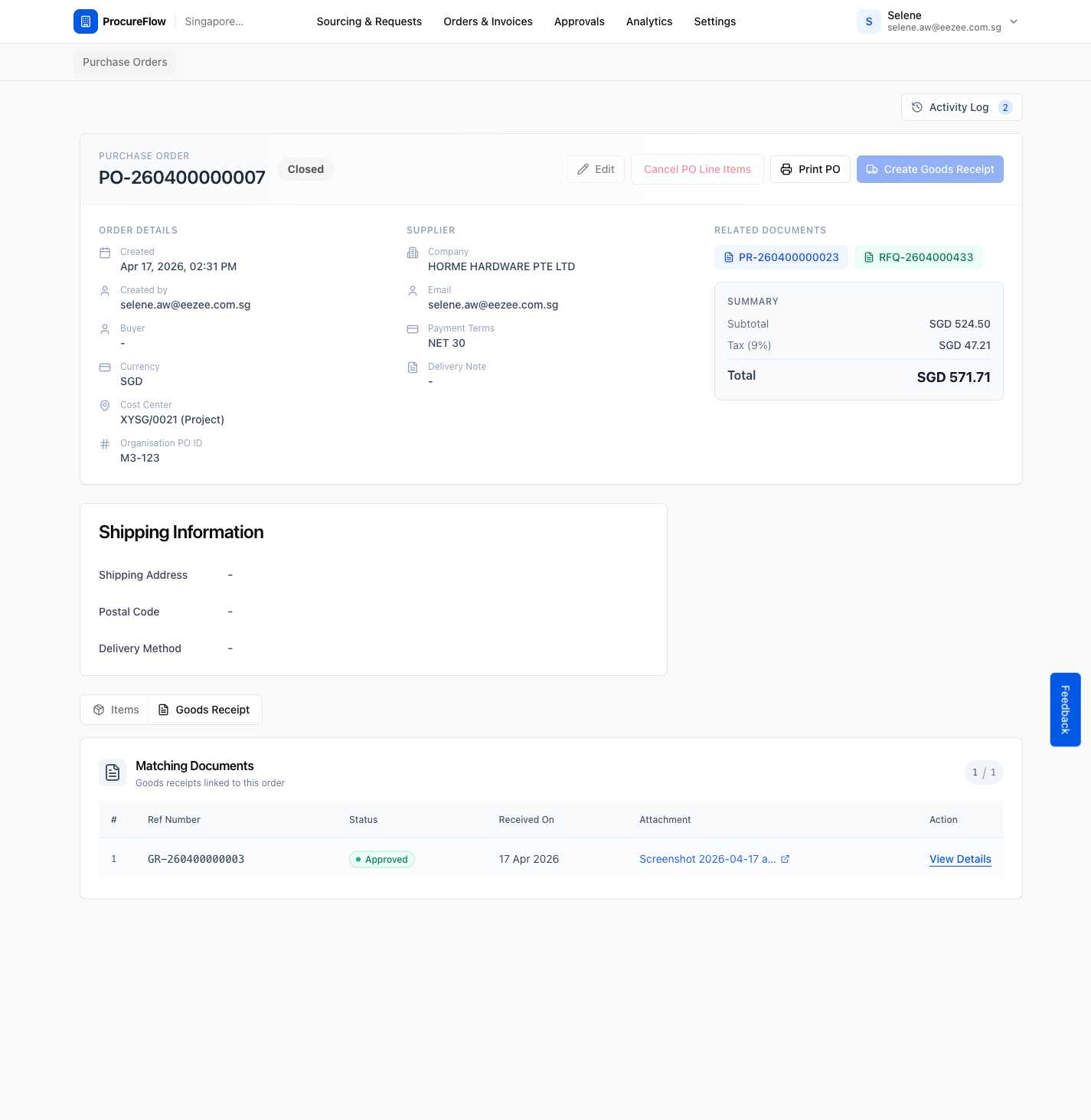
On the PO detail page, click the Goods Receipt tab at the bottom of the page.
This shows all GRs linked to this PO. When the supplier submits a delivery, it will appear here with status Pending Acceptance.
Review the GR Details
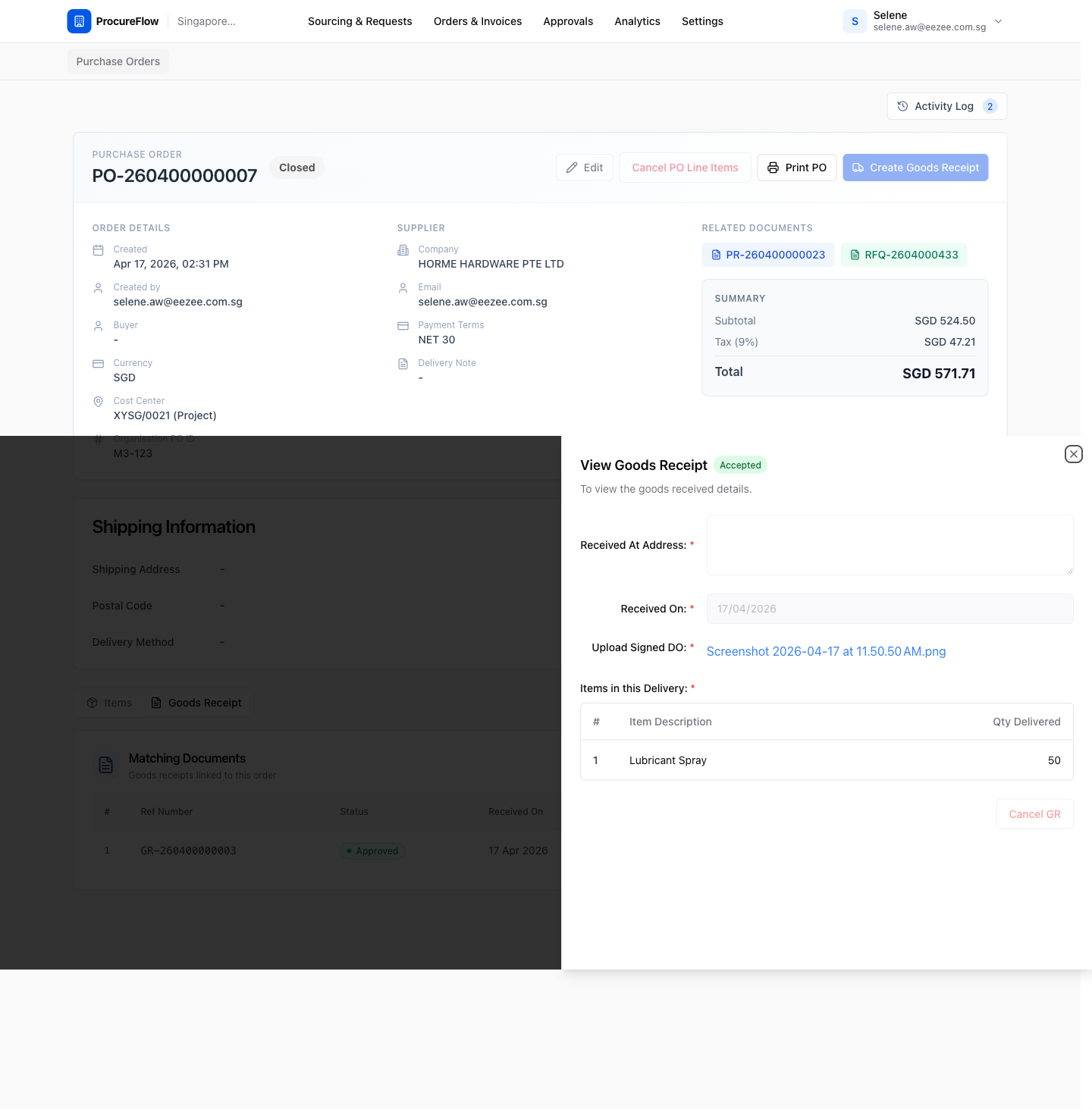
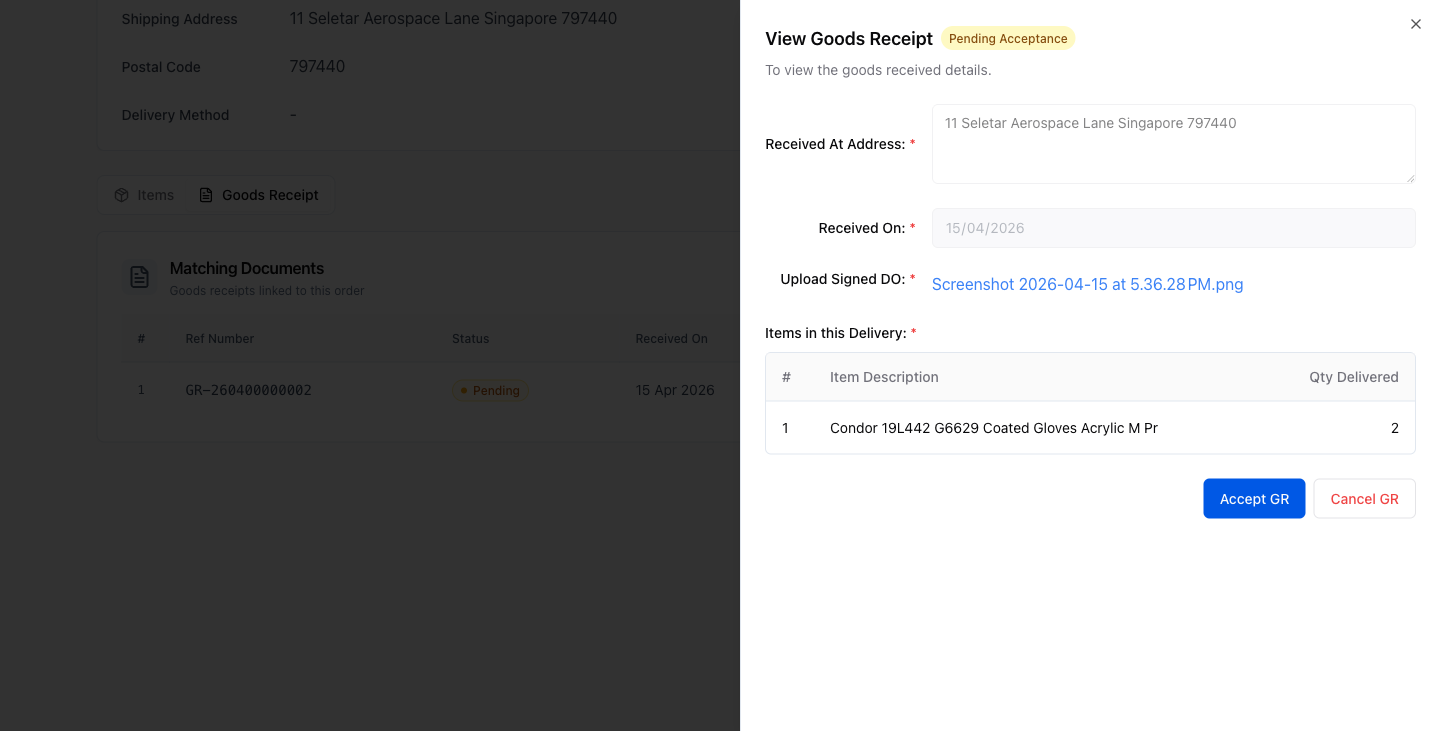
Click View Details next to the GR. A panel will slide in showing:
- Received At Address
- Received On date
- Signed DO attachment (if uploaded by supplier)
- Items in this Delivery: product name and quantity delivered
Verify that the quantity received matches what was ordered.
Accept the GR
If the delivered goods match the PO in quantity and description, click the blue Accept GR button.
Once you accept:
- The GR status changes to Accepted.
- The PO moves to Closed.
- The supplier is notified that the delivery has been accepted.
Cancel (Reject) the GR
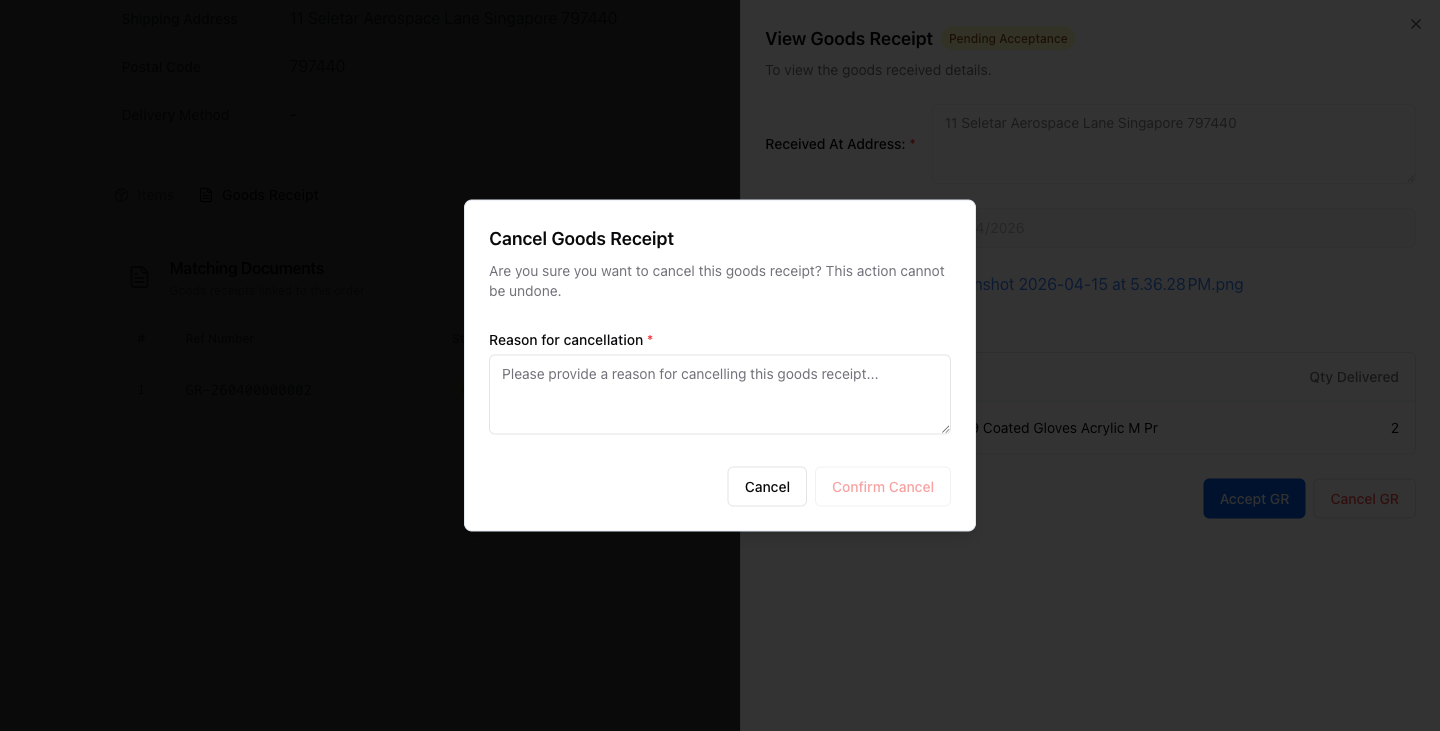
If there are discrepancies (wrong quantity, wrong items, or damaged goods), click the Cancel GR button instead.
A confirmation dialog will appear asking you to enter a Reason for cancellation.
Once submitted:
- The GR status changes to Cancelled.
- The supplier is notified with your reason so they can arrange a re-delivery or correction.