Convert to RFQ
How to confirm a consolidated Sourcing Request and create a new draft RFQ ready for supplier invitations and bidding.
Last updated 12 October 2026
Who can use this?
- Confirming an OPEN Sourcing Request (Part 1) is available to all logged-in users.
- Early conversion of a DRAFT Sourcing Request (Part 2) is restricted to Procurement Buyer and Procurement Admin roles.
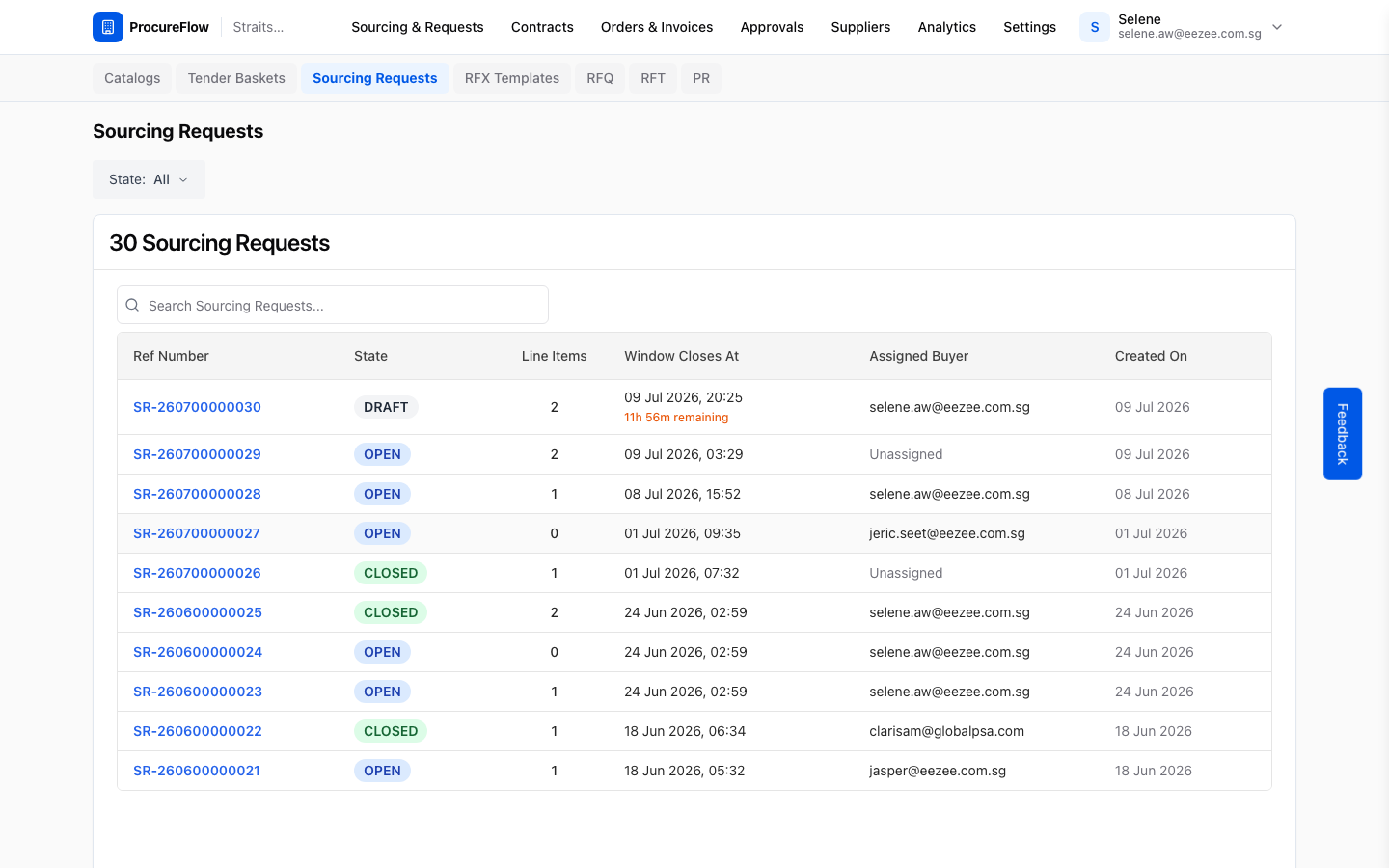
Go to Sourcing Requests
From the top navigation:
- Click Sourcing & Requests.
- Select Sourcing Requests.
The list shows all requests with their current state.
Look for one with an OPEN badge, which means its consolidation window has closed and it is ready to convert.
Open the Sourcing Request
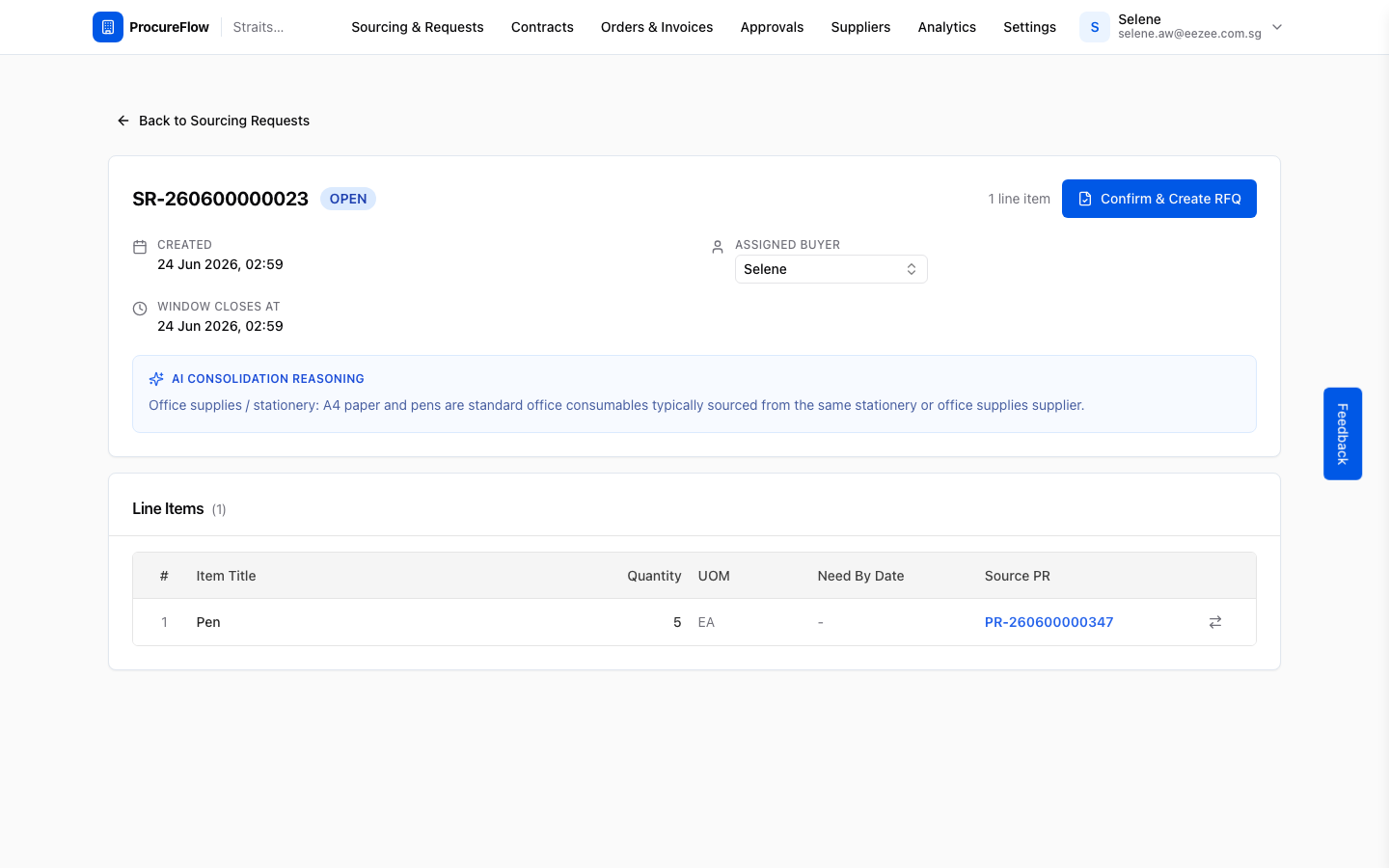
Click the reference number (e.g. SR-260600000023) to open the detail page.
- Review the header to confirm the state is OPEN.
- Check the assigned buyer.
- Review the line items table below.
The AI Consolidation Reasoning section explains why these items were grouped together.
Click "Confirm & Create RFQ"
Click the Confirm & Create RFQ button in the top-right.
A confirmation dialog appears showing the number of line items that will be transferred to the new RFQ.
The new RFQ starts in DRAFT state so you can add suppliers before opening it for bidding.
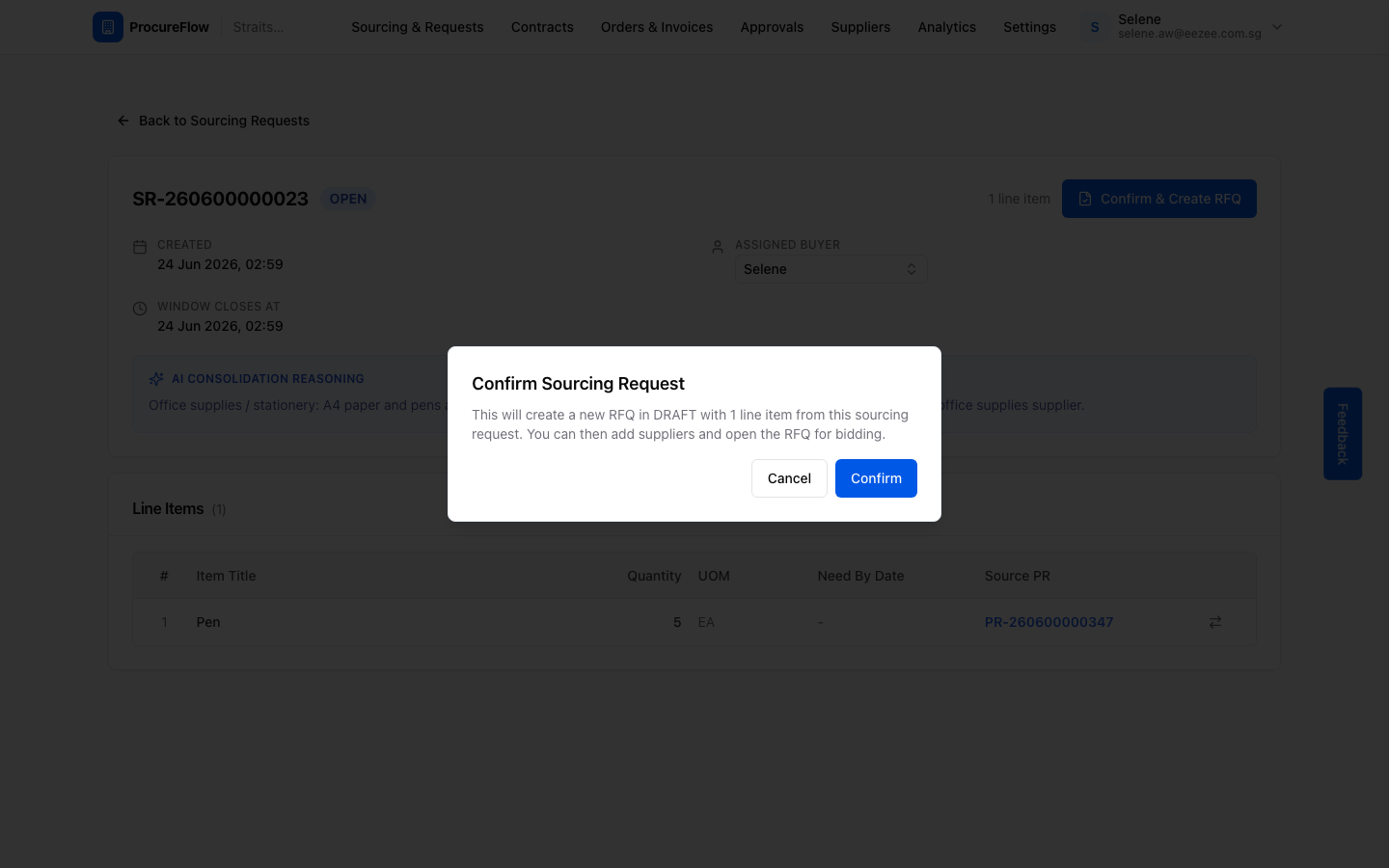
Click Confirm to proceed.
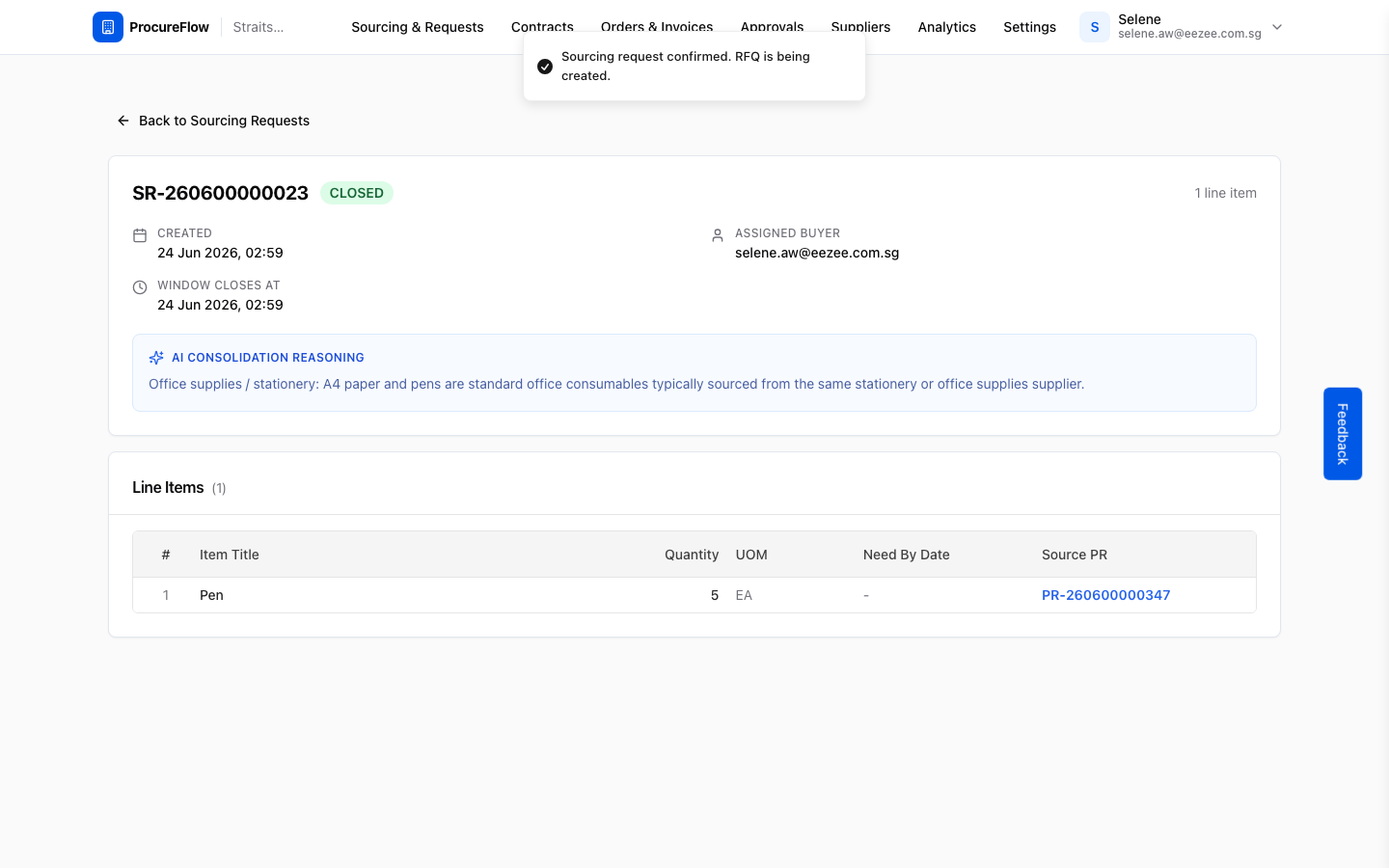
SR closes and RFQ begins creating
After confirming, the Sourcing Request transitions to CLOSED state and a success toast appears: "Sourcing request confirmed. RFQ is being created."
The RFQ is generated in the background; it typically appears within a few seconds.
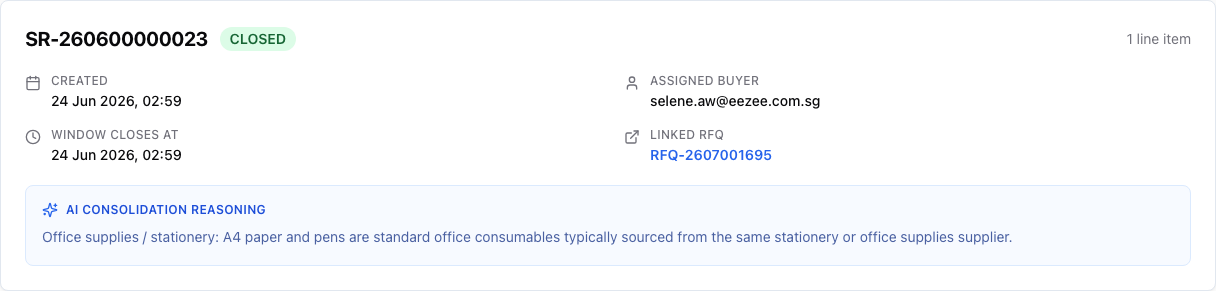
Linked RFQ appears in the header
Once the RFQ is created, refresh the page.
A new Linked RFQ field appears in the sourcing request header with a clickable reference number.
Click it to open the new draft RFQ and begin configuring it for bidding.
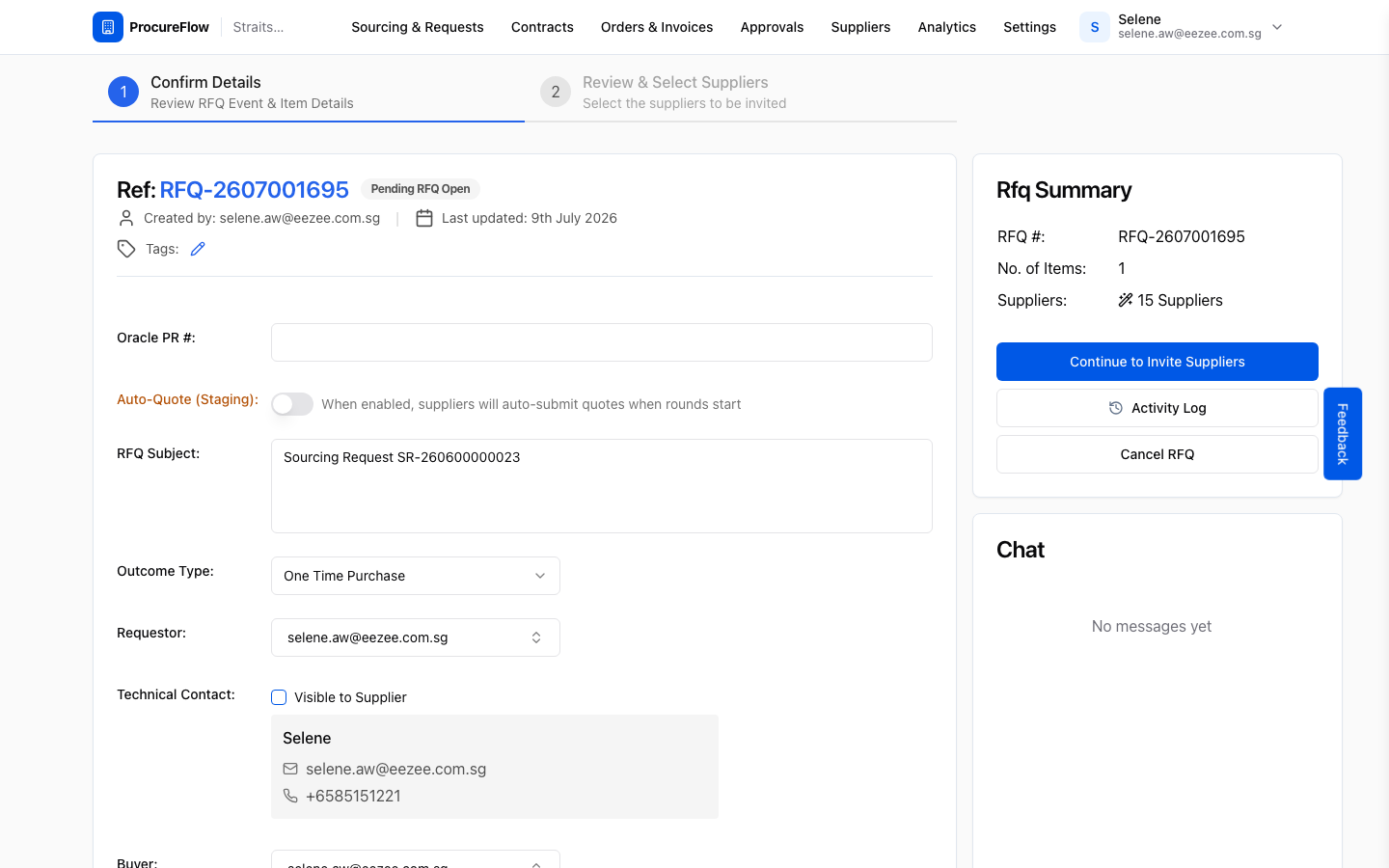
New draft RFQ is ready
The new RFQ opens at Step 1: Confirm Details, pre-filled with the sourcing request's subject and line items.
The RFQ Summary panel shows the item count and the number of pre-loaded suppliers.
From here, review the RFQ details, then click Continue to Invite Suppliers to select which suppliers to invite for bidding.
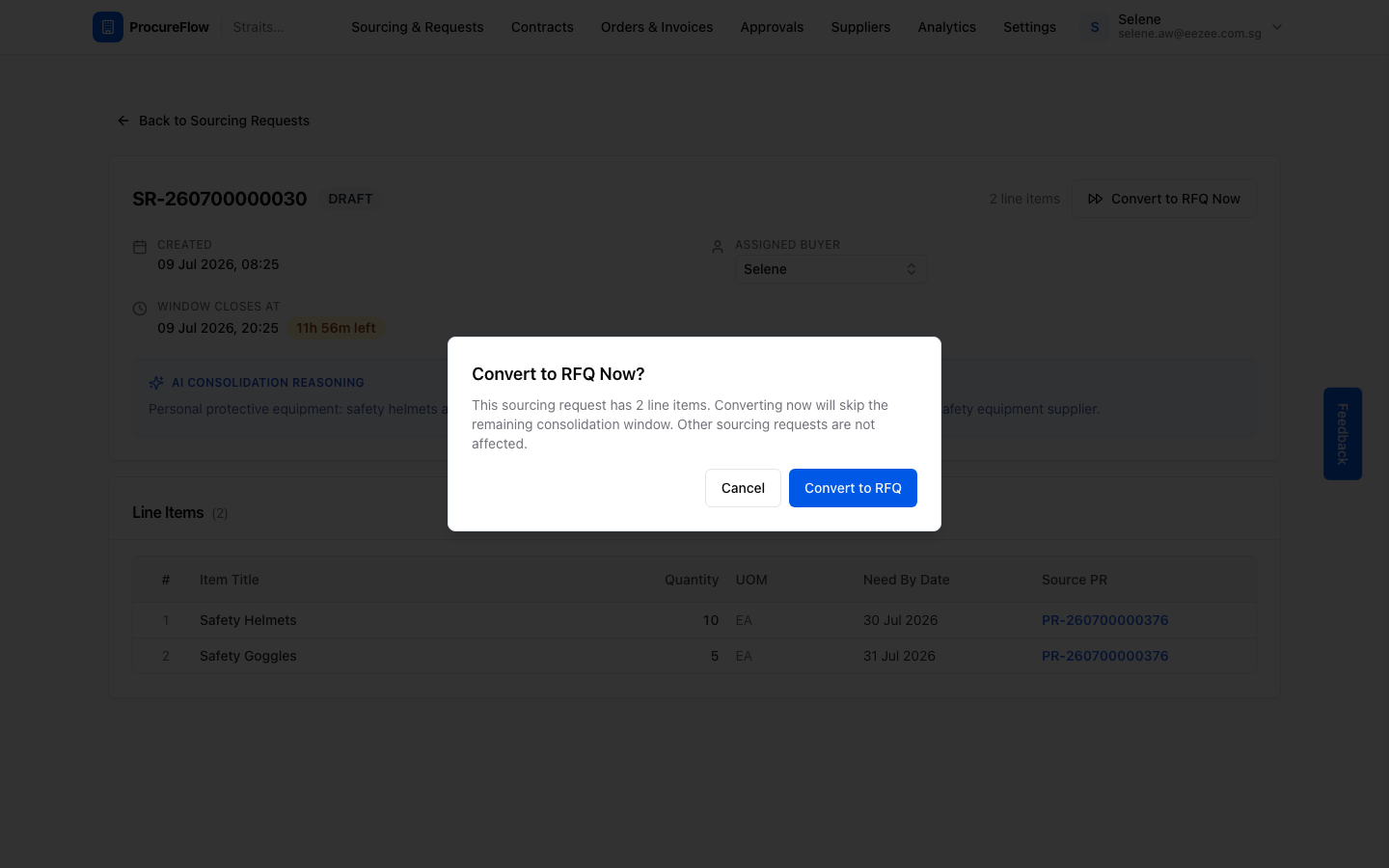
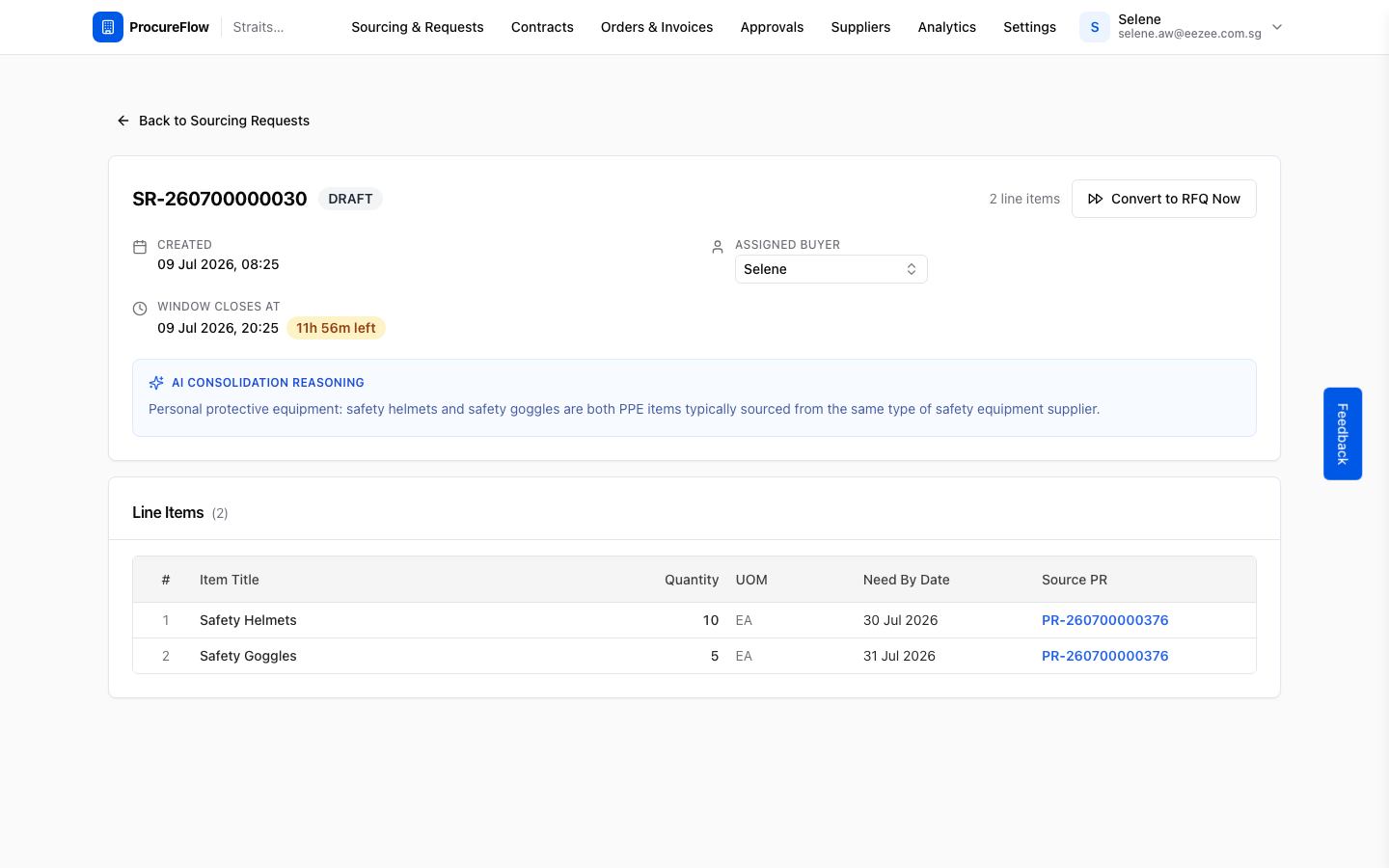
Open a DRAFT Sourcing Request
A DRAFT sourcing request is still within its consolidation window, meaning other purchase request line items may still be added to it. Buyers and Admins can skip the remaining window and convert it immediately.
Open the DRAFT SR from the list.
Click "Convert to RFQ Now" and confirm
Click Convert to RFQ Now in the top-right.
The dialog explains that converting now will skip the remaining consolidation window and that other sourcing requests are not affected.
Click Convert to RFQ to confirm.