3-Way Invoice Match Approval
Review and approve, or report a mismatch on, a supplier invoice assigned to you for match verification.
Last updated 12 October 2026
Who can use this?
Available to any Organisation User who has been assigned as an approver on an invoice match approval step. Finance and admin roles are not required.
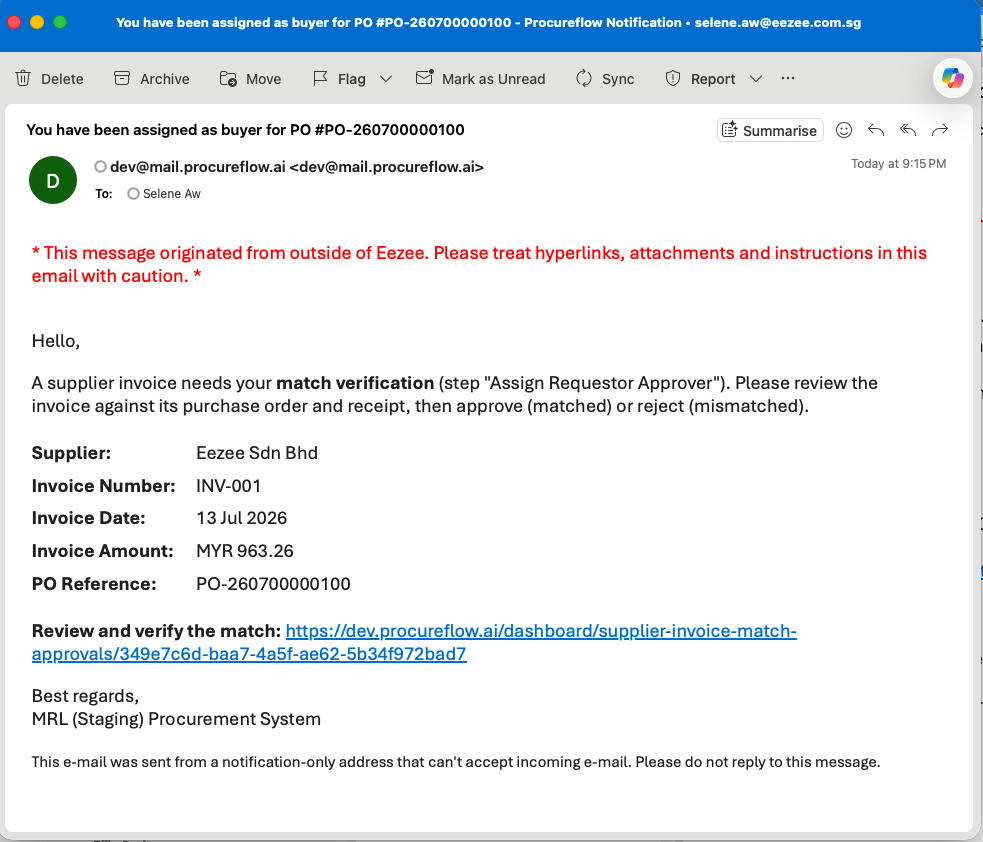
Receive the email notification
When a supplier invoice is routed to your approval step, ProcureFlow sends you an email from [email protected].
The email lists:
- The supplier name
- The invoice number
- The invoice date
- The invoice amount
- The linked PO reference
Click the Review and verify the match link to go directly to the approval page.
Review the invoice match
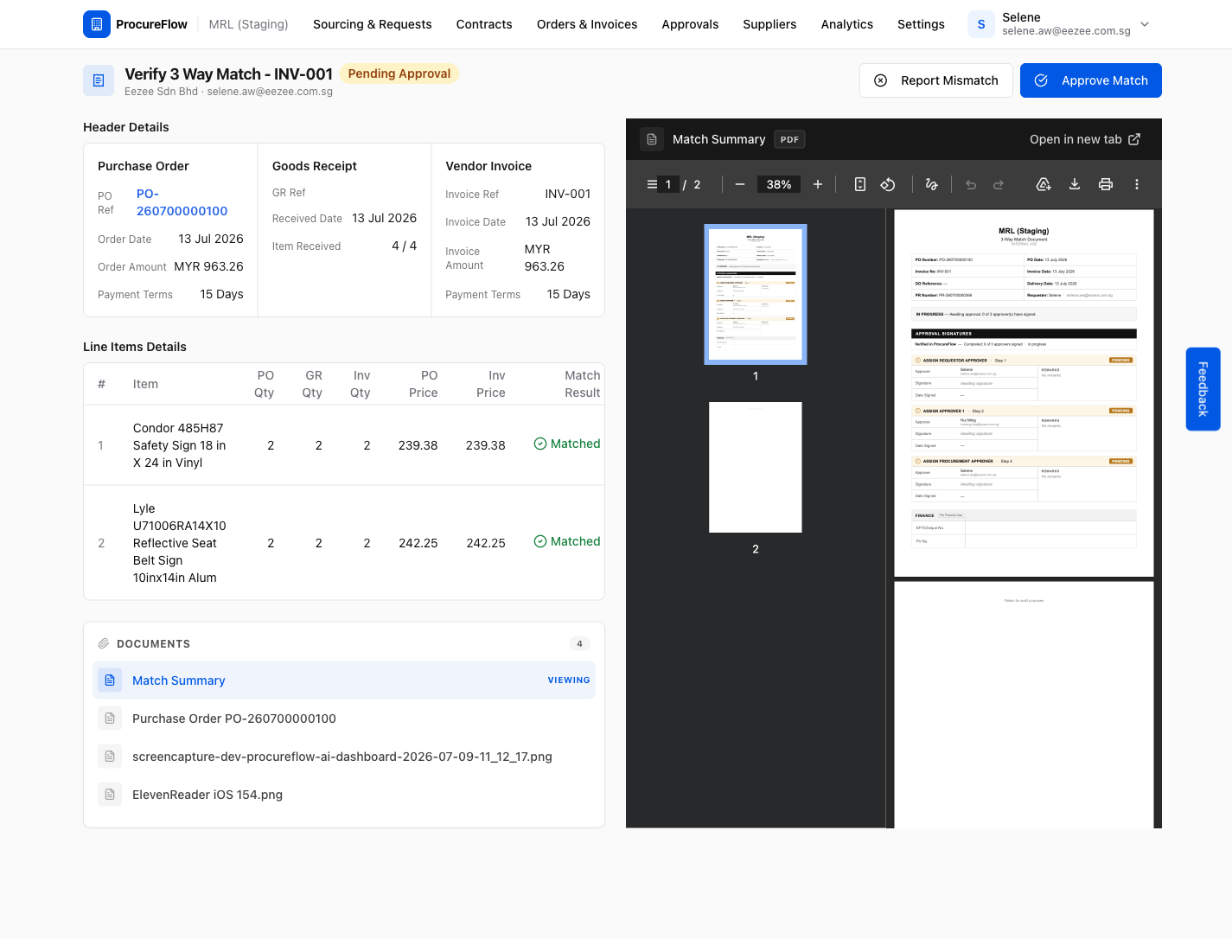
Under Header Details, the review page shows three columns side by side:
- The Purchase Order
- The Goods Receipt
- The Vendor Invoice
Check that the order amounts, dates, quantities, and payment terms align across all three documents.
Below this, the Line Items Details table compares PO quantity, GR quantity, and invoice quantity for each line, and shows a Matched or Mismatched verdict per line.
On the right, the Match Summary PDF is pre-loaded for reference. You can also switch between the PO, goods receipt proof, and invoice PDF using the Documents panel on the left.
Approve the match
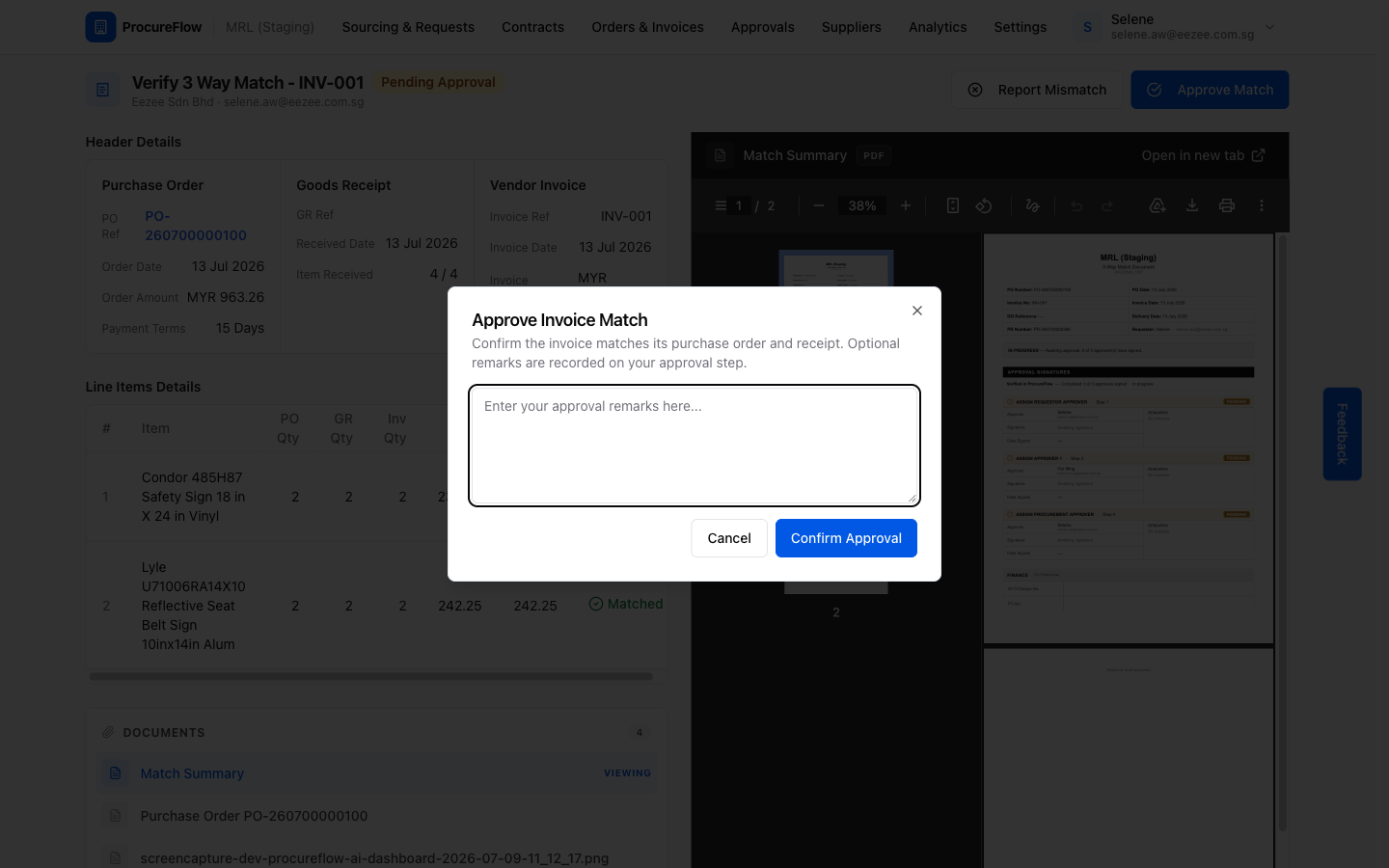
If the invoice matches the PO and receipt, approve it:
- Click Approve Match in the top-right corner. A confirmation dialog opens.
- Optionally, enter approval remarks: these are recorded against your approval step and visible to finance.
- Click Confirm Approval to submit.
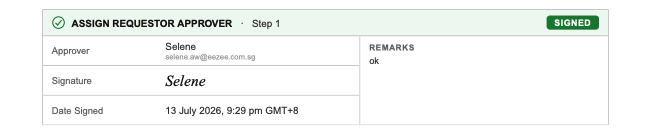
Confirmation: your signature appears on the Match Summary
After confirming approval, the Match Summary PDF updates immediately.
- Your step shows a green SIGNED badge with your name, signature, and the date and time you approved.
- Subsequent steps that are still awaiting sign-off show PENDING.
- The status banner at the top reflects overall progress, for example "Awaiting approval. 1 of 3 approver(s) have signed."
Report a mismatch
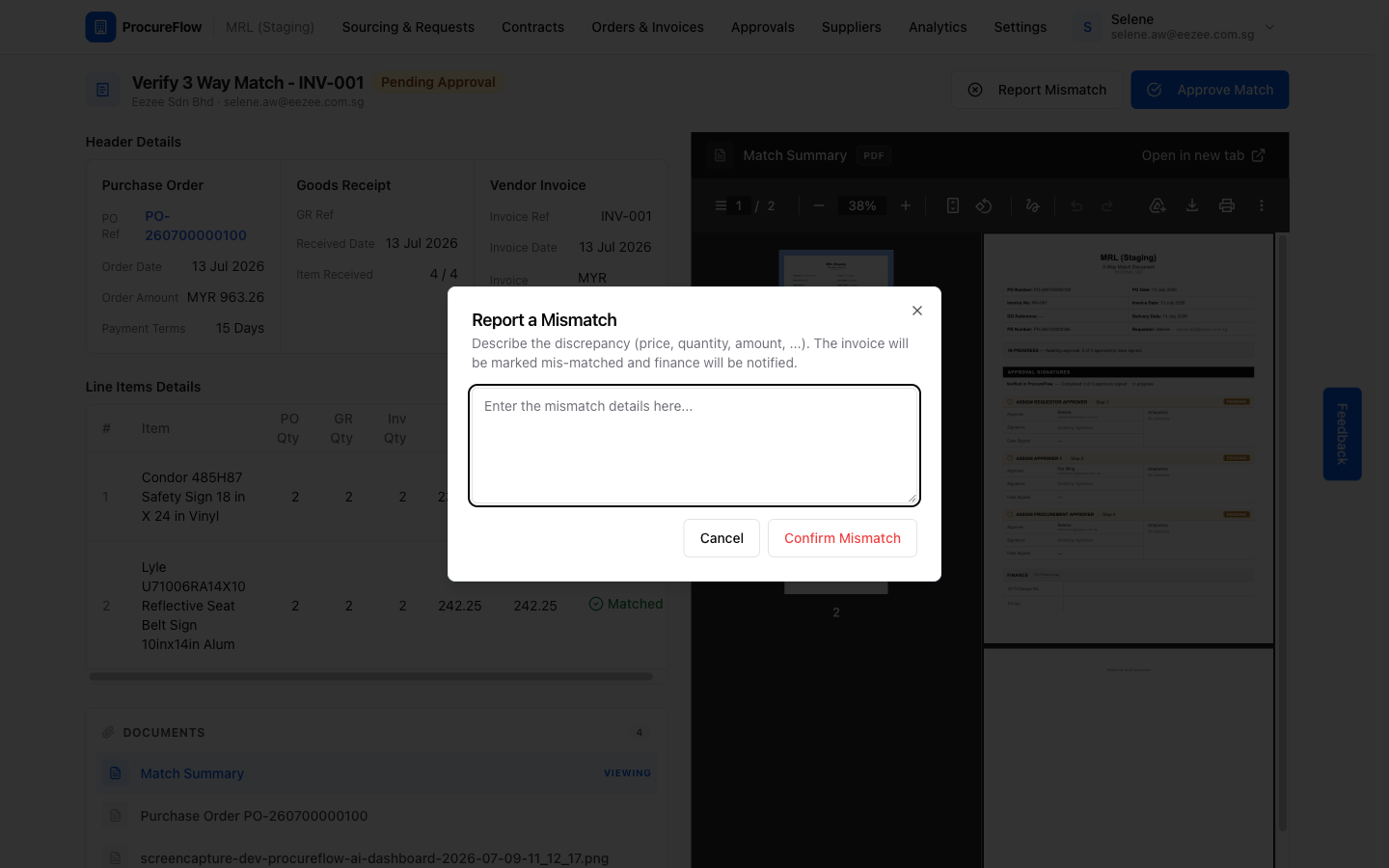
If you find a discrepancy (for example a price difference, quantity shortfall, or wrong payment terms), report it instead of approving:
- Click Report Mismatch. A dialog opens asking you to describe the discrepancy.
- Enter your remarks in the required field. You must explain what does not match before you can submit.
- Click Confirm Mismatch to send.
Confirmation: mismatch recorded on the Match Summary
After confirming a mismatch, the Match Summary PDF updates to reflect the outcome:
- A red MISMATCH REPORTED banner appears at the top, stating the document is not authorised for payment.
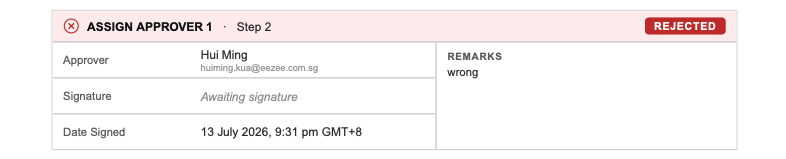
- Your approval step shows a red REJECTED badge with your remarks and the date and time you reported the mismatch.
- All downstream approval steps are automatically CANCELLED. No further approvers need to act.