Resolve a Mismatched Invoice
Review and resolve a flagged invoice mismatch using the three-way match drawer.
Last updated 12 October 2026
Who can use this?
Available to the Procurement Buyer assigned to the PO, plus Procurement Admin and Admin. Finance users can view match details but cannot take resolution actions.
Finding the Mismatch Invoice
Receive the email notification
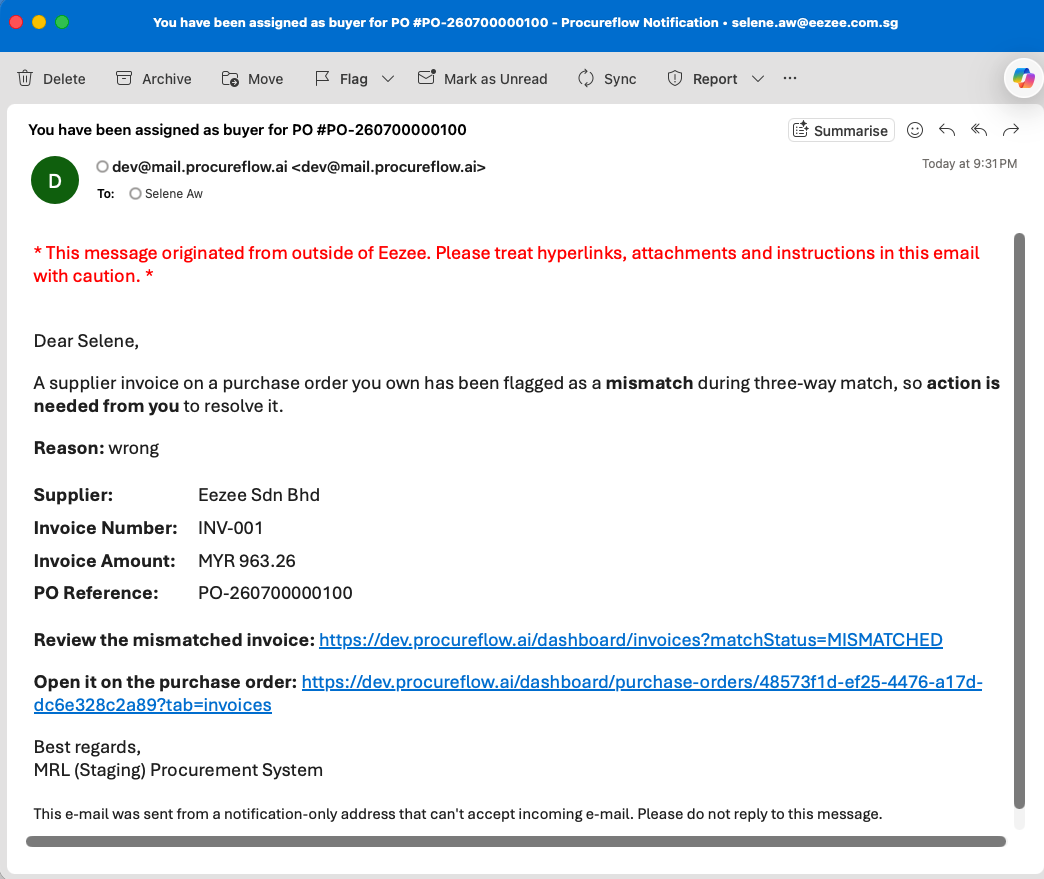
When a supplier invoice fails three-way match, ProcureFlow automatically sends an email to the buyer assigned on the purchase order.
The email includes:
- The mismatch reason.
- The invoice details.
- A direct link to the invoice in the system.
Find the invoice in the Pending Resolution list
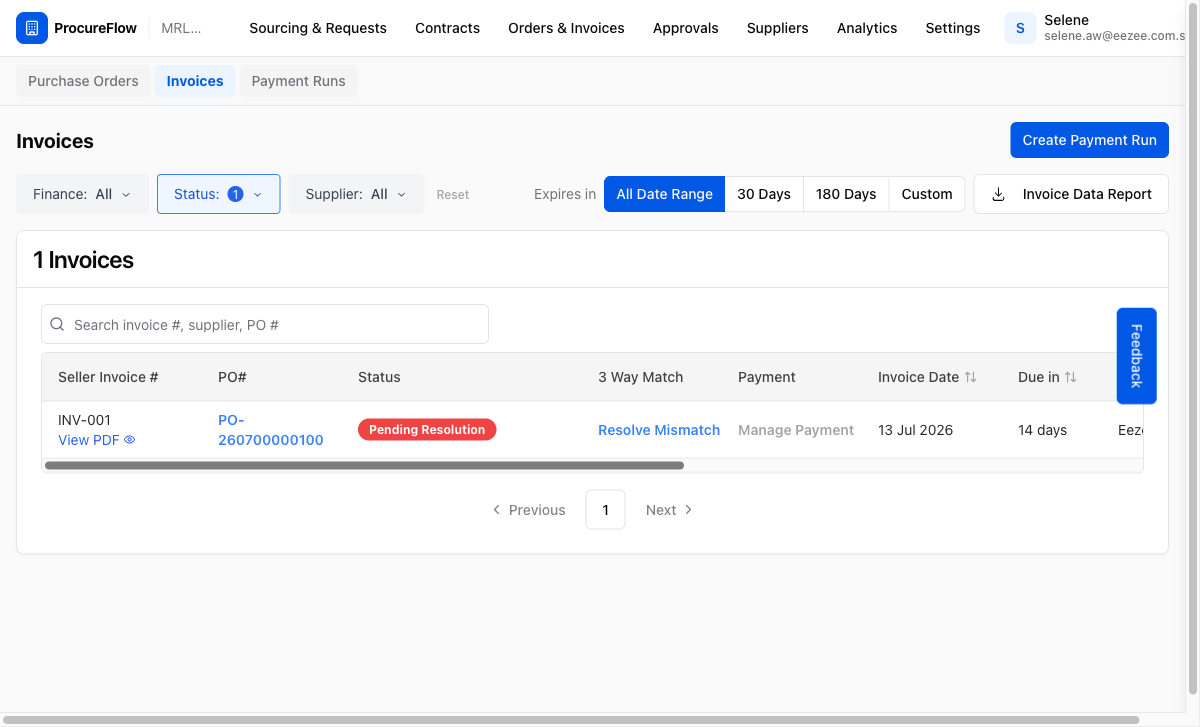
Open the mismatched invoice:
- Navigate to Orders & Invoices > Invoices.
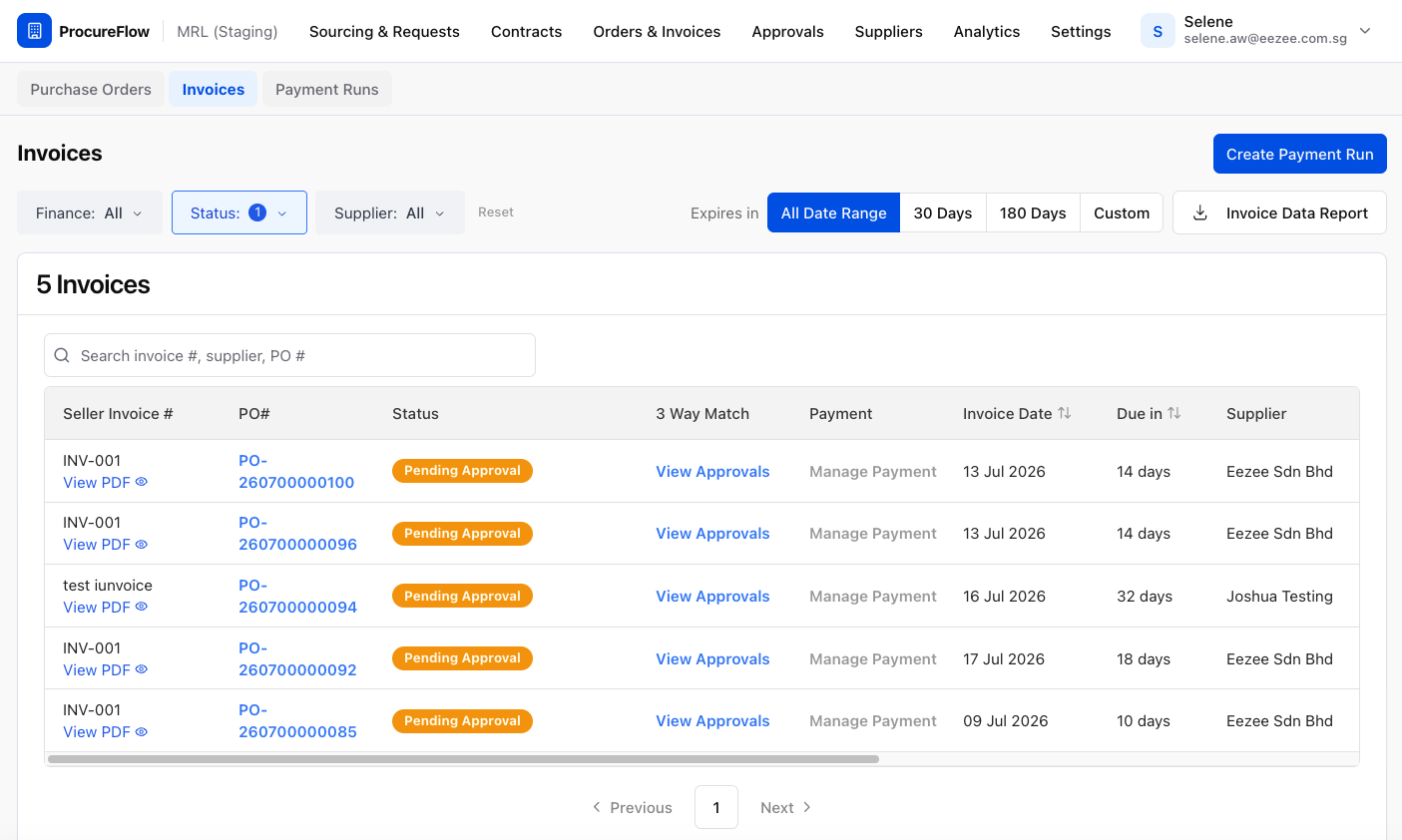
- Filter by Status: Pending Resolution. Any invoice flagged as mismatched and awaiting your action appears here.
- In the 3 Way Match column, click Resolve Mismatch to open the match review drawer.
Reviewing the Mismatch
Review the match details in the drawer
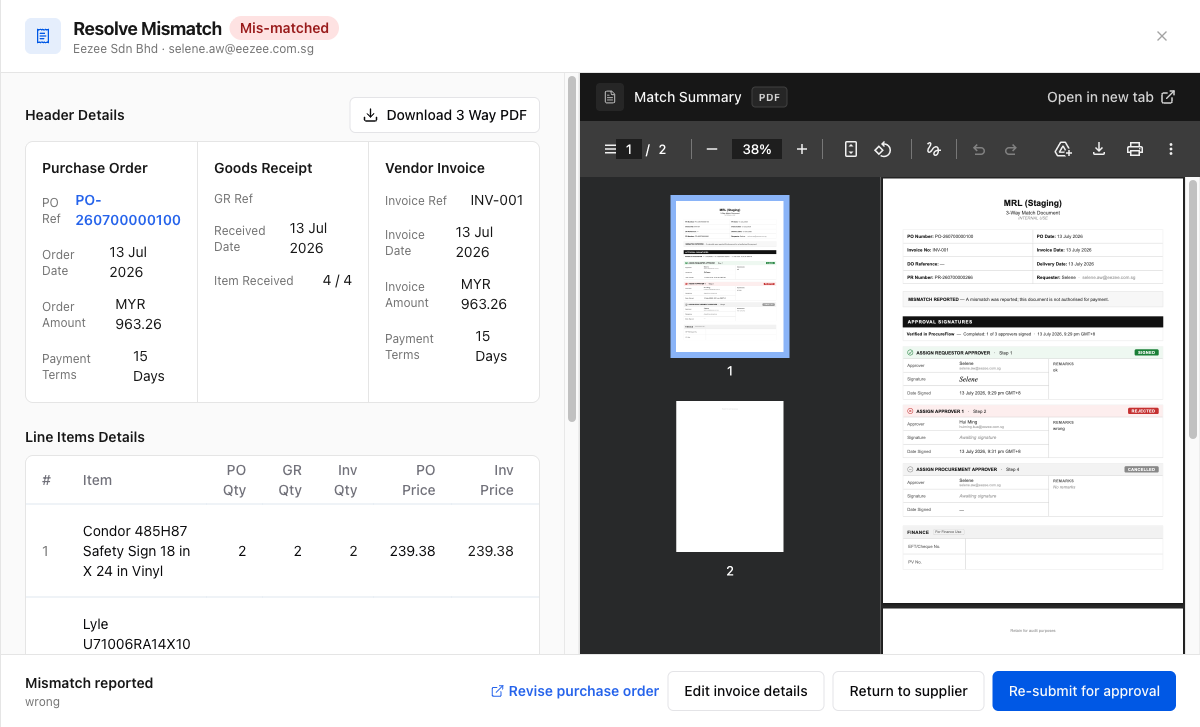
The Resolve Mismatch drawer opens with a side-by-side comparison of the Purchase Order, Goods Receipt, and Vendor Invoice.
Two sections make up the comparison:
- Header Details: order amounts, dates, and payment terms across all three documents.
- Line Items Details: each line with PO quantity, GR quantity, invoice quantity, PO price, and invoice price, so you can spot exactly where the figures diverge.
The right pane shows the Match Summary PDF, which includes the approval chain history.
Switch between the PO, goods receipt, and invoice PDFs using the Documents list below the line items.
Resolution Options
Route A: Re-submit for approval
Use this route when the PO has already been revised or the original mismatch reason no longer applies.
Click Re-submit for approval in the footer. No confirmation dialog appears: the invoice is immediately sent back through a fresh match approval cycle and the drawer closes.
After you re-submit:
- The invoice status changes from Pending Resolution to Pending Approval.
- The 3 Way Match column updates to View Approvals.
- Relevant approvers are notified automatically.
Route B: Return to supplier
Use this route when the invoice itself is incorrect and the supplier needs to re-issue it.
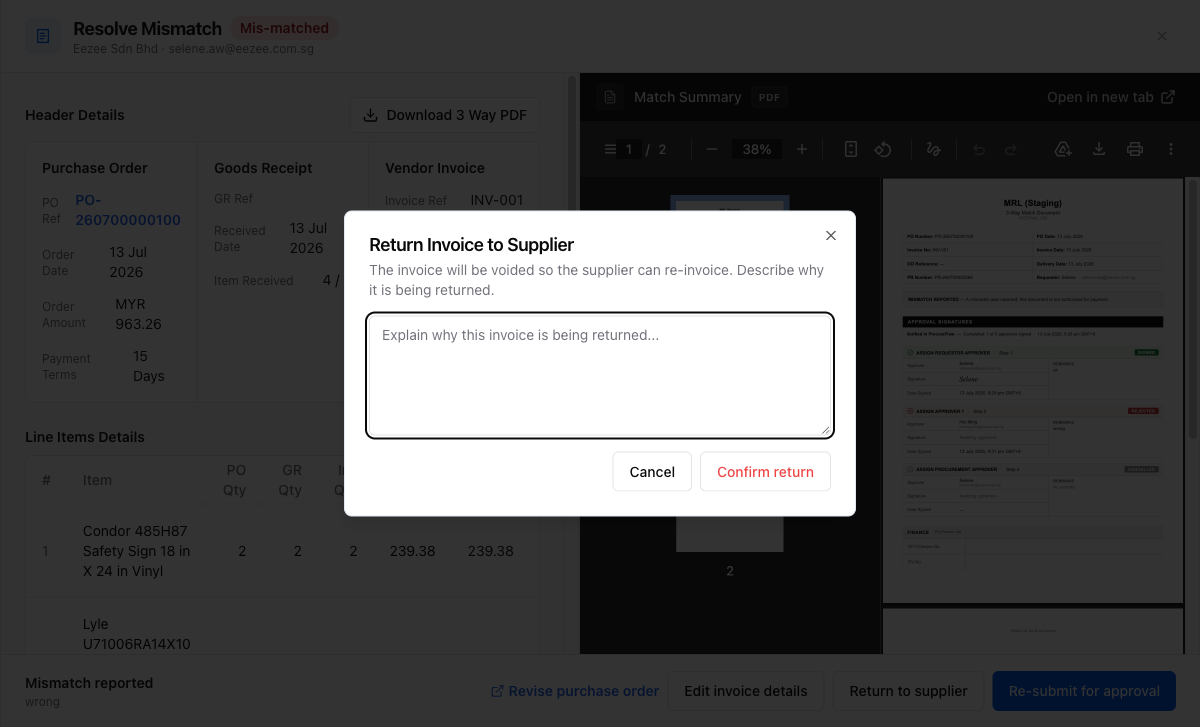
- Click Return to supplier in the footer. A dialog appears asking you to explain why the invoice is being returned.
- Fill in the reason.
- Click Confirm return.
The invoice is voided and the supplier will need to submit a corrected invoice.
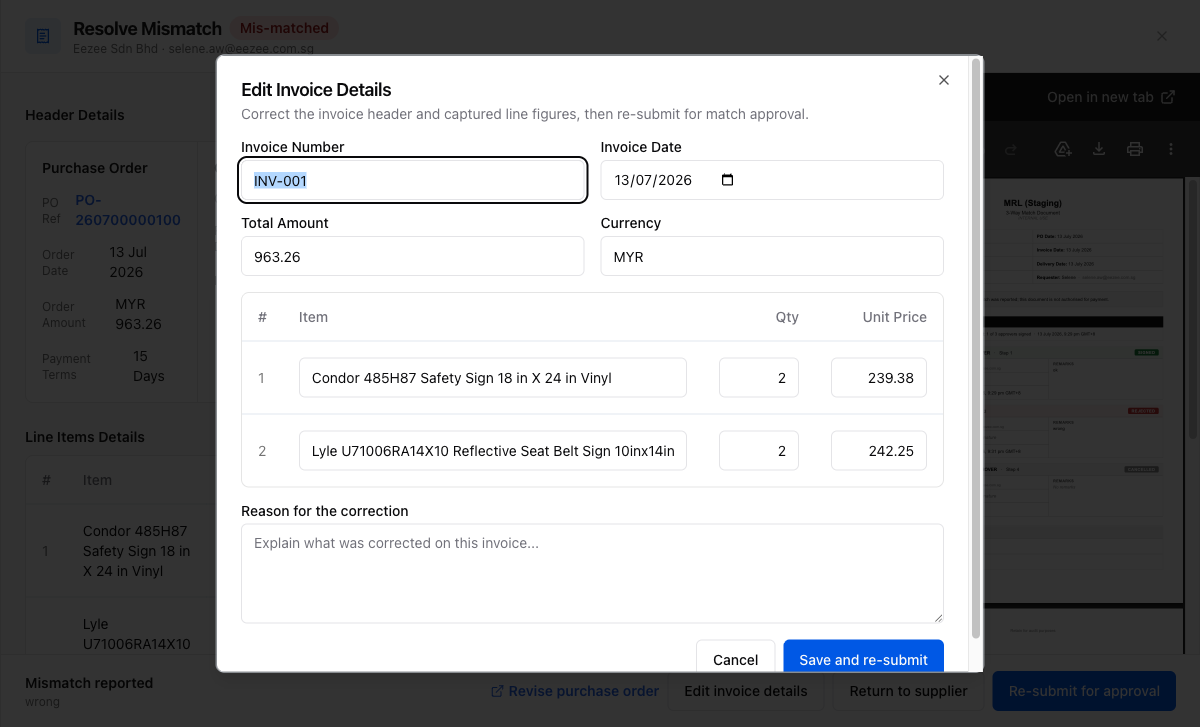
Route C: Edit invoice details
Use this route when the invoice figures were captured incorrectly in the system and can be corrected without involving the supplier.
Click Edit invoice details in the footer. A dialog opens pre-filled with the current invoice details:
- Invoice number
- Date
- Total amount
- Currency
- Each line item's quantity and unit price
Then make your corrections:
- Correct the relevant fields.
- Enter a reason for the correction.
- Click Save and re-submit.
The invoice is updated and immediately re-sent for match approval in one step.