Participate in an Auction
Verify identity, submit bids across each round, and track your ranking.
Last updated 12 October 2026
Who can use this?
Accessed via the Supplier Portal. Not available to buyer-side platform users.
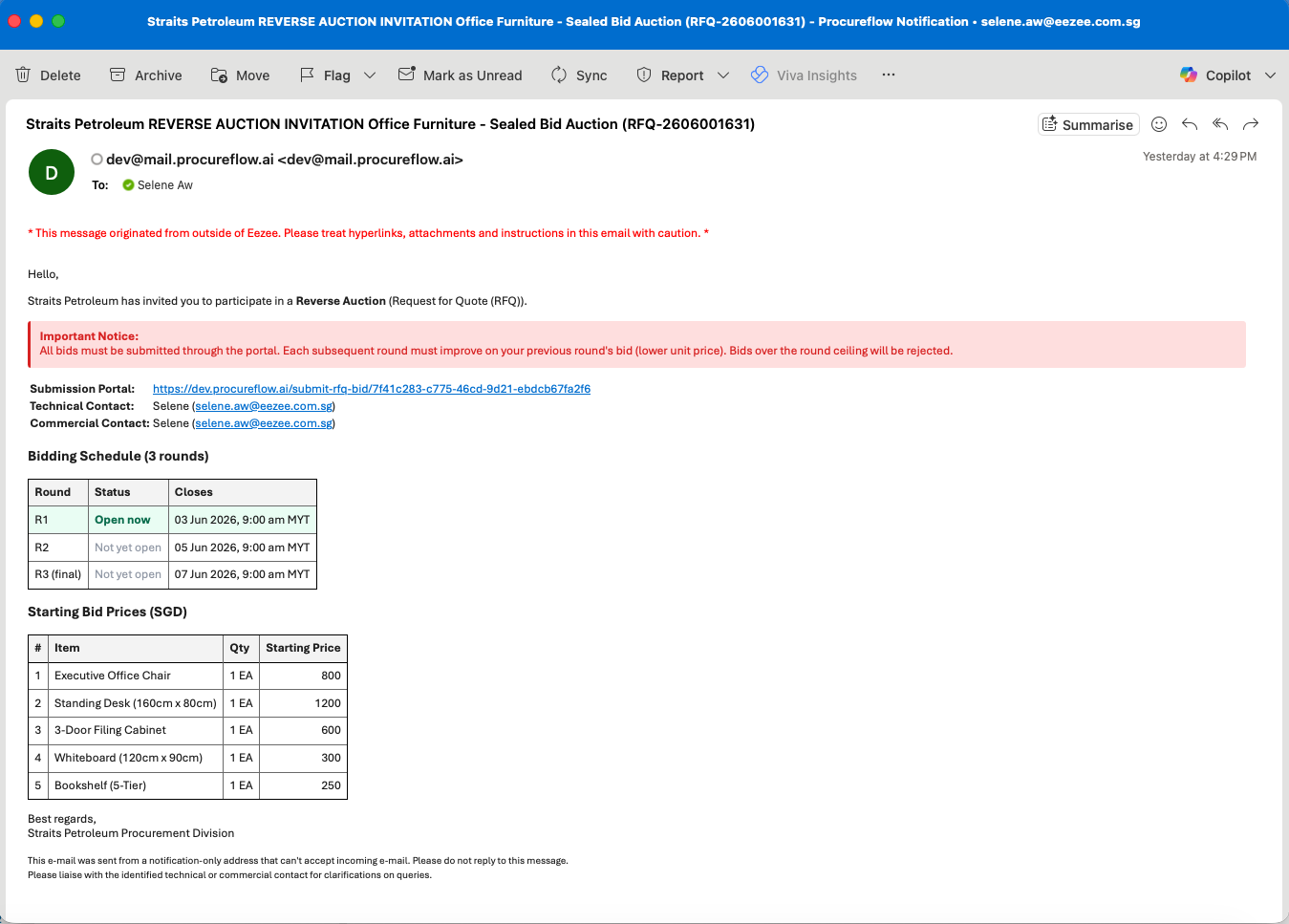
Receive Invitation Email
You will receive an email from ProcureFlow with the subject REVERSE AUCTION INVITATION. The email includes the bidding schedule (number of rounds and closing times), the starting bid prices (ceiling prices) for each line item, and a unique Submission Portal link. Click that link to access your bid form.
OTP Verification
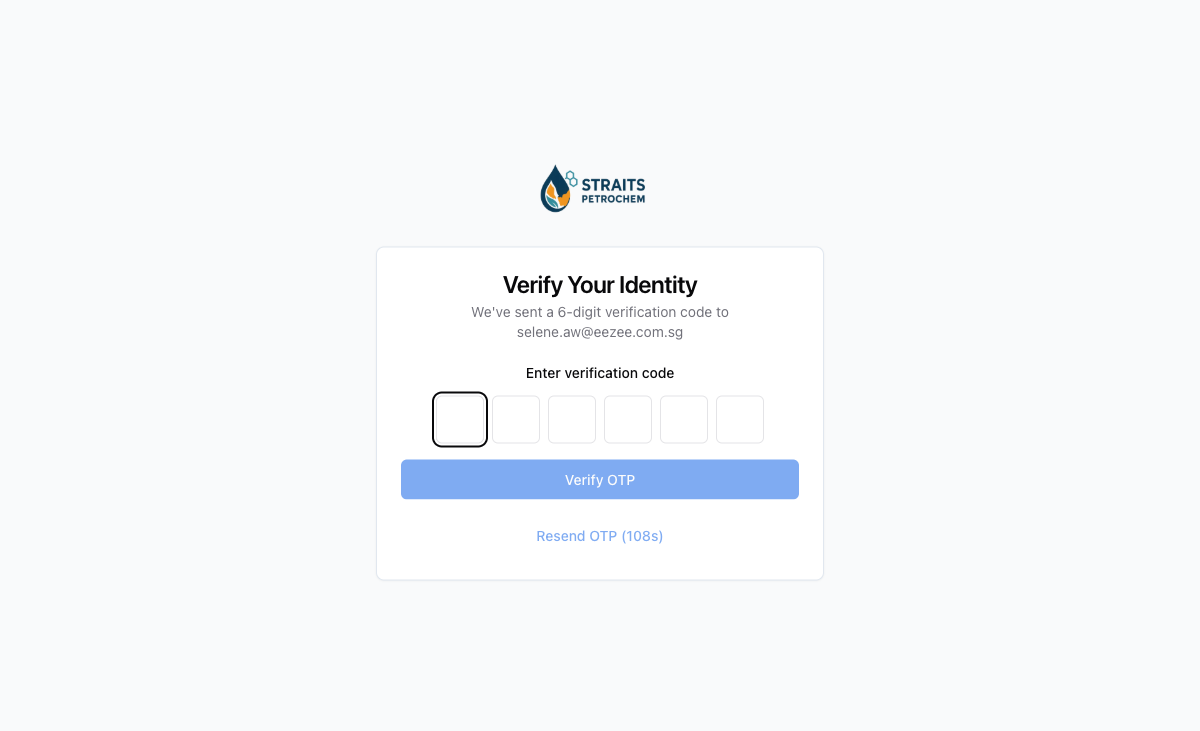
Click the bid link in your invitation email. Enter the 6-digit code sent to your email to verify your identity.
Accept Terms & Conditions
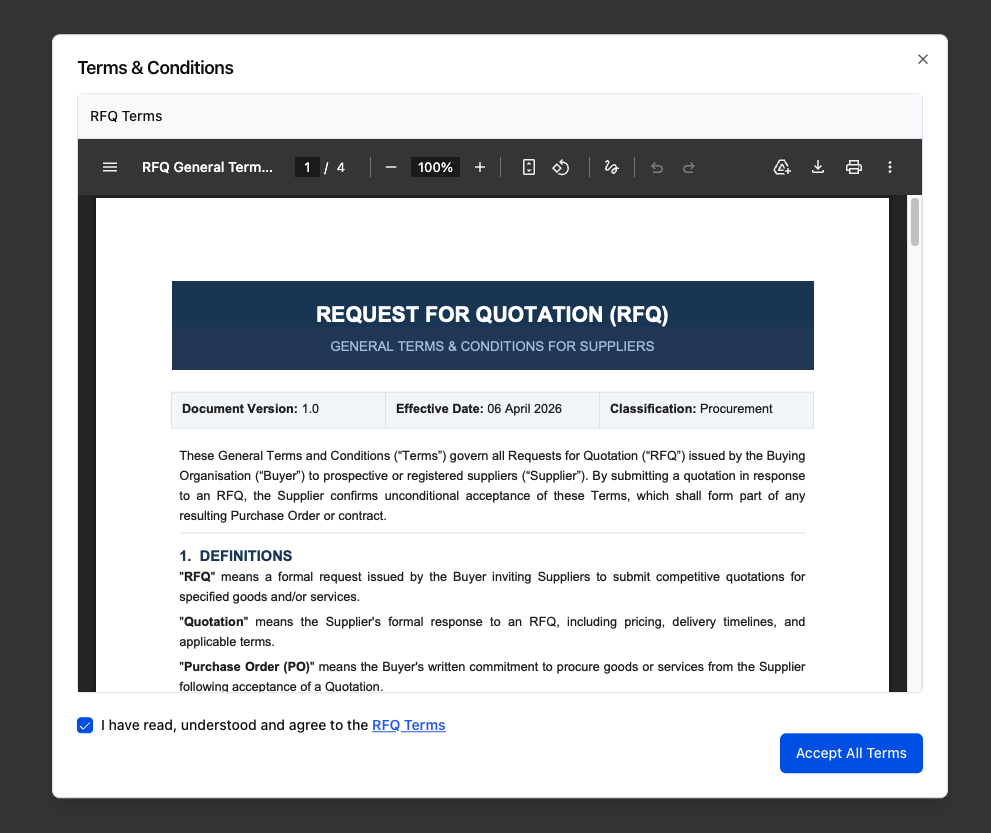
After entering your OTP, a Terms & Conditions dialog appears. Read through the RFQ Terms document, then check the “I have read, understood and agree to the RFQ Terms” checkbox and click Accept All Terms to proceed.
Round 1 Bid Form
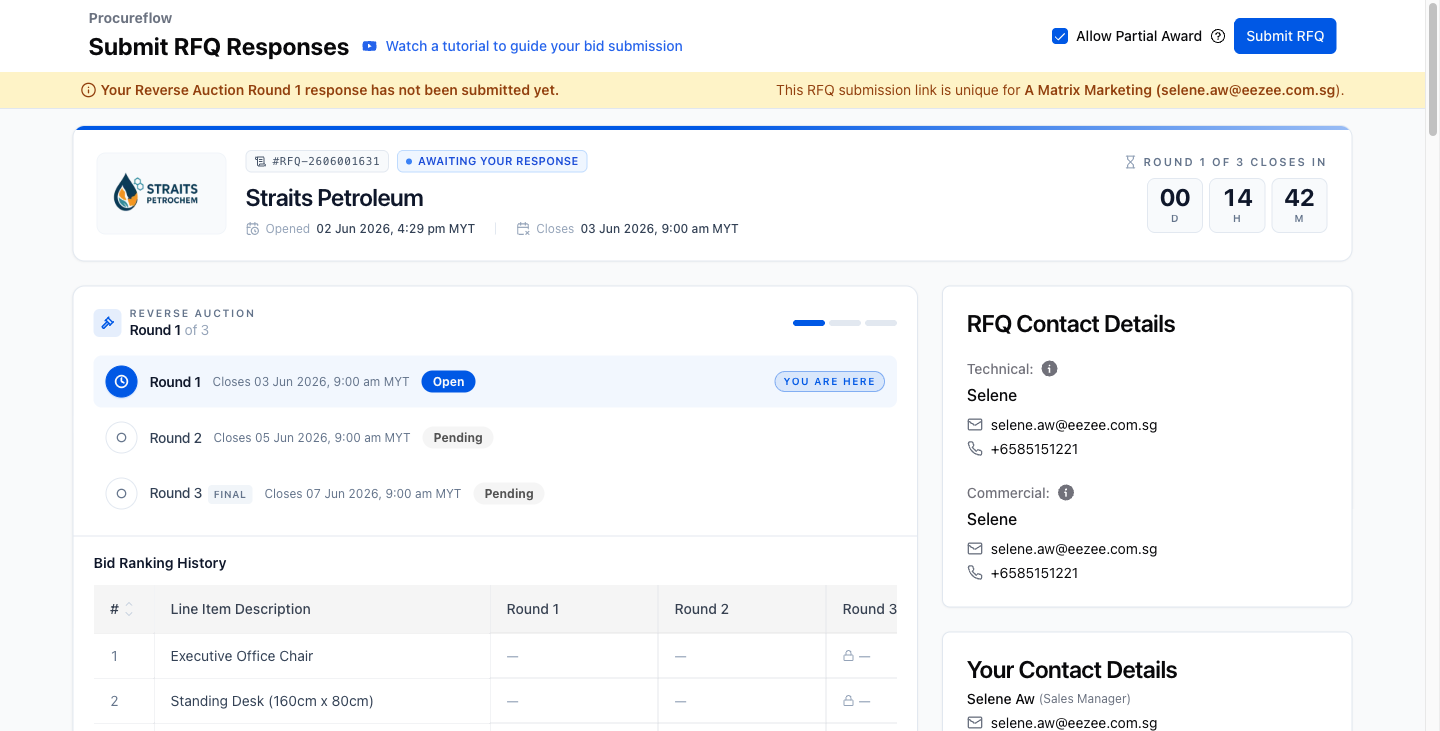
After verification, the bid form opens showing Round 1 of 3 – Open. Starting prices (ceilings) are shown for each line item.
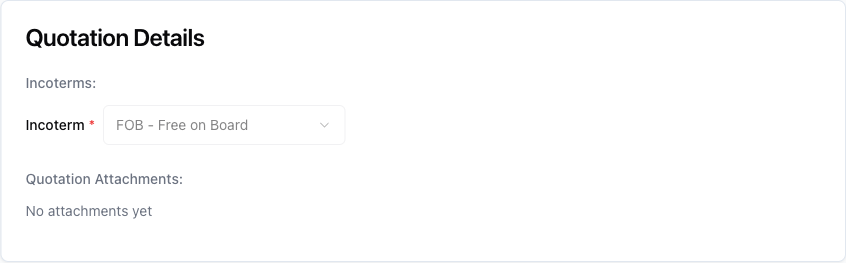
Select Incoterm (Overseas Suppliers Only)
Scroll to the Quotation Details section and select your Incoterm from the dropdown (e.g. FOB, CIF, EXW). This field is only required for overseas suppliers. Local suppliers may skip this step.
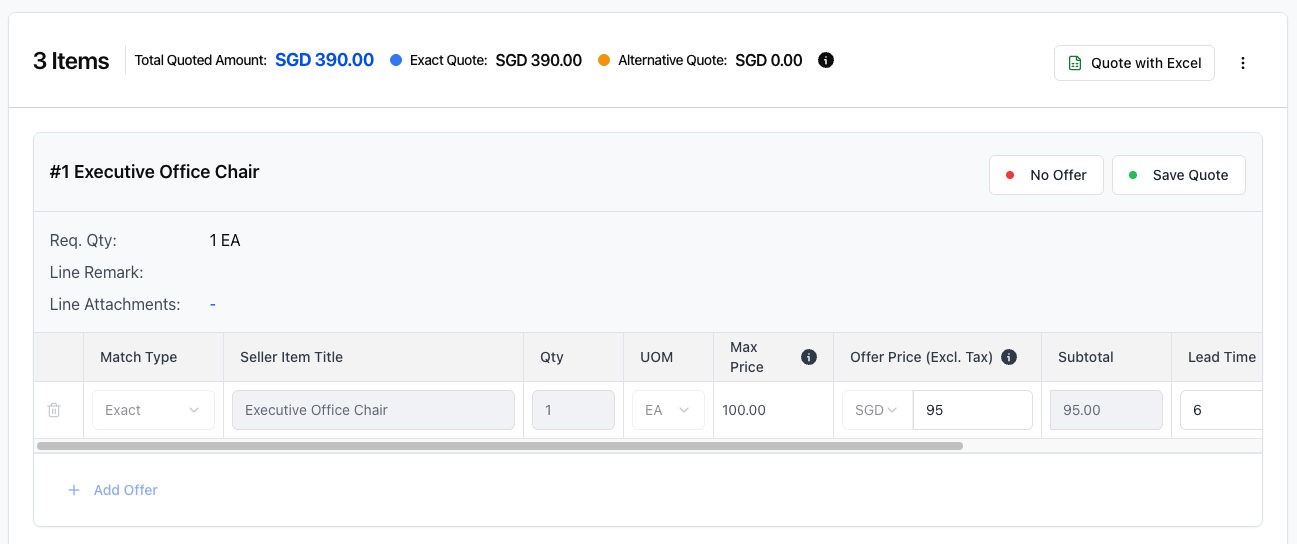
Enter Offer Prices
For each line item, enter your offer price in the Offer Price (Excl. Tax) field. The price must be at or below the Max Price ceiling shown. Enter a lead time, then click Save Quote to save that line. Repeat for all line items.
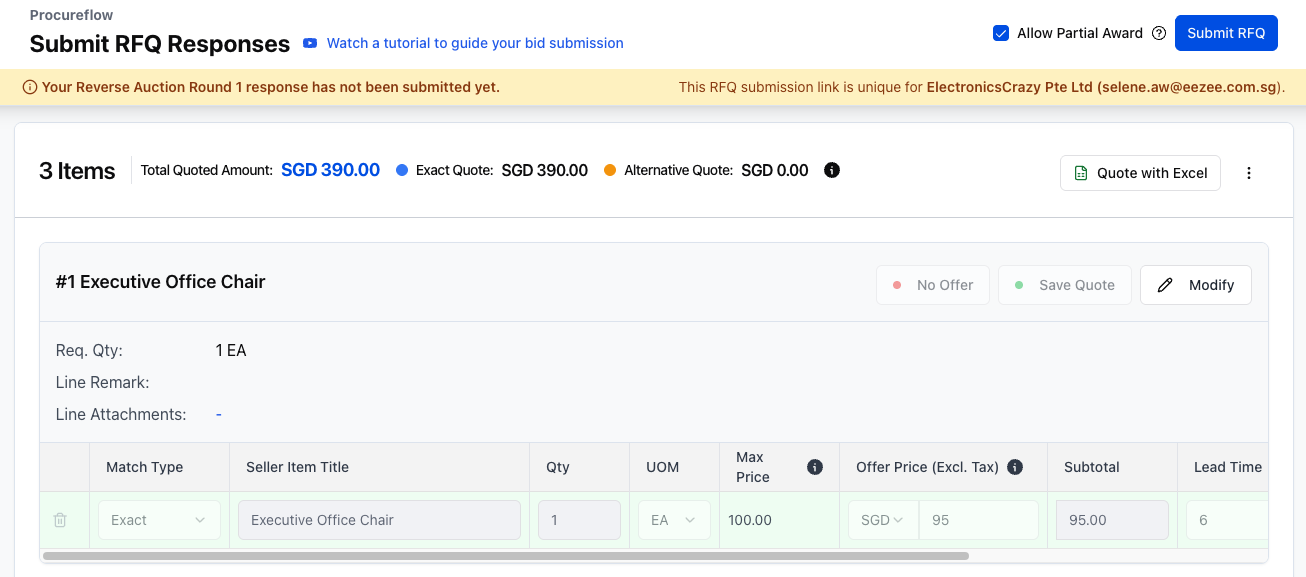
Review and Submit
After saving all line item quotes, scroll to the top of the page. The yellow banner confirms your response has not been submitted yet. Check that all lines are saved, then click the blue Submit RFQ button in the top-right corner to finalise your Round 1 submission.
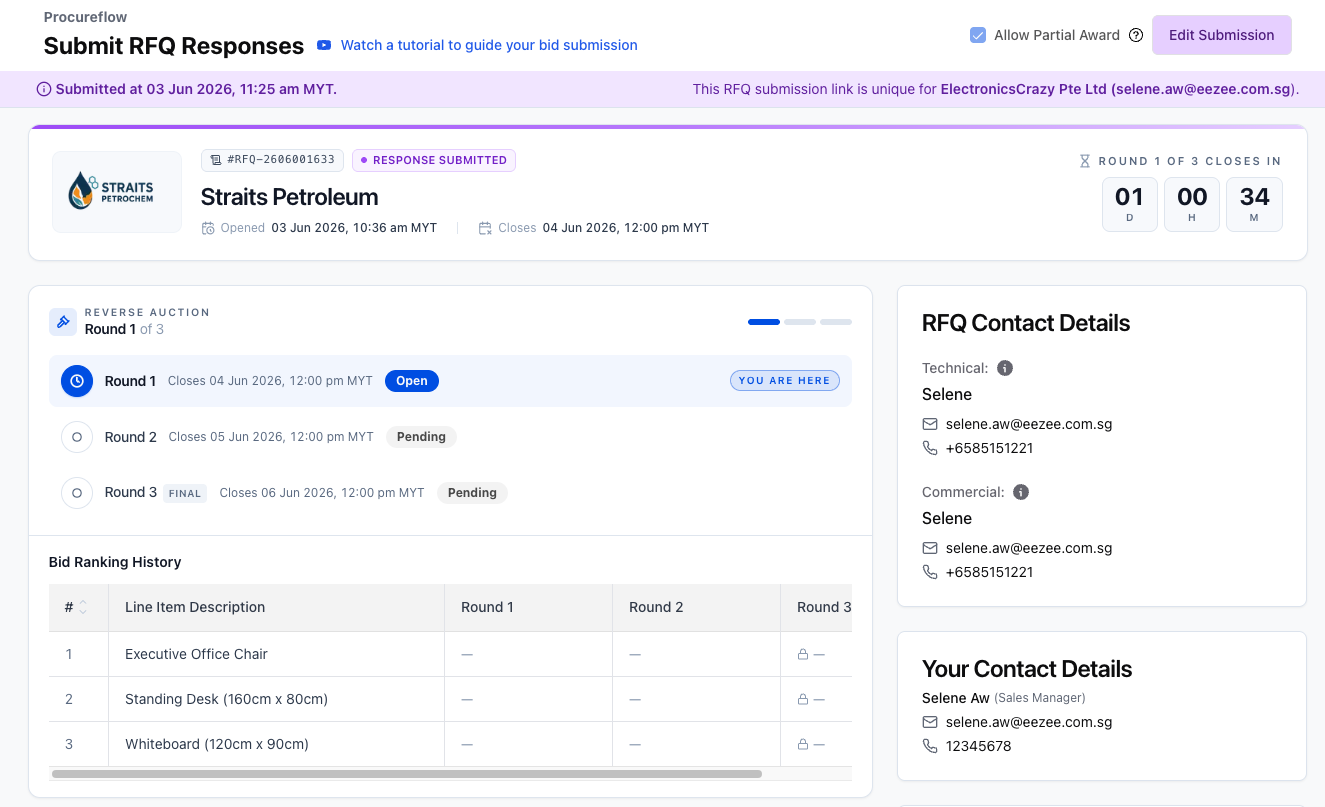
Round 1 Submitted
Click Submit RFQ. The banner confirms submission with a timestamp. You can still click Edit Submission to revise your bids before the round closing date and time.
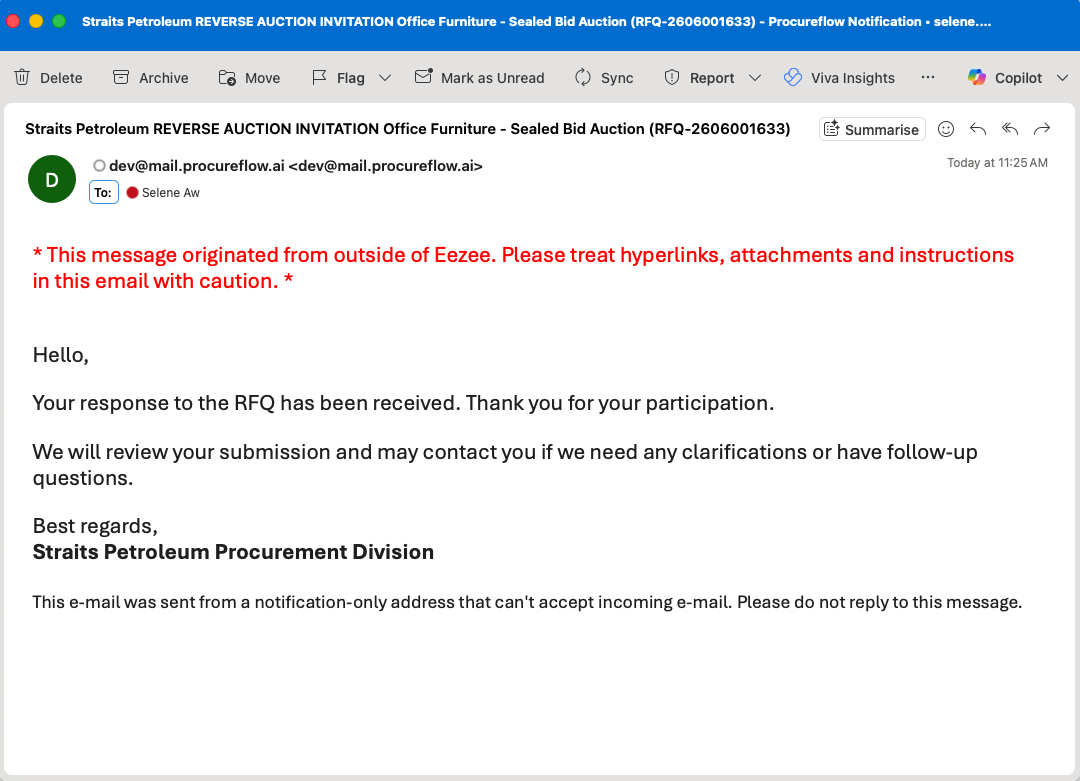
Submission Confirmation Email
After submitting your bids, you will receive a confirmation email from ProcureFlow. This confirms that your Round 1 response has been received. Keep this email for your records. The buyer will review all submissions and may contact you if clarifications are needed.
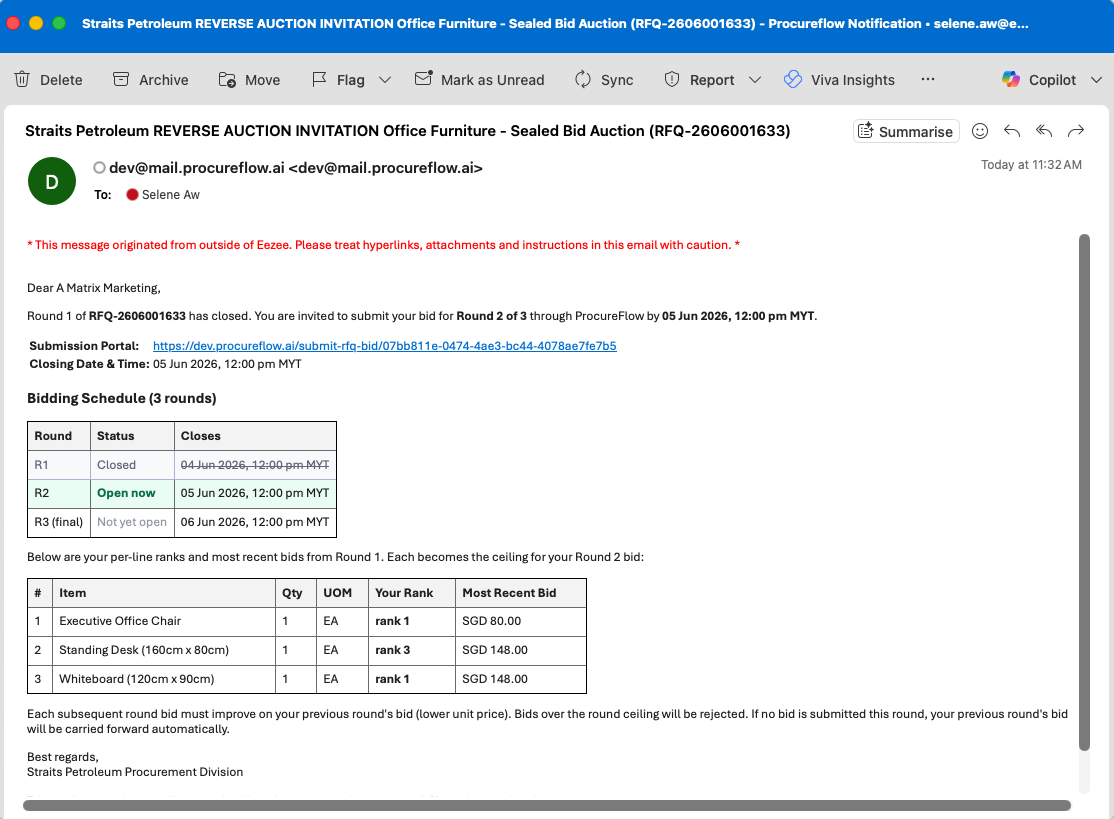
Receive Round 2 Invitation Email
When Round 2 opens, you will receive a new invitation email showing your per-line rankings and most recent bids from Round 1. These become the ceilings for your Round 2 bids, so you must bid lower than your previous round. Click the Submission Portal link to access the Round 2 bid form.
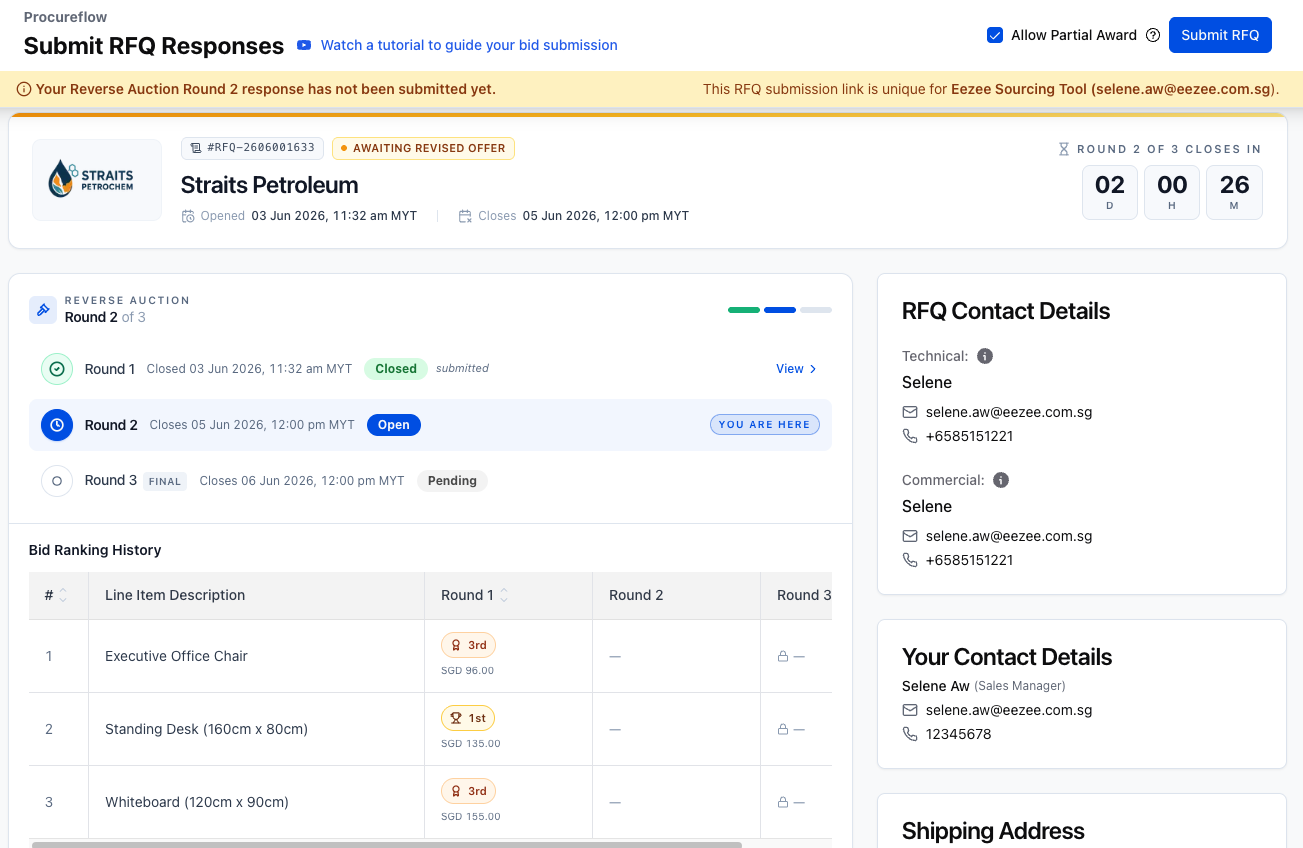
Subsequent Round(s) Bid Form
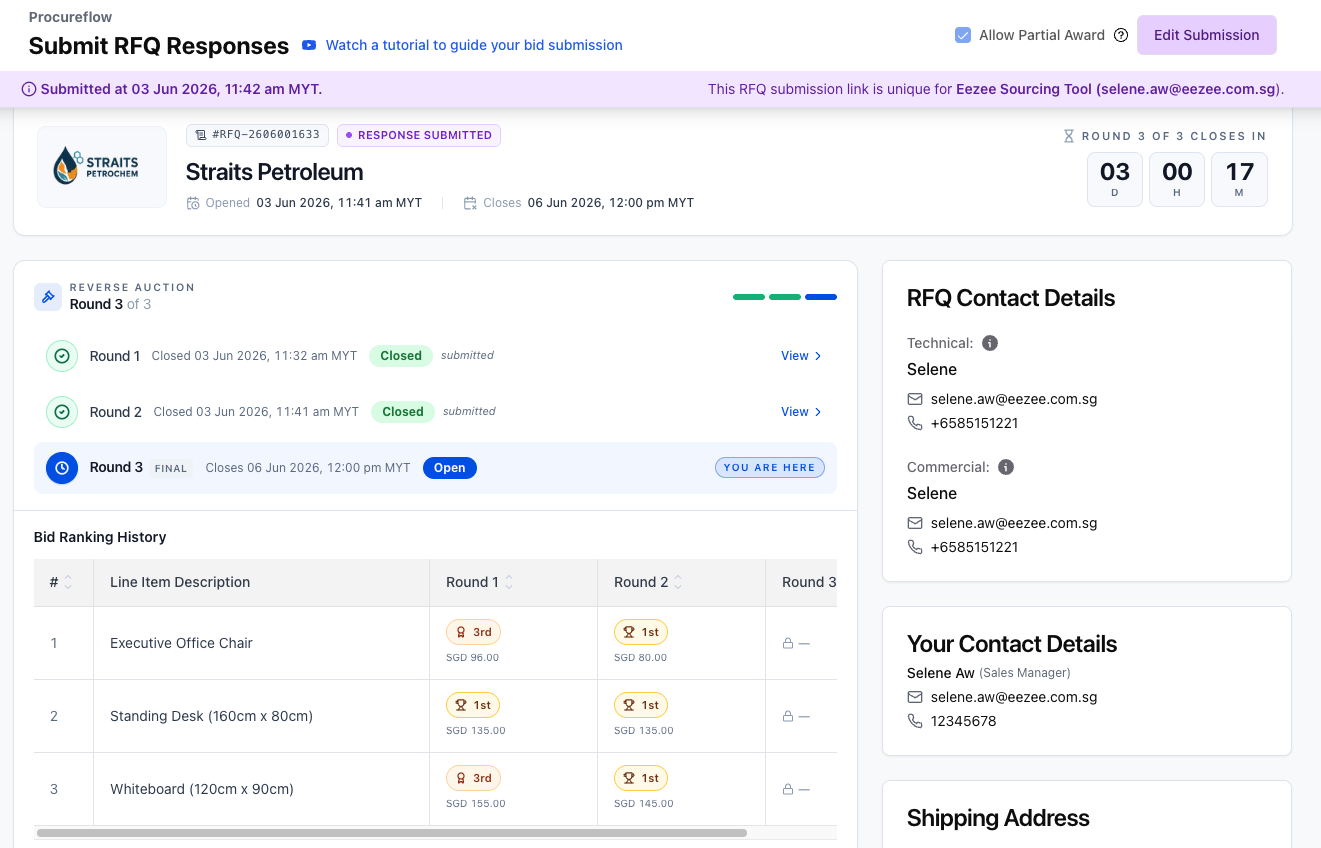
Each time a round closes, the next one opens automatically. Access the new round via the round strip at the top of your bid link page. Your rankings from the previous round are shown, so you can see your position. Enter revised (lower) prices to stay competitive. The buyer decides how many rounds to run. There may be 2, 3, or more.
Final Round Submitted
Submit your final-round bids. The banner confirms the submission timestamp. The buyer will now evaluate all supplier responses across every round and award accordingly. You will be notified of the outcome.
Round Closed: Await Award Decision
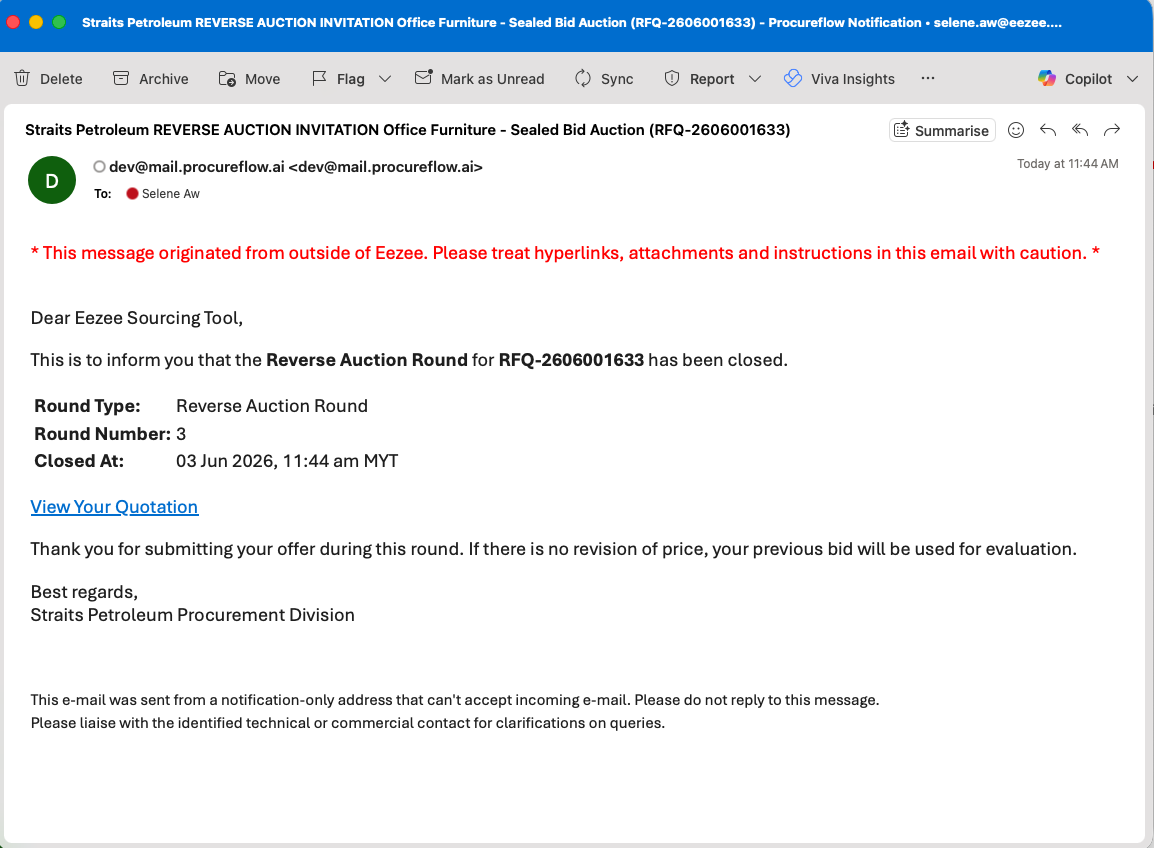
When the final round closes, you will receive a Round Closed notification email confirming the round number, closing time, and a link to view your quotation. The procurement team will then evaluate all submissions and conduct their award process.
If you are selected, the procurement organisation will reach out to you directly. Being ranked 1st does not guarantee an award: the buyer may consider other factors such as technical compliance, delivery terms, or organisational policies before making their final decision.