Update Delivery Date
After accepting a Purchase Order, you can update the estimated delivery date for any line item directly from the PO detail page.
Last updated 12 October 2026
Who can use this?
Available to Supplier contacts only. Buyers manage purchase orders through the main ProcureFlow dashboard.
Open the Purchase Order
Navigate to the relevant Purchase Order from the Purchase Orders list. The PO must already be accepted. The Line Items table shows an Est. Delivery Date column with the current date set during acceptance. Click the calendar icon next to a date to update it.
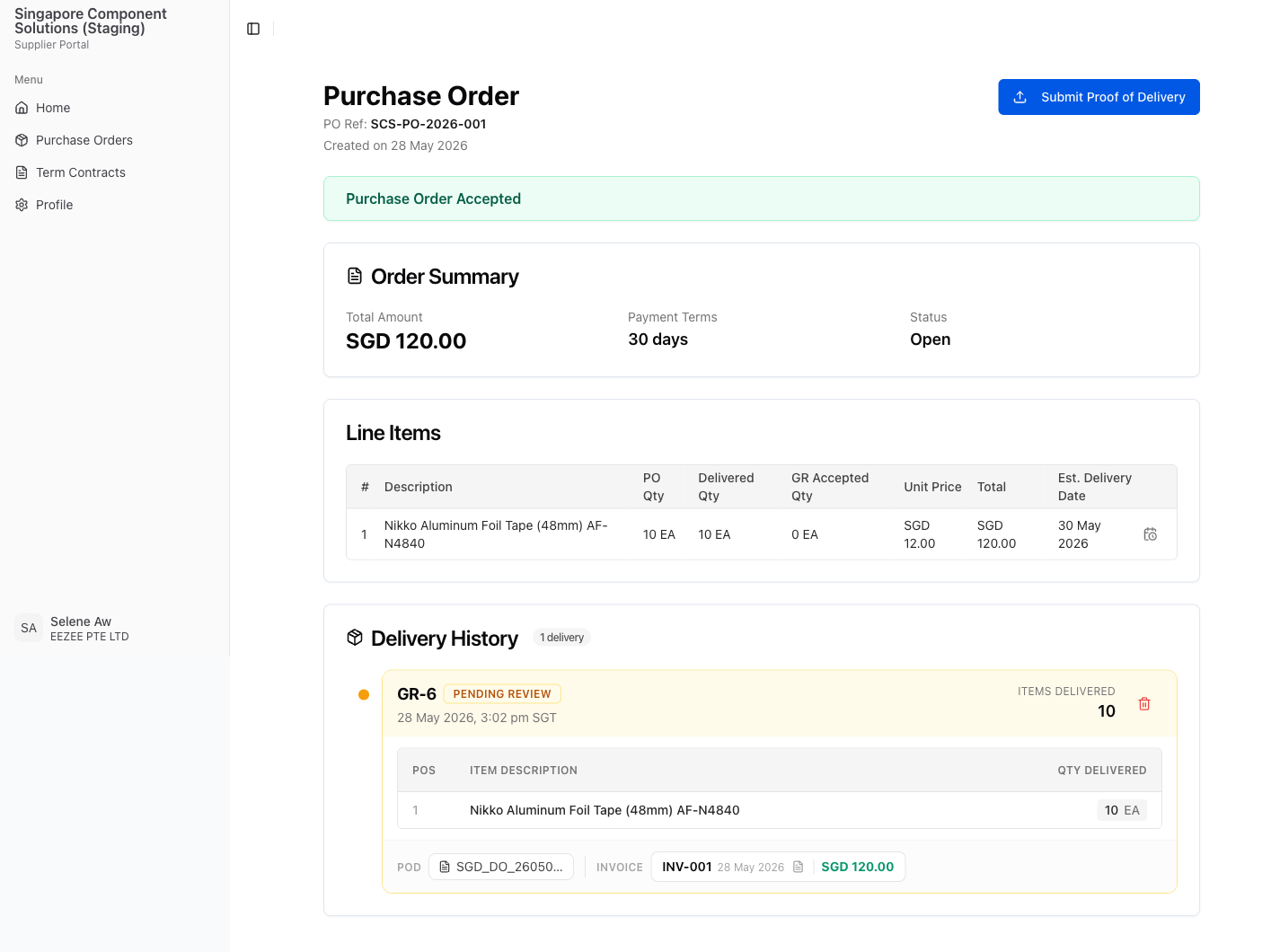
Click the calendar icon to open the update dialog
Click the calendar icon next to the line item's delivery date. An Update Estimated Delivery Date dialog appears, showing the item description and the current date pre-filled in the date field.
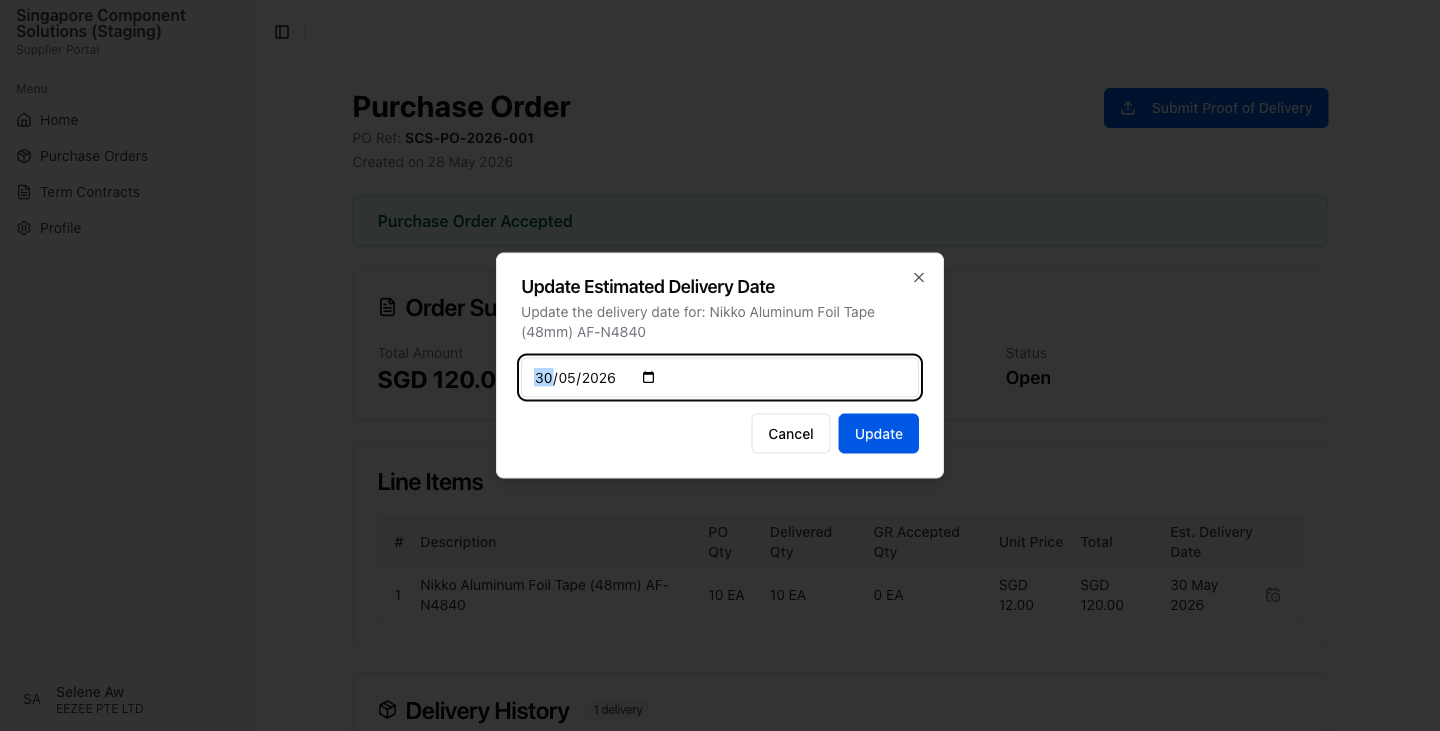
Confirm the updated date
After clicking Update, the dialog closes and the page refreshes. The new date appears immediately in the Est. Delivery Date column of the Line Items table. The buyer is notified of the change.
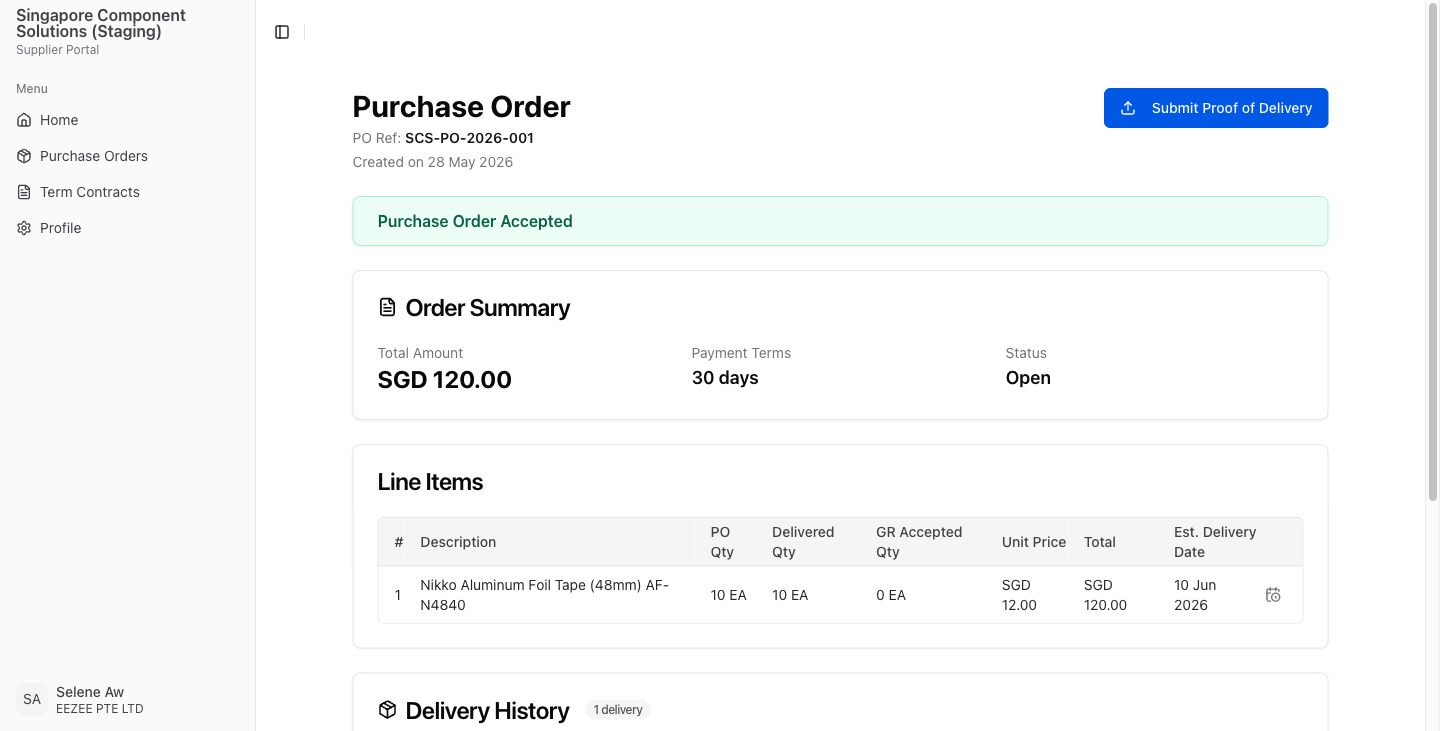
Accept or Reject a PO
When a buyer issues a Purchase Order, you must log in to the Supplier Portal and formally accept or reject it before a delivery can be submitted.
Create GR & Invoice
Once a Purchase Order has been accepted, submit your proof of delivery and invoice directly through the Supplier Portal.