Submit a Quote
How to respond to a Request for Quotation (RFQ) from a buyer on ProcureFlow. Enter your prices, lead times, and submit before the deadline.
Last updated 12 October 2026
Who can use this?
Available to invited Supplier contacts only. Access is granted via the unique RFQ link sent to your email by the buyer.
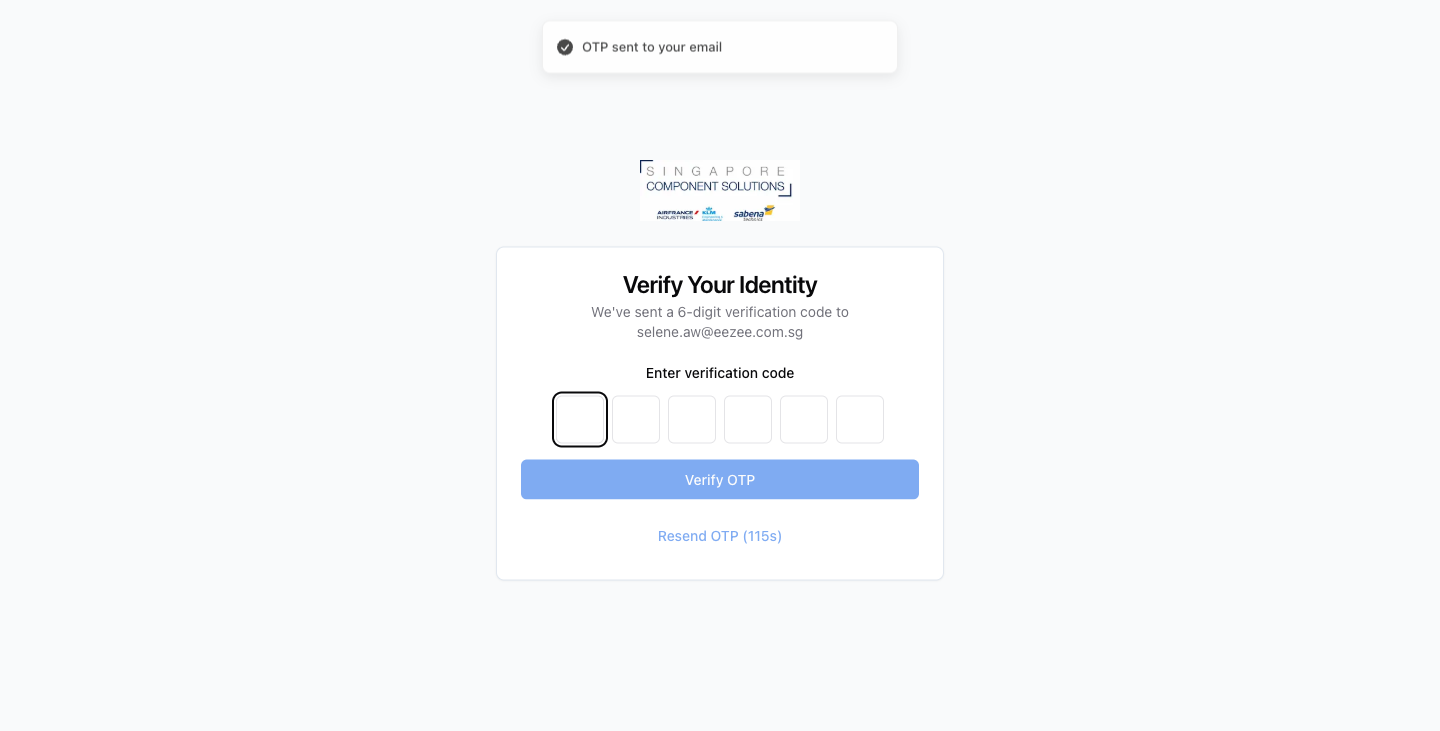
Open the RFQ link and enter your OTP
Click the link in your RFQ invitation email. ProcureFlow will send a 6-digit one-time password to your registered email address. Enter the code to access the submission form.
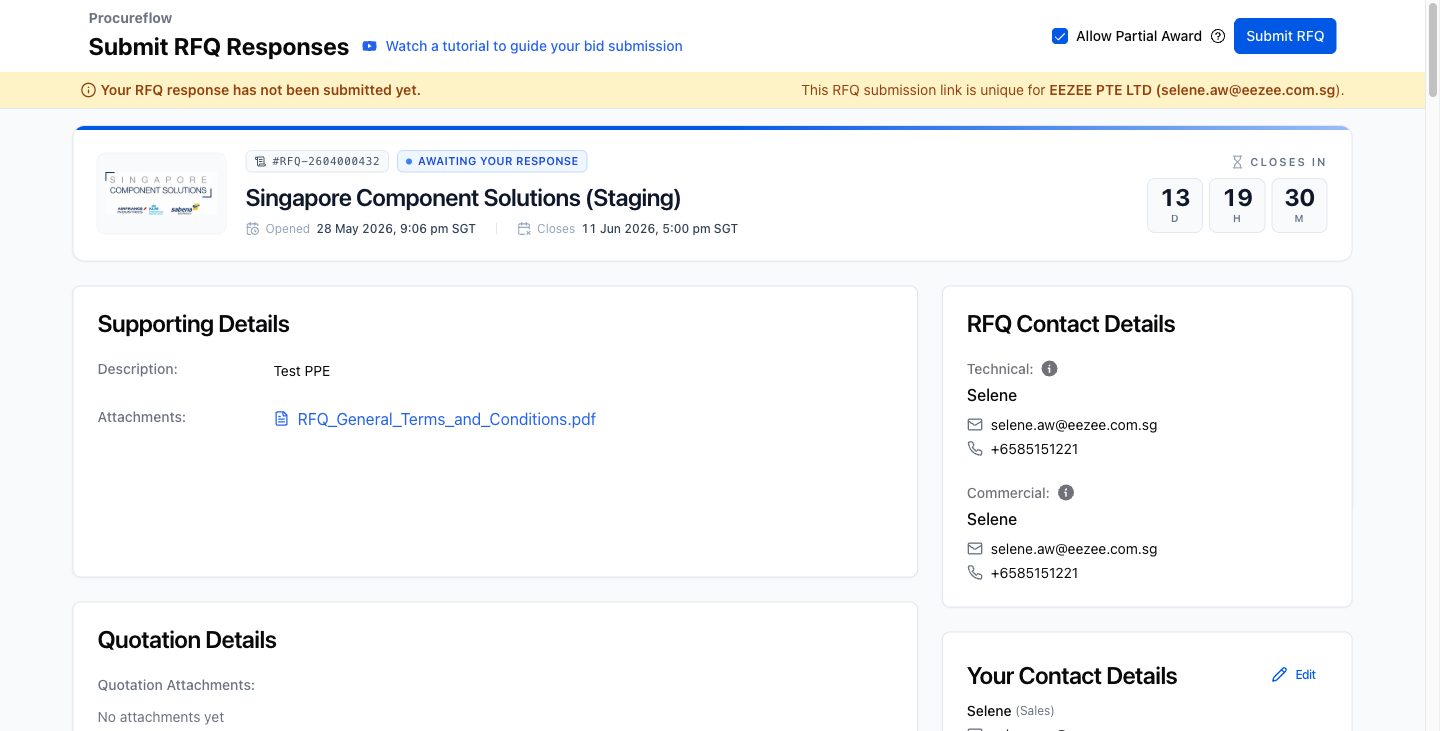
Review the RFQ details
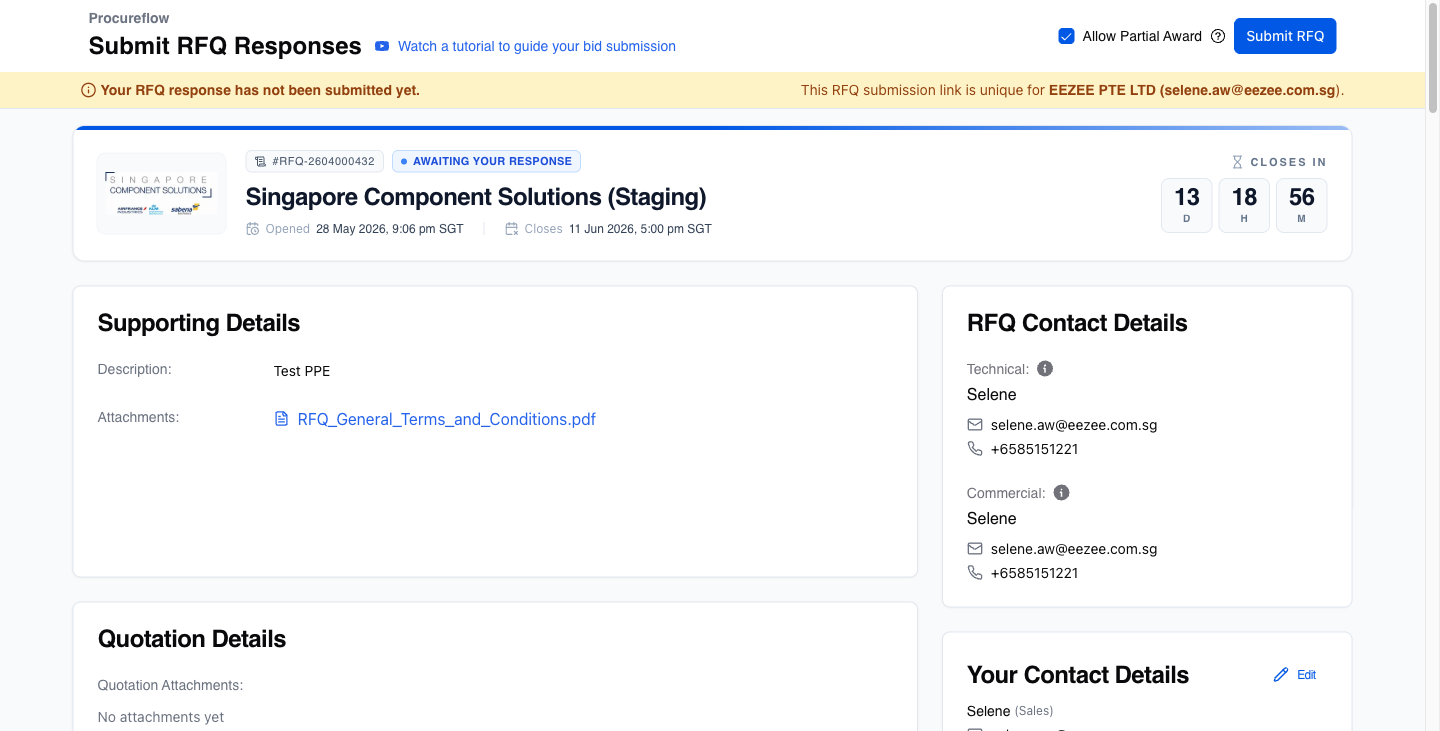
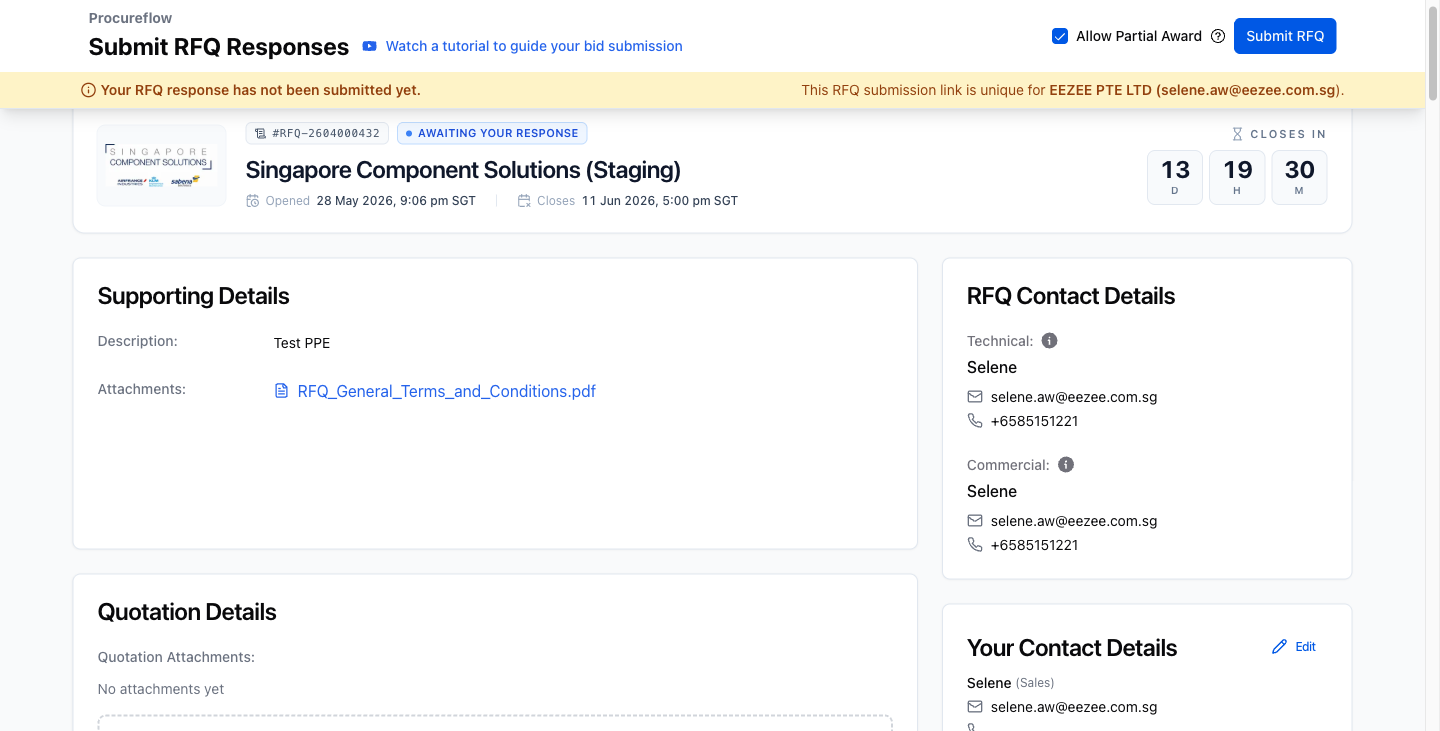
After logging in, review the RFQ overview before filling in your response. Check:
- Closing deadline: the countdown in the top-right corner.
- Supporting Details: description and any attached documents from the buyer.
- RFQ Contact Details: the buyer's technical and commercial contacts for questions.
- Shipping Address: where goods should be delivered.
Enter your offer price and lead time for each item
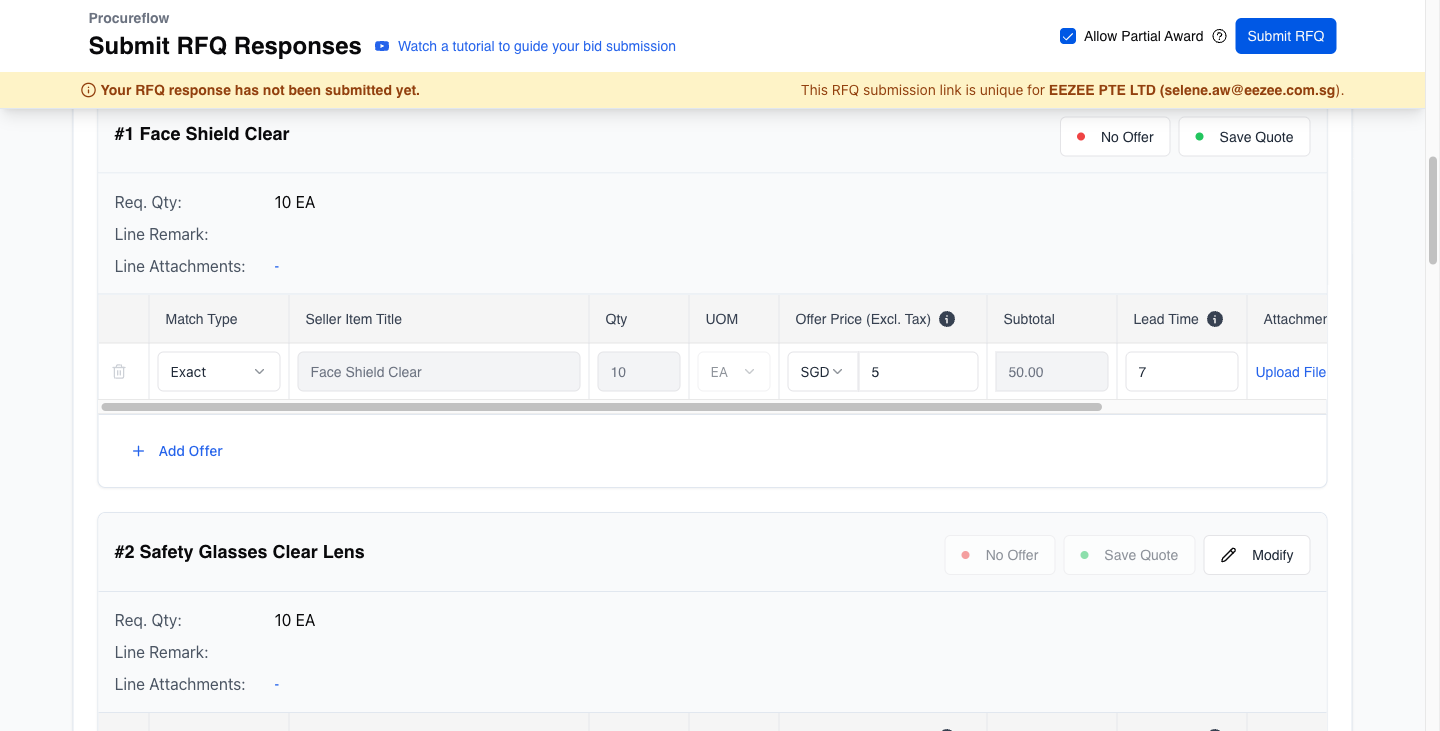
Scroll down to the Line Items section. For each item, fill in:
- Offer Price (Excl. Tax): enter your unit price in the price field (SGD).
- Lead Time: enter the number of days to deliver.
Then click Save Quote at the top right of the item. Repeat for every line item. Use No Offer if you cannot supply an item.
Confirm the item is saved: green Quoted badge appears
After clicking Save Quote, the item header turns green and shows a Quoted badge. The subtotal and total quoted amount update automatically.
Repeat steps 3 and 4 for every line item before submitting.
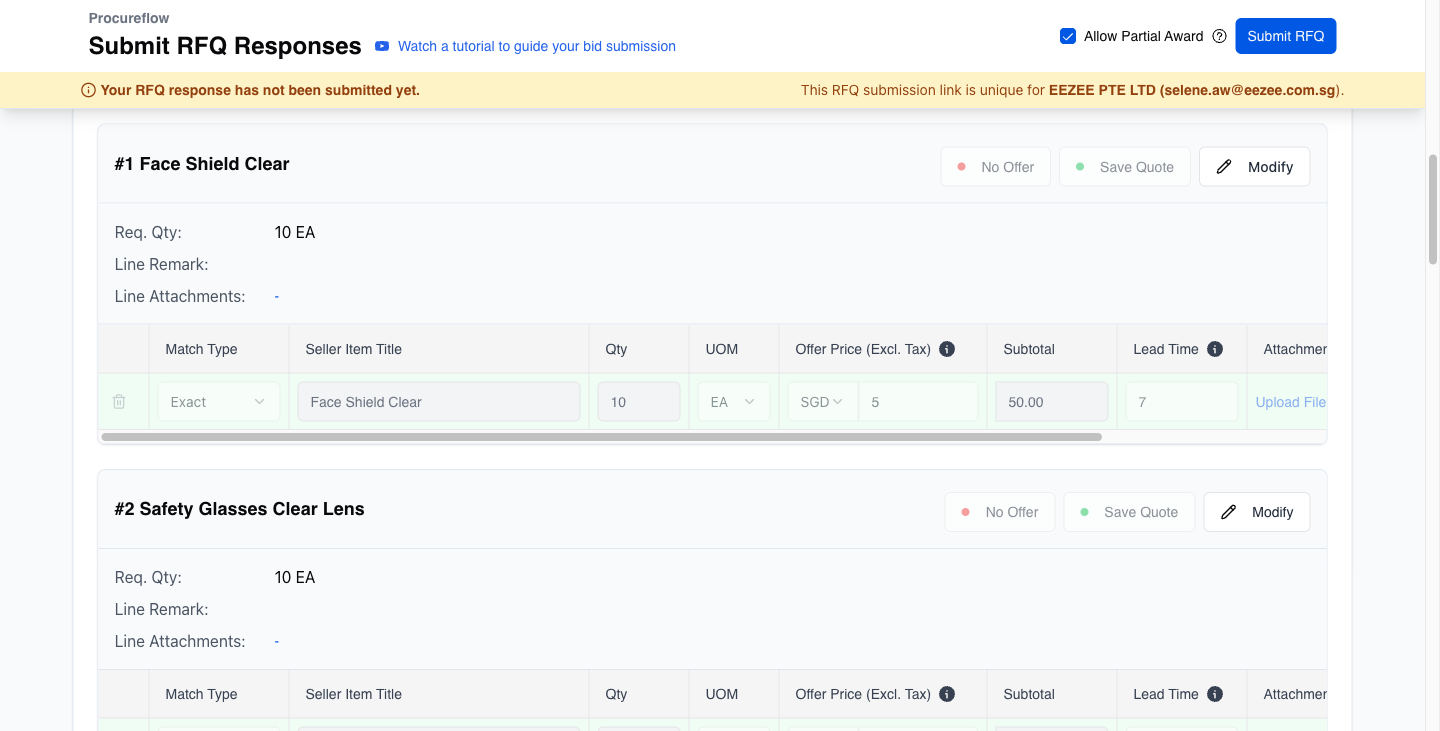
Click Submit RFQ
Once all items are saved (or marked No Offer), click the blue Submit RFQ button in the top-right navigation bar to send your response to the buyer.
Confirm your submission
The page updates to show Response Submitted status with a purple banner confirming the date and time of your submission. The buyer will be notified automatically. You can still use Edit Submission to revise your quote before the closing deadline.
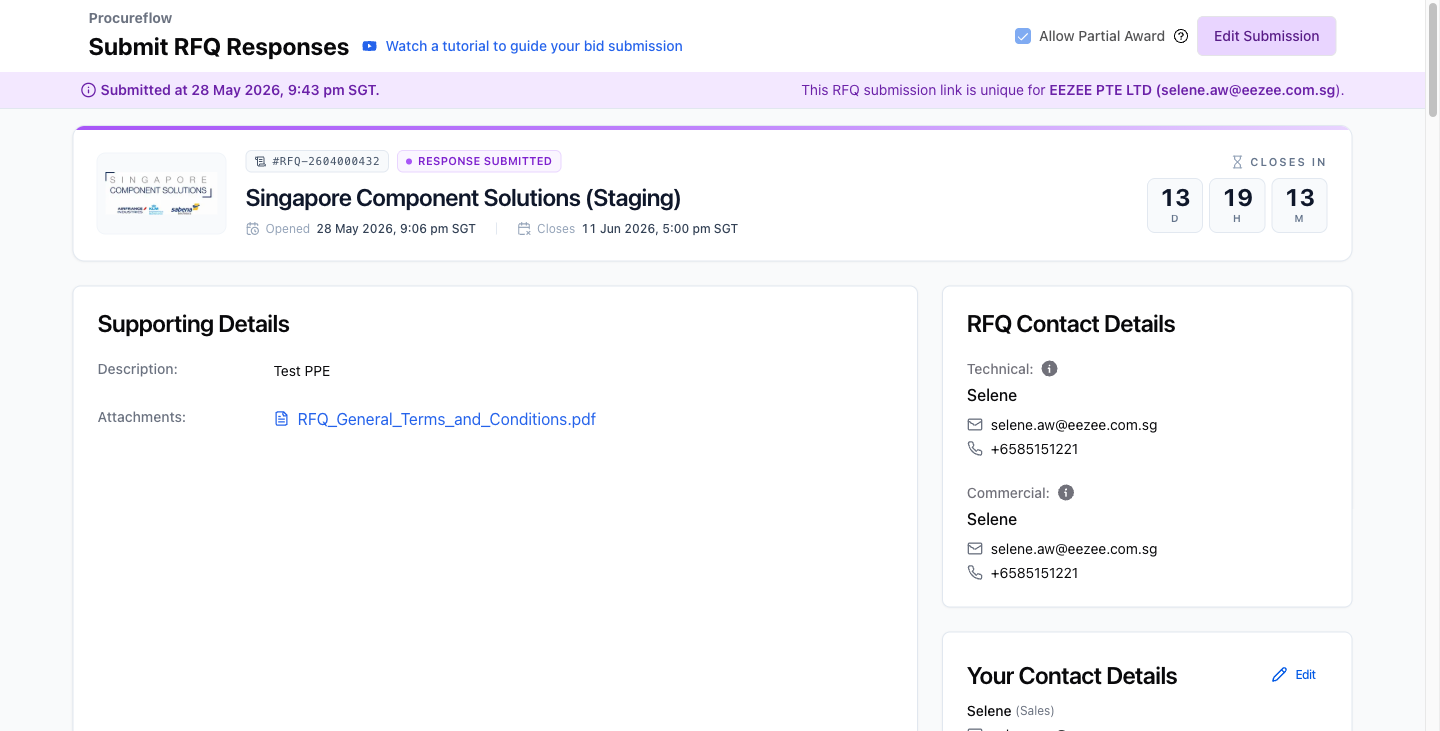
Edit your submission before the deadline
You can update your quotes at any time before the RFQ closes. From the submitted confirmation view, click the Edit Submission button in the top right corner.
This returns you to the line items form where you can modify prices, lead times, or offers. Click Save Quote on each changed item, then Submit RFQ again to resubmit.