Submit Accreditation Form
Complete your company's accreditation submission after receiving a magic link invitation from a buyer.
Last updated 12 October 2026
Who can use this?
Available to Supplier. This guide is for suppliers completing their accreditation, not for internal buyers.
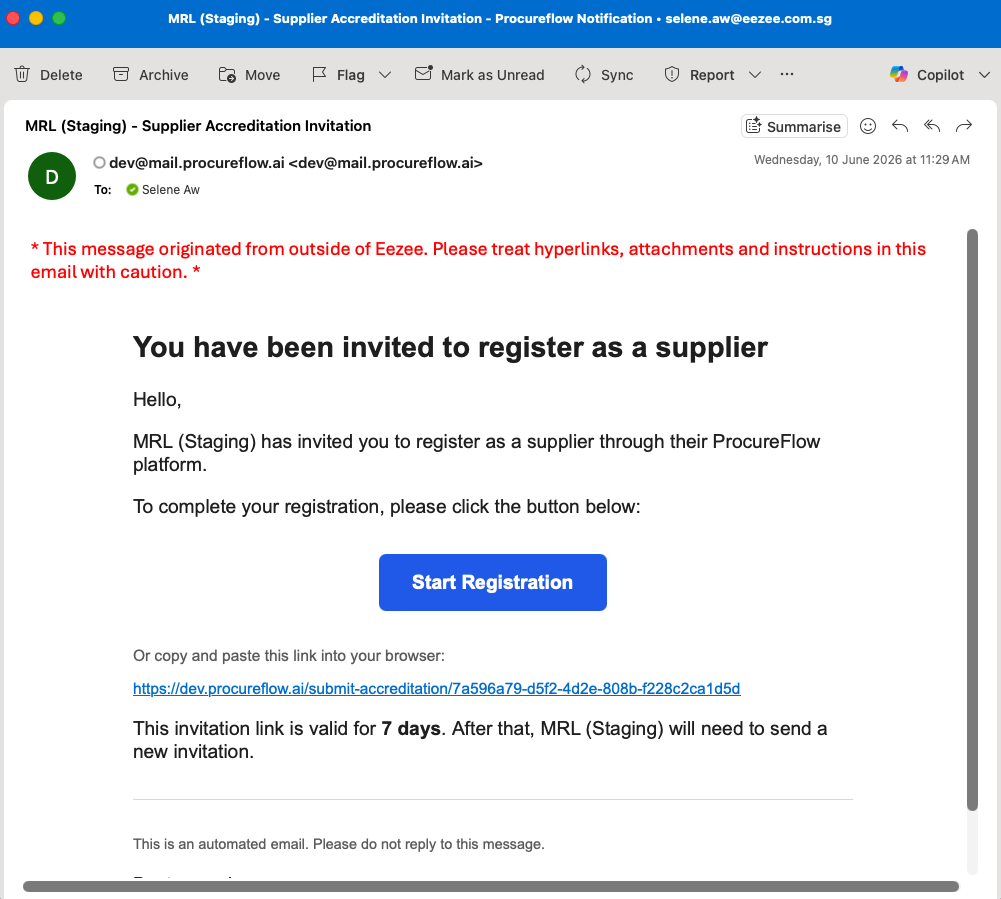
Check your invitation email
Check your email for an invitation from ProcureFlow. The email contains a link to your accreditation form. Click it to get started. You will be taken to a verification page to confirm your identity before accessing the form.
Enter your verification code
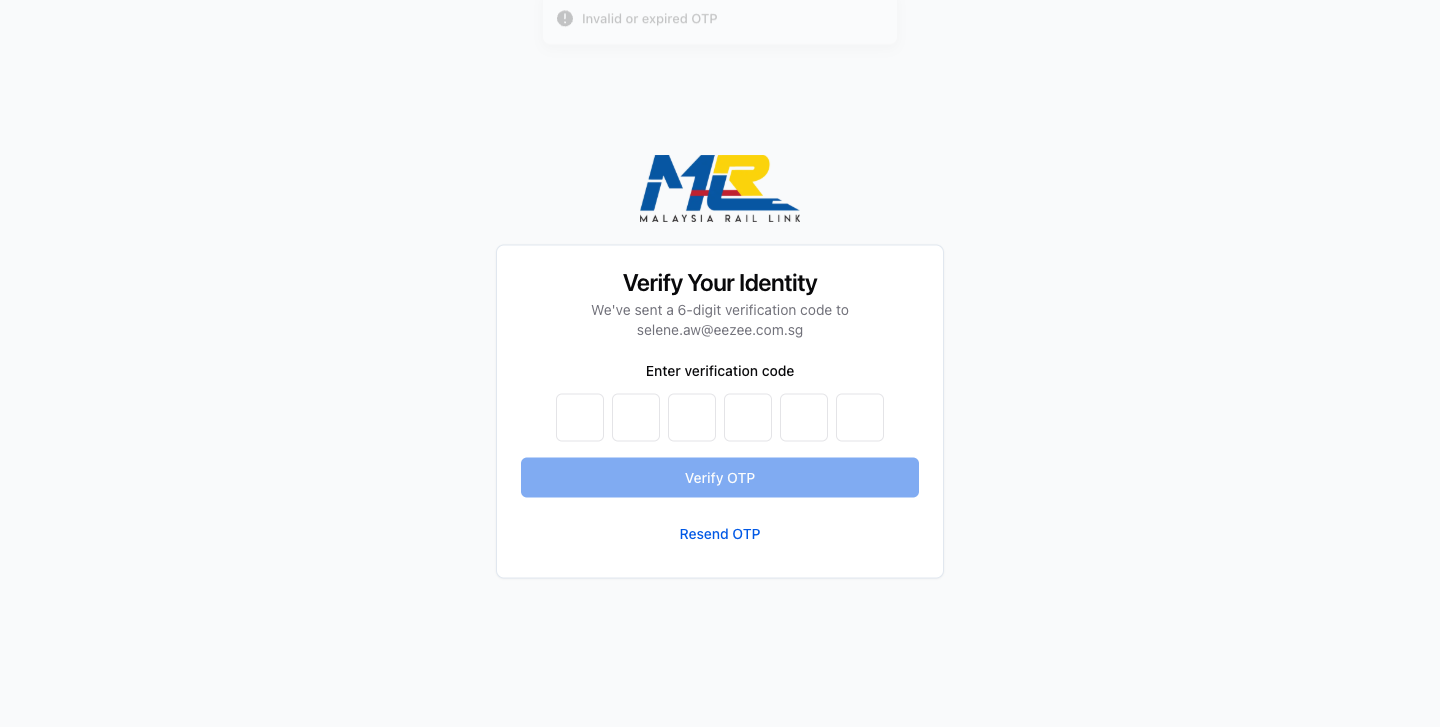
A 6-digit one-time code has been sent to your email address. Enter all six digits in the boxes, then click Verify OTP. You will be redirected directly into the accreditation form.
Complete the form sections
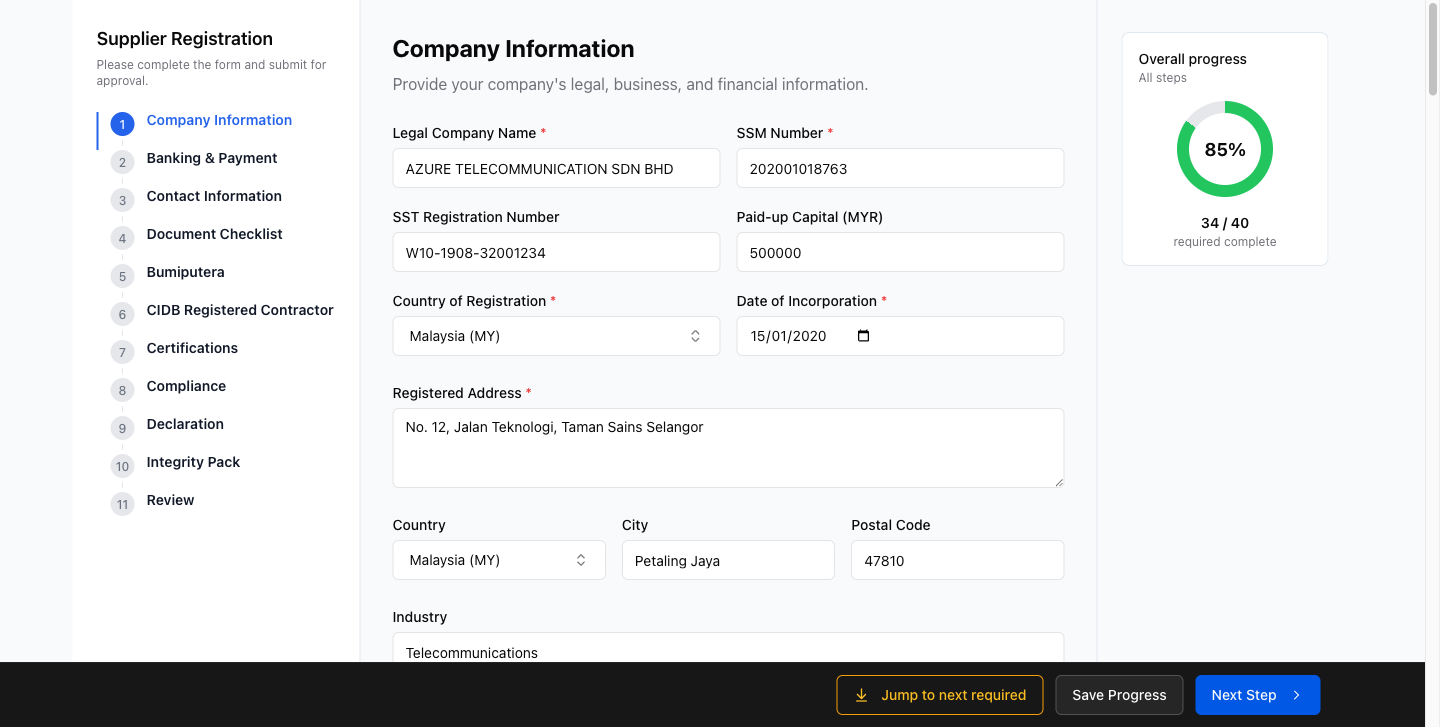
The sidebar lists every section your buyer has configured. The exact sections and fields vary depending on your buyer's organisation.
Work through each section in order:
- Fill in all required fields (marked with *****).
- Use Jump to next required to quickly reach any empty mandatory field.
- Your answers save automatically as you type; the footer shows All changes saved. Click Next Step to advance.
Review & submit
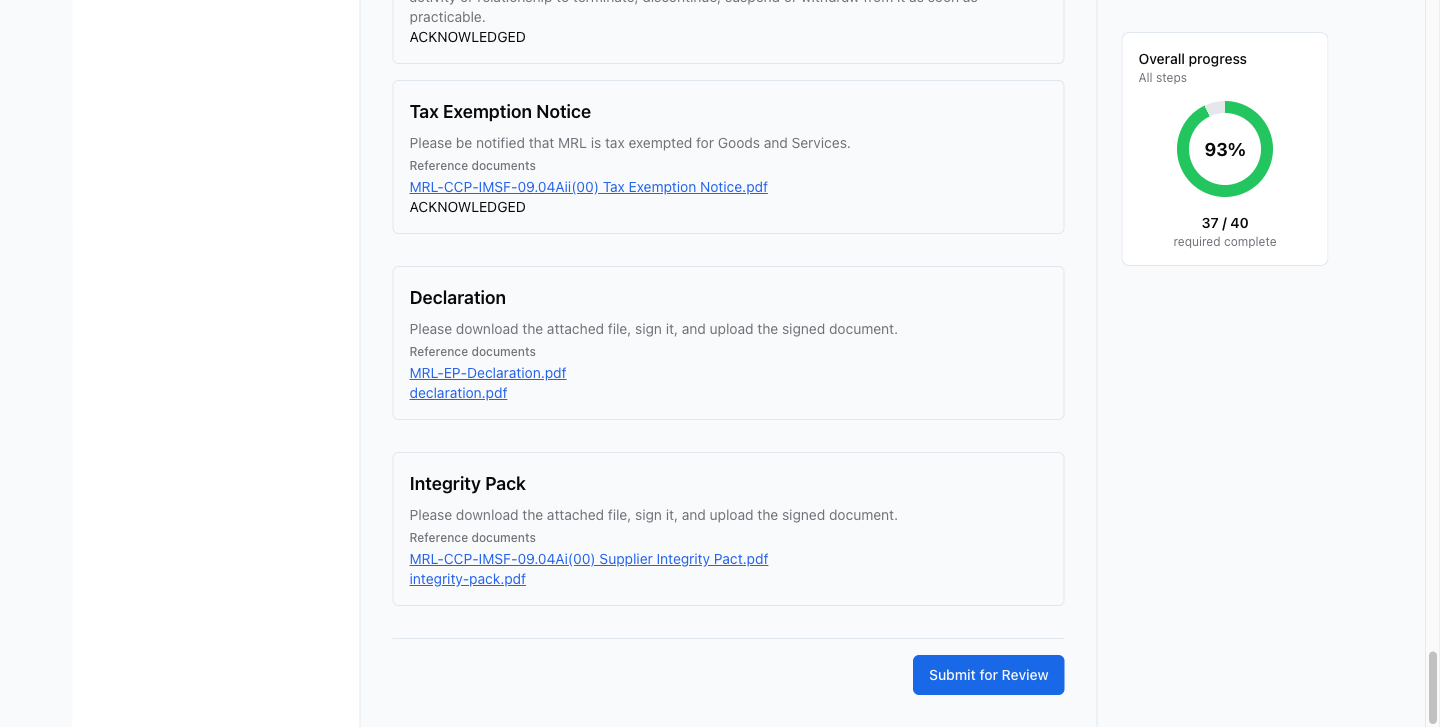
Continue through all remaining sections: Document Checklist, compliance attestations, Declaration, and Integrity Pack. Upload required documents using the upload zones. Once all required fields are complete, navigate to Review, check your answers, and click Submit for Review.