Evaluate Supplier Performance
Rate a supplier's fulfillment after a purchase order is closed, then route the evaluation through your approval workflow.
Last updated 12 October 2026
Who can use this?
All steps are performed by the Requestor (the user who created the purchase order), who is automatically assigned as the evaluator when the PO is closed. Approving or rejecting is performed by the assigned Approver.
Evaluator steps
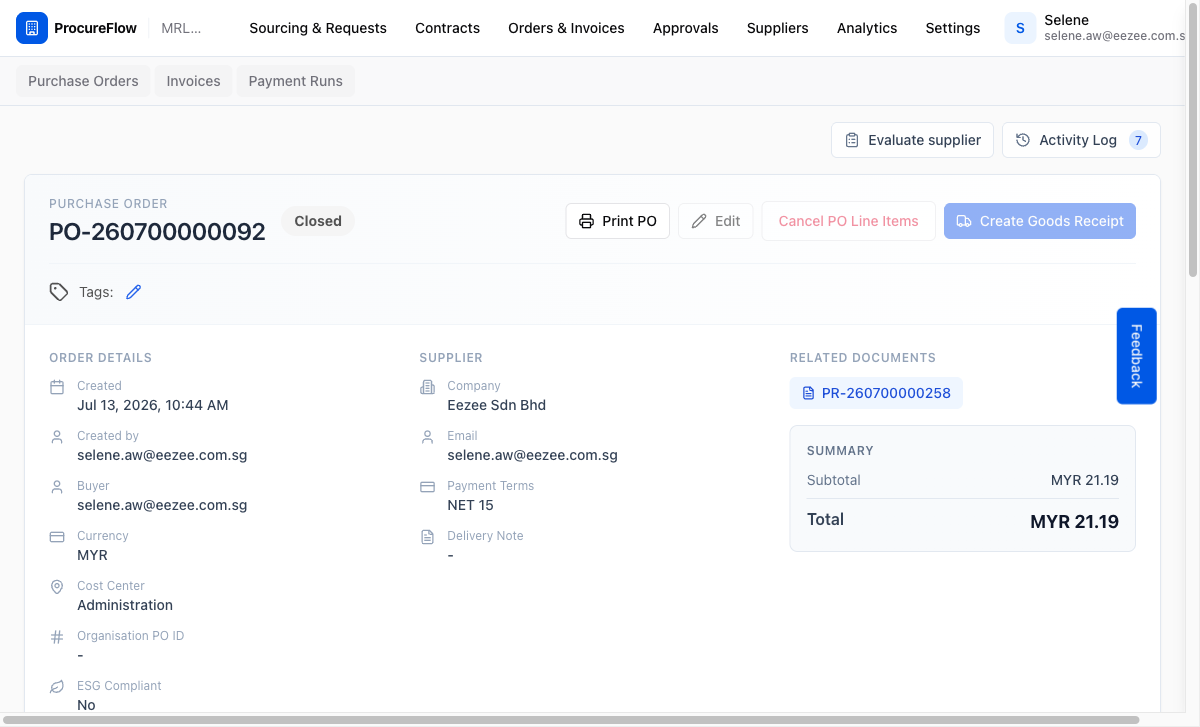
Open the evaluation form from a closed PO
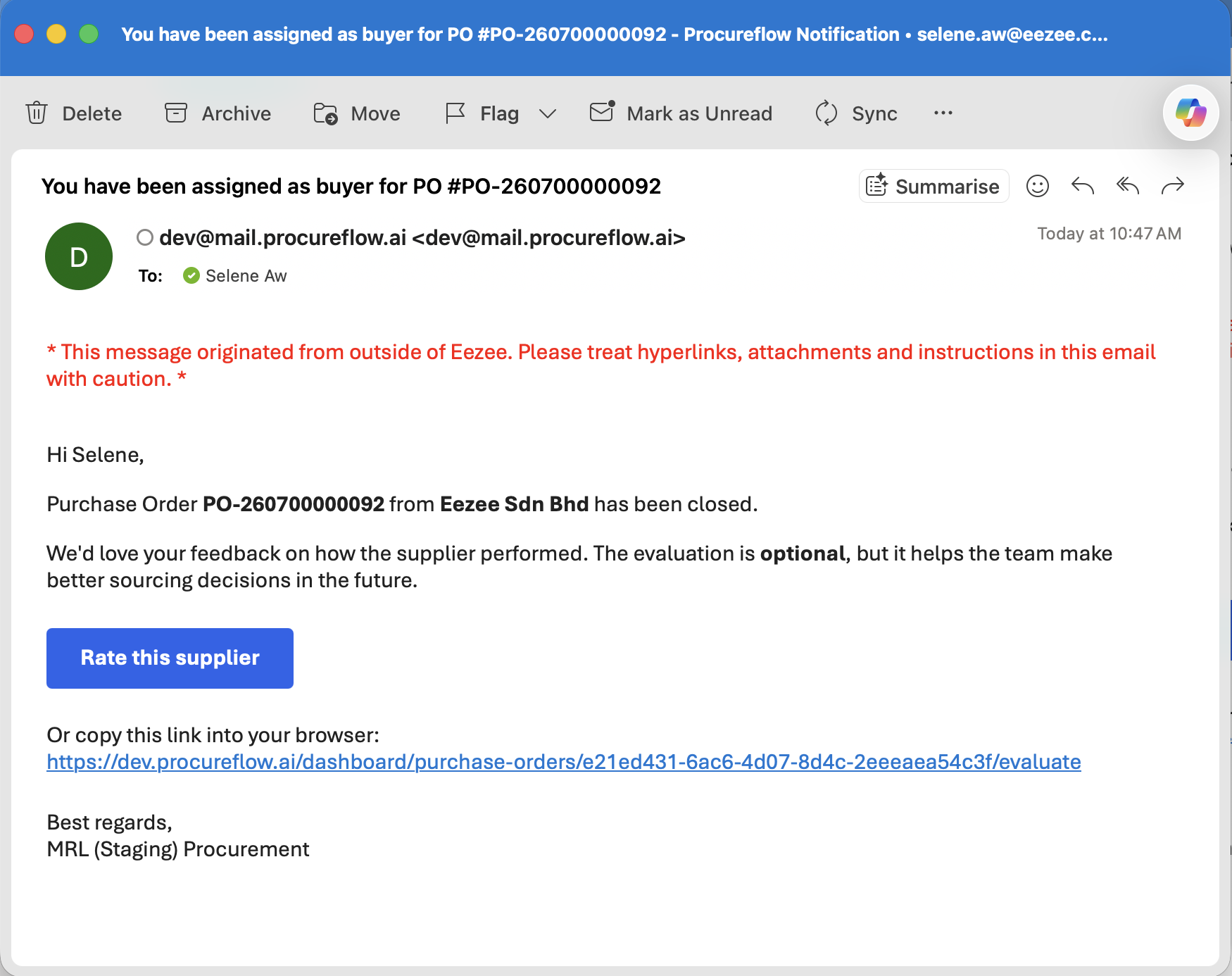
When a purchase order is closed, ProcureFlow automatically sends you a notification email.
Open the email, then click the Rate this supplier button (or copy the link into your browser) to go directly to the evaluation form.
Fill in the evaluation questionnaire
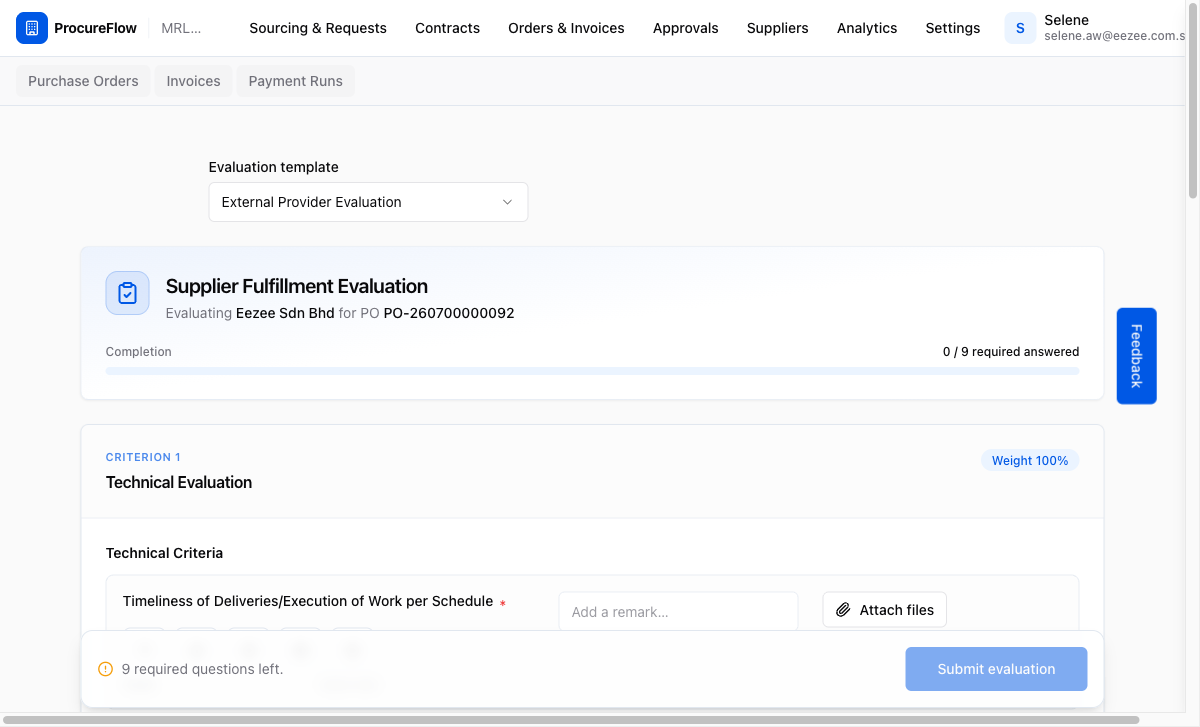
The evaluation form loads the active template for your organisation. Each question displays a 1–5 scale (1 = Poor, 5 = Excellent).
Complete the questionnaire:
- Rate the supplier on every required question (marked with an asterisk).
- Optionally, add remarks or attach supporting files to individual questions.
Pick approvers and submit
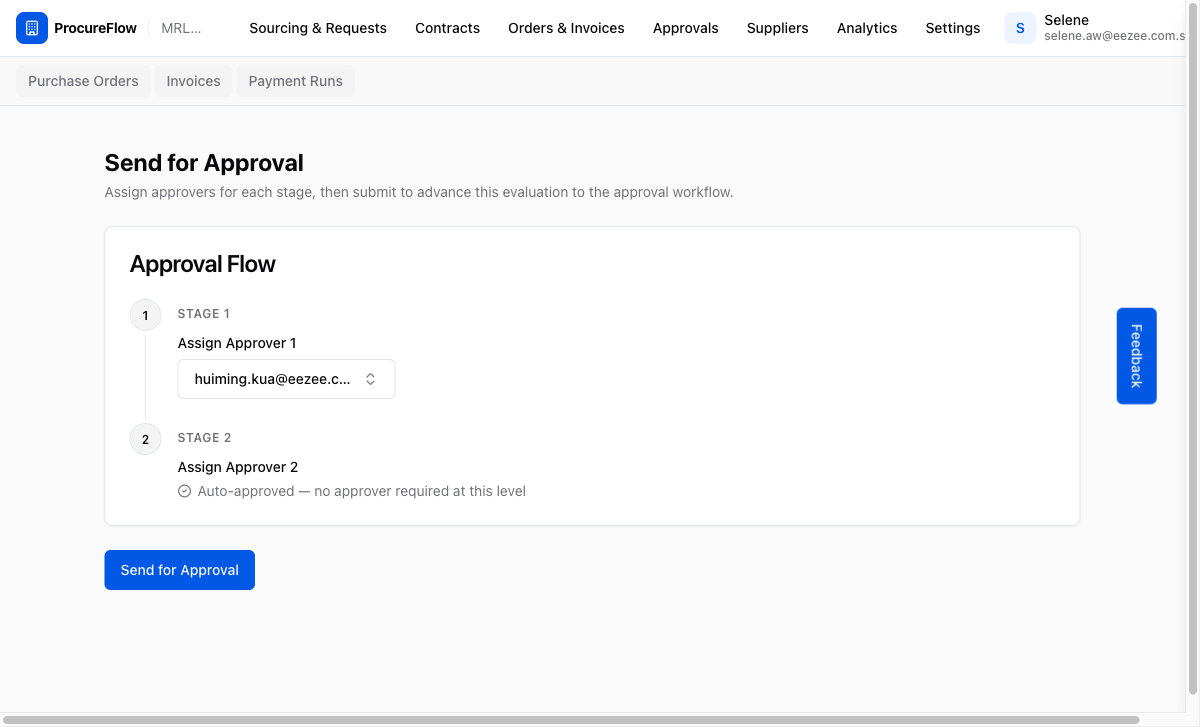
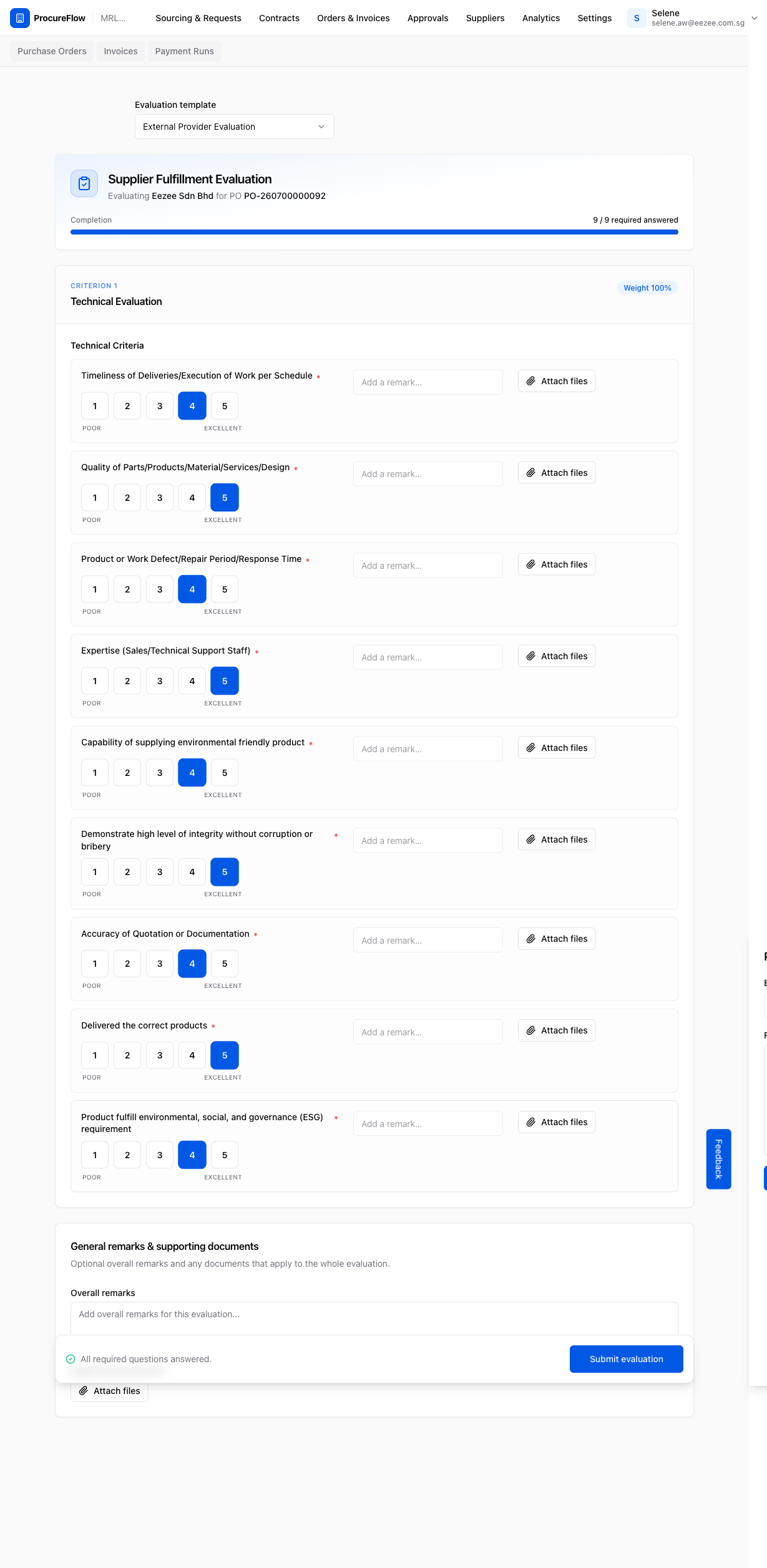
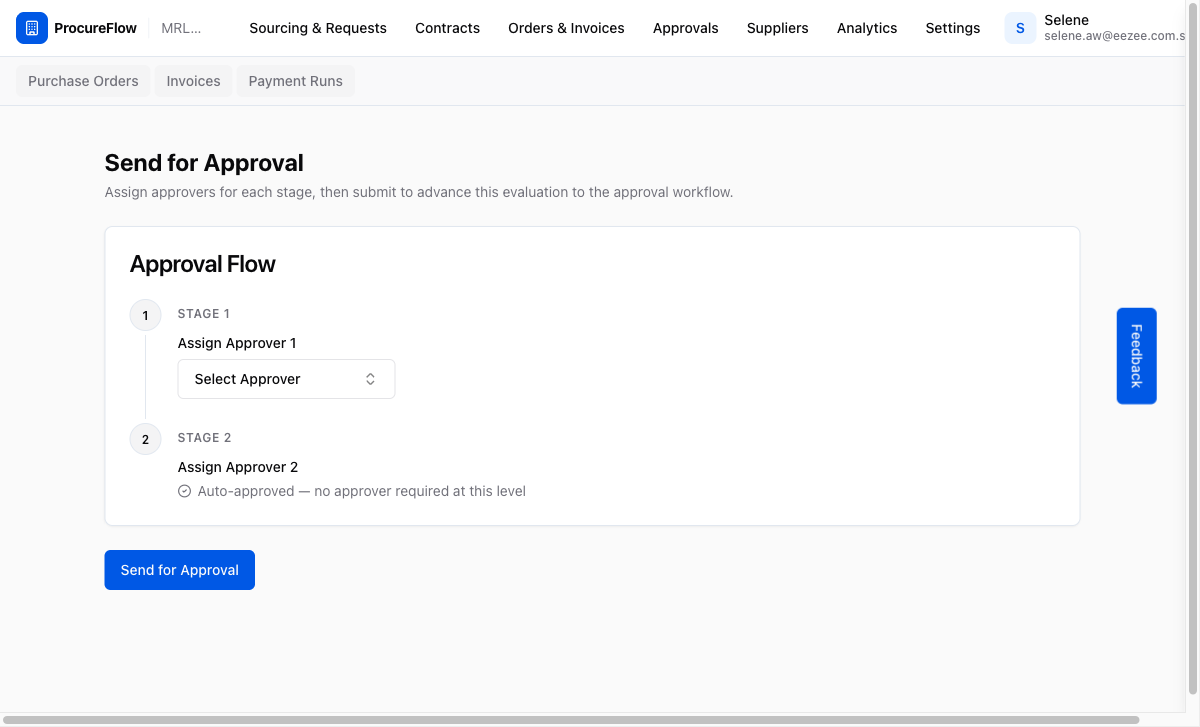
Below General remarks & supporting documents, the Approvers card lists every stage of your organisation's supplier evaluation approval workflow.
Some rows need no pick:
- Round-robin: ProcureFlow assigns one of the eligible approvers automatically.
- Auto-approved: no approver is needed at this level.
- A name shown instead of a dropdown: the approver is fixed, so there is nothing to choose.
Pick the approvers and submit:
- In each row that shows Select Approver, open the dropdown and choose an approver.
- Click Submit evaluation.
ProcureFlow calculates the weighted final score, sends the evaluation for approval and emails the approvers of the first stage. The Approval Path now shows where the Approvers card was.
Track the approval
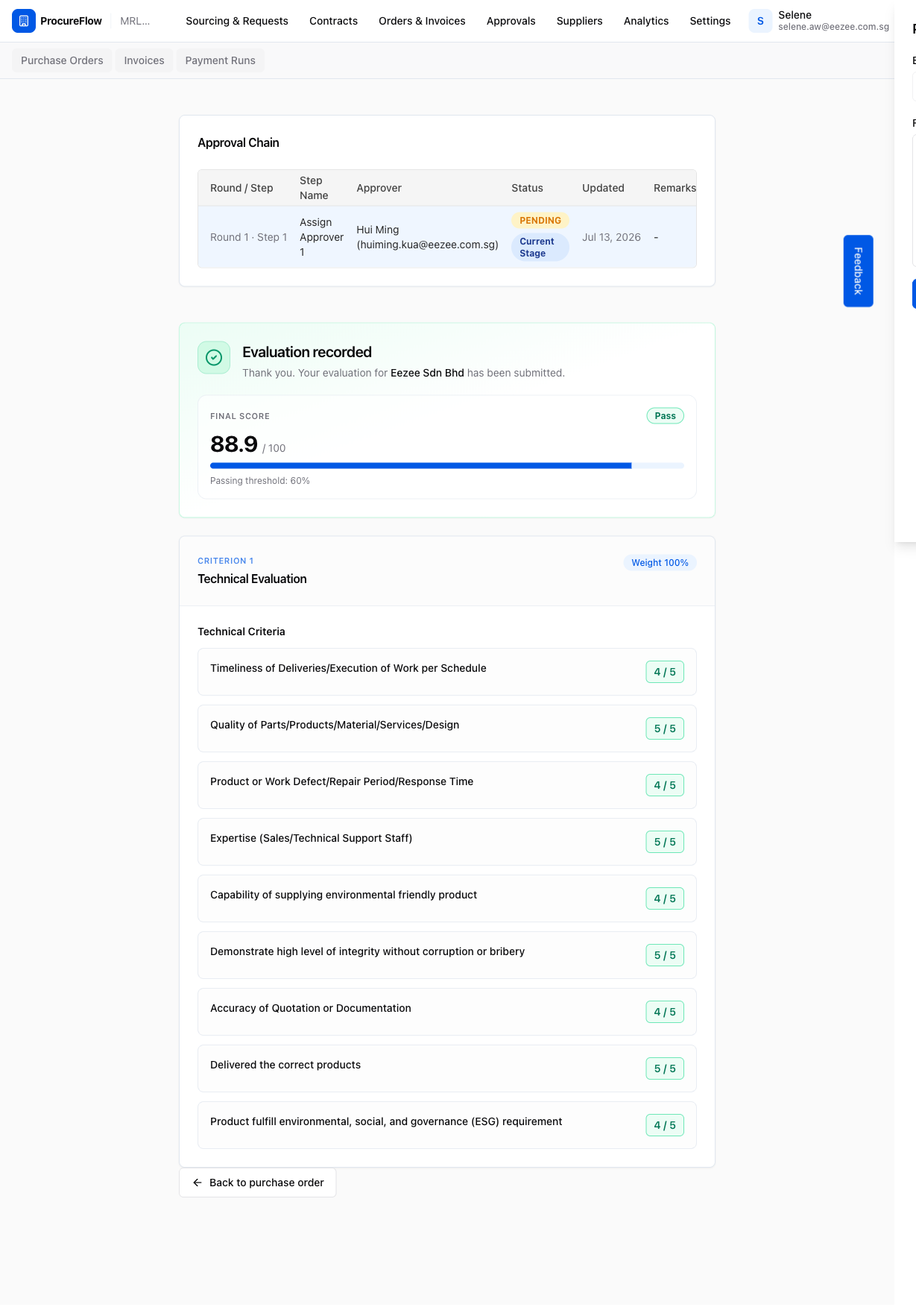
The evaluation shows as Pending approval, and its page is now read-only. The page shows:
- The Final score out of 100 in the top card, with a Pass or Below threshold badge when your template sets a passing threshold.
- Your answers in the same controls you filled in, locked: the option you picked stands out and the others are greyed out.
The Approval Path lists each stage from left to right:
- Approvers stacked in one stage review in parallel, and every one of them must approve before the next stage starts.
- Each approver reads Approved, Awaiting (their stage has started), Awaiting turn (an earlier stage is still open), Rejected or Cancelled.
- Click an approver to read their remarks.
flowchart LR
    A[In progress] -->|Submit| B[Pending approval]
    A -->|Submit, no approver needed| C
    B -->|Every stage approves| C[Approved]
    B -->|Any approver rejects| D[Rejected]
    D -->|Revise and re-submit| B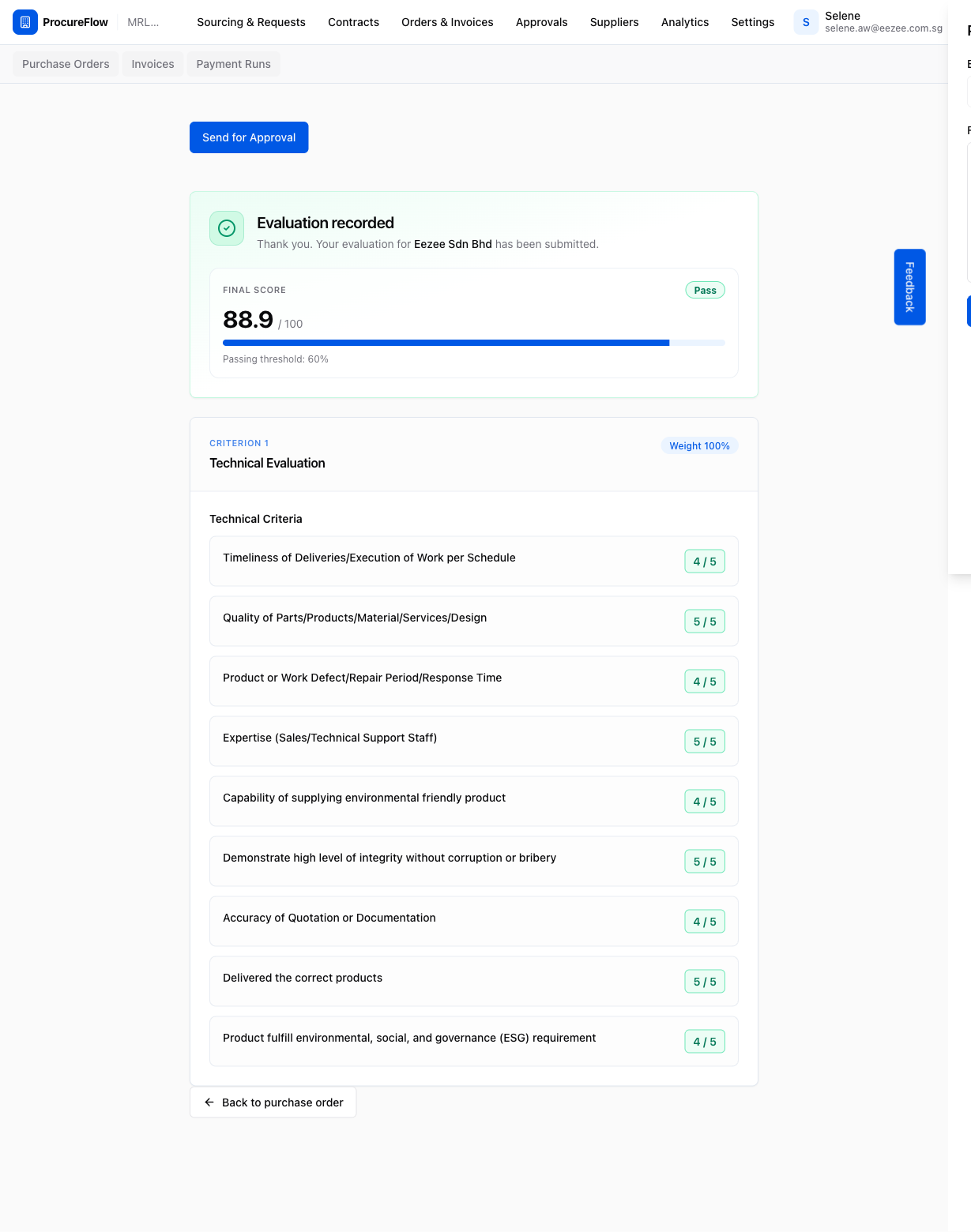
Approver steps
Approve or reject
When your stage starts, ProcureFlow emails you a link to your own approval page. Admin, Procurement Admin and Procurement Buyer users can also find the evaluation under Approvals → Evaluation Approvals in the navigation.
Review the evaluation, then decide in the bar at the bottom of the page.
To approve, click Approve. The next stage starts once every approver in your stage has approved, and the evaluation is Approved when the last stage completes.
To reject:
- Click Reject.
- Enter your reason in Rejection reason (required).
- Click Reject in the dialog.
A rejection returns the evaluation to the evaluator, and anyone in the round who had not decided yet shows as Cancelled.
Evaluator steps (cont.)
Revise a rejected evaluation
ProcureFlow emails you the approver's reason and a link to the evaluation. Open it to revise, with your previous answers already filled in:
- Read who rejected it and why at the top of the page.
- Change the answers that need it.
- Click Re-submit evaluation.
The evaluation goes back to the same approvers, starting from stage 1, as a new round. Pick Round 1 from the round dropdown on the Approval Path to see the round that was rejected.