Mark as Sent to Supplier
Record that a purchase order has been sent to a buyer-managed supplier on their behalf.
Last updated 12 October 2026
Who can use this?
Available to Procurement Buyer, Procurement Admin, and Admin. The supplier must be a buyer-managed (non-self-service) vendor.
Open the Purchase Order
- Navigate to Orders & Invoices → Purchase Orders.
- Click the PO reference number to open the detail page.
The PO must be in Open state (all internal approvals completed).
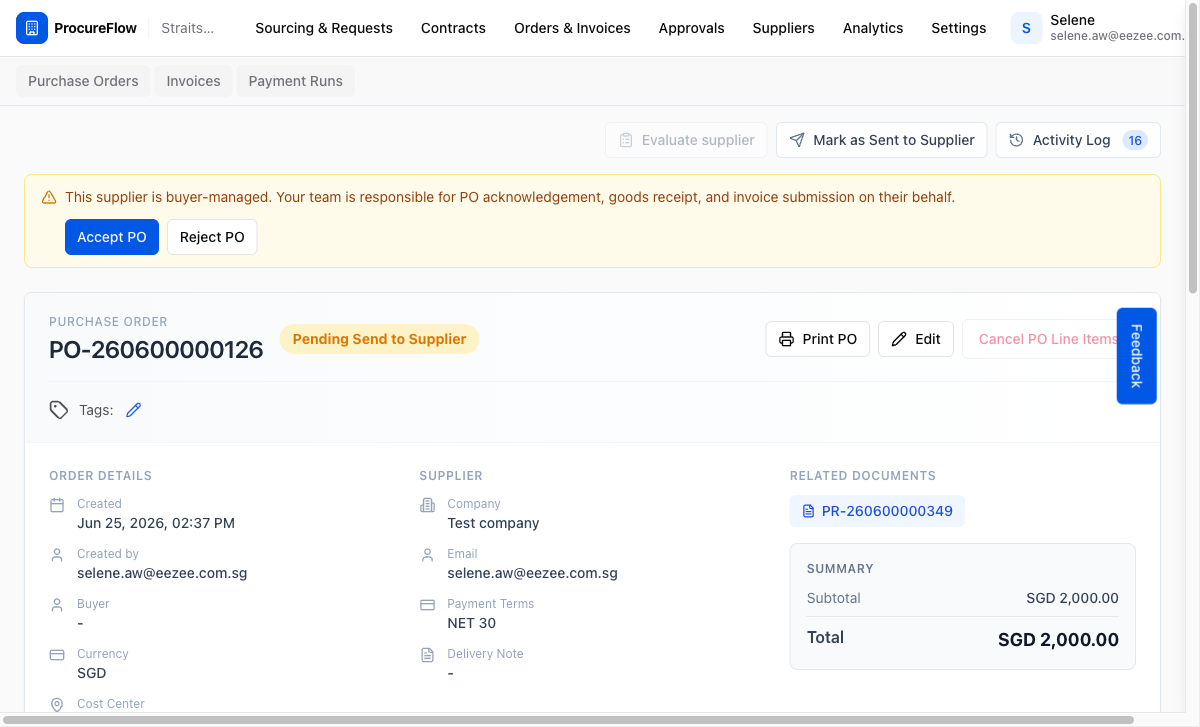
Locate the Mark as Sent to Supplier button
In the top-right action bar, find the Mark as Sent to Supplier button.
This button appears only when the PO has not yet been recorded as sent (i.e. no supplier version number exists yet).

Note: This button will not appear for self-service (portal-connected) suppliers, only for buyer-managed vendors.
Click Mark as Sent to Supplier
Click the Mark as Sent to Supplier button. ProcureFlow immediately records that the PO has been sent to the supplier on your behalf and refreshes the page.
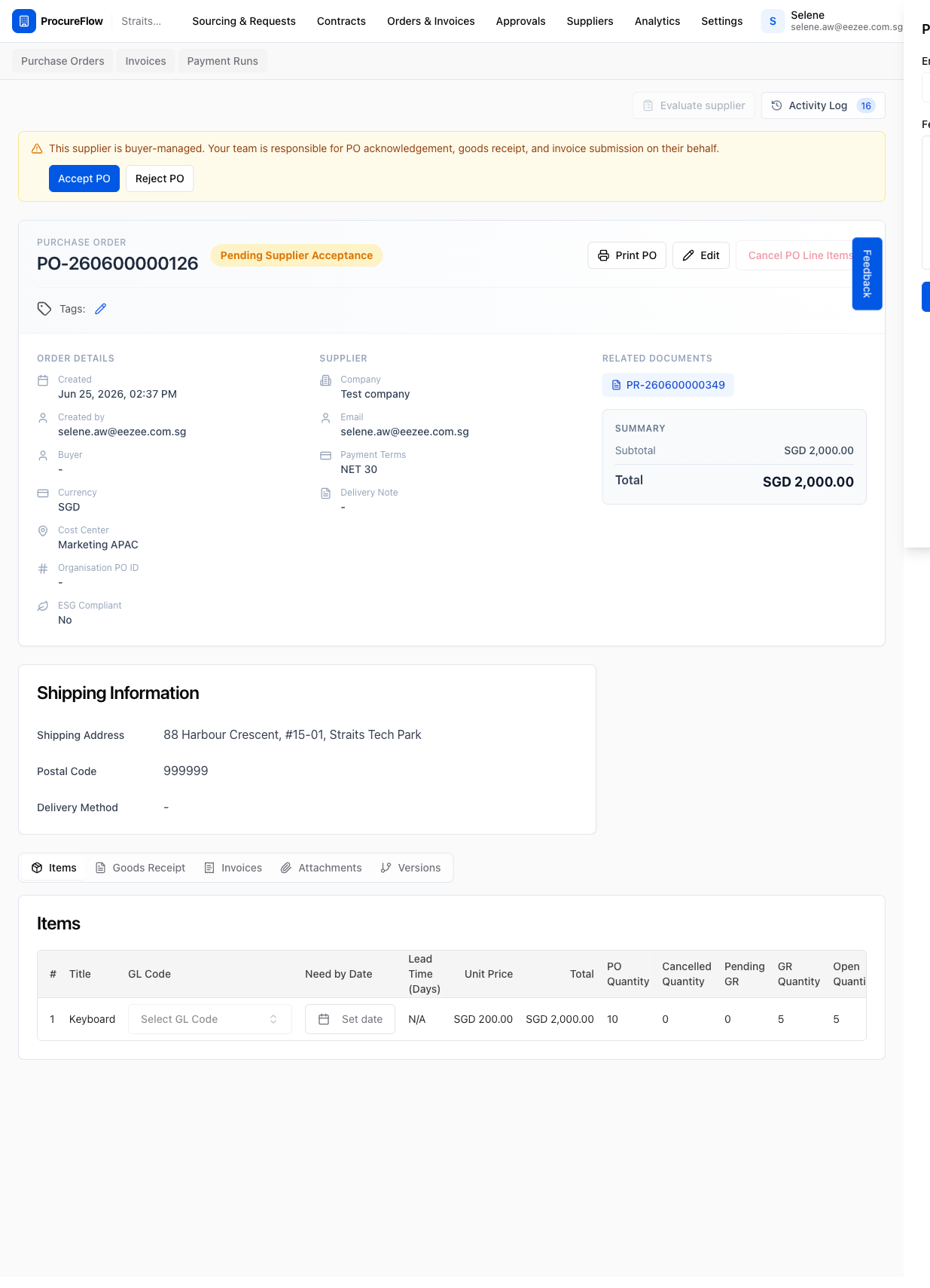
What changes: The PO status badge updates to Pending Supplier Acceptance and the Mark as Sent to Supplier button disappears. The buyer-managed banner now shows the Accept PO and Reject PO buttons for the next step.