Bid Analysis
Compare award scenarios against your procurement constraints, preview the breakdown by supplier, and apply the winning split with an audit-ready justification.
Last updated 24 August 2026
Comparing bids across dozens of suppliers and hundreds of line items by hand is slow and error-prone. Bid Analysis tests every combination against the constraints that reflect your procurement policies, so you can compare award scenarios side by side before committing.
Coming soon
Linking Bid Analysis directly to your RFQs and Tenders, so you can build one from a live sourcing event instead of a spreadsheet, is on our roadmap.
Create a Bid Analysis and Load the Bid Matrix
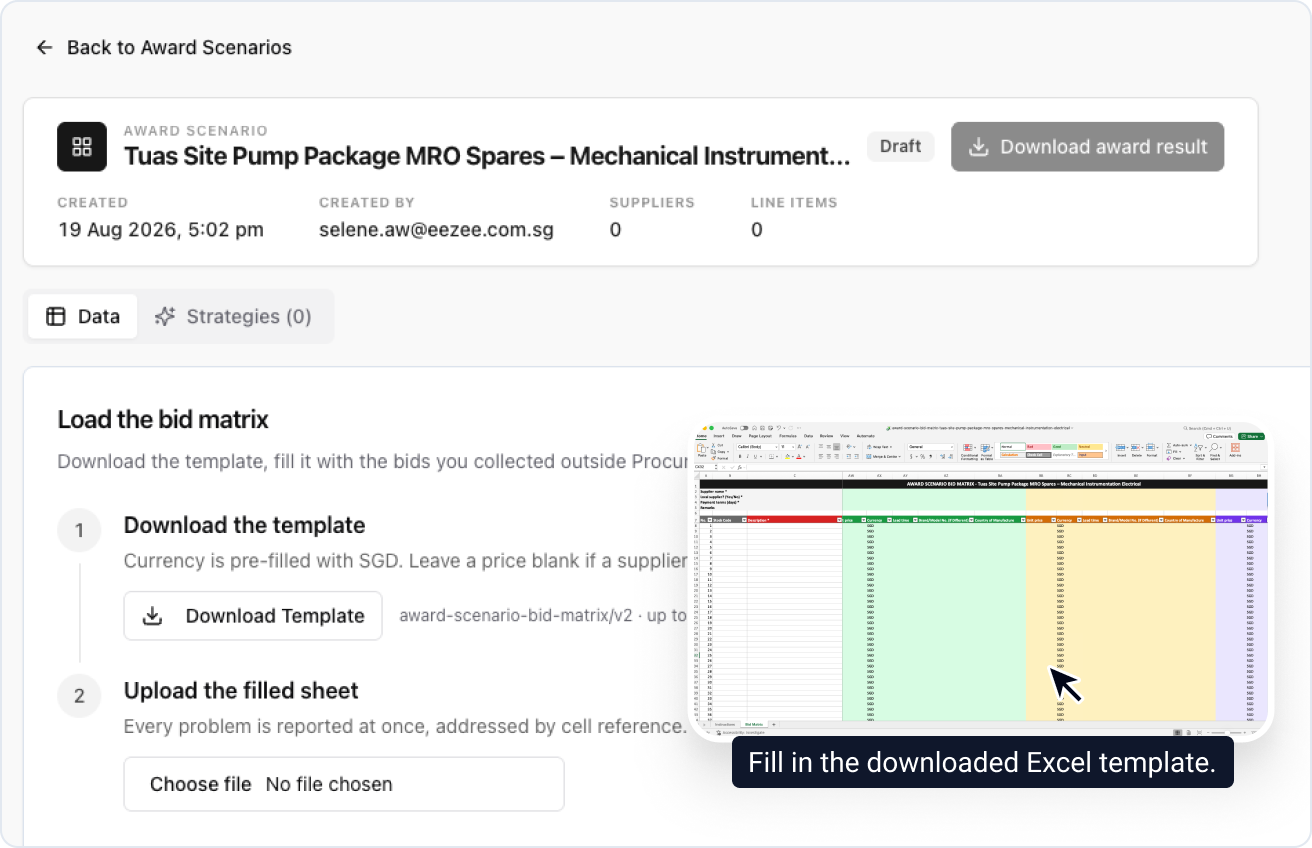
A new bid analysis starts in Draft, empty. The template holds up to 20 supplier columns, and every problem in the filled sheet is reported at once, by cell reference, before anything is committed.
Review the Loaded Bid Analysis
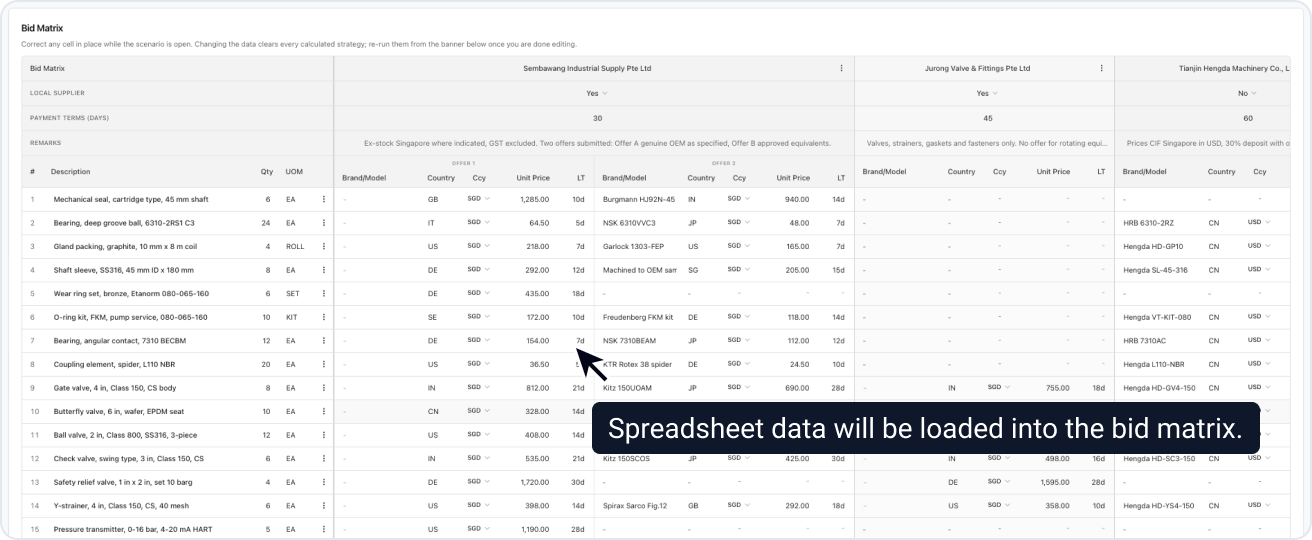
The bid analysis is now Open and the sheet has become the Bid Matrix. Two award scenarios come ready to run: Cheapest, and Cheapest (Max 3 Suppliers).
Exchange rates are pinned at upload, so every award scenario converts identically. Cells stay editable for as long as the bid analysis is Open.
Editing the bid matrix clears every calculated award scenario's result. A banner tells you how many are out of date; click Re-run all to recalculate.
Build an Award Scenario
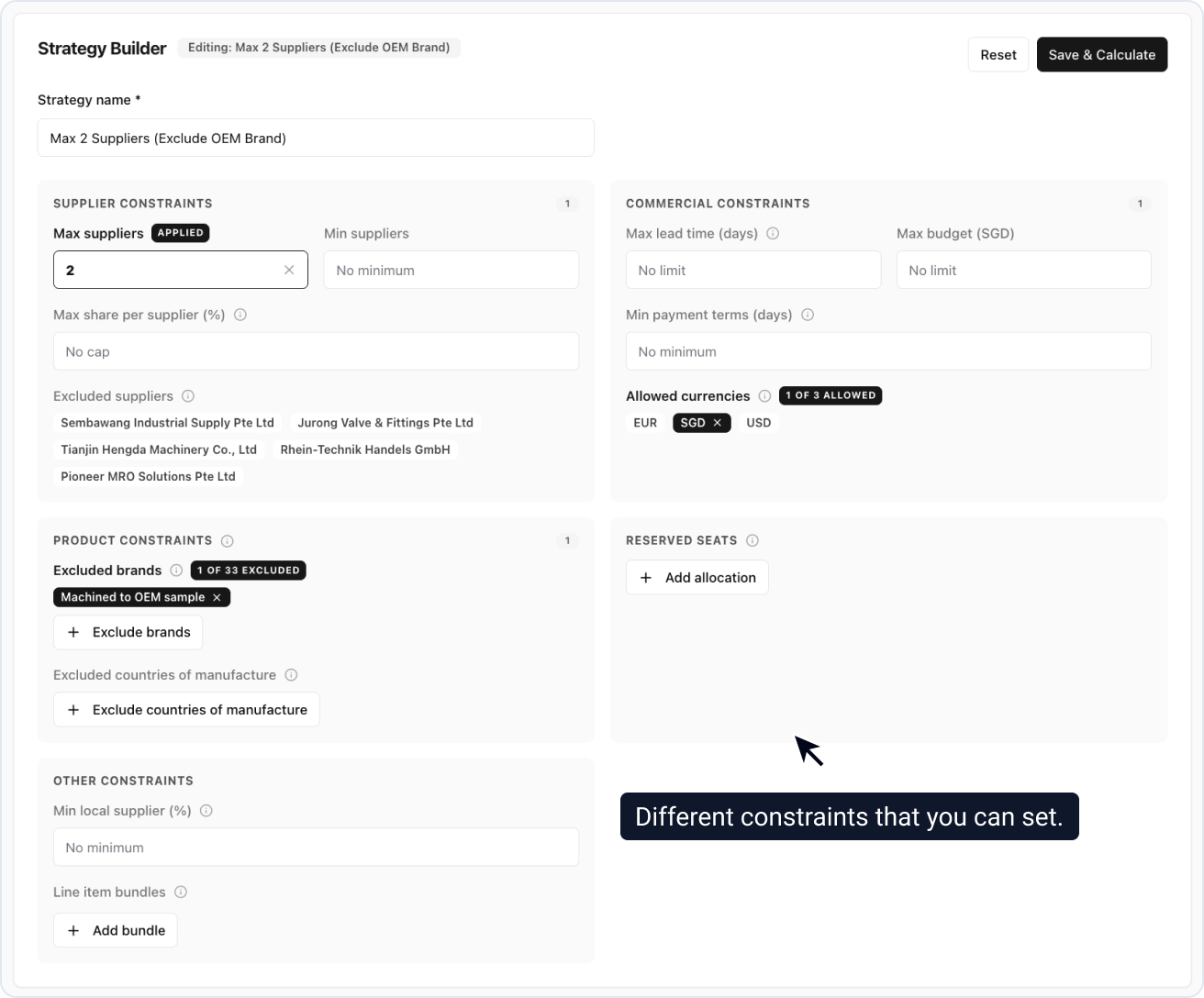
The solver targets the lowest total cost while satisfying every constraint at once. A combination that cannot be satisfied comes back marked infeasible.
You get up to 10 award scenarios per bid analysis, the two defaults included.
Preview the Award Breakdown
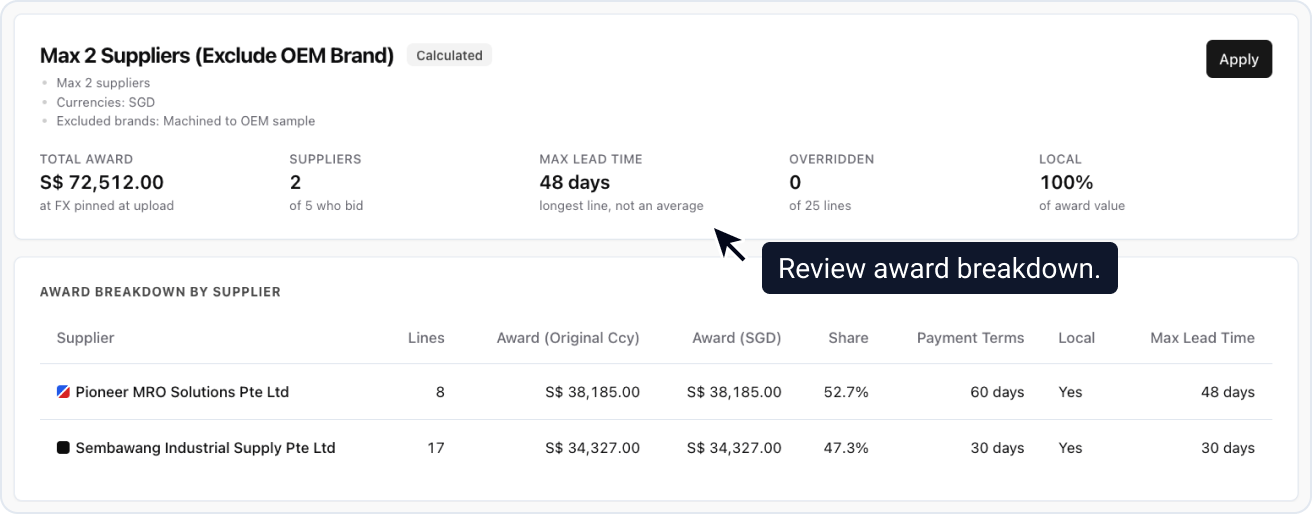
Max lead time is the longest awarded line, not an average.
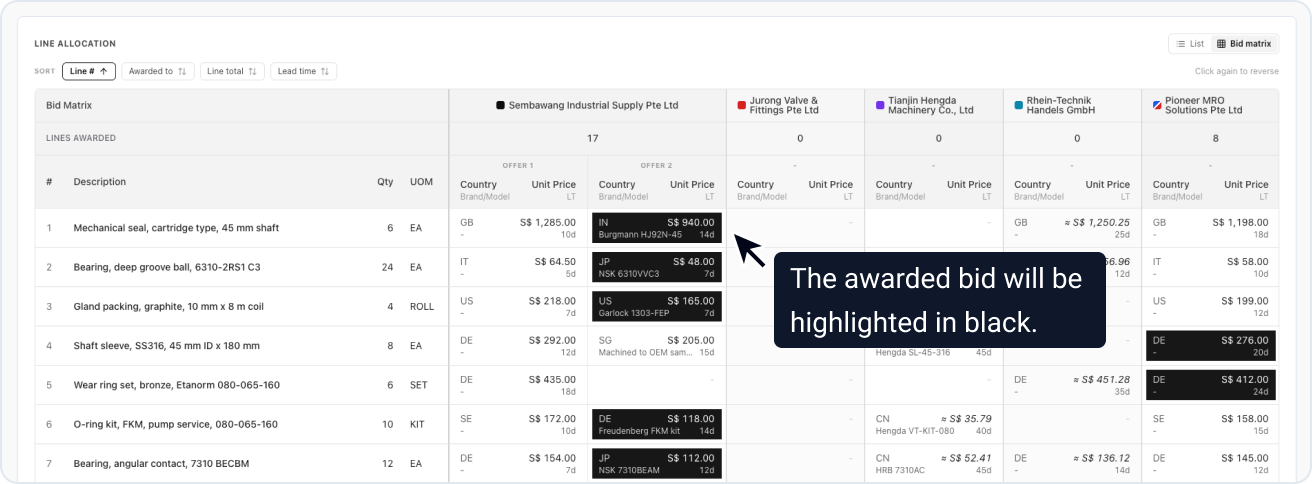
The Bid matrix toggle shows the same result as a grid. Any line can be overridden with a reason, up until the award scenario is applied.
Compare Award Scenarios Side by Side
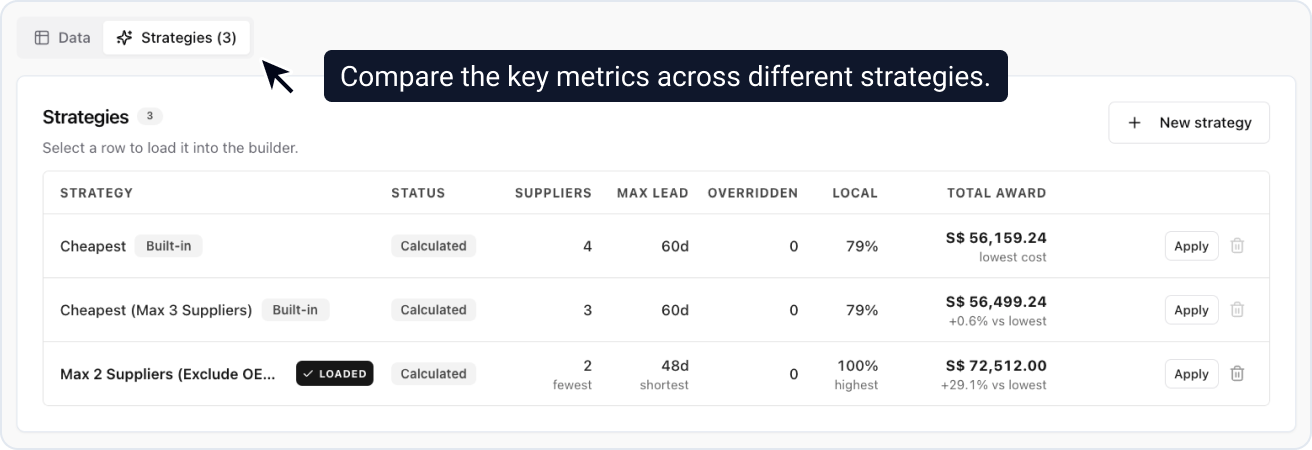
Each award scenario shows its gap to the cheapest, so the price of a policy is explicit. Selecting a row loads it into the builder and breakdown below, putting the trade-off in place: fewer suppliers set against a longer lead time.
Apply Your Chosen Award Scenario
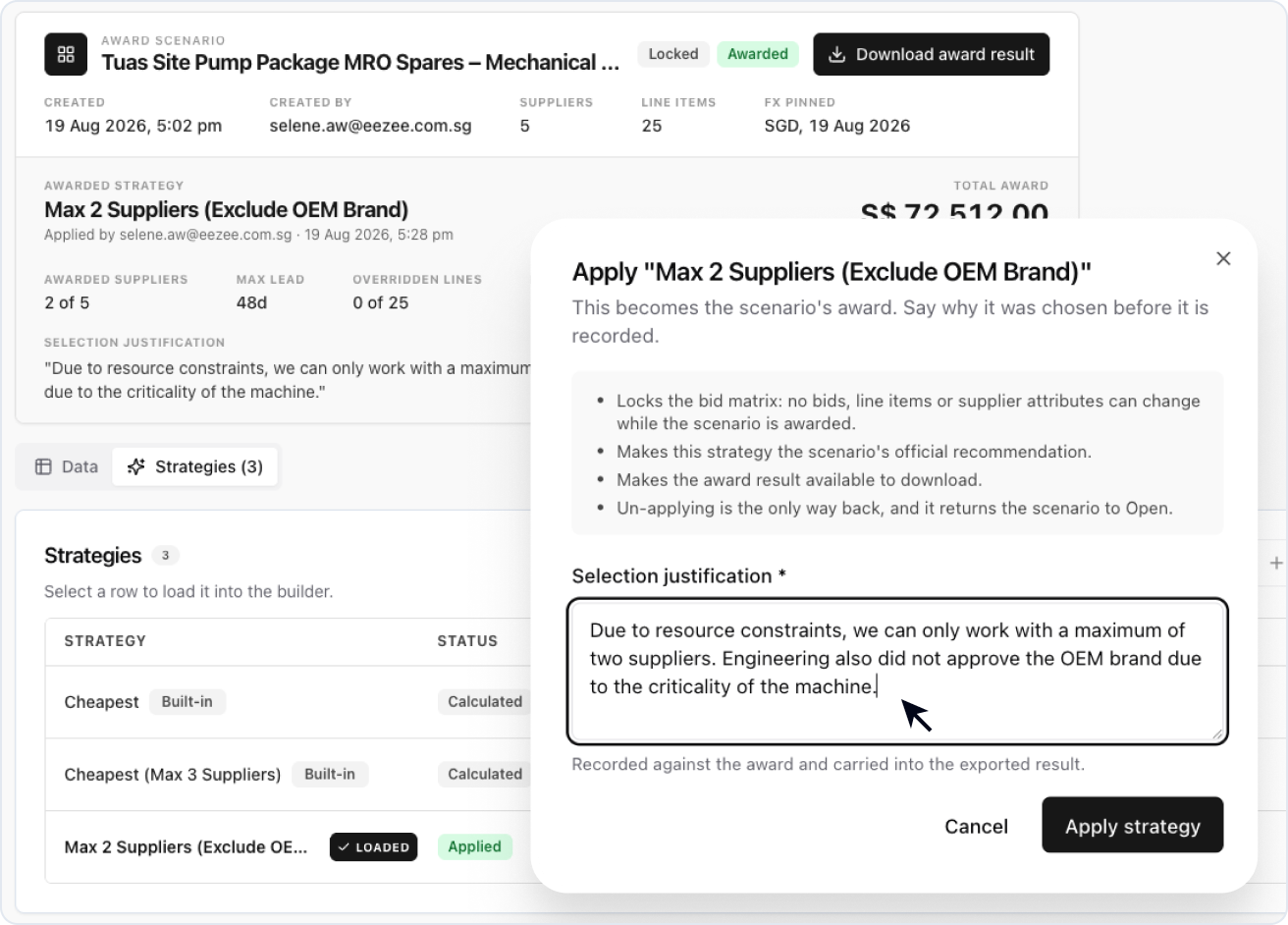
When you choose to apply an award scenario as the winning award, ProcureFlow asks for a Selection justification and records it alongside the decision. The bid matrix locks, and this award scenario becomes the official award recommendation.
You are not locked in: apply a different award scenario to replace this one, or Un-apply to reopen the bid matrix for editing.
Download the Award Result

Once an award scenario is applied, the full award is available as an Excel workbook, ready to share with stakeholders or file for audit.