Mark a Payment Run as Paid
Once the bank transfer is complete, settle all invoices in a pending run by uploading proof of payment and marking it as paid.
Last updated 12 October 2026
Who can use this?
Available to Finance Manager users only. Buyers, approvers, and other roles do not have access to Payment Runs.
Open the payment run and click Mark as Paid
Settle a pending run from its detail page:
- Go to Orders & Invoices › Payment Runs.
- Open the run you want to settle. It must be in Pending status.
- Click Mark as Paid in the top-right action area.
The confirmation dialog opens.
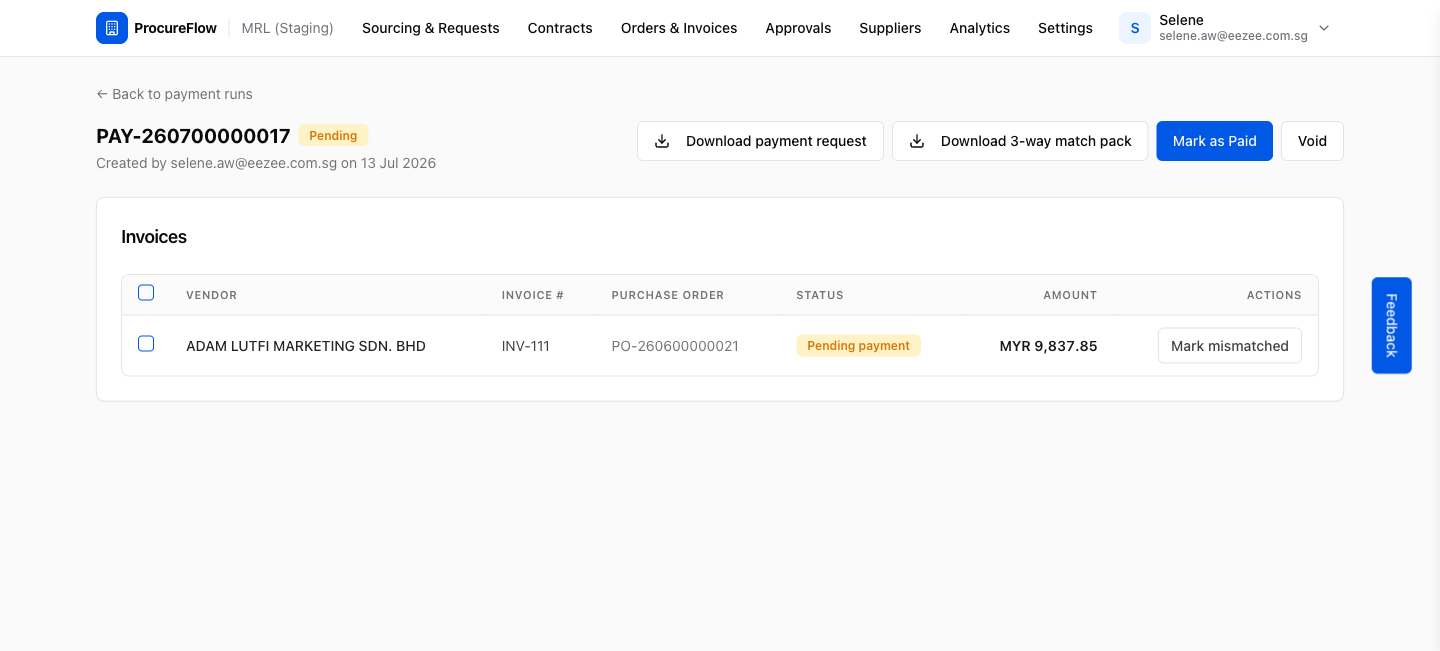
Note: Depending on your organisation's settings, proof of payment may be required before the run can be settled.
Upload proof of payment
Add your proof of payment. Upload it one of two ways:
- Drag and drop your bank remittance advice or transfer confirmation into the upload area.
- Click the upload area to browse for the file.
Accepted formats are PDF, JPG, or PNG up to 5 MB.
Once attached, the file chip appears and the form is ready to submit.
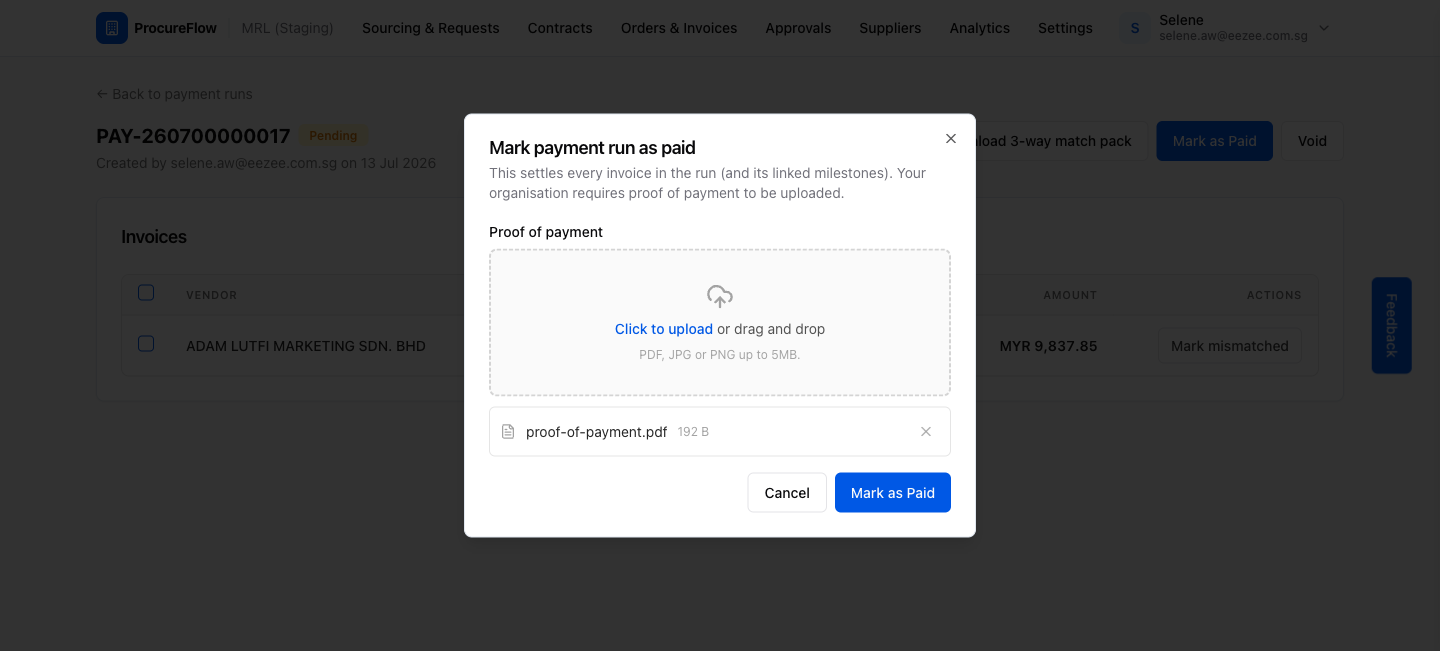
Important: Clicking Mark as Paid cannot be undone. Every invoice in the run will be settled and any linked payment milestones will be closed.
Payment run marked as Paid
The run is now settled:
- The run status changes to Paid.
- The paid date is stamped on the record.
- The proof of payment attachment is saved against the run.
- All invoices in the run are now settled.
- The run is read-only.
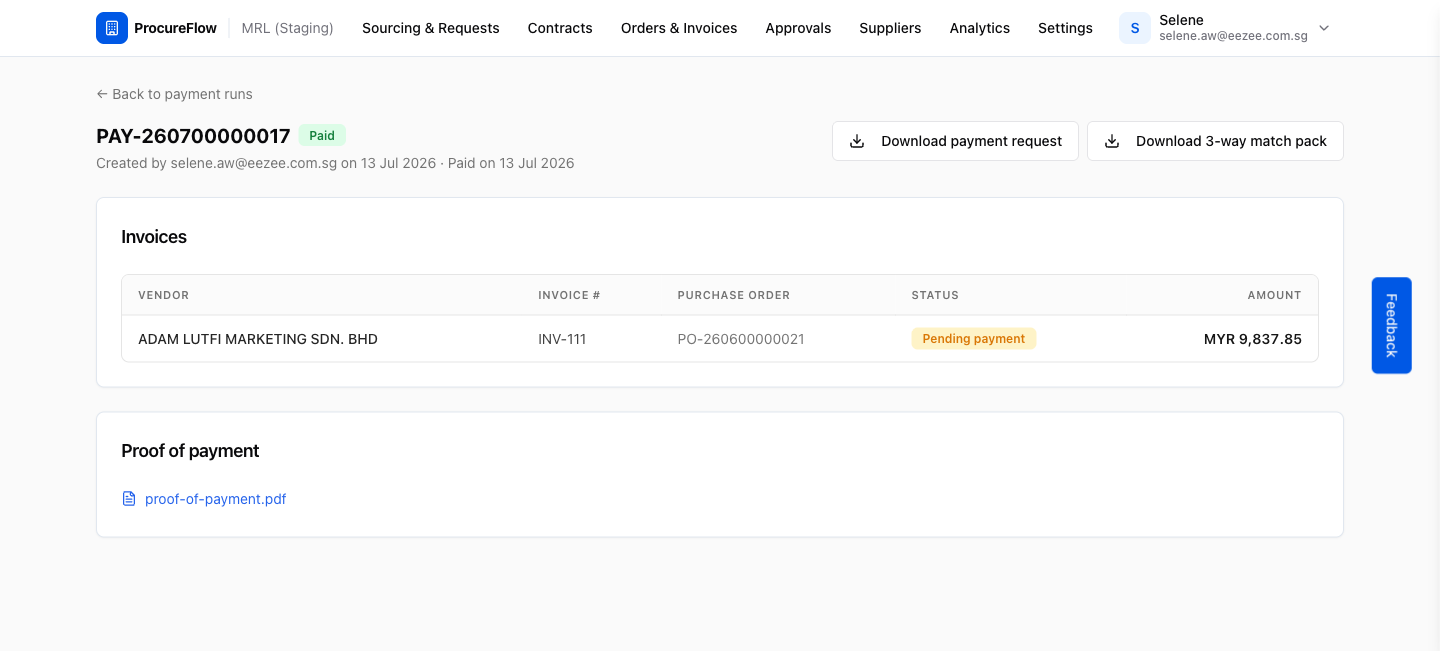
Tip: You can return to any completed run at any time to download the payment request CSV or the 3-way match pack ZIP for auditing purposes.