Cancel a Purchase Request
How to withdraw a submitted purchase request that is no longer needed, notifying all pending approvers and cascading the cancellation to any linked sourcing records.
Last updated 12 October 2026
Who can use this?
Available to the PR Requestor (creator), Admin, and Procurement Admin. Other roles do not see the Cancel PR button.
Open Purchase Requests
From the top navigation:
- Go to Sourcing & Requests.
- Click the PR tab.
You will see a list of all purchase requests in your organisation.
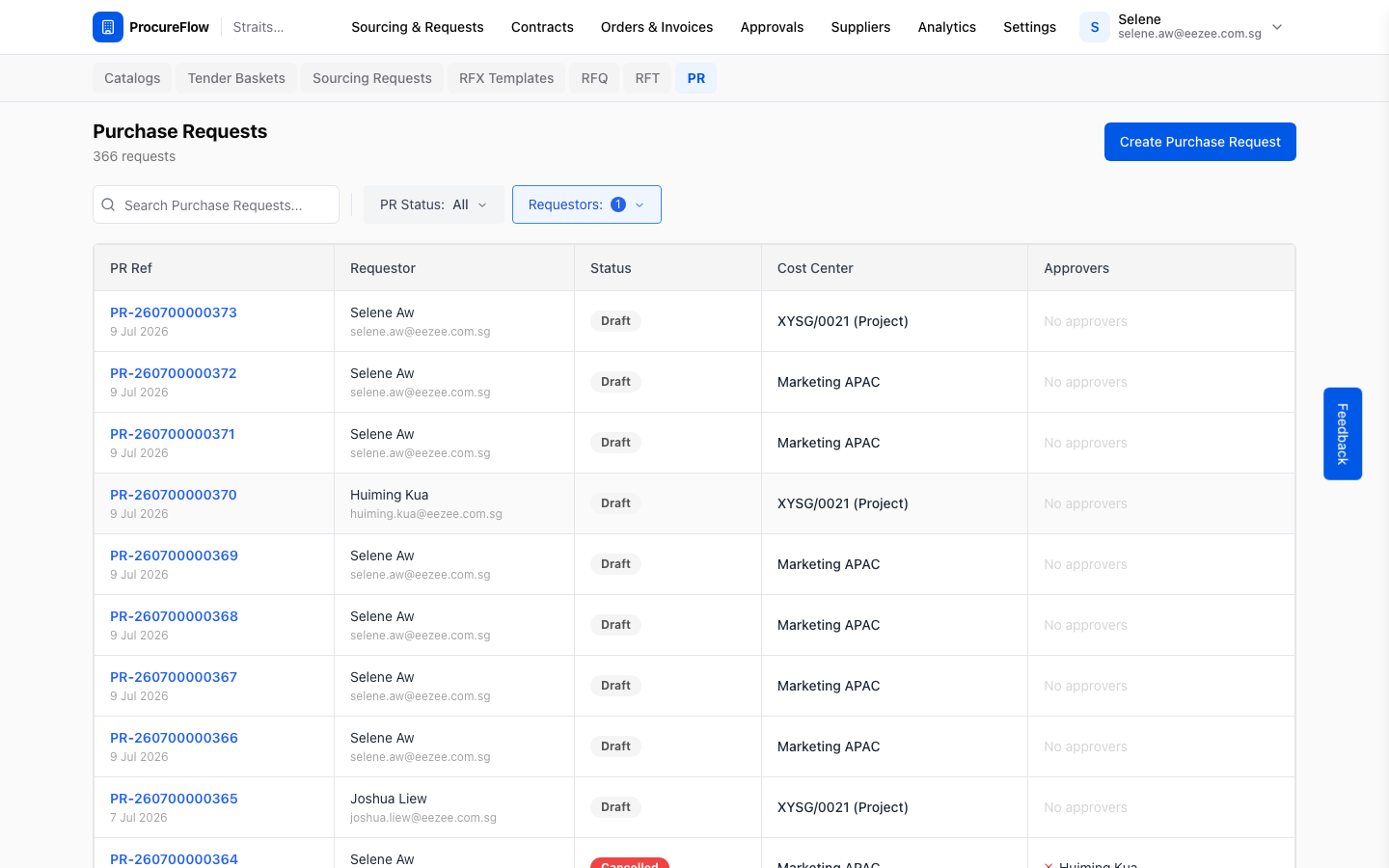
Open the PR you want to cancel
Click the PR reference number (e.g. PR-260600000339) to open the detail page.
The Cancel PR button is in the top-right corner of the header card. It is only visible when:
- The PR is in Pending or Pending Sourcing status, and
- You are the requestor or an admin.
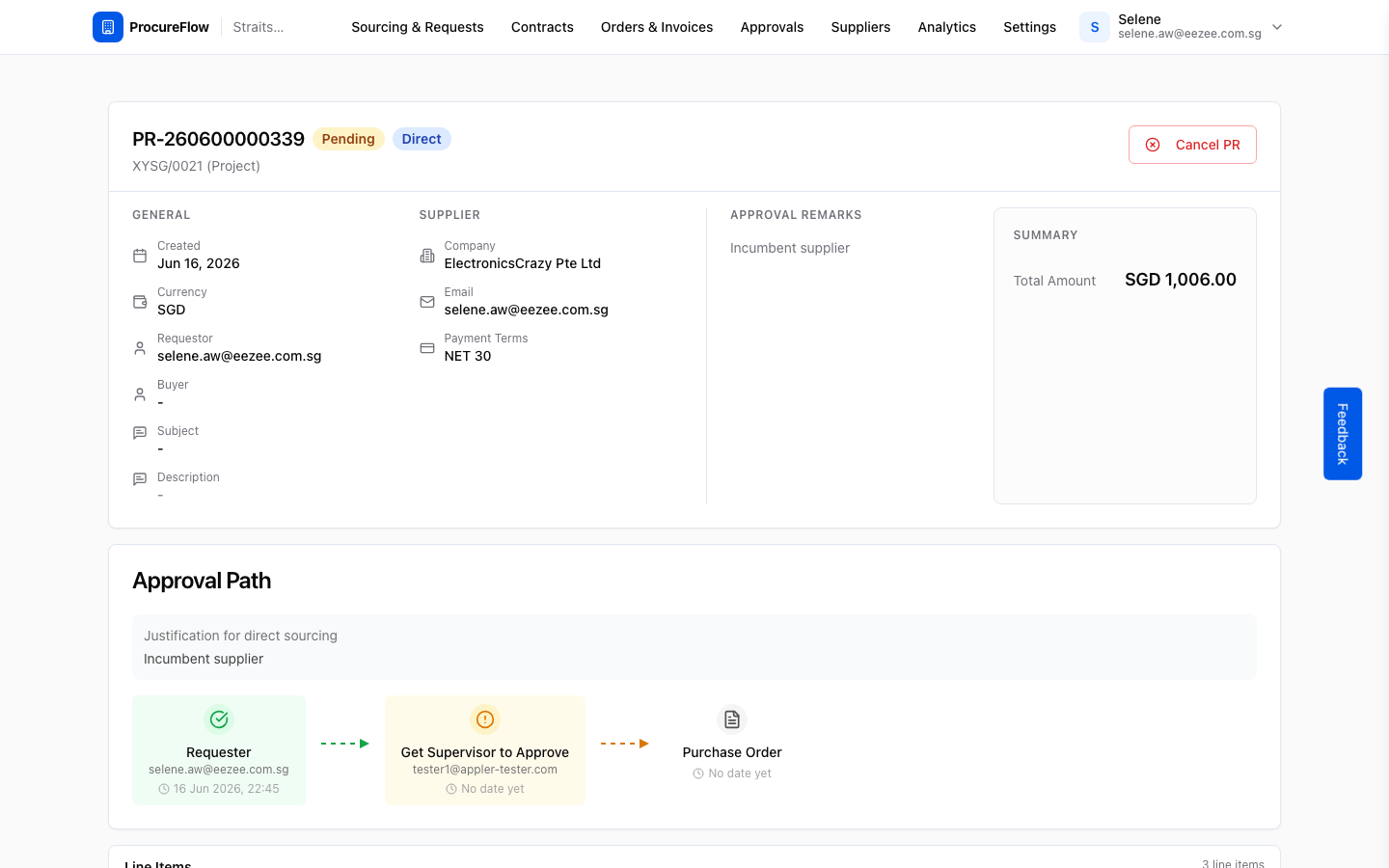
Click Cancel PR
Click the Cancel PR button. A confirmation dialog appears, summarising the impact of the cancellation:
- How many pending approvers will be notified.
- Whether any linked sourcing requests or draft RFQs will also be cancelled.
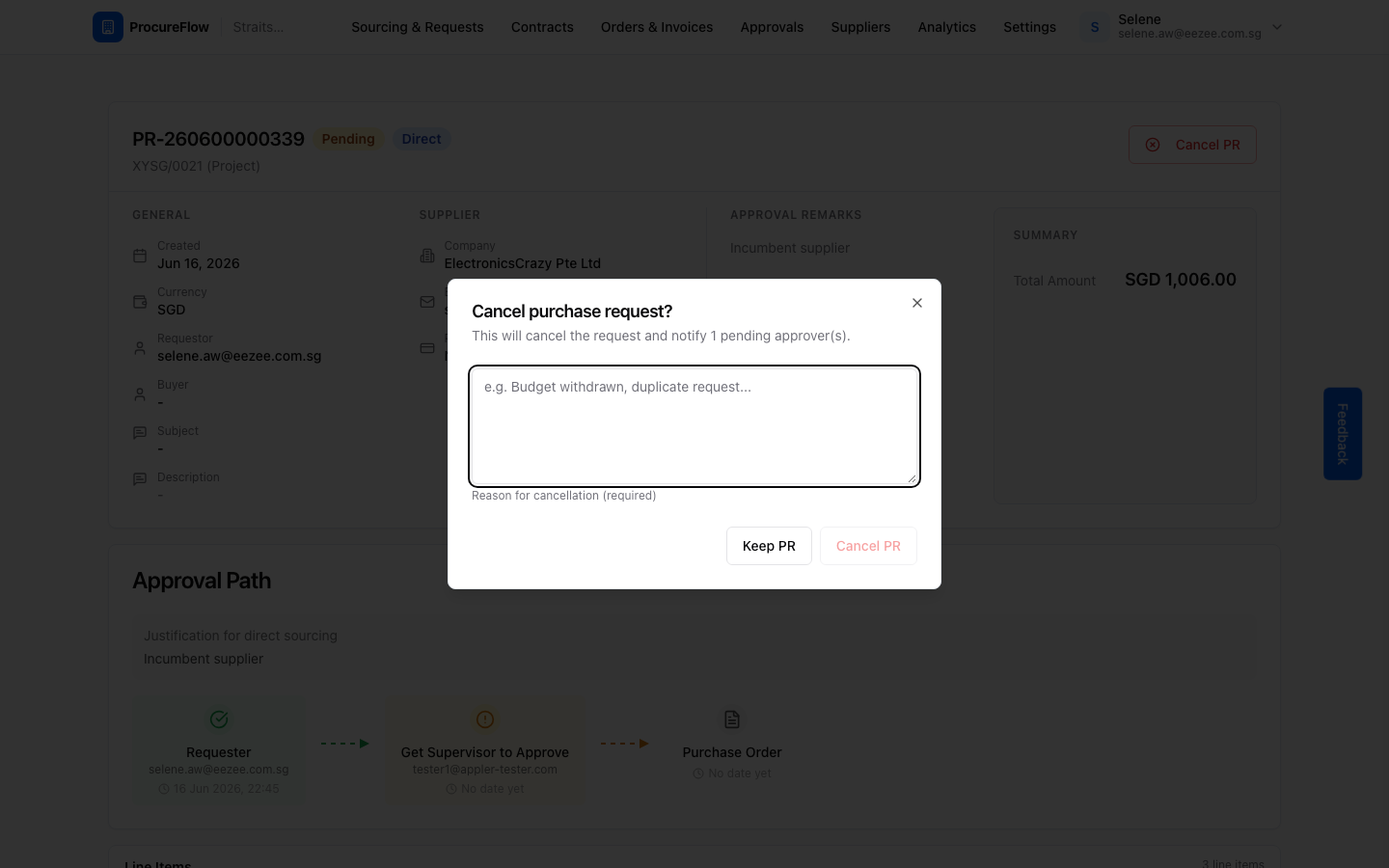
Enter a cancellation reason
Type a clear reason for cancelling in the text field. For example, "Budget withdrawn" or "Duplicate request".
The reason is required: the Cancel PR confirm button stays disabled until you enter something.
Your reason is stored on the PR and visible to all approvers.
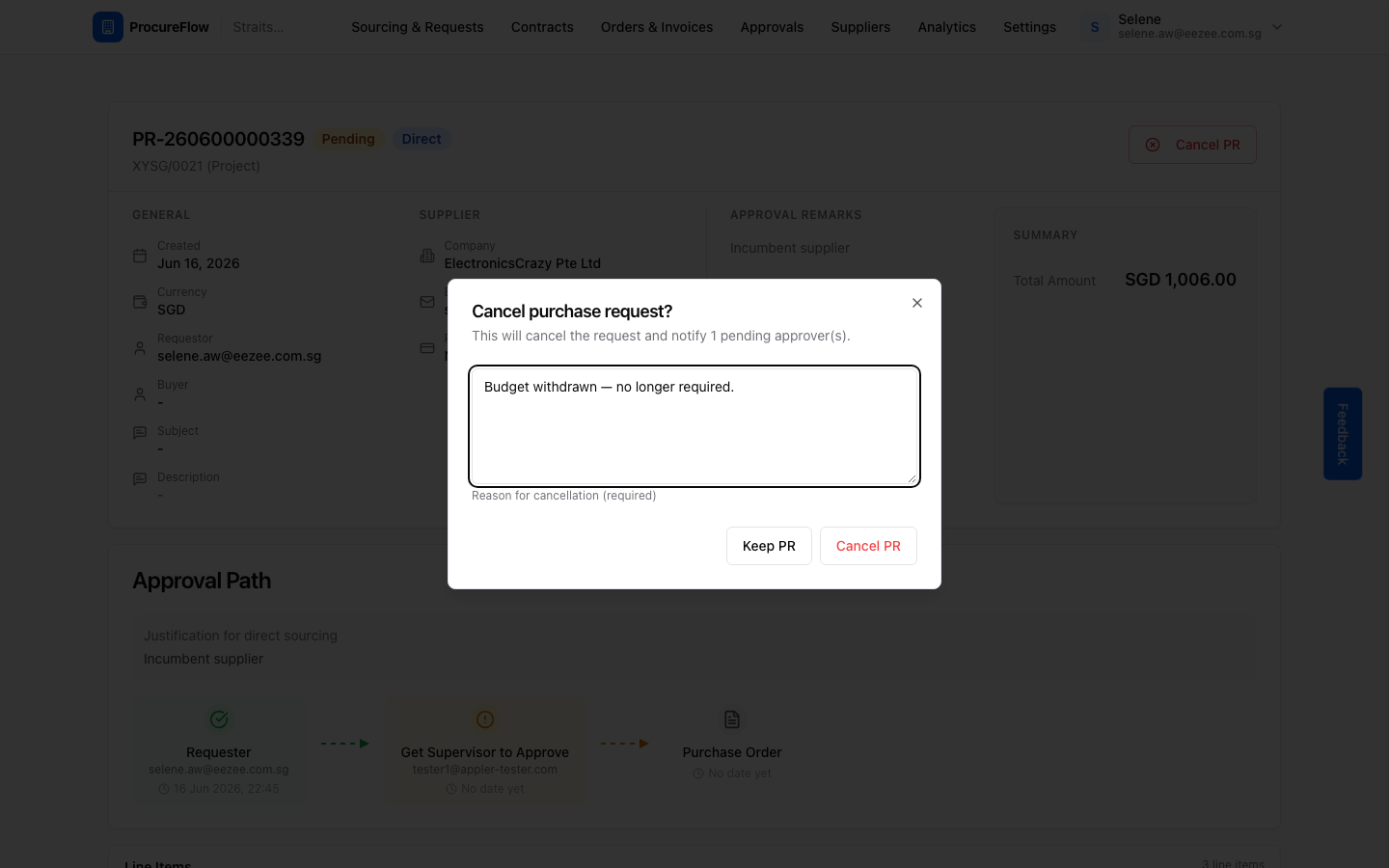
Confirm the cancellation
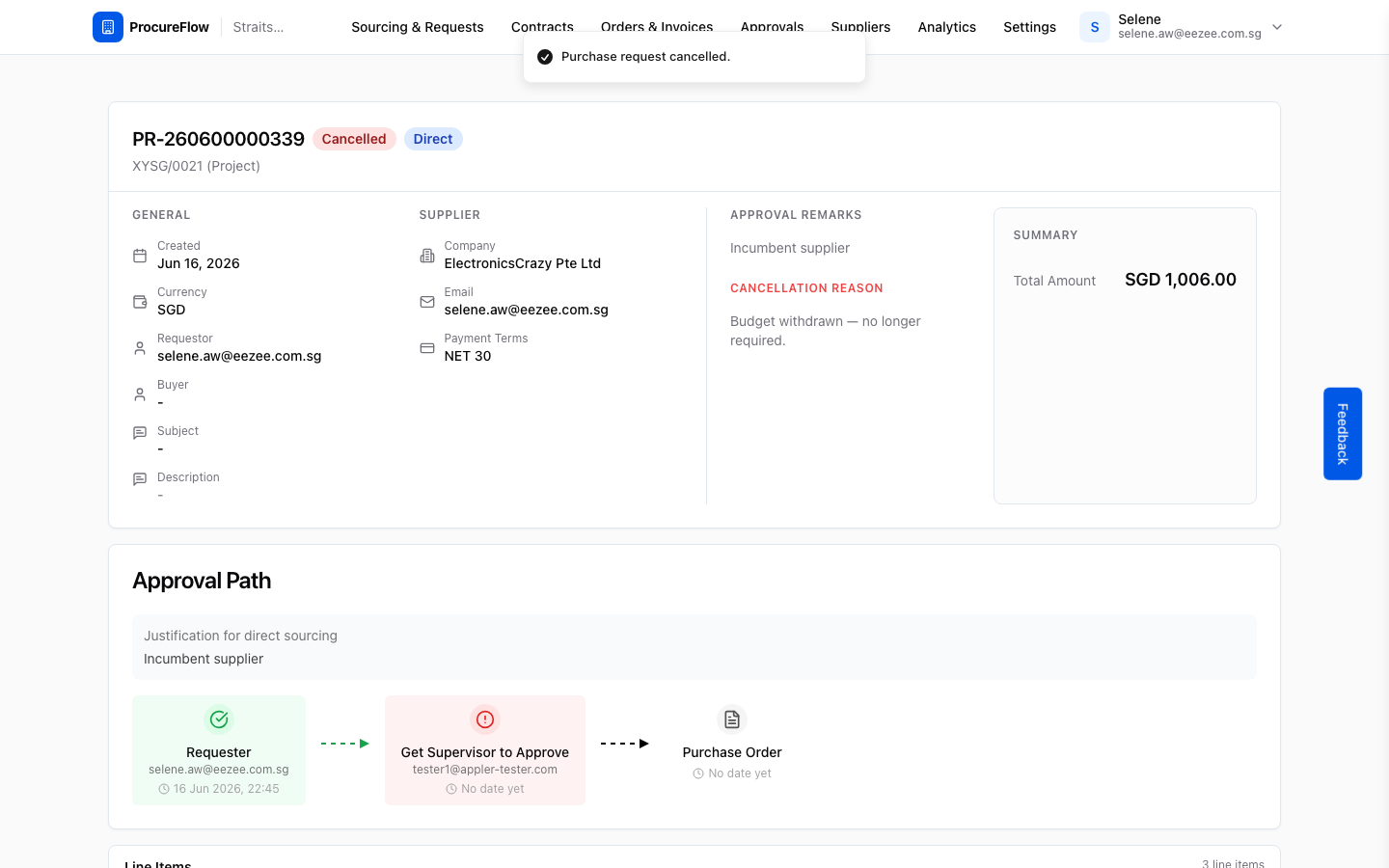
Click the red Cancel PR button in the dialog to confirm. The page refreshes immediately:
- The status badge changes to Cancelled (red).
- The cancellation reason appears in the header card.
- A success toast confirms the action.
All pending approvers receive an in-app notification.
Review a Purchase Request
When a Purchase Request is submitted and the approver has approved it, the PR moves to the Procurement Approval step. You will be assigned as the approver and receive an email notification. This guide walks you through acting on that notification and approving the PR.
Sourcing Requests
Consolidate purchase request line items before they become an RFQ.