Review a Purchase Request
When a Purchase Request is submitted and the approver has approved it, the PR moves to the Procurement Approval step. You will be assigned as the approver and receive an email notification. This guide walks you through acting on that notification and approving the PR.
Last updated 12 October 2026
Who can use this?
Available to all approvers.
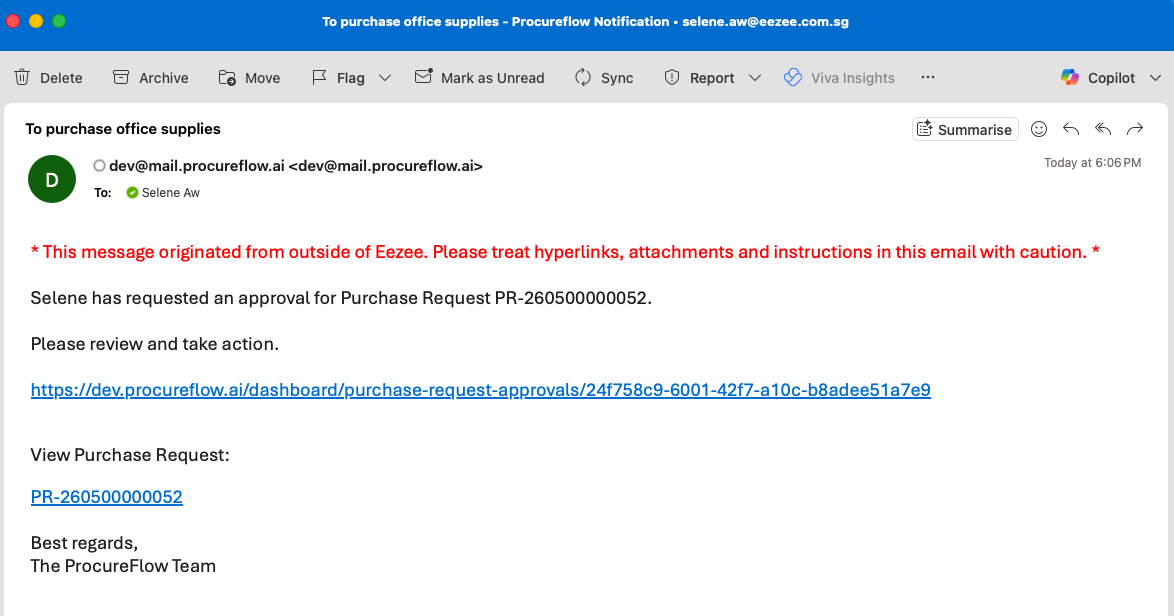
Open the email notification and click the link
ProcureFlow sends you an email when a PR requires your approval. The email shows the PR number and the requester's name.
Open the PR one of two ways:
- Click the link in the email to go straight to the approval page.
- Use the View Purchase Request link below it to open the full PR.
Review the PR on the approval page
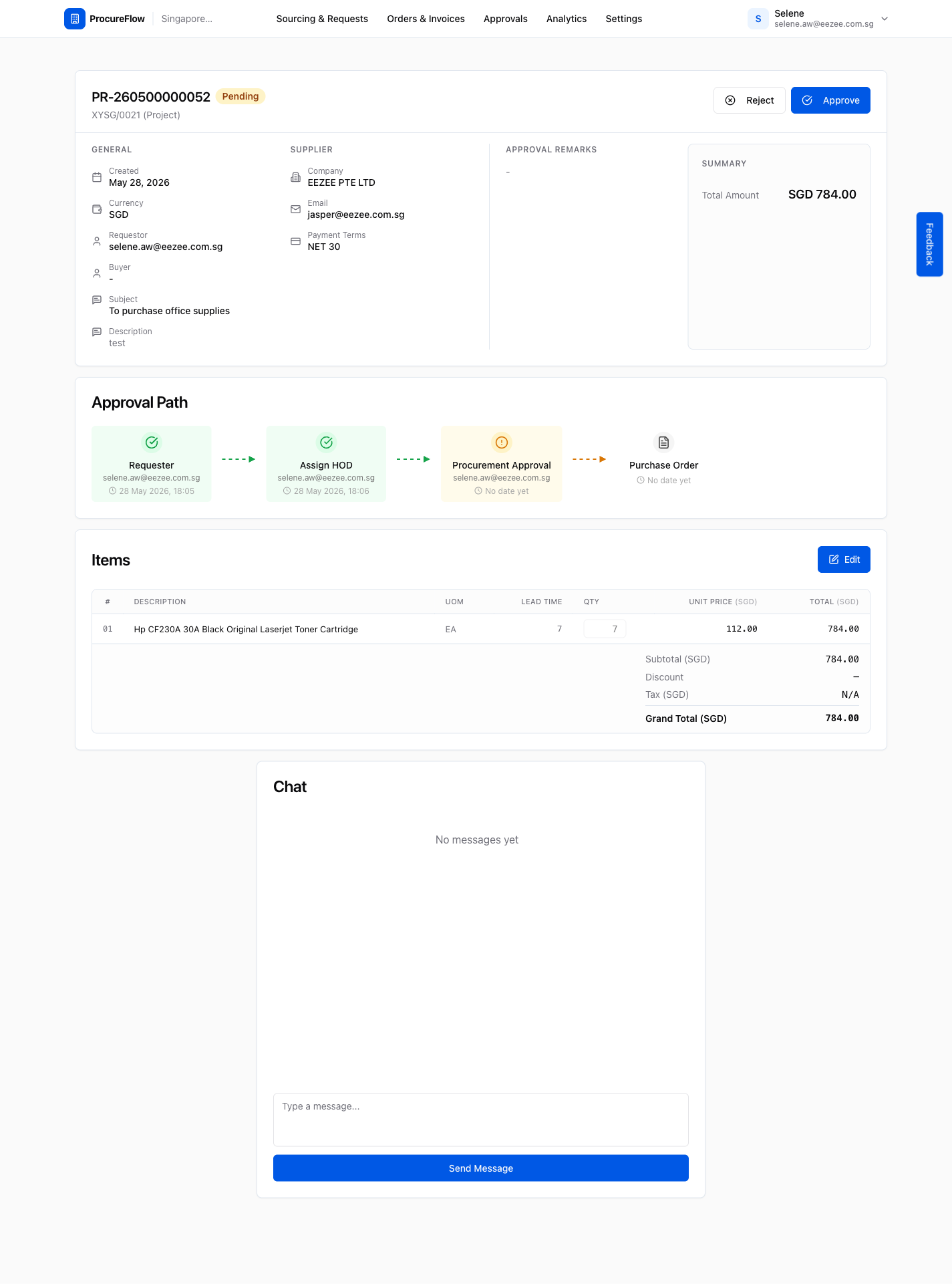
The approval detail page shows the full PR:
- General info
- Supplier
- Line items
- Cost breakdown
- The multi-step approval path
Scroll through to verify the items, amounts, and cost center before taking action.
The Reject and Approve buttons are at the top right.
Click Approve and enter your remarks
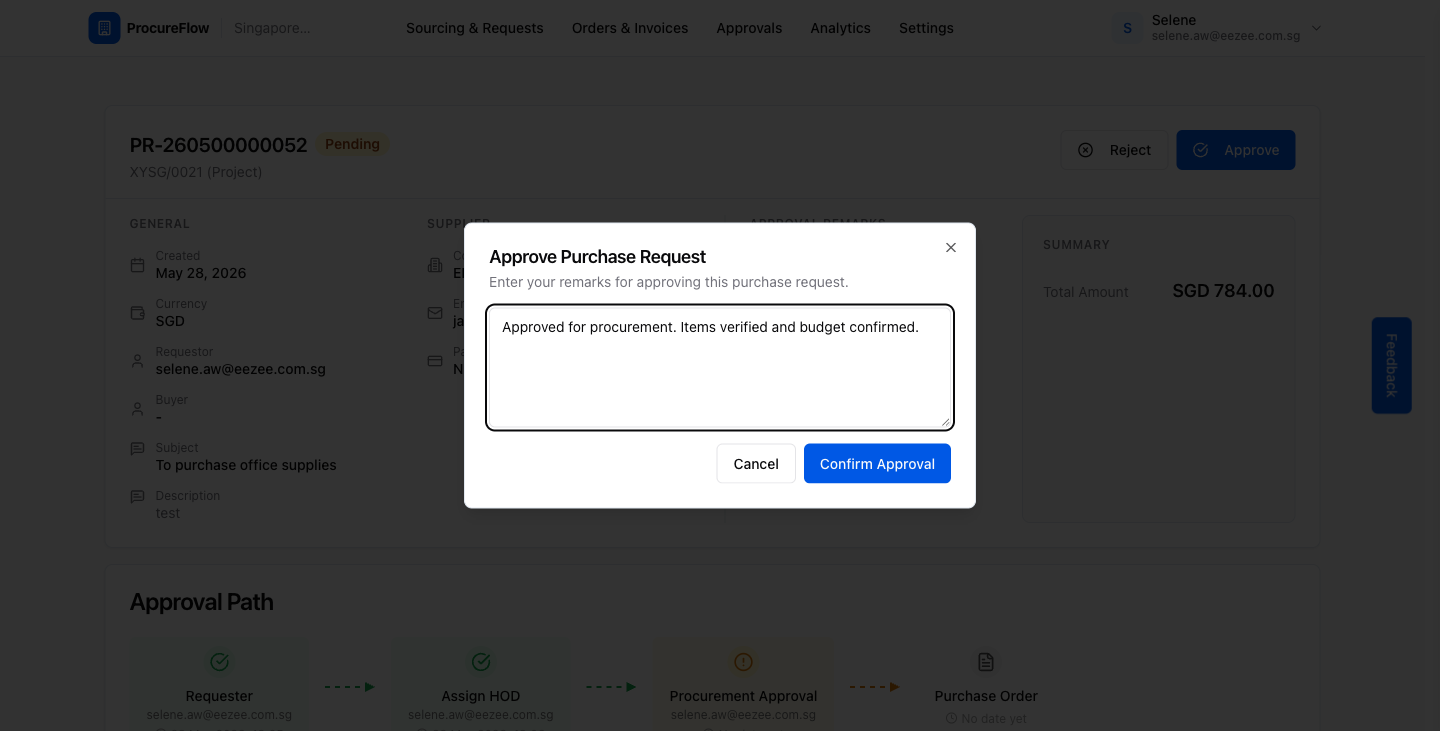
- Click the Approve button. An approval dialog appears.
- Enter your remarks explaining the reason for approval. For example, 'Approved for procurement. Items verified and budget confirmed.'
- Click Confirm Approval.
Verify the PR is Closed
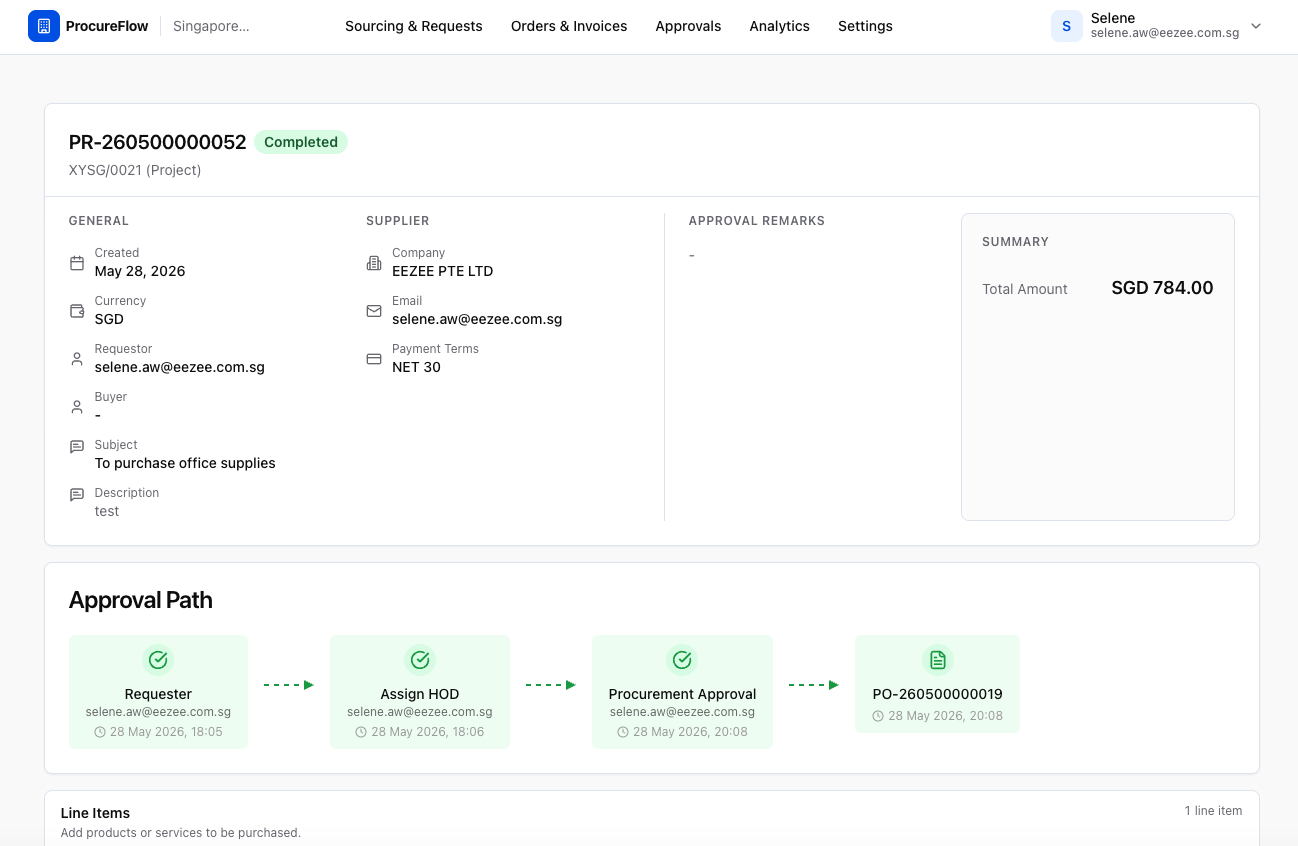
After confirming, two things happen:
- The Procurement Approval step in the approval path is stamped with your name and the approval date and time.
- The PR status changes to Closed, indicating all approval steps are complete and the PR is ready for a Purchase Order.
(Alternative) Reject the PR
If the PR should not proceed, reject it instead:
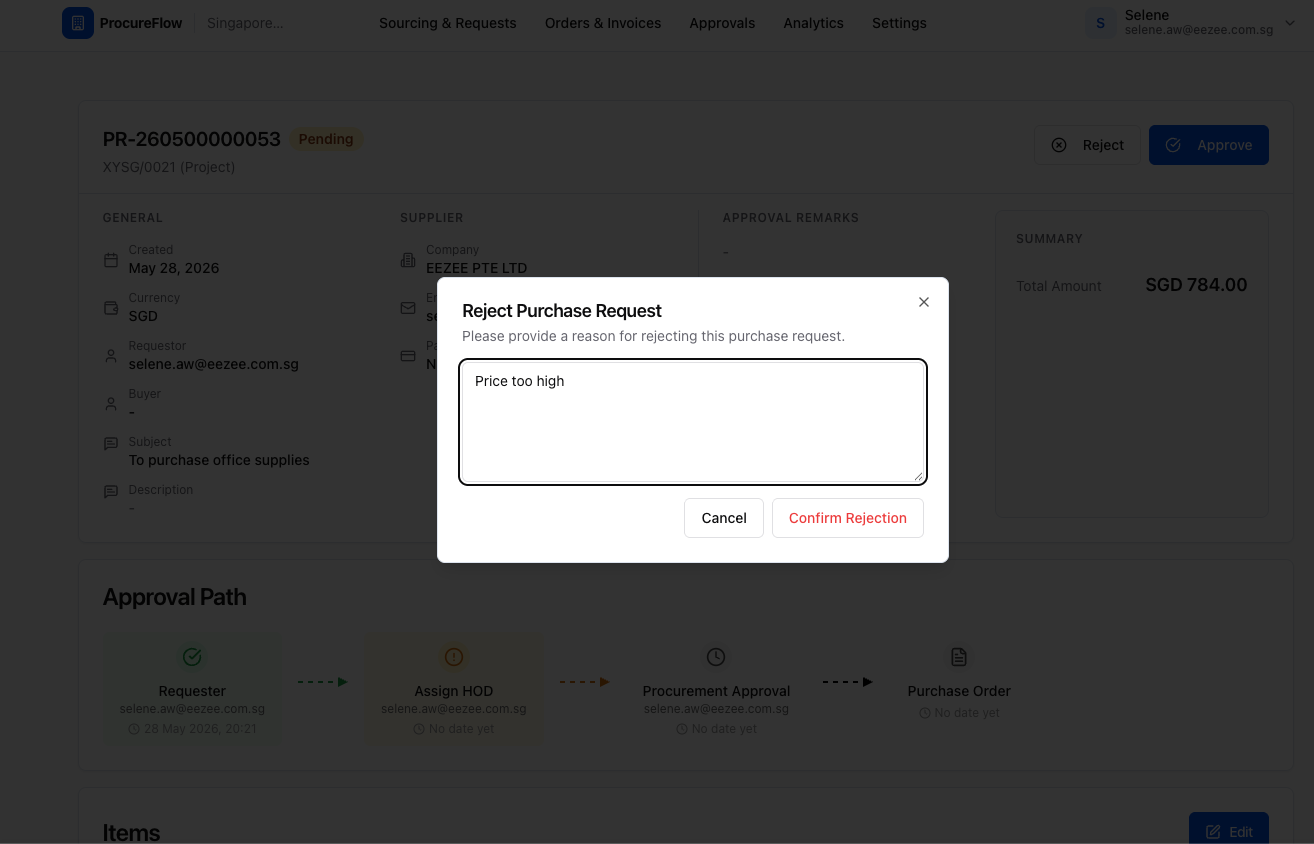
- Click the Reject button. A rejection dialog appears prompting you to provide a reason.
- Enter your reason. For example, 'Price too high'.
- Click Confirm Rejection.
The requestor will be notified and can resubmit or amend the PR.
Verify the PR is Cancelled
After confirming the rejection:
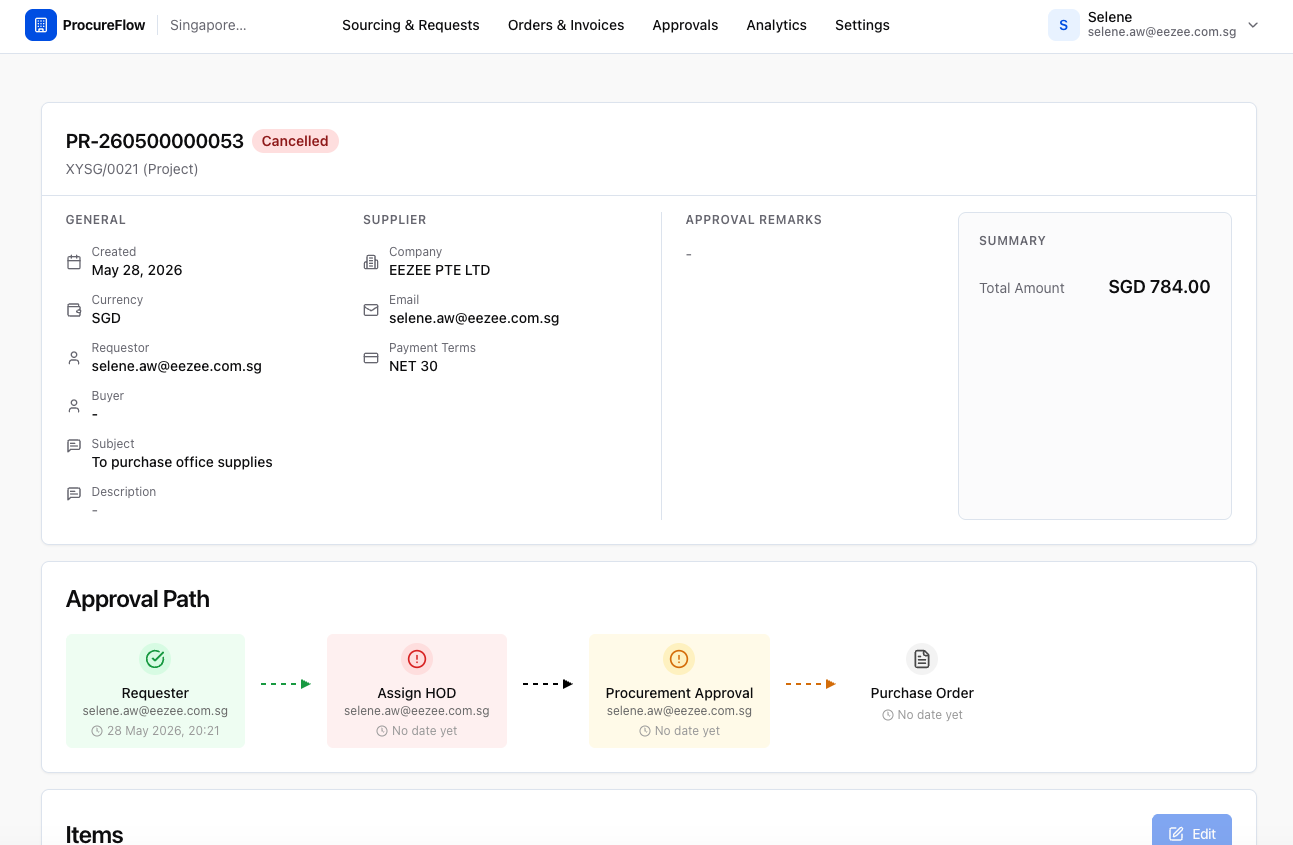
- The PR status changes to Cancelled.
- The approval path highlights the steps that did not complete.
- The requestor will receive a notification with your rejection reason and can create a new PR if needed.
Create via Punchout
How to create a Purchase Request by shopping from the Eezee Punchout catalog, for organisations with the Eezee integration enabled.
Cancel a Purchase Request
How to withdraw a submitted purchase request that is no longer needed, notifying all pending approvers and cascading the cancellation to any linked sourcing records.