Add a Supplier
Add a supplier to your organisation's directory so they can be invited to RFQs, POs, and accreditation cycles.
Last updated 12 October 2026
Who can use this?
Available to Buyer / Admin. Requestors do not have access to the Supplier directory.
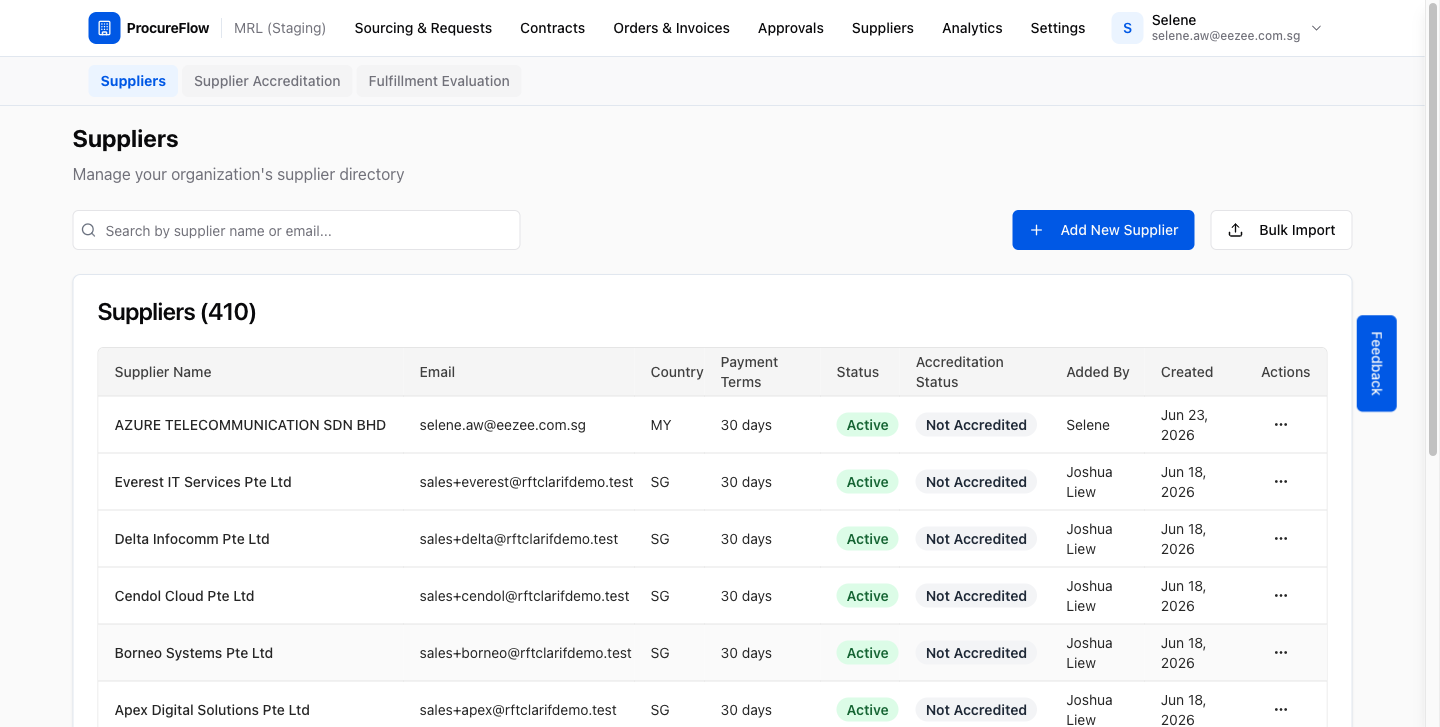
Navigate to the Suppliers directory
From the left navigation, click Suppliers.
This opens the Suppliers directory for your organisation, showing all active and removed suppliers with their accreditation status.
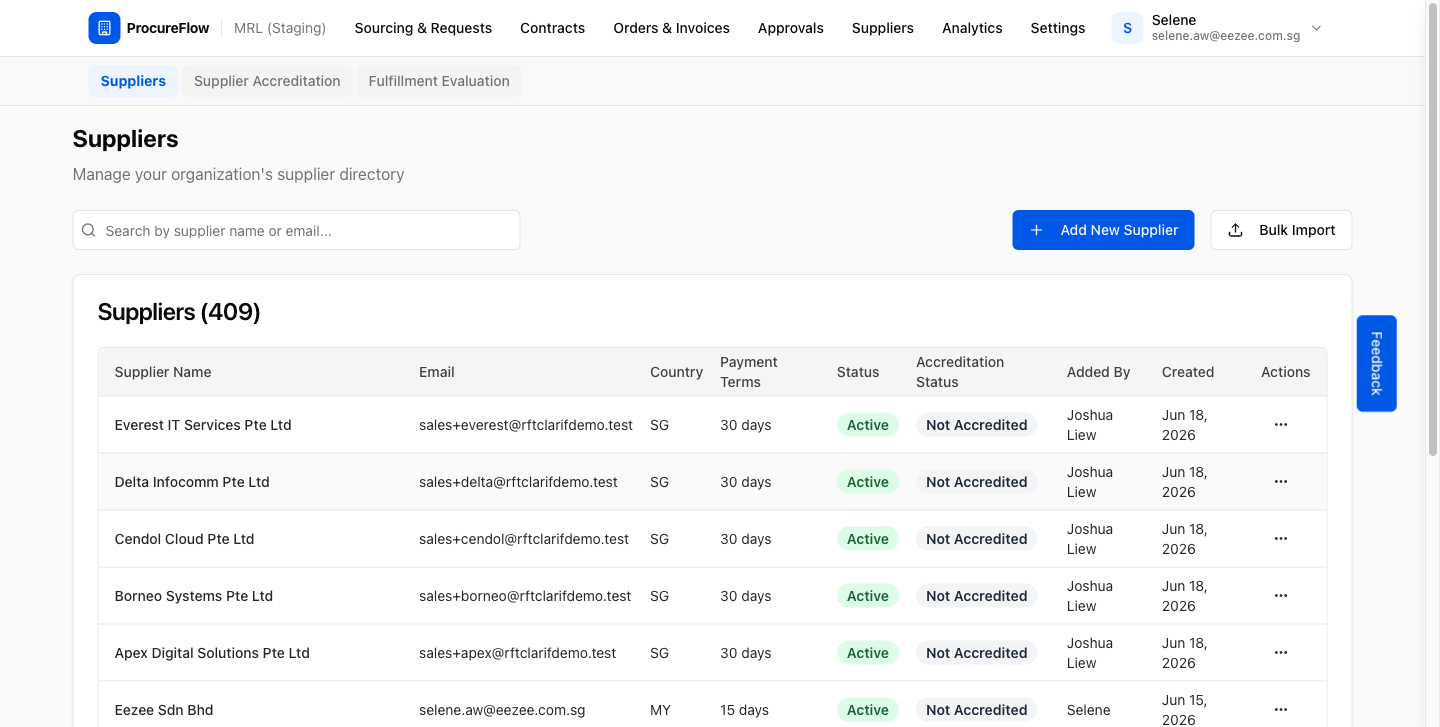
Open the Add New Supplier dialog
Click the Add New Supplier button at the top right of the search bar.
A dialog will appear asking for the supplier's details.
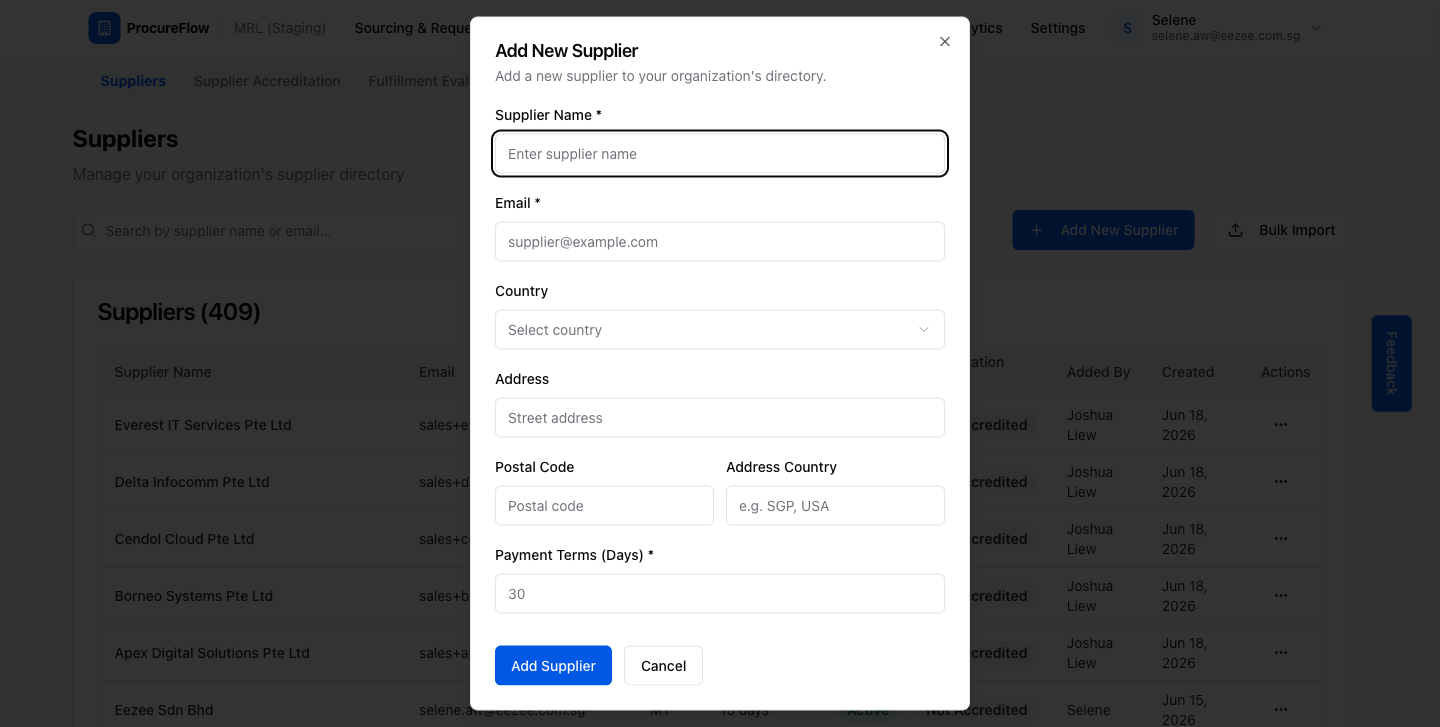
Fill in the supplier details
Complete all required fields (marked with *):
- At minimum, provide the Supplier Name, Email, and Payment Terms.
- Select the Country from the dropdown.
- Optionally, enter the street address and postal code.
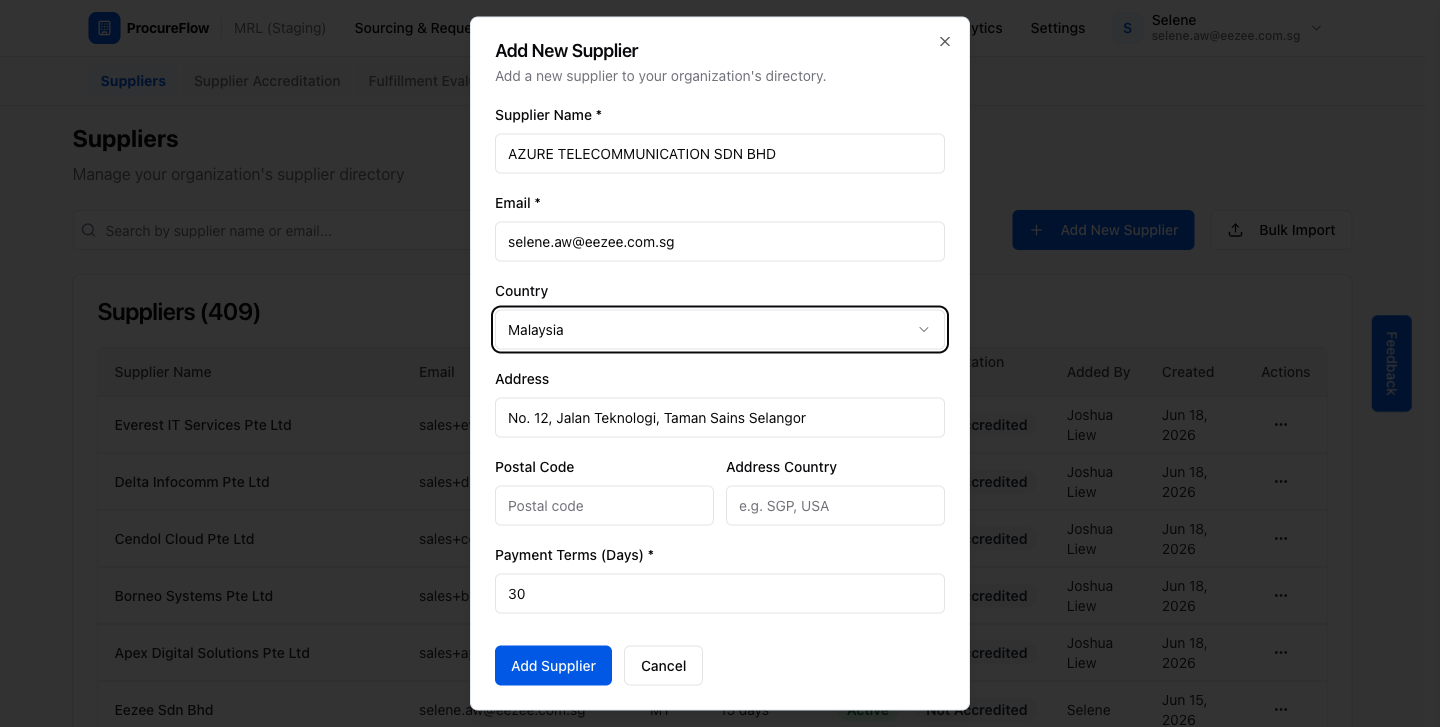
Submit and confirm
Click Add Supplier.
A success toast will appear at the top of the page, and the supplier will appear immediately in the directory.
The new supplier starts with Not Accredited status until an accreditation cycle is completed.