Add a Supplier Contact
Add additional contact persons to a supplier record so they can receive RFQ invitations, PO notifications, and accreditation invites.
Last updated 12 October 2026
Who can use this?
Available to Buyer / Admin. Requestors do not have access to supplier management.
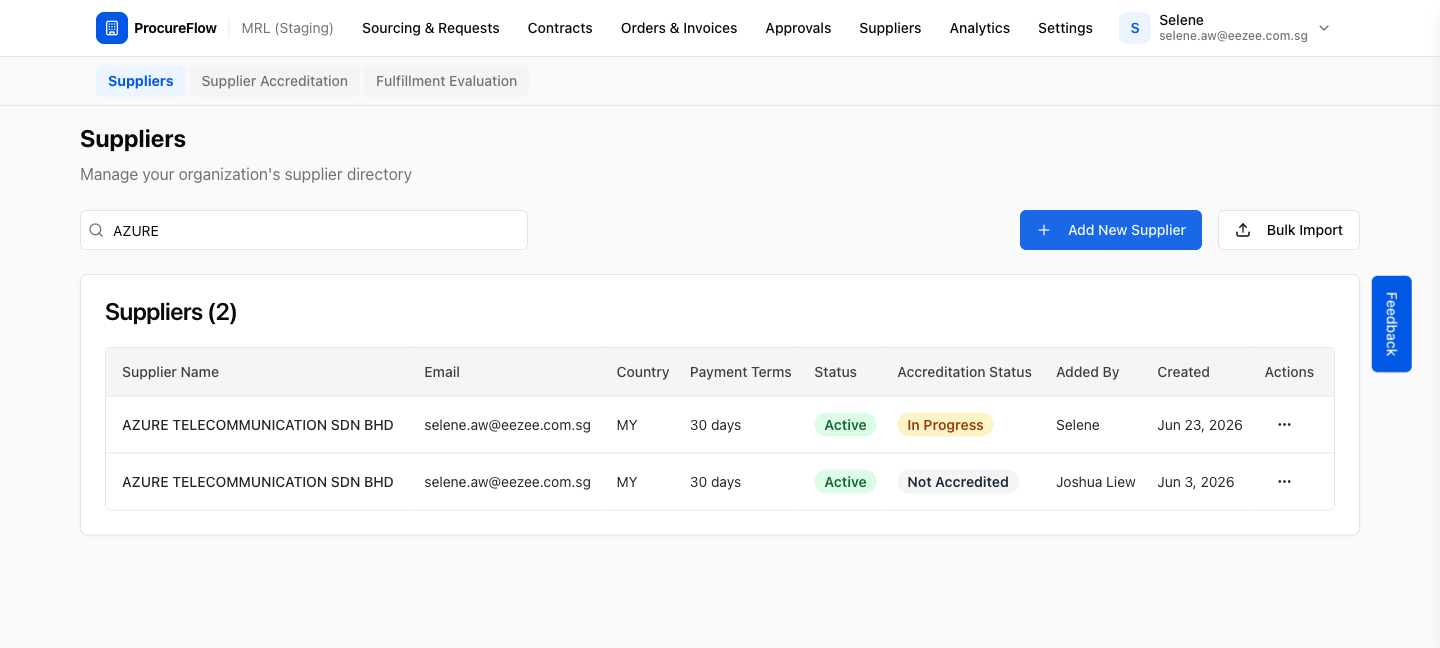
Navigate to the Suppliers directory
- From the left navigation, click Suppliers.
- Use the search bar to find the supplier you want to add a contact for.
Open the Row Actions menu
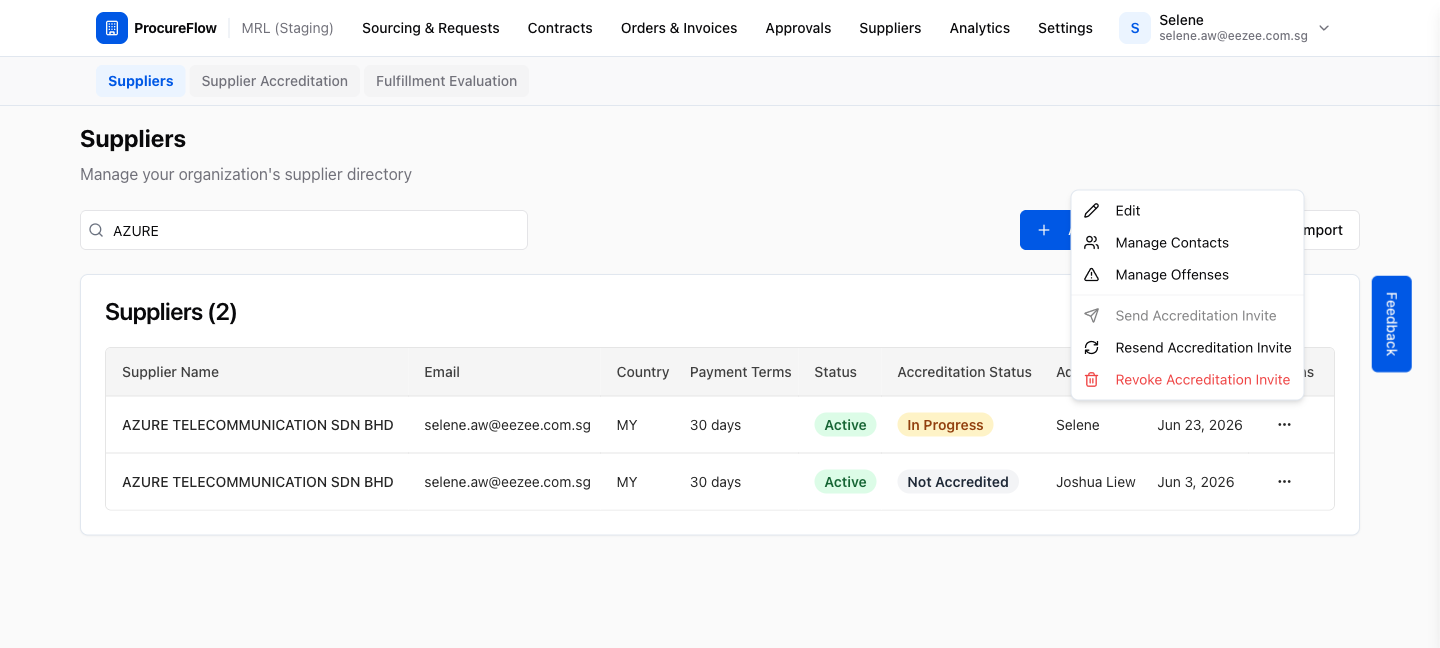
Click the Row actions button (three-dot menu) on the supplier row. A dropdown will appear with management options.
Click Manage Contacts
Select Manage Contacts from the dropdown.
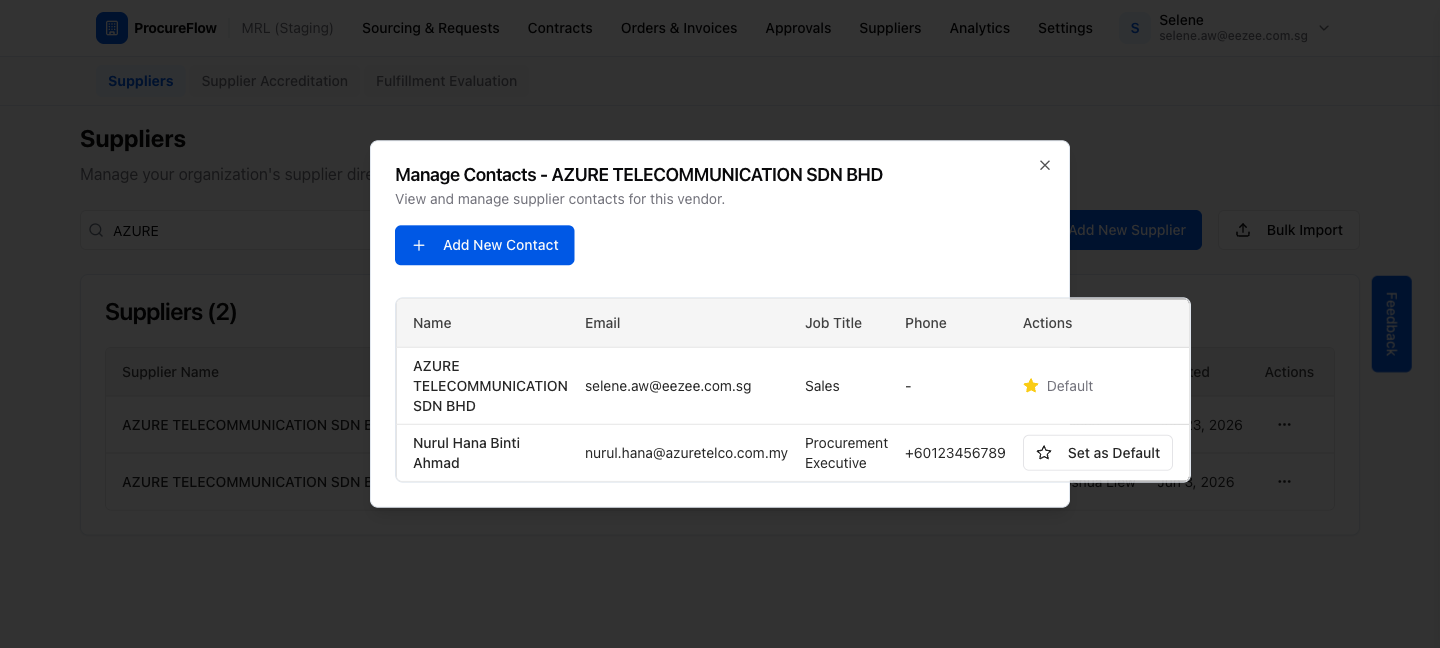
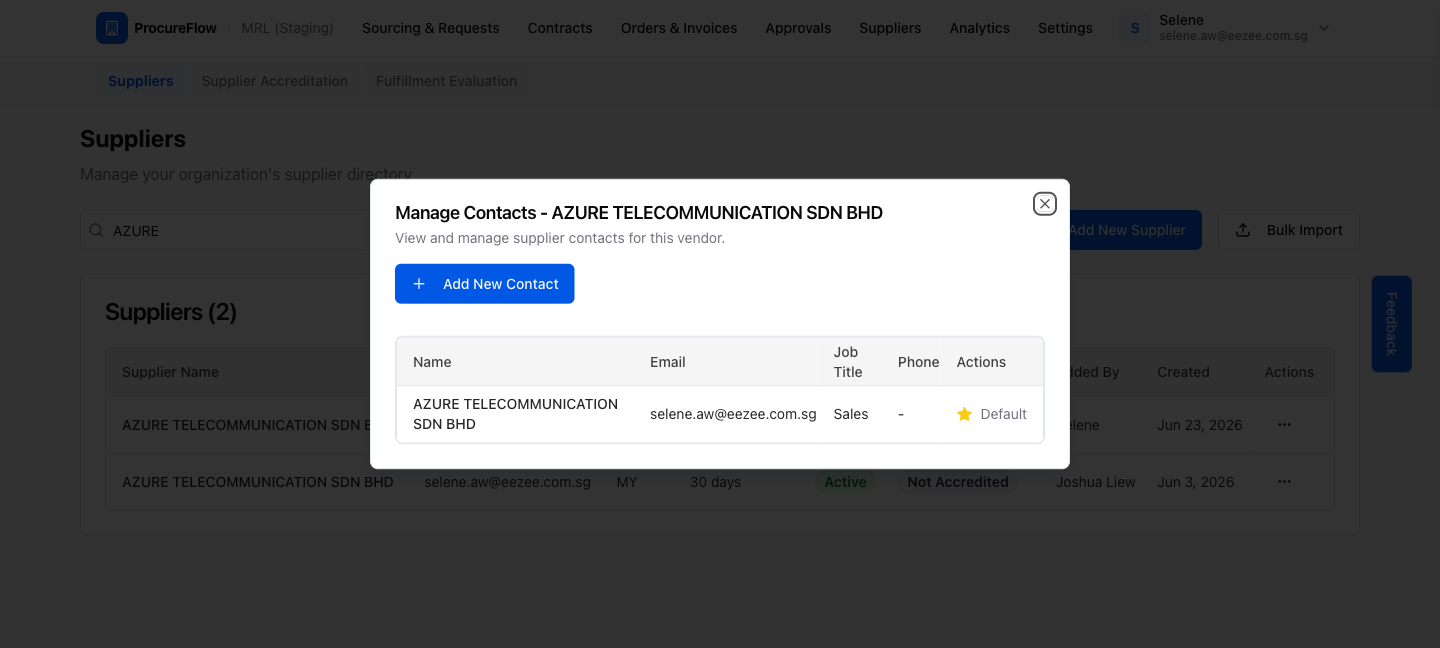
The Manage Contacts dialog will open, listing all existing contacts for this supplier. The default contact (used for RFQ invites and PO notifications) is marked Default.
Click Add New Contact
Click Add New Contact. An inline form will appear where you can enter the new contact's details.
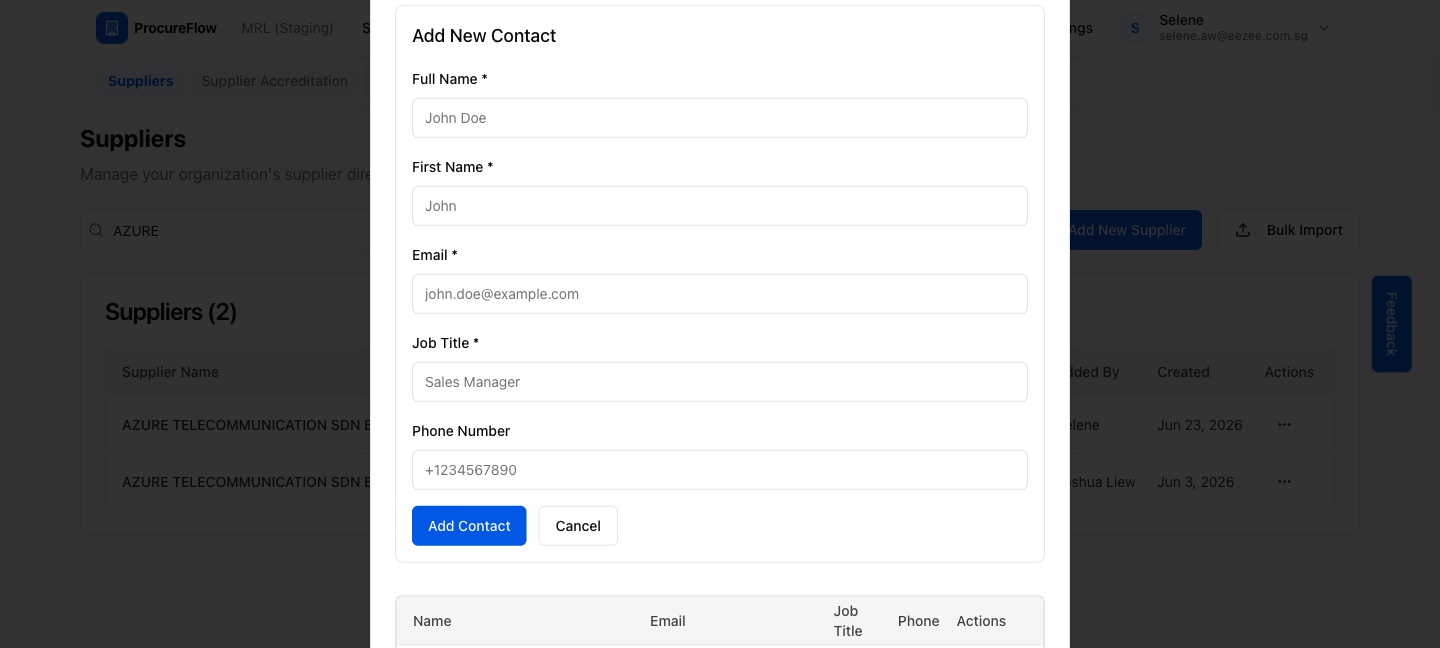
Fill in the contact details
Enter the contact's details:
- Full Name (required)
- First Name (required)
- Email (required)
- Job Title (required)
- Phone Number (optional)
Click Add Contact to save.
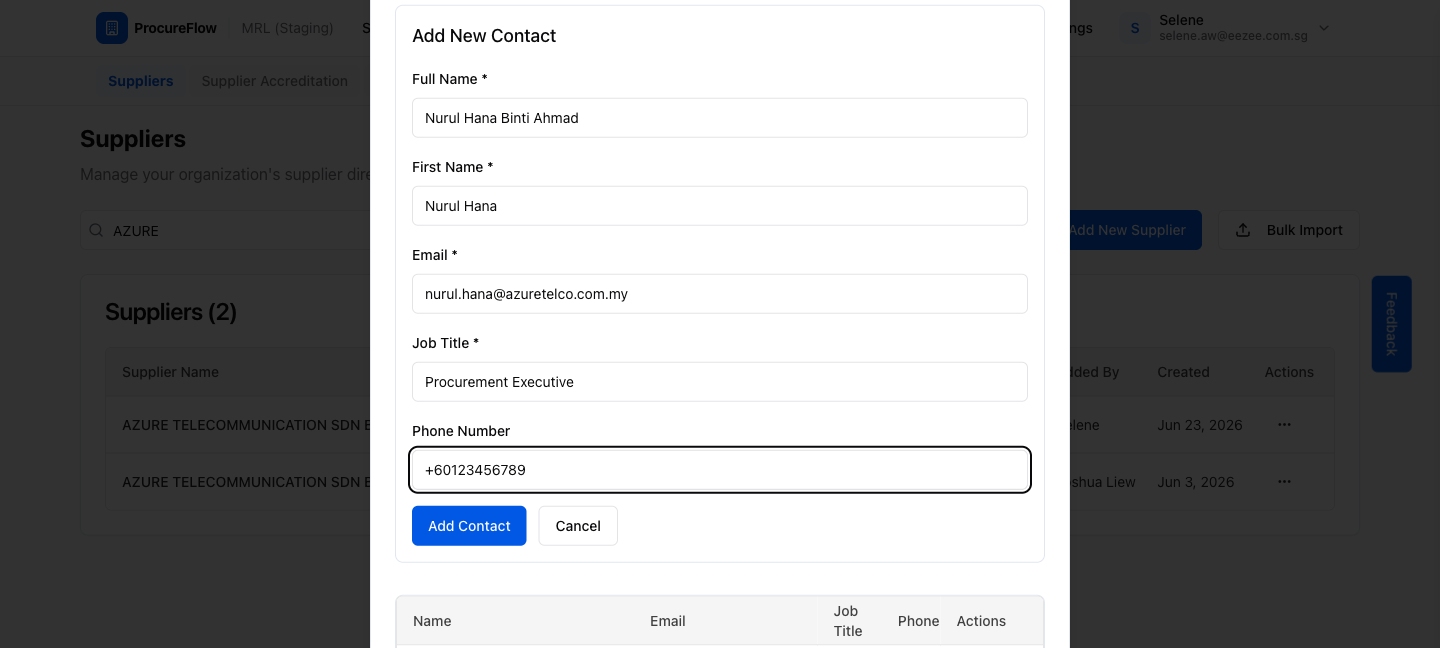
Confirm the contact was added
The new contact will appear in the contacts table. They are now available as a selectable email address when inviting this supplier to RFQs, POs, and accreditation workflows.