Blacklist a Supplier
Record a blacklist period against a supplier to flag non-compliant behaviour and maintain an auditable offense history.
Last updated 12 October 2026
Who can use this?
Available to Buyer / Admin. Requestors do not have access to supplier management.
Navigate to the Suppliers directory
- From the left navigation, click Suppliers.
- Use the search bar to find the supplier you want to blacklist, or scroll through the list.
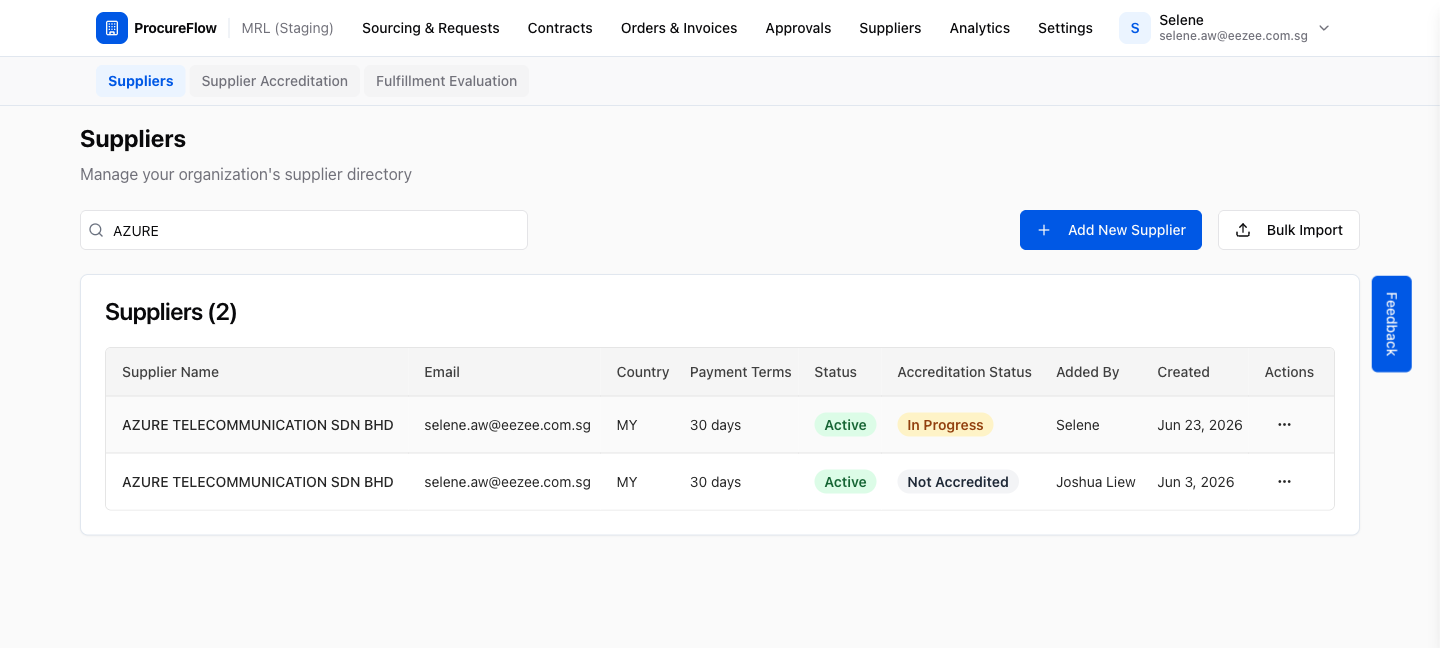
Open the Row Actions menu
Click the Row actions button (three-dot menu) on the right side of the supplier row.
A dropdown will appear with management options.
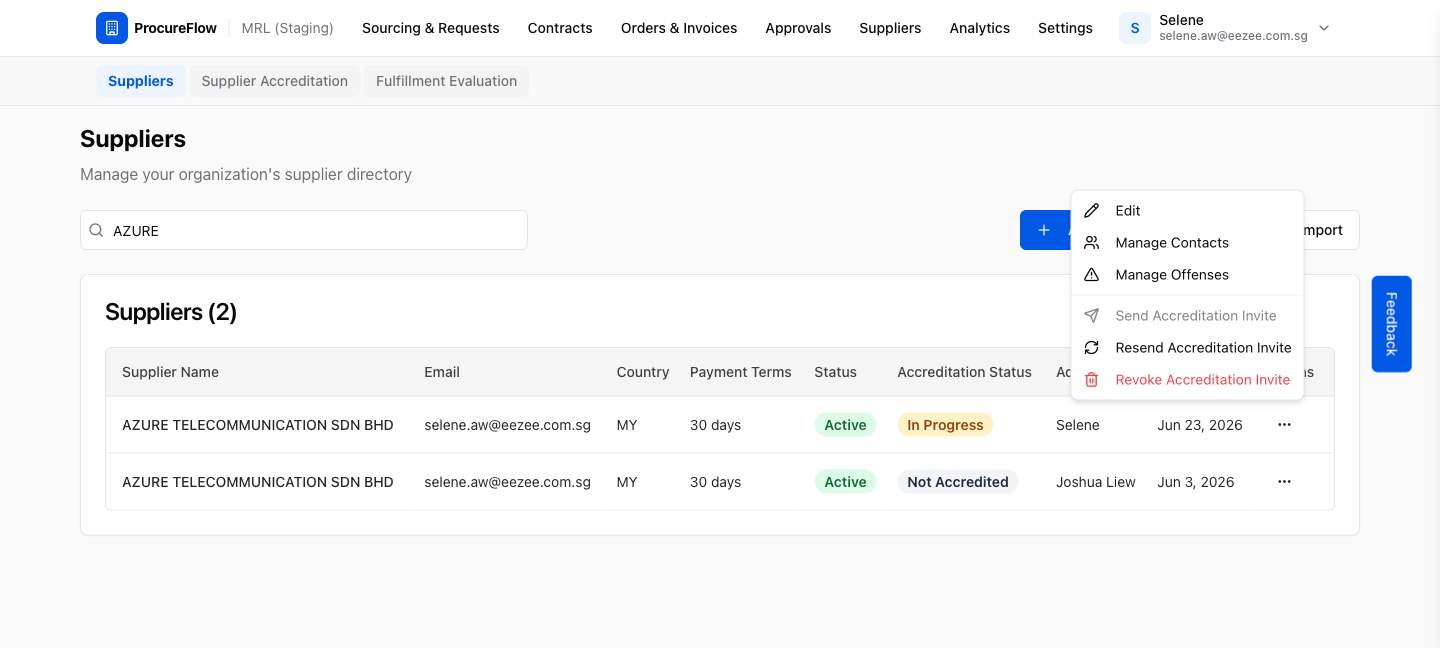
Click Manage Offenses
Select Manage Offenses from the dropdown.
The Manage Offenses dialog will open, showing any existing blacklist periods for this supplier.
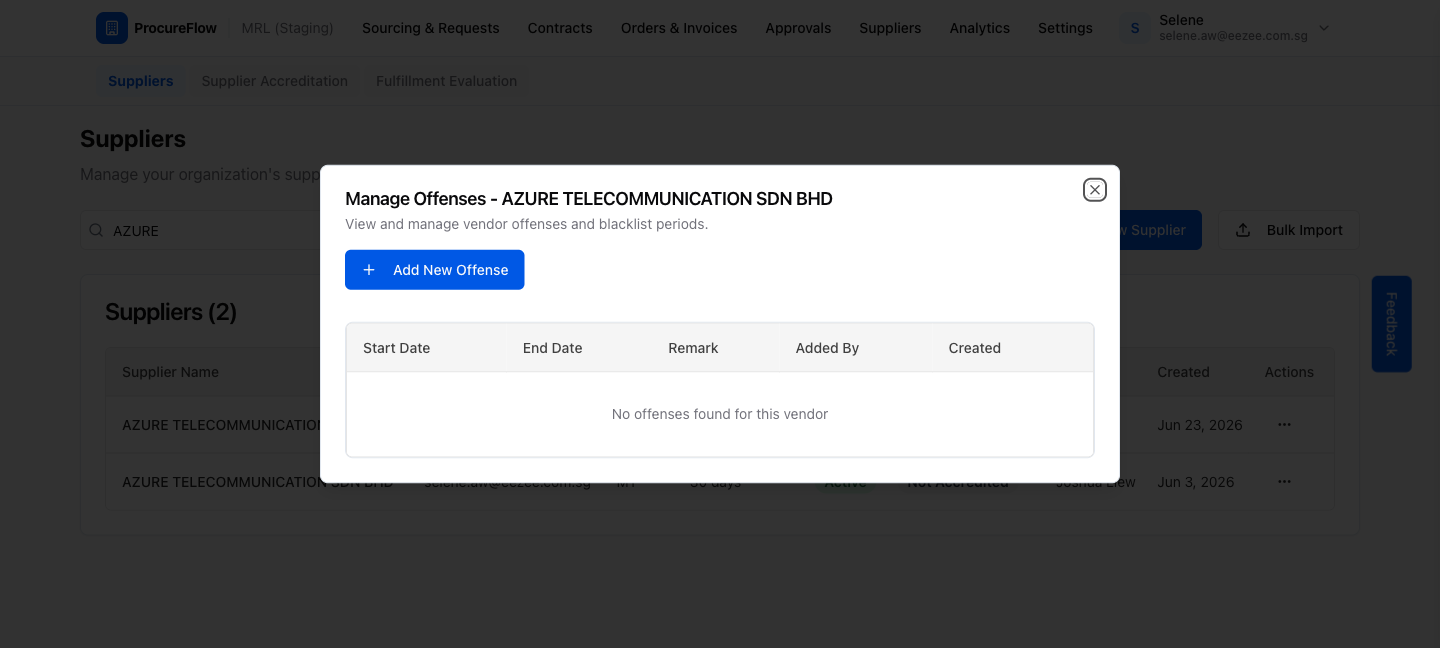
Click Add New Offense
Click Add New Offense.
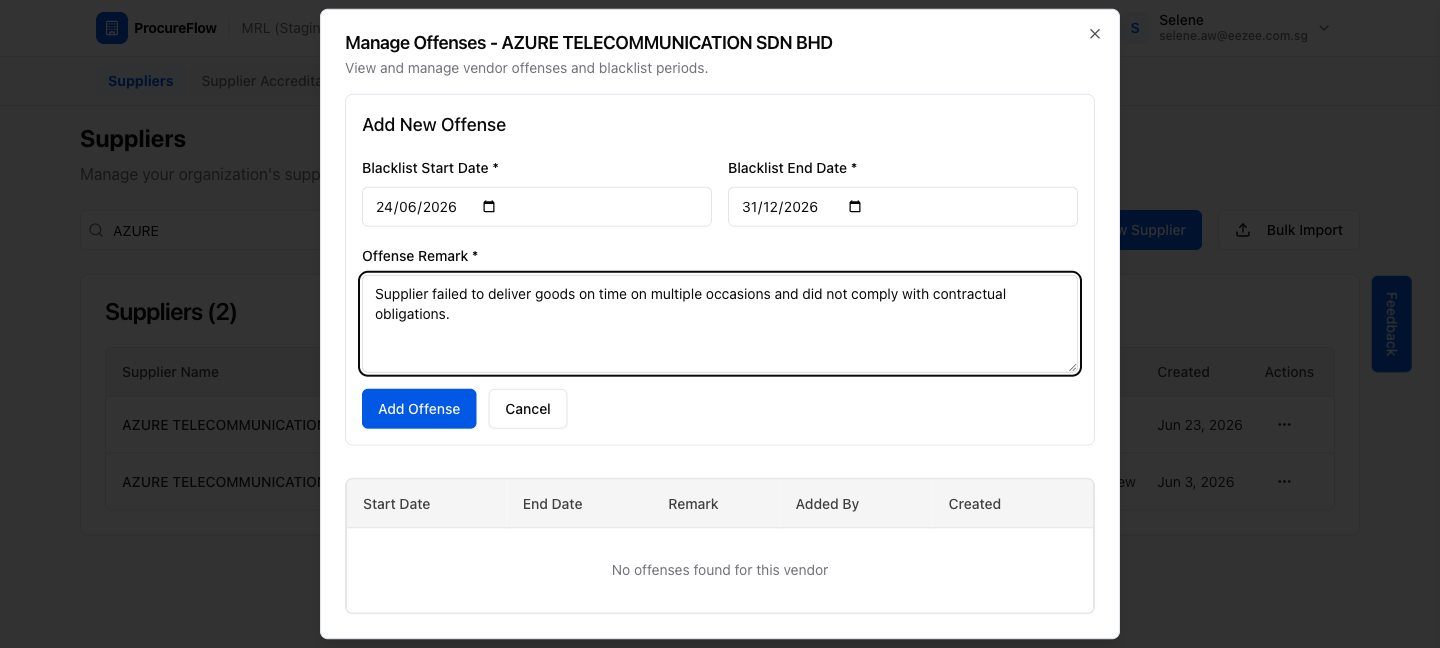
An inline form will appear below the button where you can enter the blacklist details.
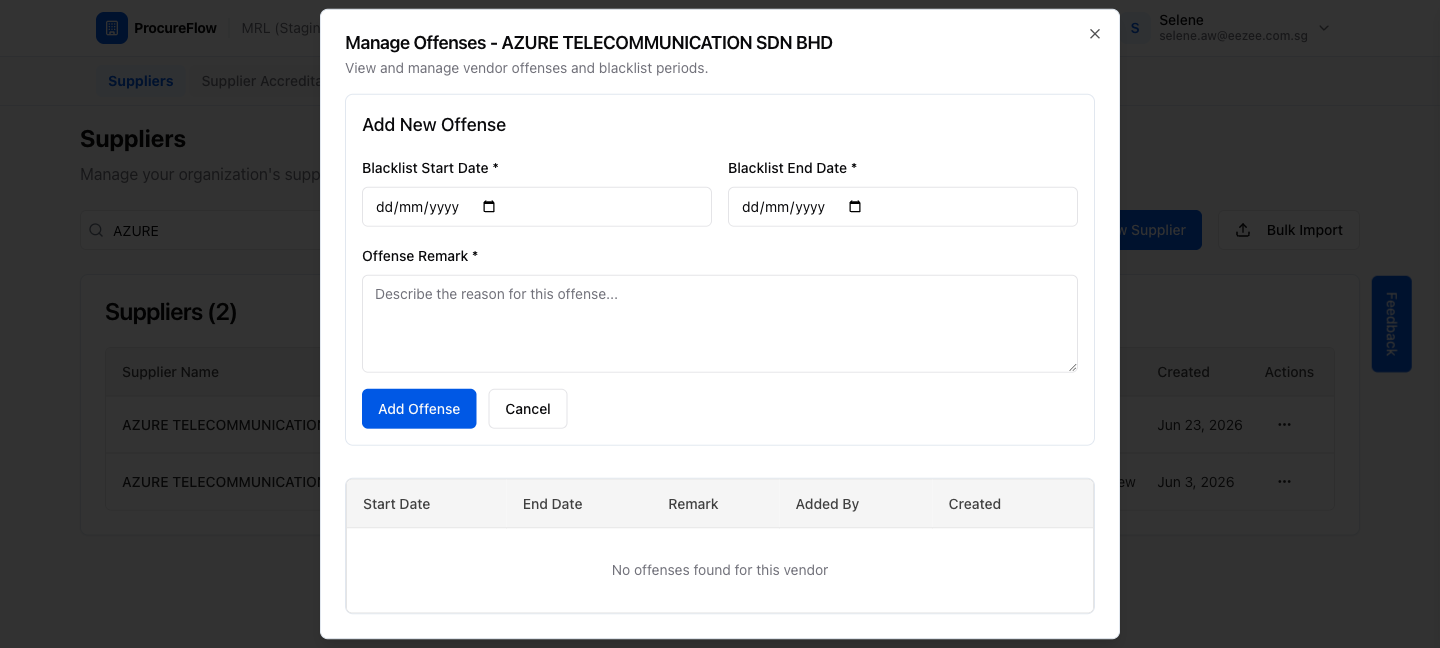
Fill in the blacklist details
Provide the following details:
- Blacklist Start Date and Blacklist End Date (required): for the blacklist period.
- Offense Remark (required): explaining the reason.
Click Add Offense to save.
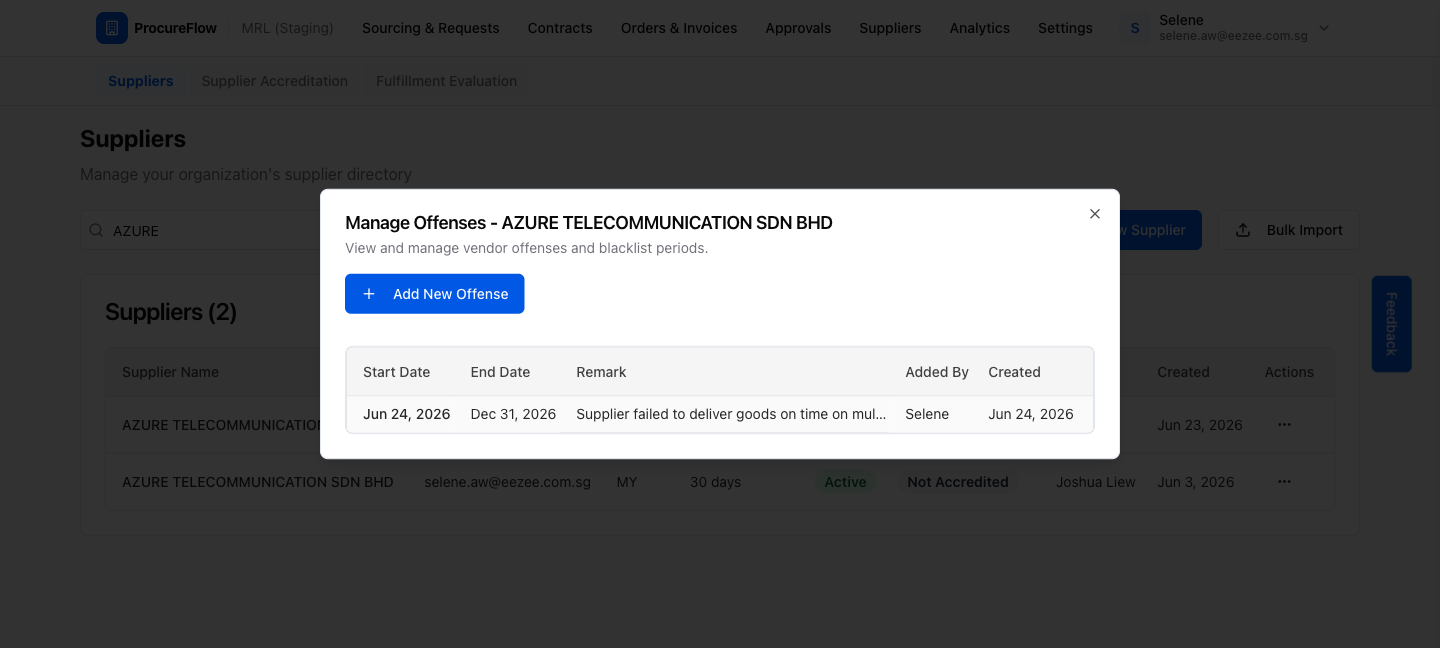
Confirm the offense was recorded
The new blacklist period will appear in the offenses table inside the dialog.
The supplier remains visible in your directory but is flagged for the duration of the blacklist period.
Add a Supplier Contact
Add additional contact persons to a supplier record so they can receive RFQ invitations, PO notifications, and accreditation invites.
Create a Form Template
Step-by-step guide to building and activating a custom accreditation questionnaire that suppliers fill in when they apply to your panel.