Invite a Supplier
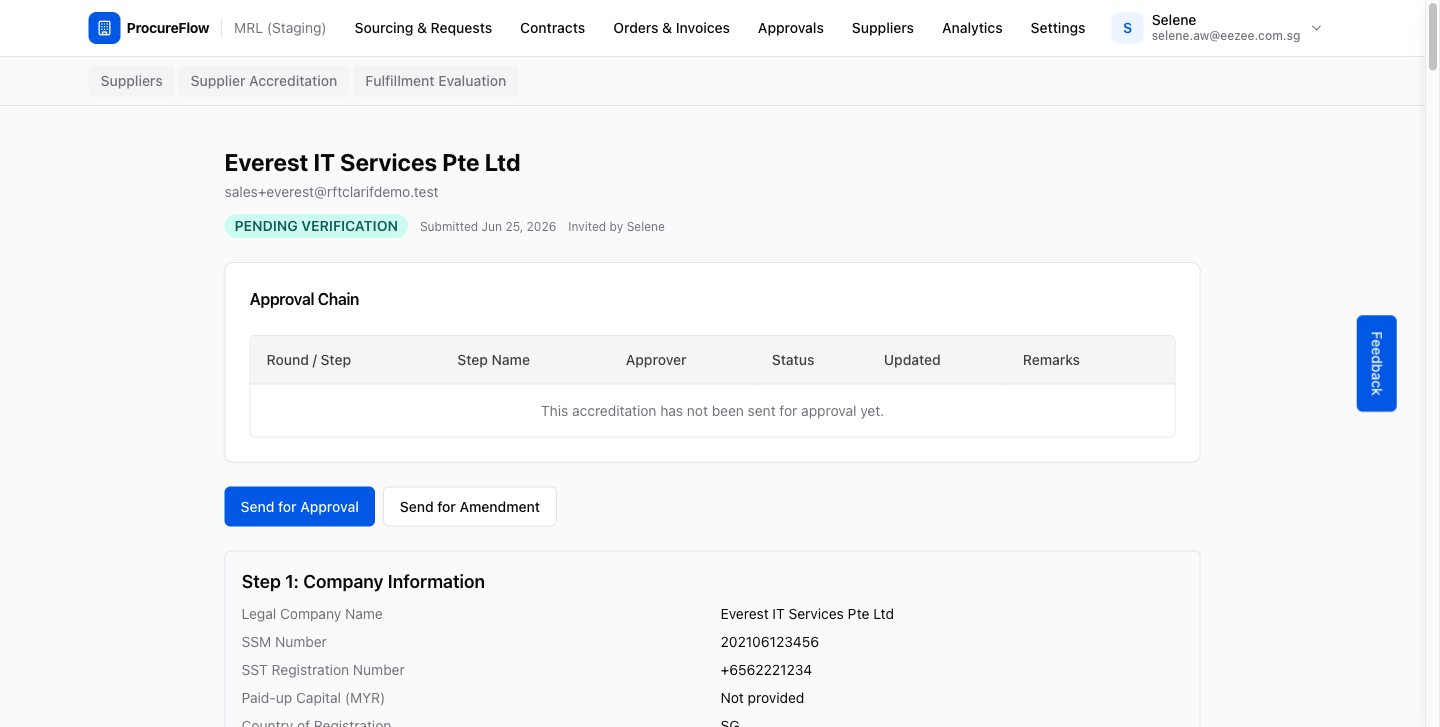
Send a magic link to a supplier so they can complete and submit their accreditation form, then review their submission and decide whether to send it for approval or return it to the supplier for amendments.
Last updated 12 October 2026
Who can use this?
Available to Buyer / Admin. Requestors do not have access to supplier accreditation management.
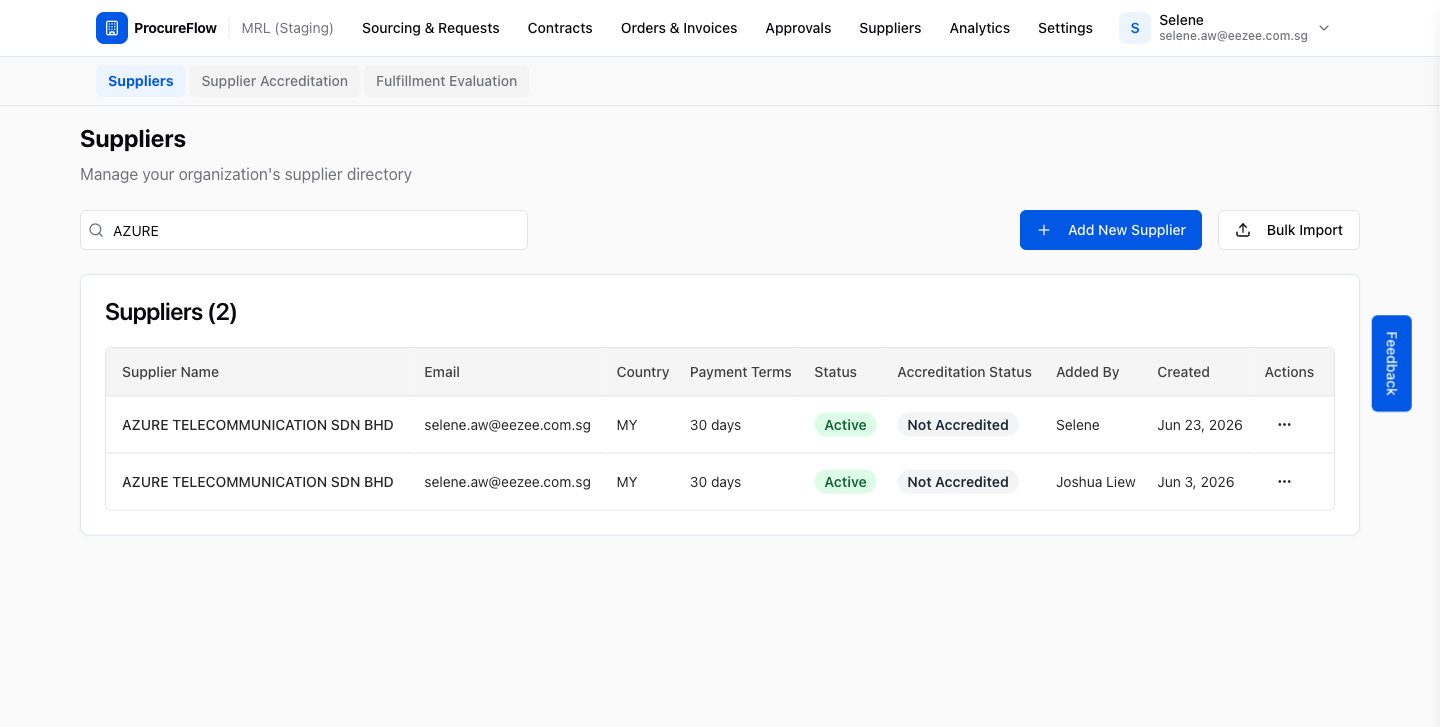
Navigate to the Suppliers directory and search
- From the left navigation, click Suppliers.
- Use the search bar to locate the supplier you want to invite.
You can search by name or email.
Open the row actions dropdown
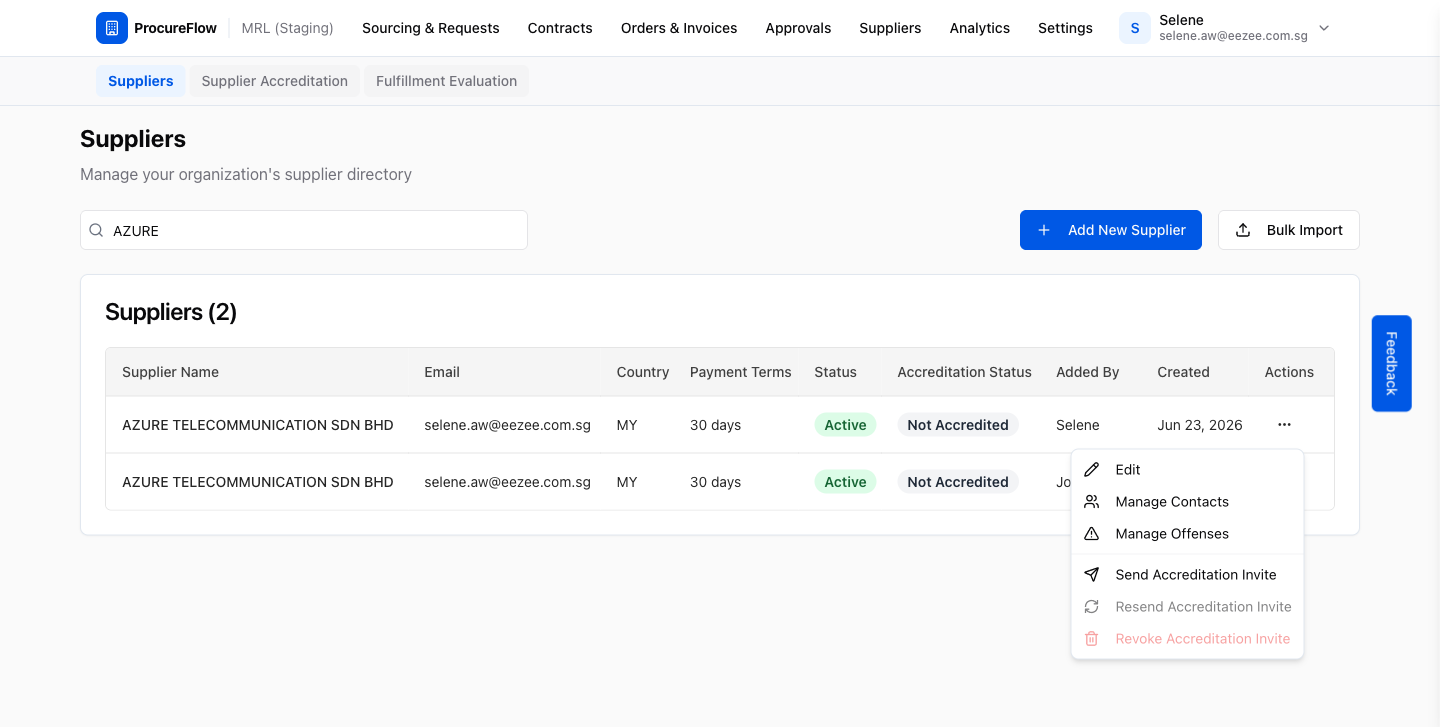
Click the Row actions button (three-dot menu) on the right side of the supplier's row.
A dropdown will appear with options including accreditation actions.
Click Send Accreditation Invite
Select Send Accreditation Invite from the dropdown.
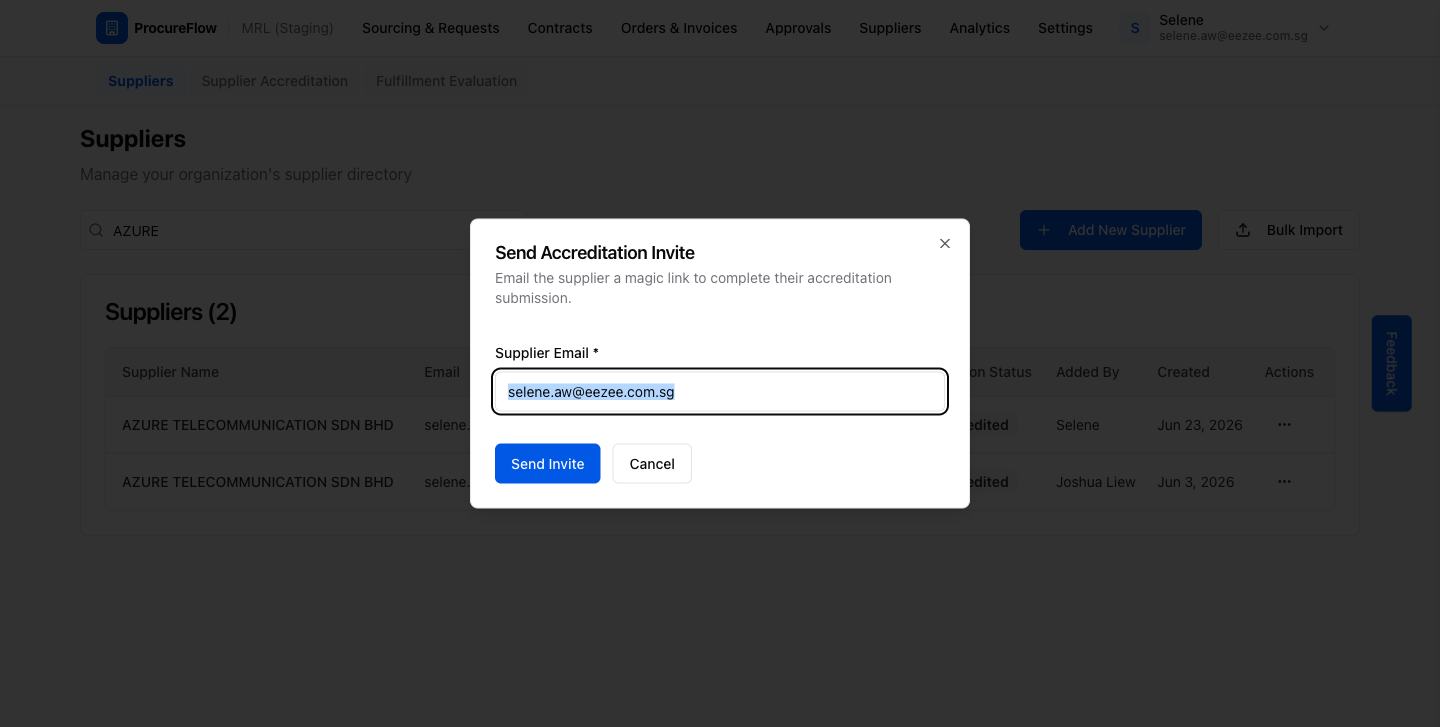
A dialog will open pre-filled with the supplier's email address. You can change this to any email that should receive the magic link.
Send the invite
Confirm the email address and click Send Invite.
The supplier will receive an email containing a magic link to begin their accreditation submission. A success toast confirms the invite was sent.
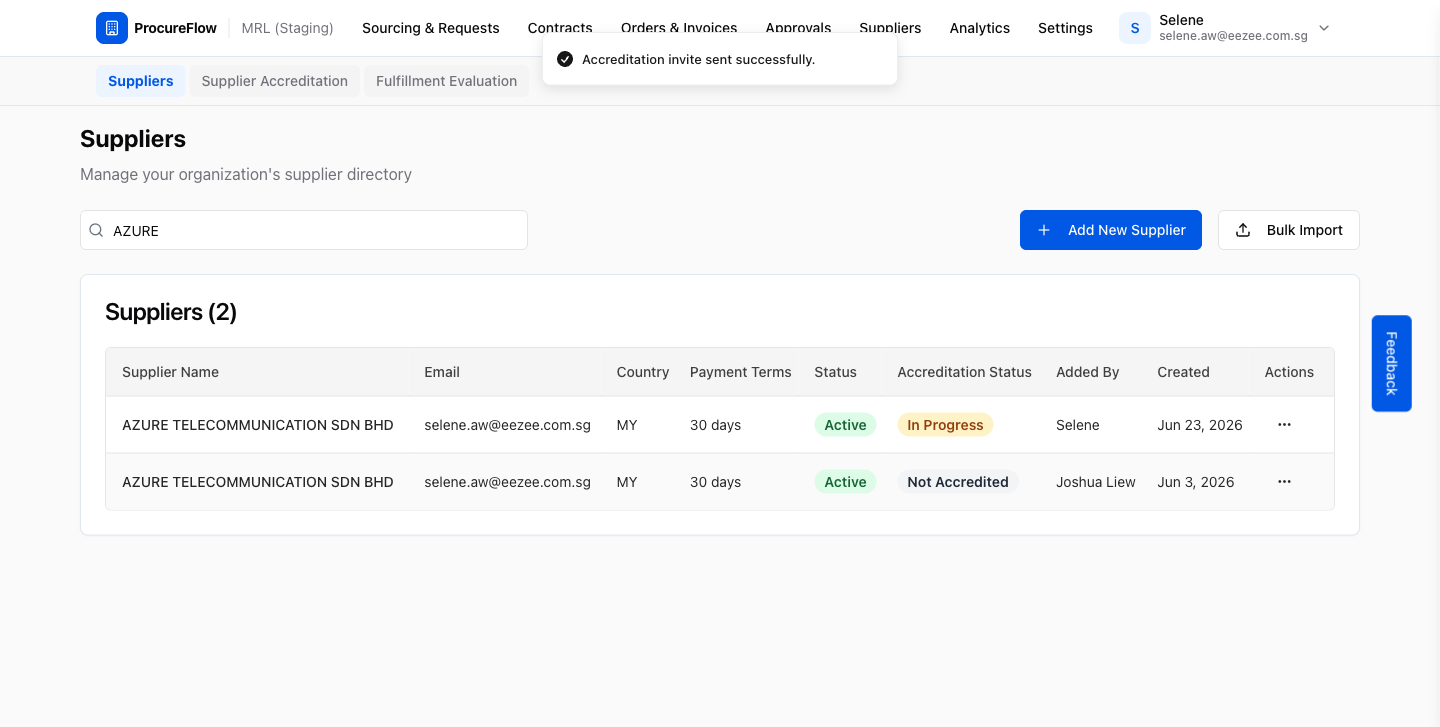
Verify the accreditation cycle was created
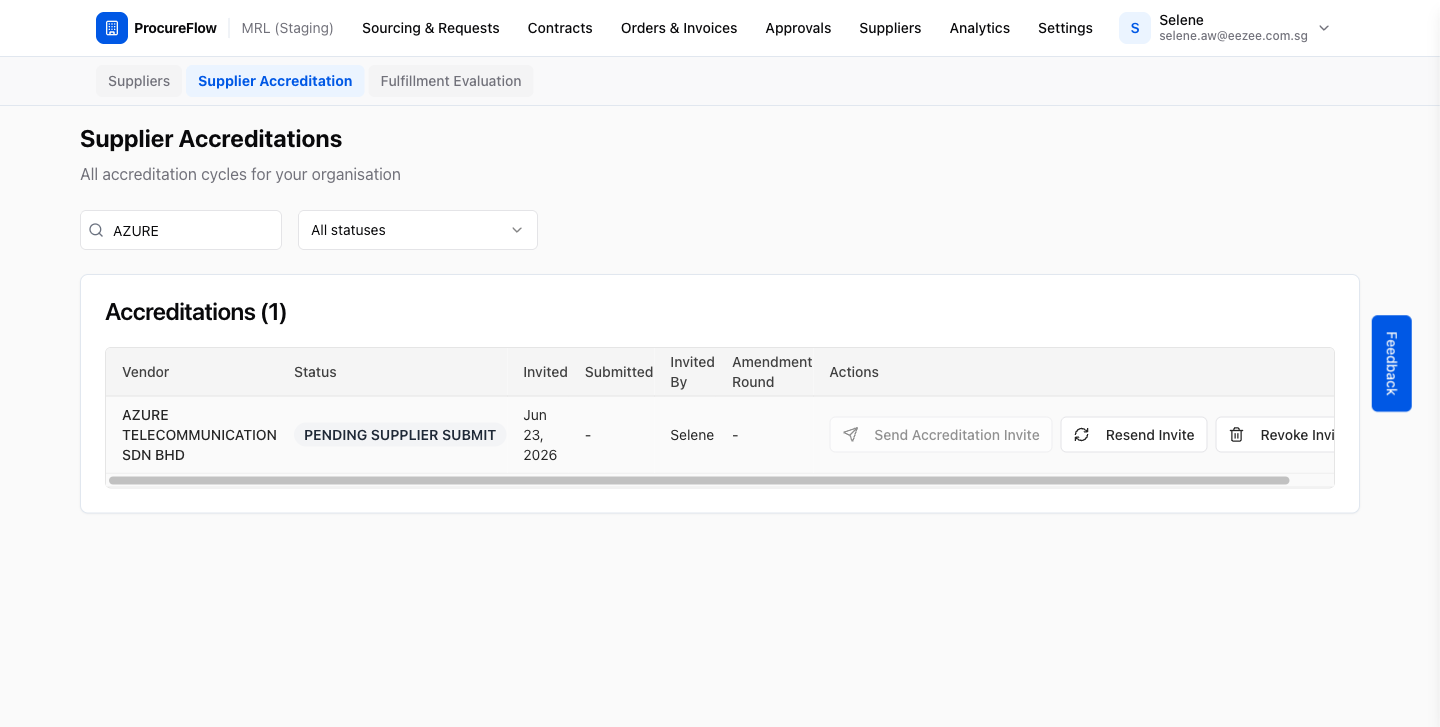
Navigate to Suppliers → Supplier Accreditation to confirm the new cycle appears with status Pending Supplier Submit.
From this list you can also resend or revoke the invite if needed.
Receive the submission notification
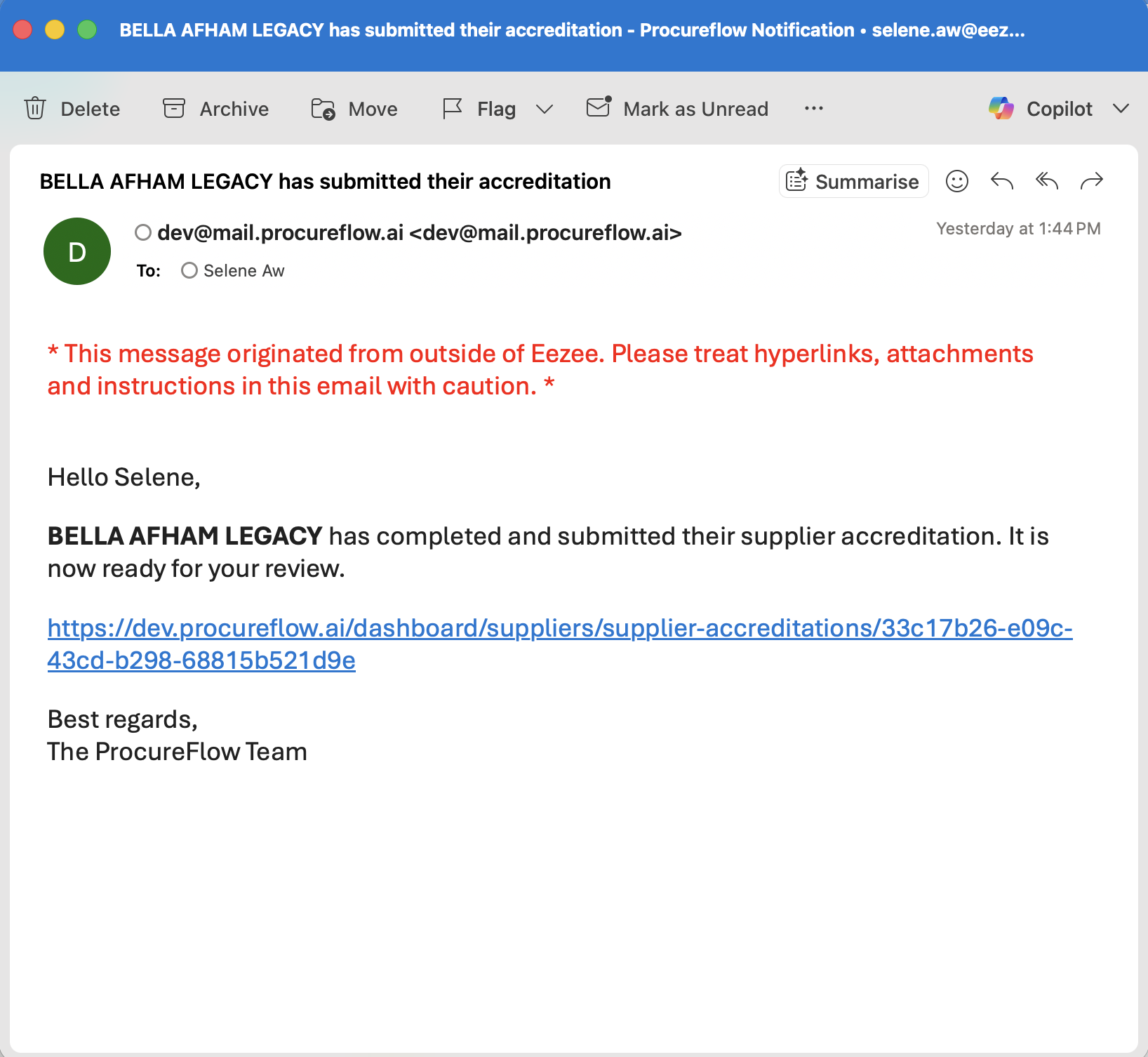
Once the supplier completes and submits their accreditation, you will receive a system email with the subject “[Supplier name] has submitted their accreditation”.
The email:
- Confirms the submission is ready for your review.
- Includes a direct link to the accreditation detail page.
Review the supplier’s submission
Open the accreditation one of two ways:
- Click the link in the notification email.
- Navigate to Suppliers → Supplier Accreditations and open the accreditation.
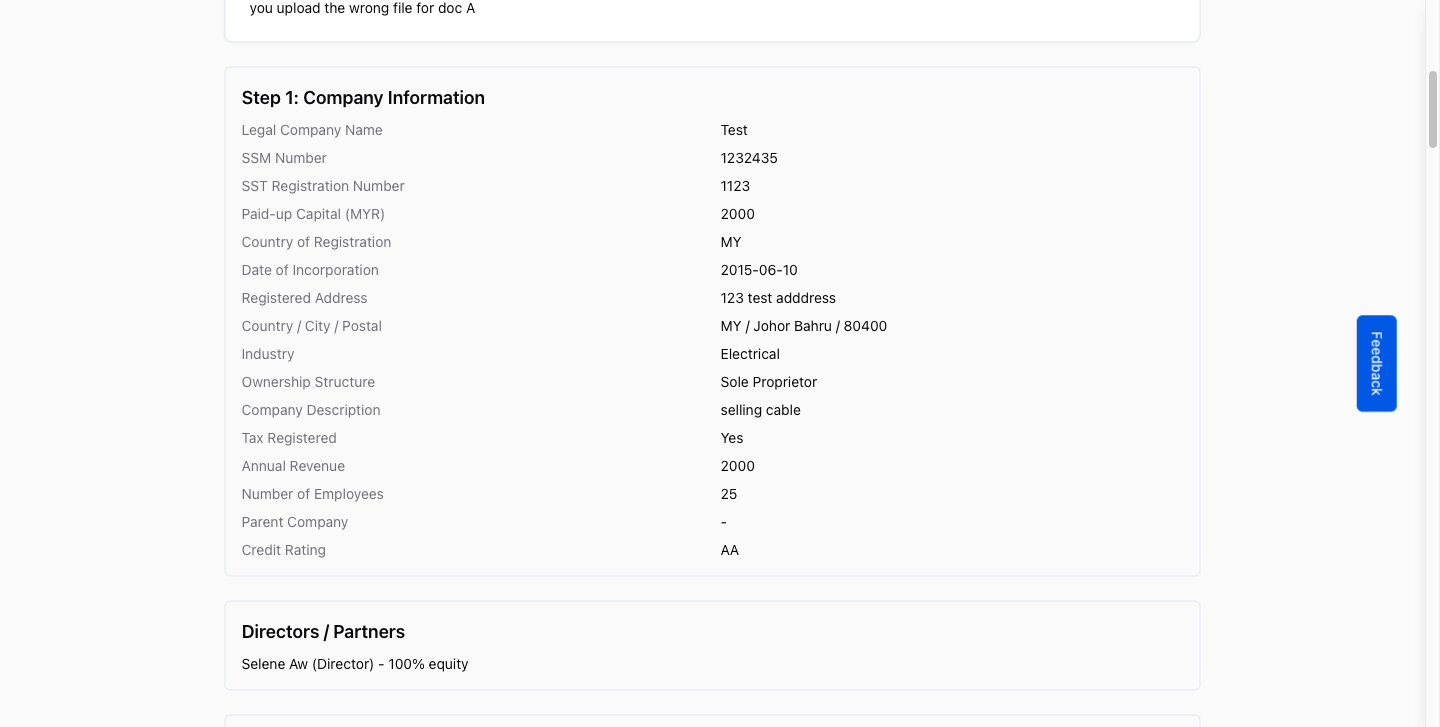
Work through each section the supplier has filled in, checking uploaded documents and form responses.
Send a recommendation or return for amendment
After reviewing, use the buttons at the top of the accreditation page:
- Recommend Approve or Recommend Reject: Opens a dialog with your recommendation filled in. Add remarks (for Recommend Reject, a reason is required), pick an approver for each stage, and click Send for Approval. The status changes to Pending Approval, and your recommendation shows beside Buyer recommendation in the page header.
- Return for Amendment: Opens a dialog where you write what the supplier should fix. The supplier receives your comment by email and on every step of their form, and can resubmit once done.