Amend an Evaluation
Update and resubmit an RFQ evaluation that an approver has returned to you with a request for changes.
Last updated 12 October 2026
Who can use this?
Available to Requestor users who submitted an RFQ evaluation that an approver has returned for changes.
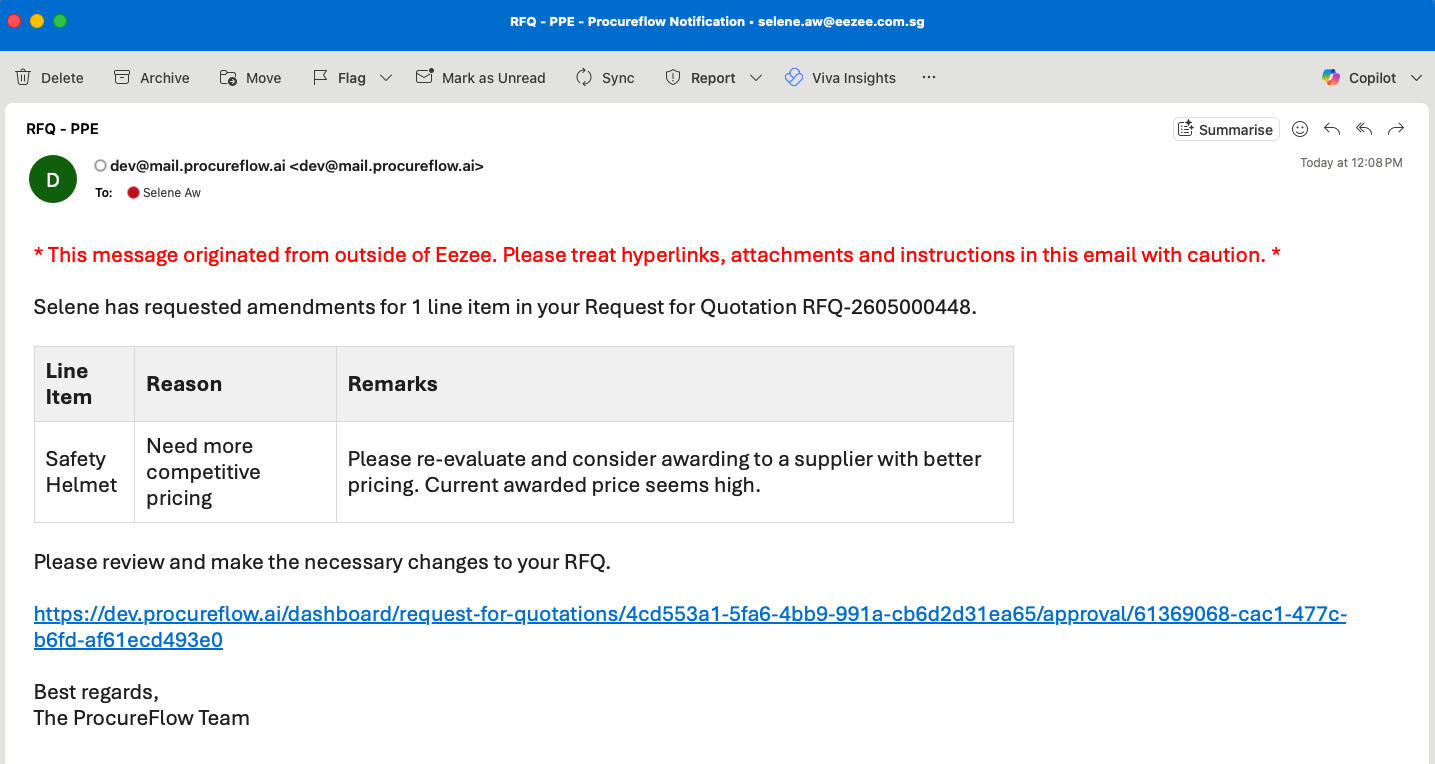
Open the Amendment Email and Click the Link
When an approver sends your evaluation back for changes, you will receive a system email from ProcureFlow.
The email lists:
- Each line item that requires amendment.
- The reason.
- The approver's remarks.
Click the link at the bottom of the email to go directly to the RFQ evaluation page.
Review the Amendment Request
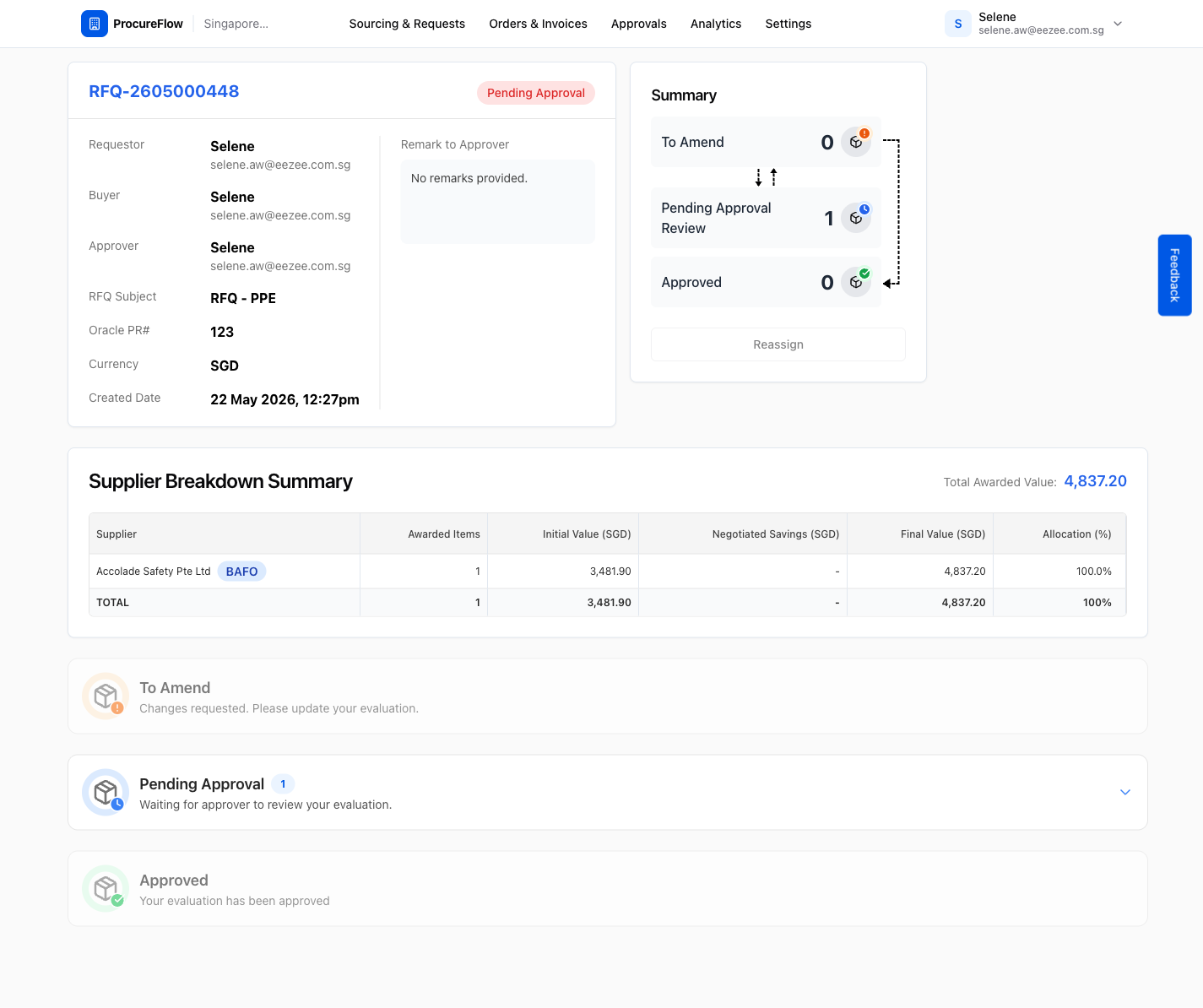
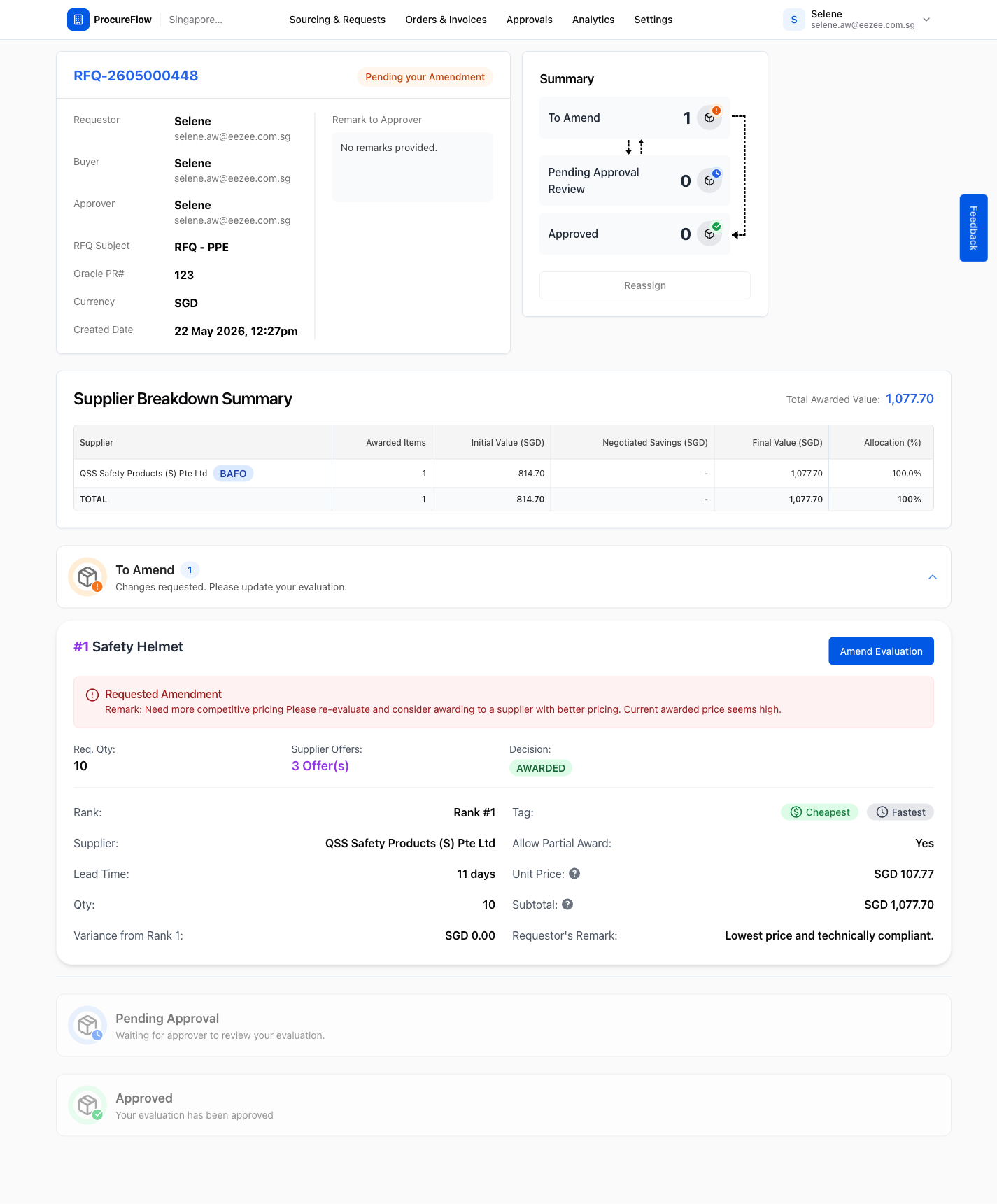
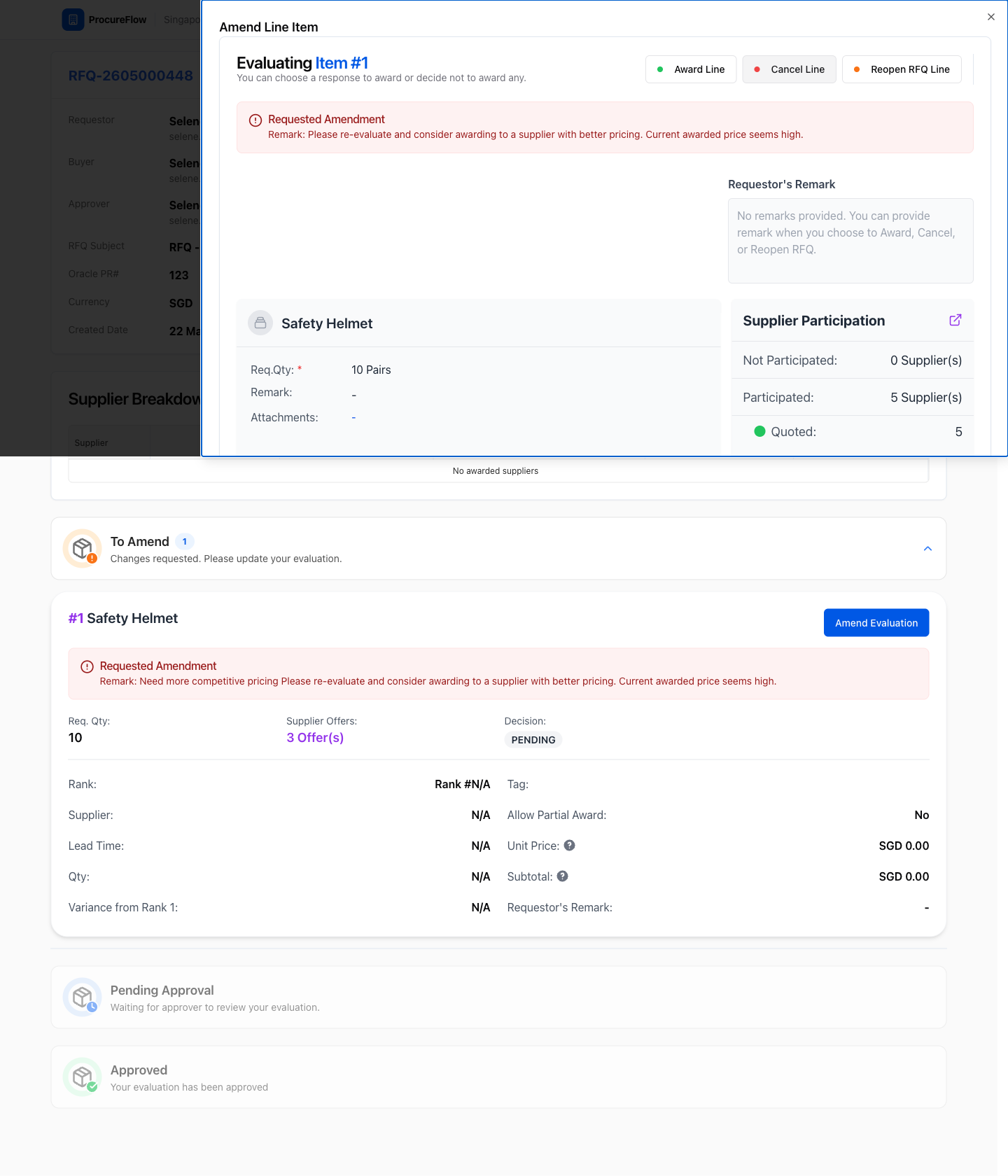
On the RFQ detail page, navigate to the approval record (shown under Approvals at the bottom).
The To Amend section lists:
- Line items that need changes.
- The approver's reason for requesting amendment.
Click 'Amend Evaluation'
For each line item flagged for amendment, click the Amend Evaluation button.
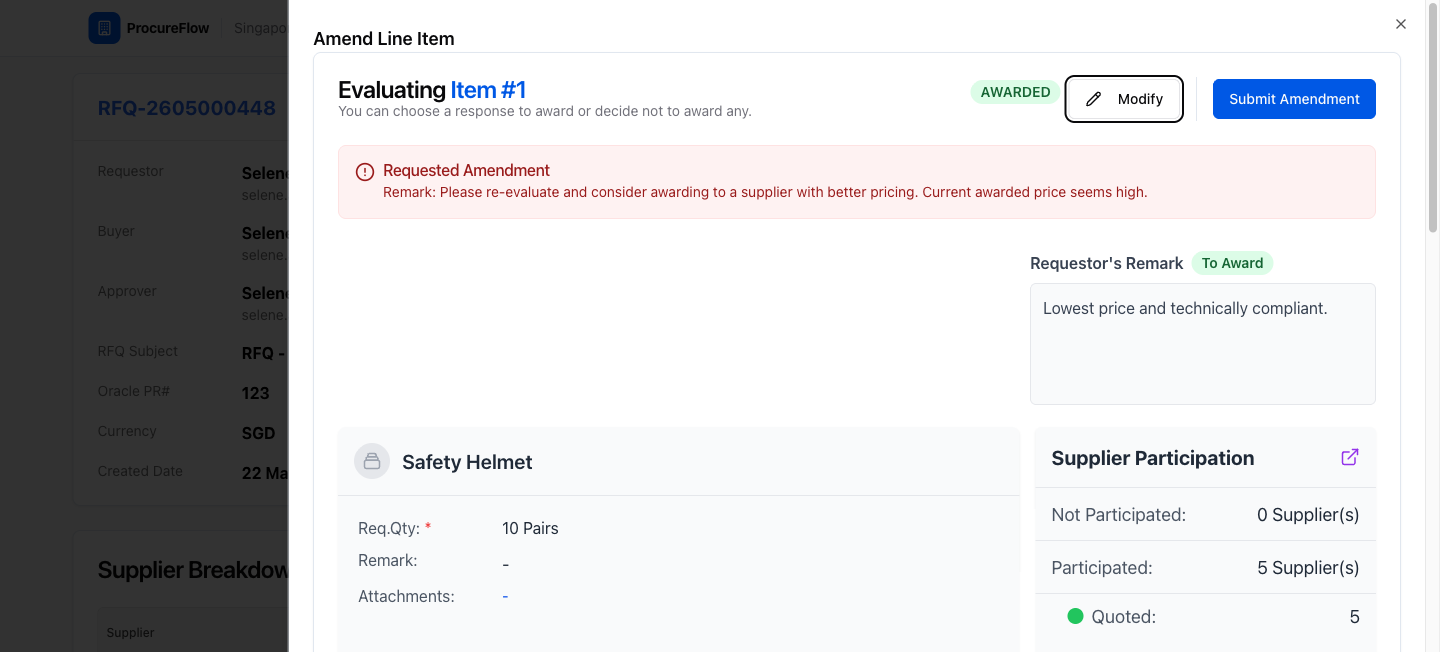
A side panel will open showing:
- The current award decision.
- The requested amendment remark.
Modify the Award Decision
- Click Modify in the panel to unlock the award. The current award is removed (status becomes PENDING).
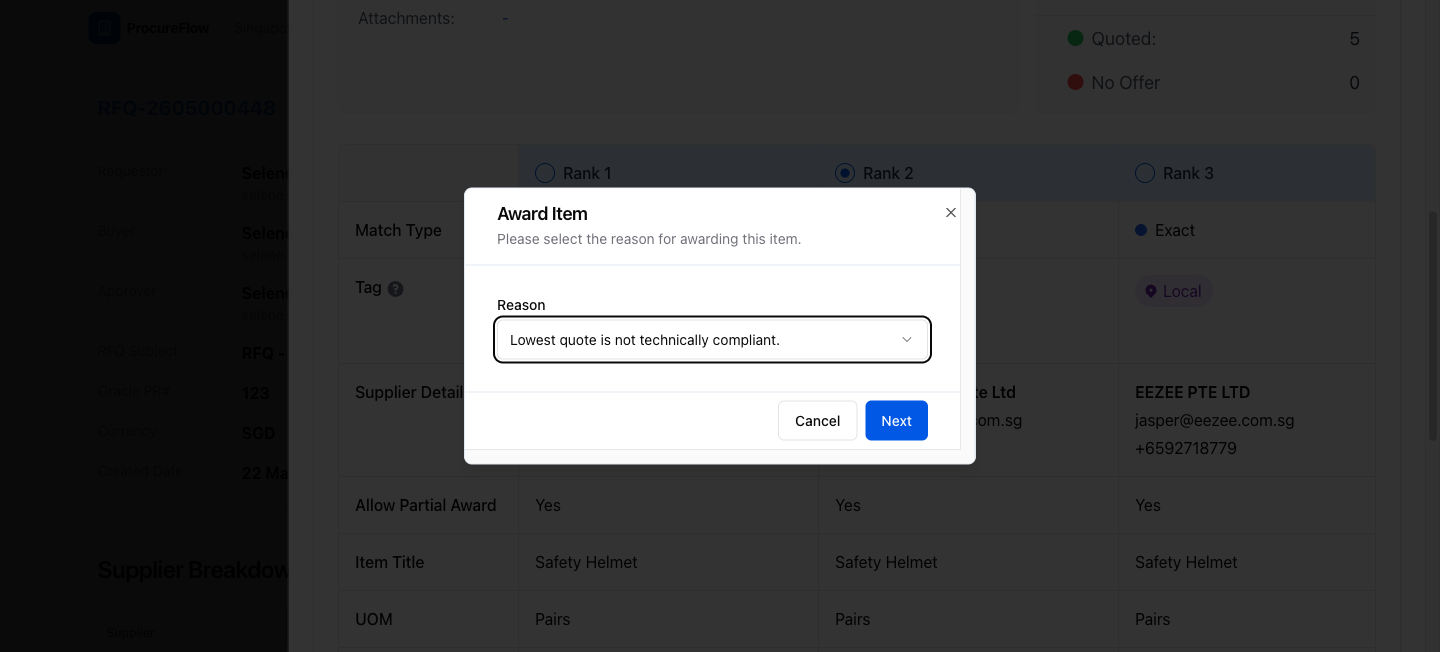
- In the supplier ranking table, select a new rank by clicking its radio button.
Award to a Different Supplier
Select the rank of the new supplier to award. An Award Item dialog appears with a reason dropdown.
- Select the appropriate reason.
- Click Next.
- Fill in the justification (required when awarding to a non-Rank-1 supplier).
- Click Award Item.
Submit the Amendment
After re-awarding all flagged line items, click Submit Amendment at the top of the panel.
Two things happen:
- The evaluation is sent back to the approver for review.
- The RFQ status returns to Pending Approval.