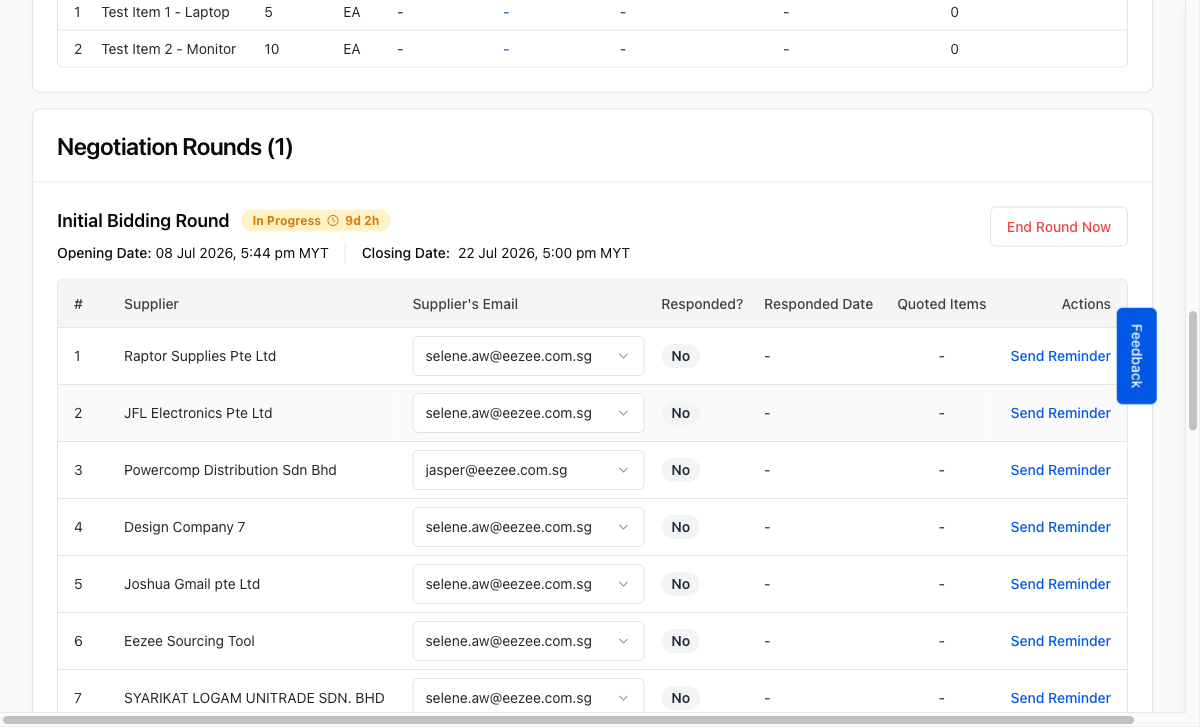
Remind a Supplier
Send a follow-up email reminder to a supplier who has not yet submitted their quotation for an open RFQ.
Last updated 12 October 2026
Who can use this?
Available to users whose role is listed in your organisation's RFQ Reminder Allowed Roles configuration, typically Procurement Buyer and Procurement Admin. Administrators can adjust this in Organisation Settings.
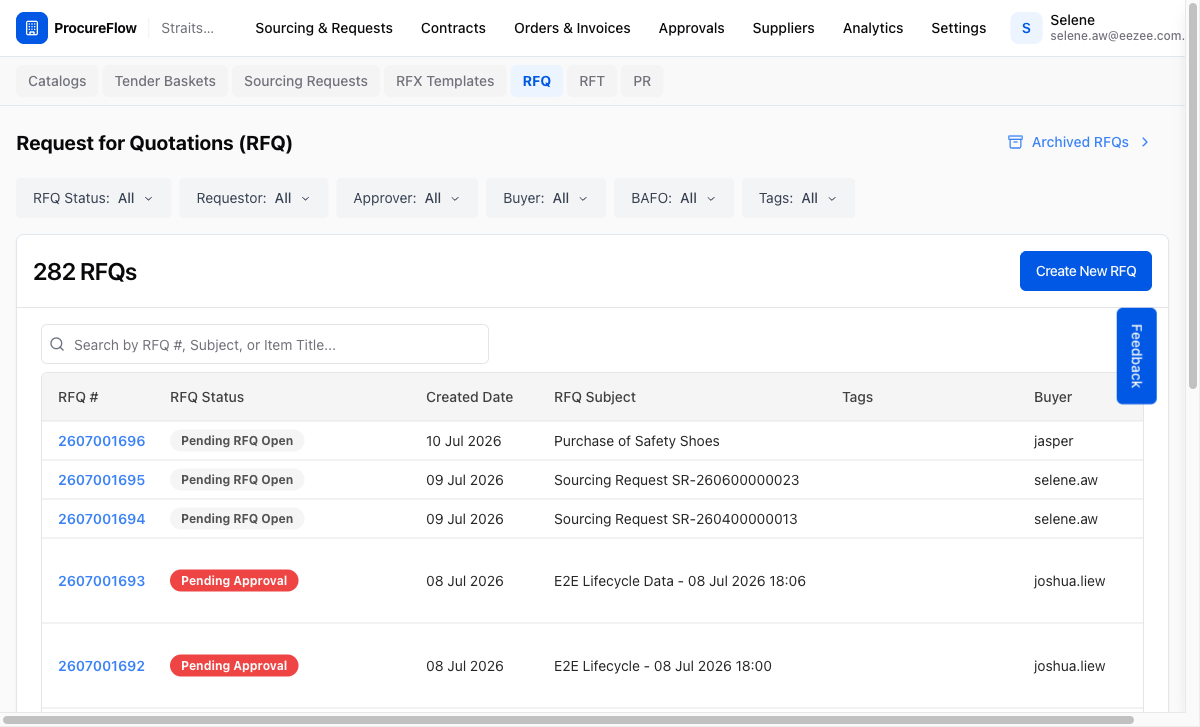
Go to the RFQ List
In the left sidebar, navigate to Sourcing & Requests → RFQ. You will see a list of all Request for Quotations in your organisation.
Look for an RFQ with a status of Pending Bidding Close. This means the RFQ is open and suppliers are currently expected to respond.
Open the RFQ Detail Page
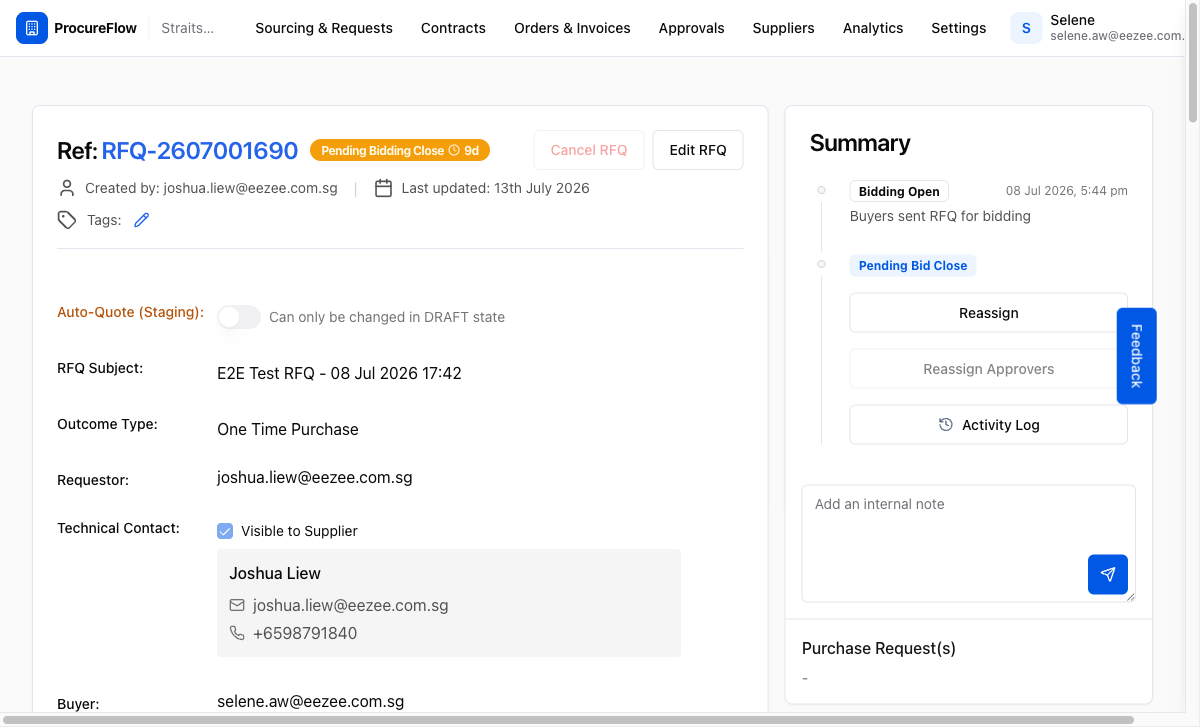
Click the RFQ number link (e.g. 2607001690) to open its detail page.
The page shows the full RFQ details including line items, attached documents, and the list of invited suppliers.
Find the Negotiation Rounds Table
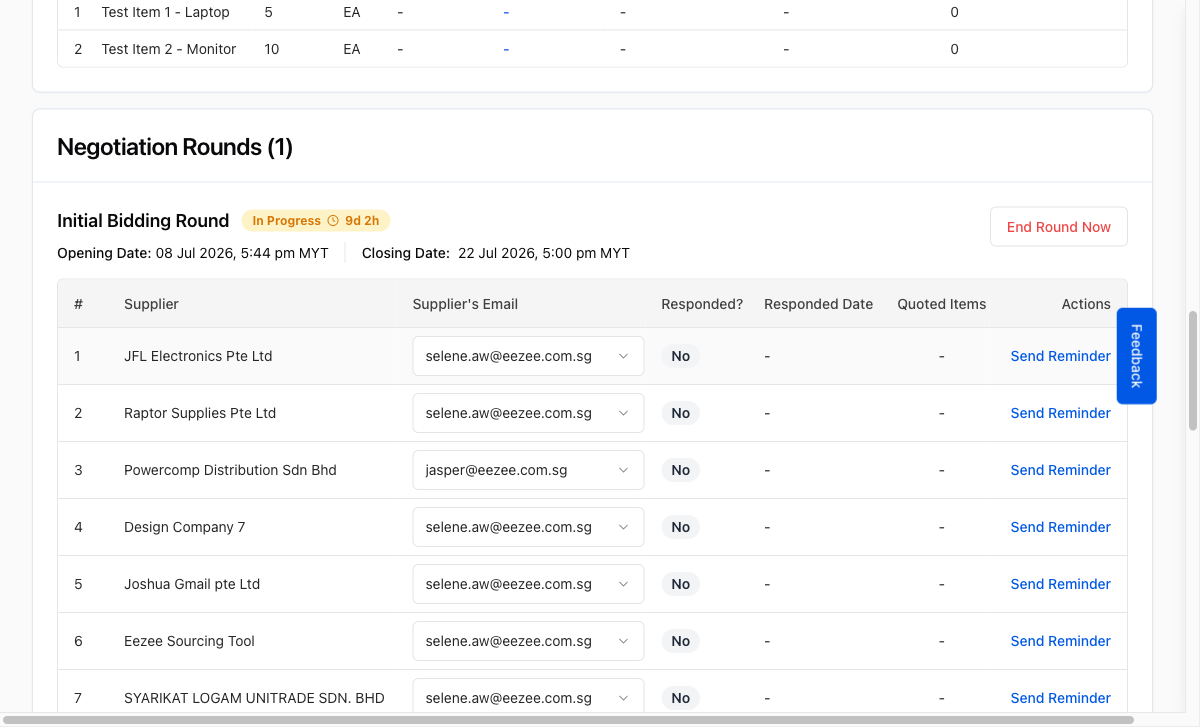
Scroll down the RFQ detail page until you reach the Negotiation Rounds card.
This table lists every supplier invited to this RFQ round. For each supplier it shows:
- Their email address
- Whether they have responded
- The response date
The Actions column on the right contains the reminder button for each supplier.
Click "Send Reminder" for the Supplier
In the Actions column, click the Send Reminder link next to the supplier you want to remind.
A confirmation dialog will appear showing the supplier's company name and the exact email address the reminder will be sent to.
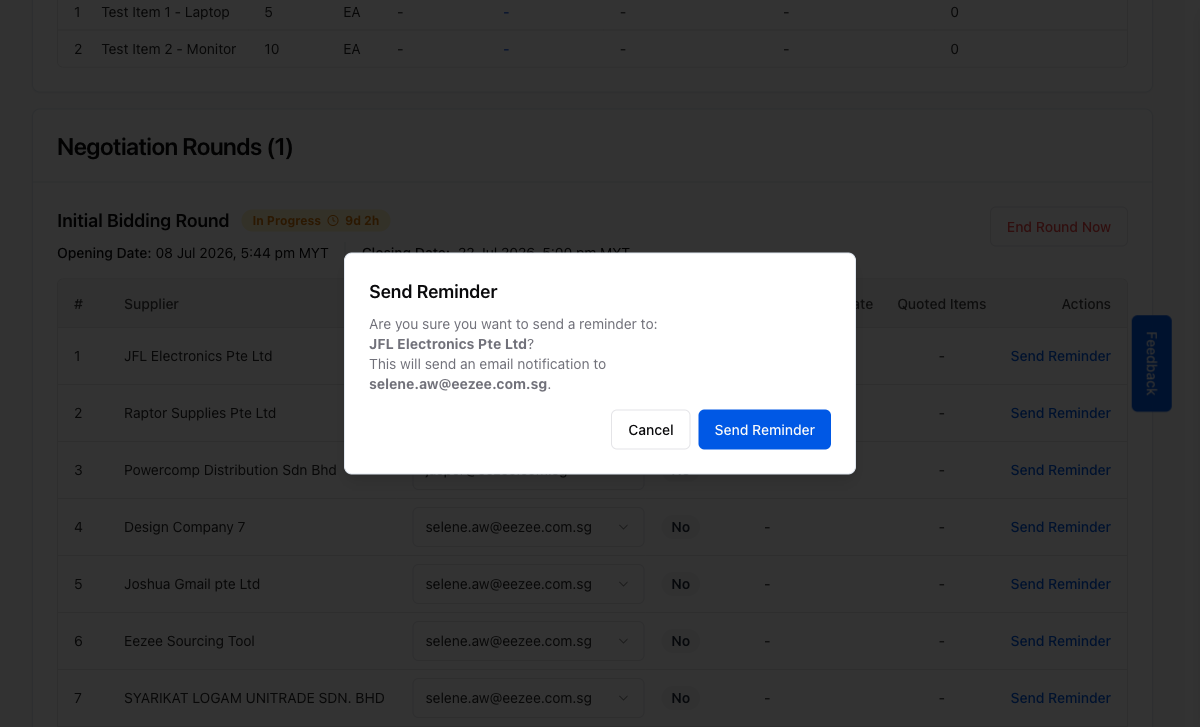
Confirm the Reminder
Confirm the reminder in the dialog:
- Review the supplier name and email address shown in the dialog.
- Click Send Reminder to confirm.
The system sends an email notification to the supplier immediately. A green success toast appears at the top of the screen confirming the reminder was sent.