Evaluate Quotes
Compare supplier quotations, select the winning bid, and submit your evaluation for approval after quotes have been received.
Last updated 12 October 2026
Who can use this?
Available to Requestor users. Only the RFQ owner can submit the evaluation to approvers.
Open the RFQ in Pending Evaluation
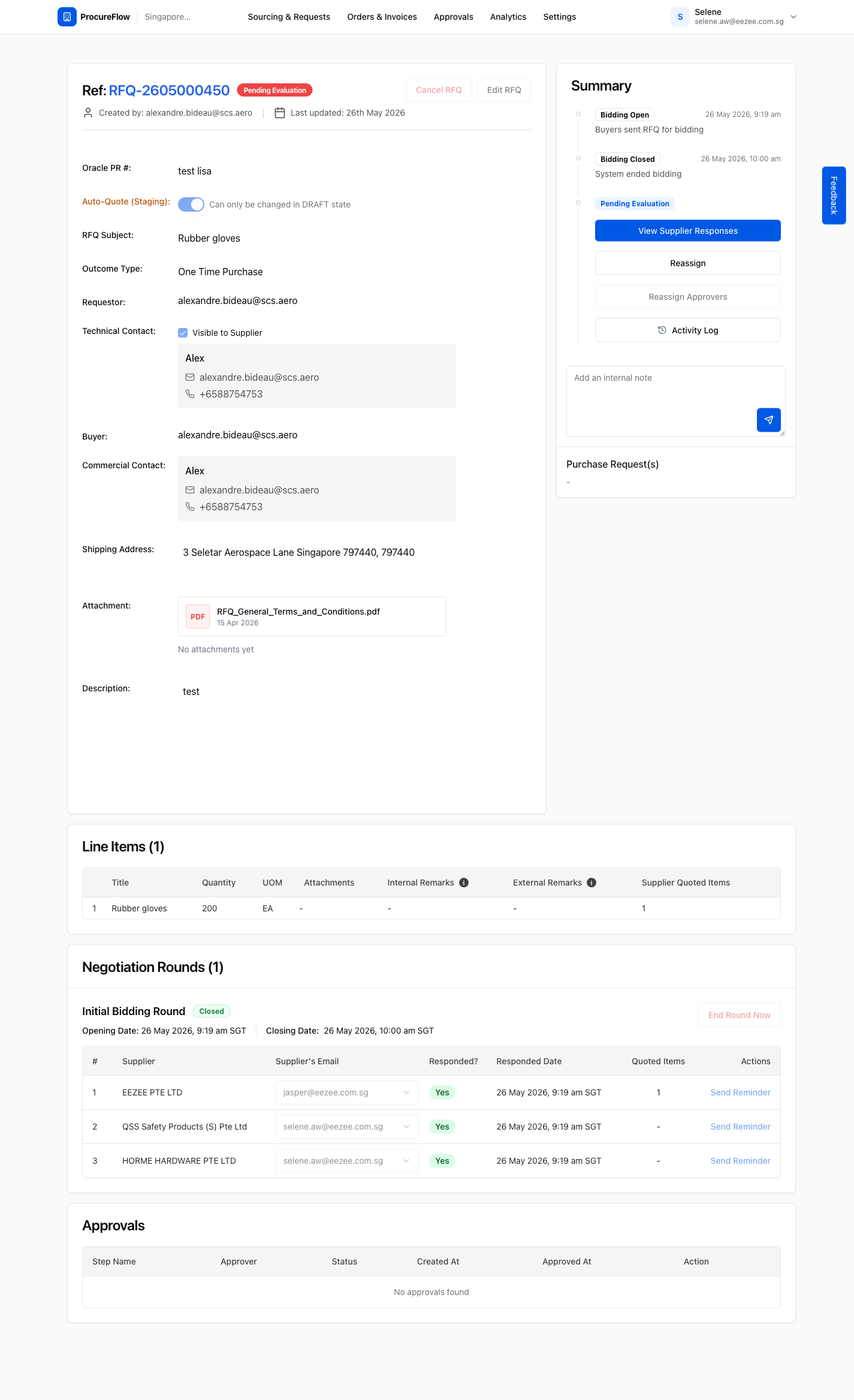
- Go to Sourcing & Requests → RFQ and find the RFQ with status Pending Evaluation.
- Click the RFQ number to open it.
- In the Summary panel on the right, click View Supplier Responses.
Review Supplier Quotes
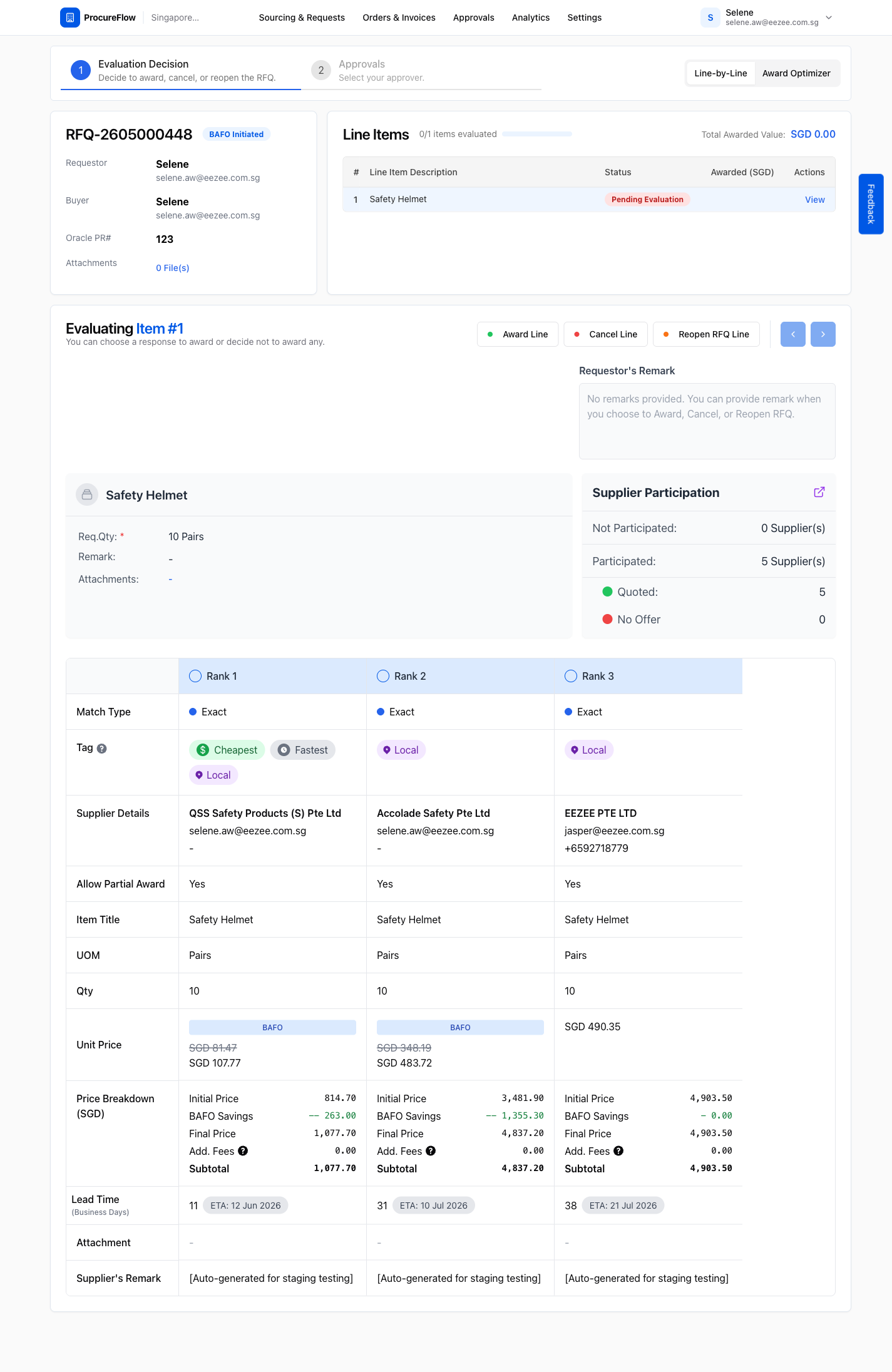
The evaluation page shows all line items. For each line item, supplier quotes are displayed side-by-side ranked by price (Rank 1 = cheapest).
Review the following for each supplier:
- Match type
- Tags (Cheapest, Fastest, Local)
- Unit price
- Lead time
Select a Supplier to Award
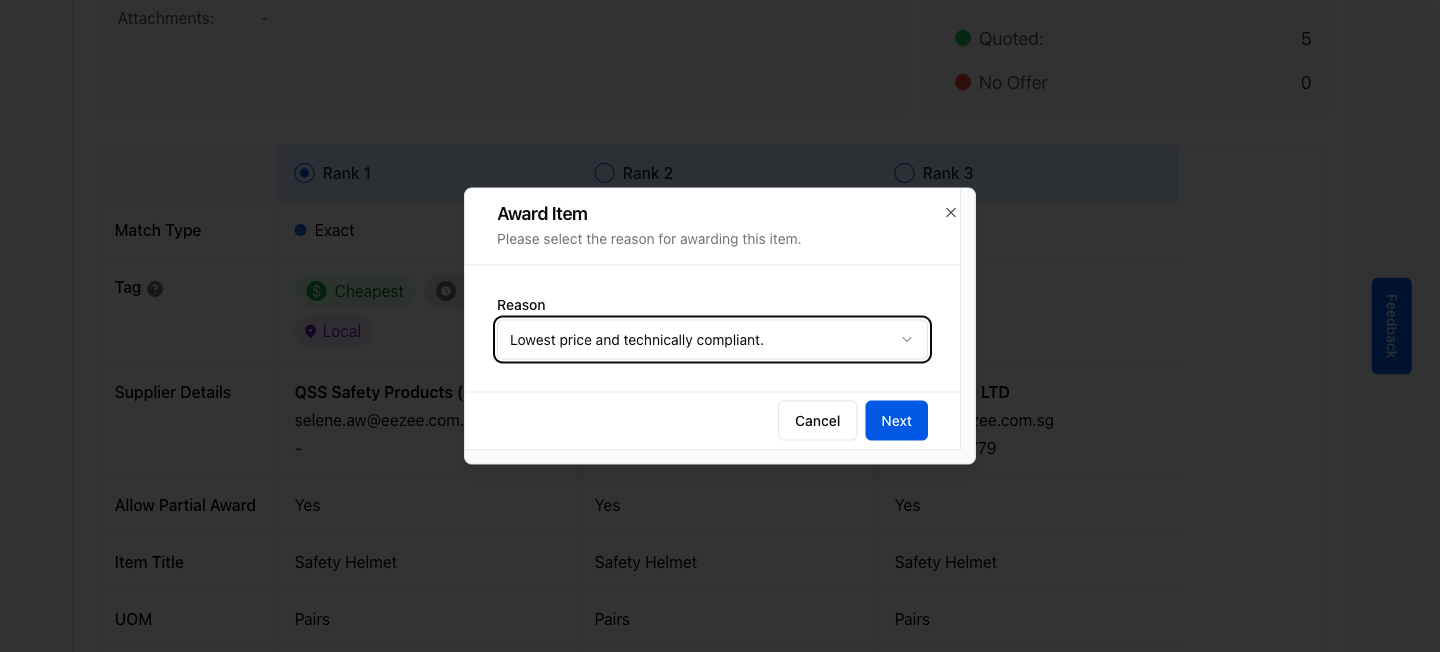
Click the radio button next to the rank you want to award (e.g. Rank 1) for a line item.
The Award Item dialog will appear automatically, asking you to select the reason for awarding.
Review & Confirm Award
After selecting the reason, click Next.
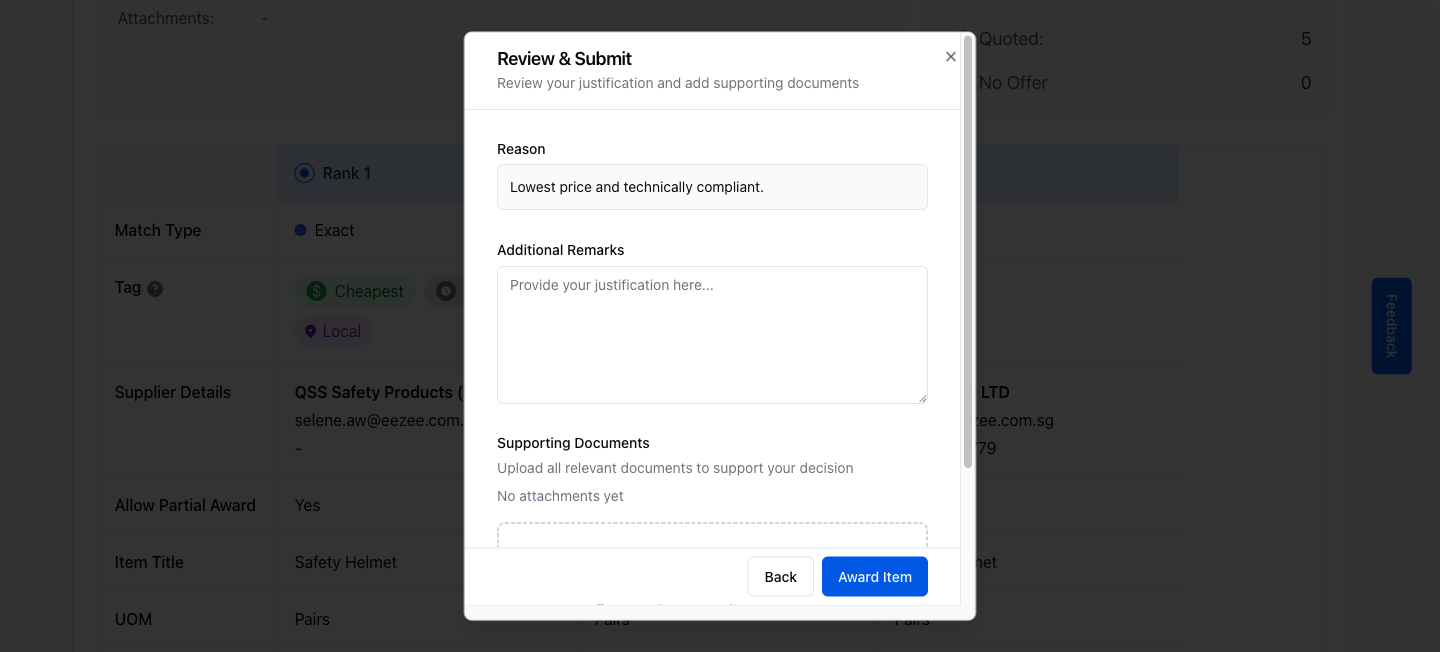
A Review & Submit dialog will appear, showing:
- The reason
- An optional remarks field
- A supporting documents upload
Click Award Item to confirm the award.
Verify All Lines Awarded
Once awarded:
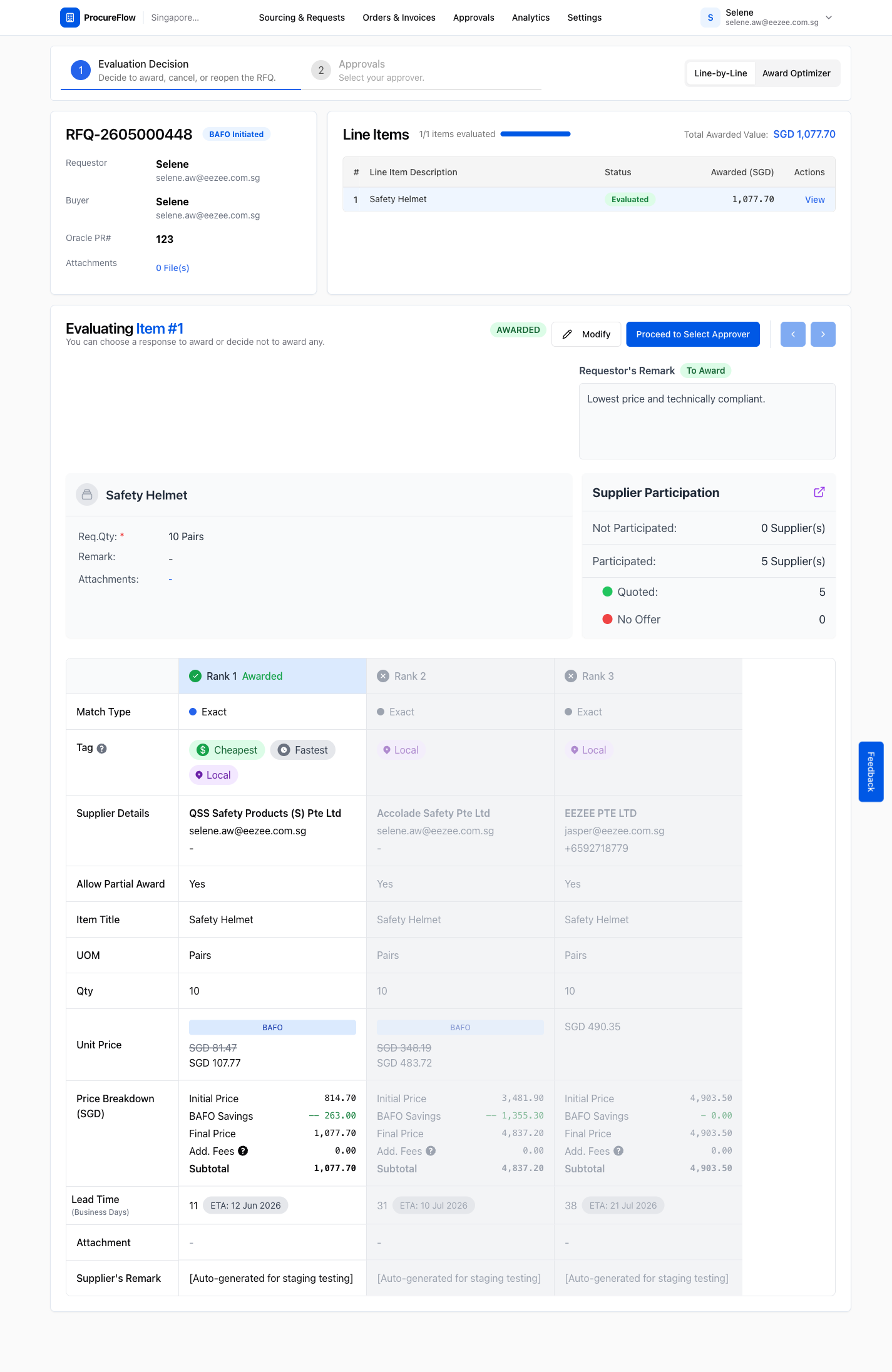
- The line item will show an AWARDED badge.
- The winning supplier's Rank will have a green 'Awarded' label.
Repeat for all remaining line items. When all are evaluated, click Proceed to Select Approver.
Select Approvers
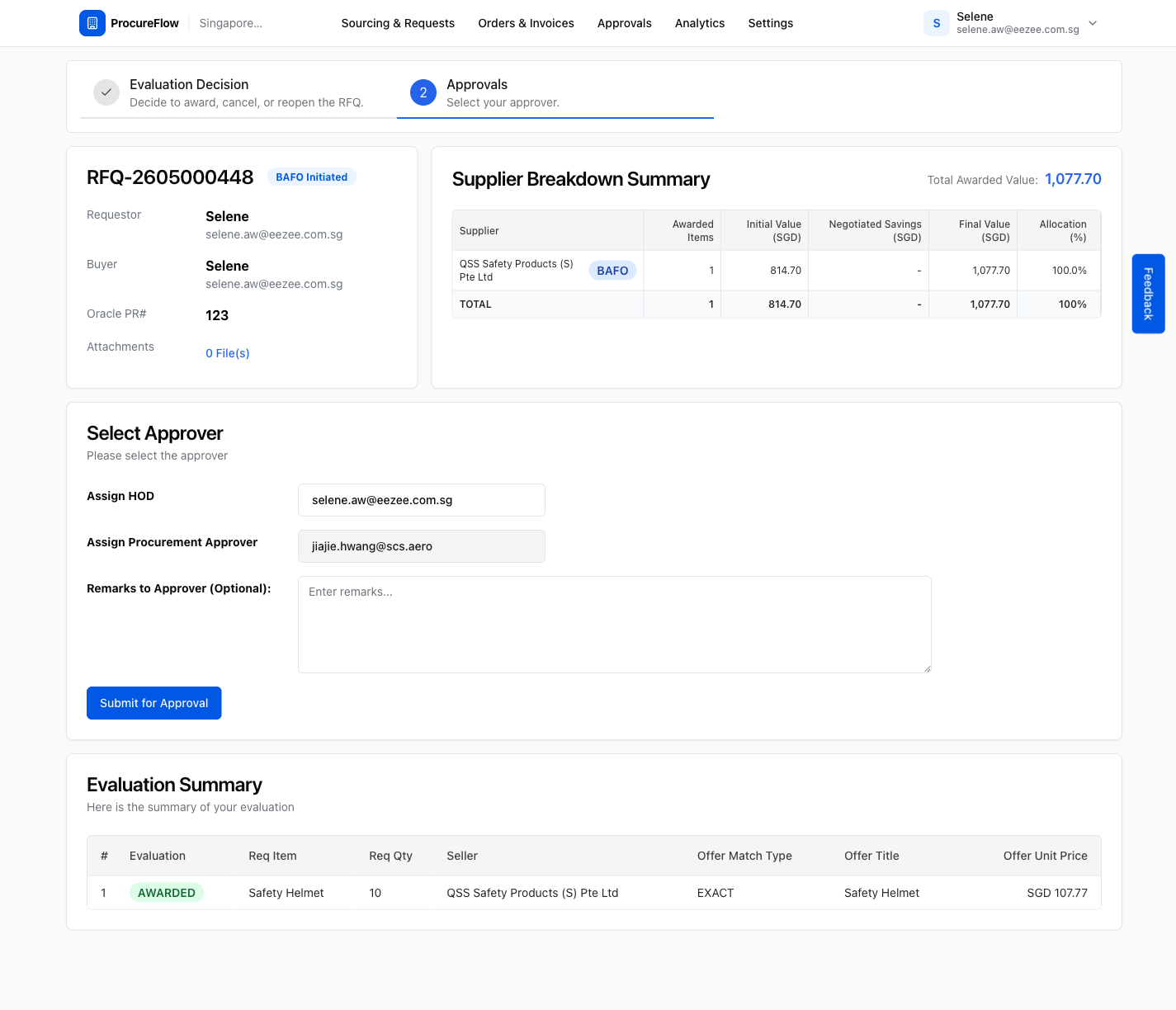
On the Approvals step, review the Supplier Breakdown Summary, then:
- Select an Approver from the dropdown
- Select an approver from the dropdown
- Optionally add remarks
Submit for Approval
Click Submit for Approval.
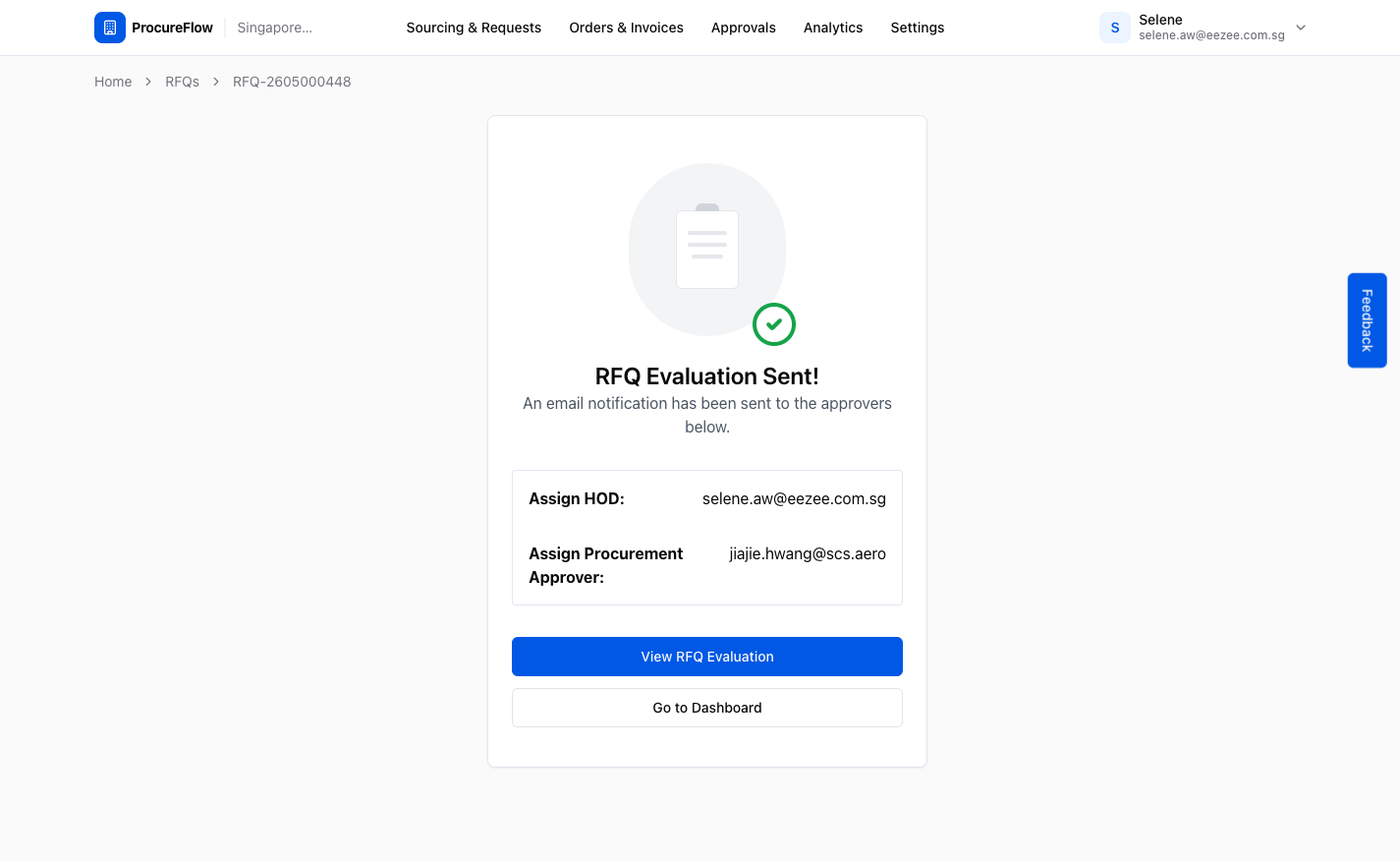
A success page will confirm that the RFQ Evaluation has been sent to the approvers. Both approvers will receive an email notification.