Approve an Evaluation
You review the requester's RFQ evaluation and either approve it or send it back for amendment if the award decision requires changes.
Last updated 12 October 2026
Who can use this?
Available to Approver users. You are notified by email when an RFQ evaluation is submitted for your review.
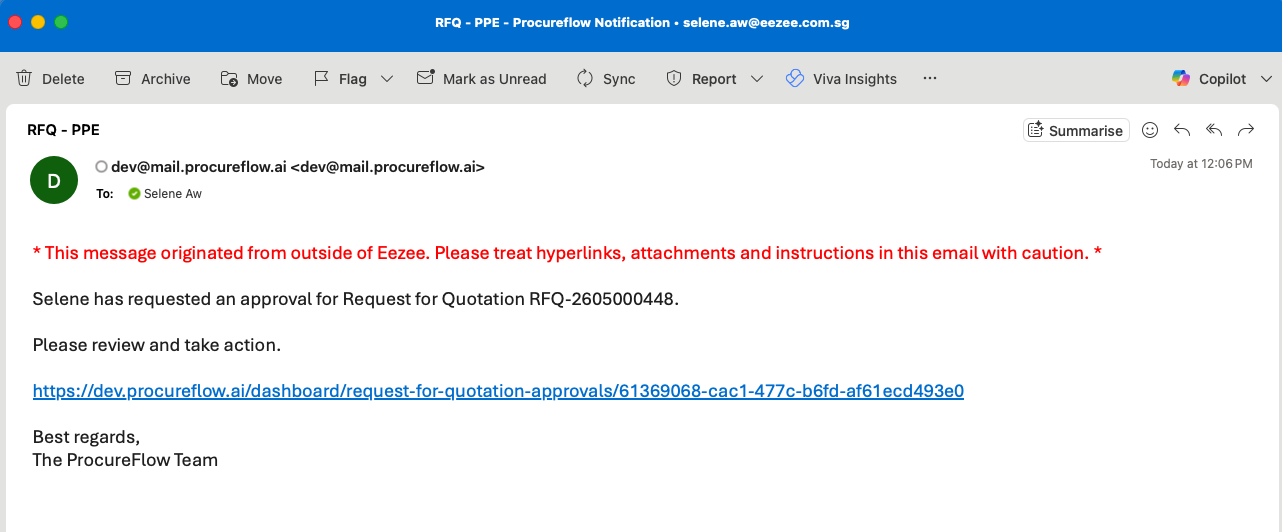
Open the notification email and click the link
When an RFQ evaluation is ready for your approval, ProcureFlow sends you an email notification.
Open the email and click the link to go directly to the evaluation page.
Open the pending RFQ evaluation
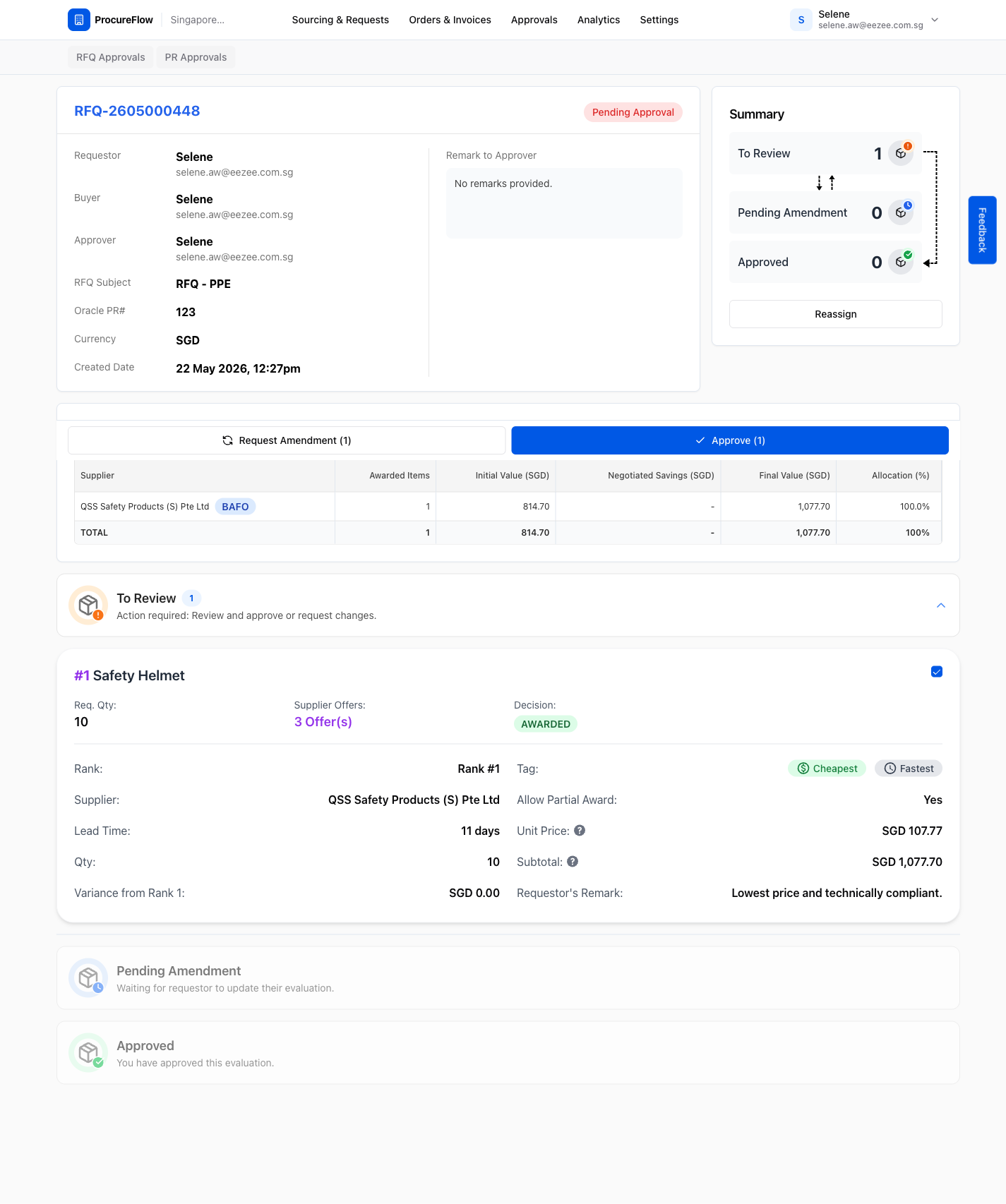
- Click on the RFQ with Pending Approval status.
- Review these details:
- Supplier Breakdown Summary
- Line items
- Awarded suppliers
- Unit prices
- The requester's remarks justifying any non-lowest award
(Optional) Request Amendment if changes are needed
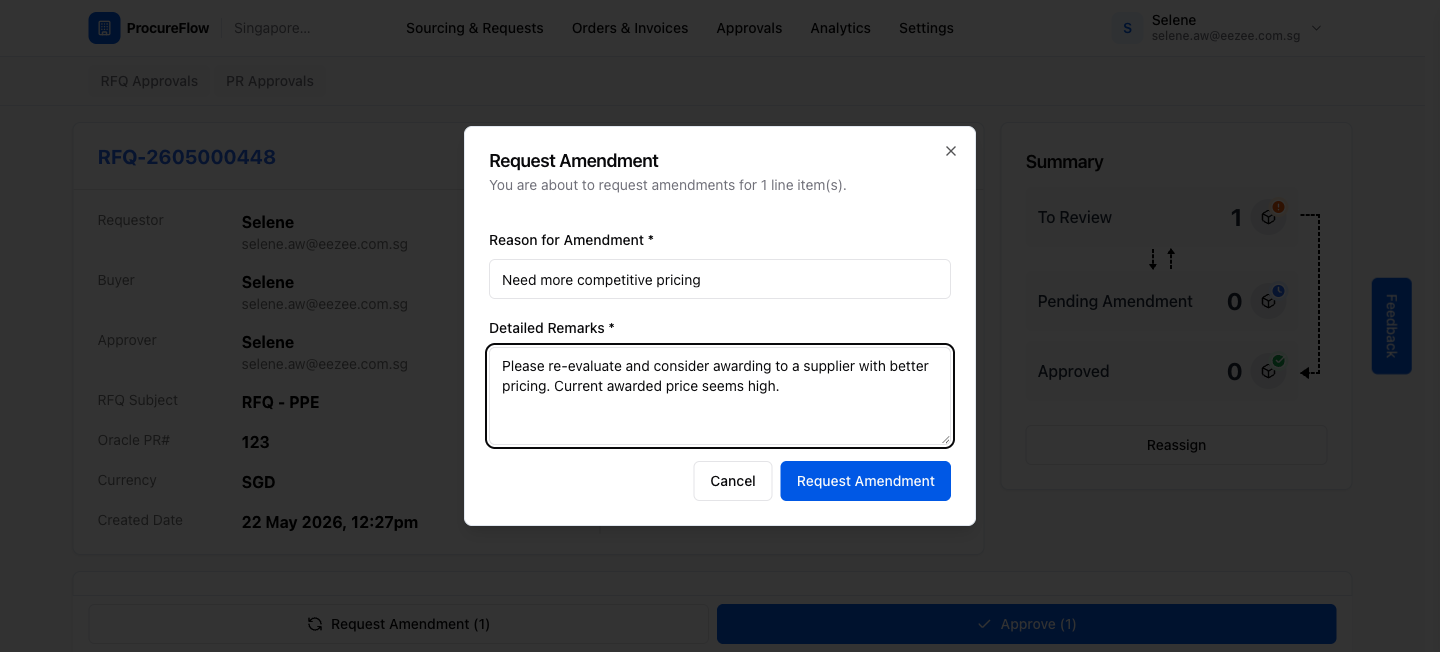
If the evaluation requires revision:
- Click Request Amendment.
- In the dialog, select the amendment Reason from the dropdown.
- Enter your Remarks explaining what needs to change.
- Click Submit.
The RFQ returns to the requester for revision.
Review the updated evaluation
After the requester re-submits their revised evaluation, the RFQ reappears in your Approvals queue.
Review the updated award decision and the requester's new justification.
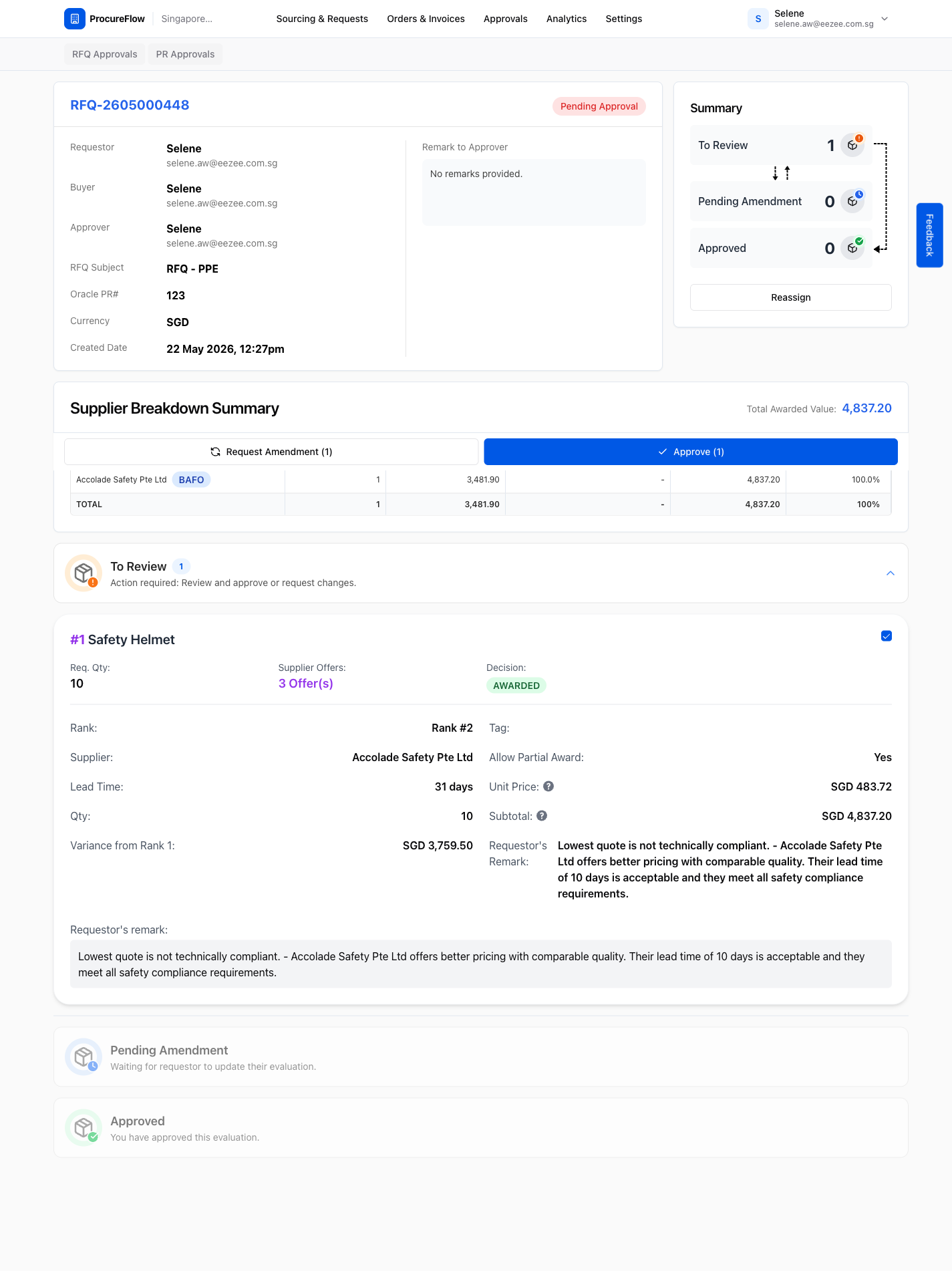
Click Approve to approve the evaluation
Once satisfied with the evaluation, click the Approve (1) button at the bottom of the page.
An approval dialog will appear confirming the number of line items being approved.
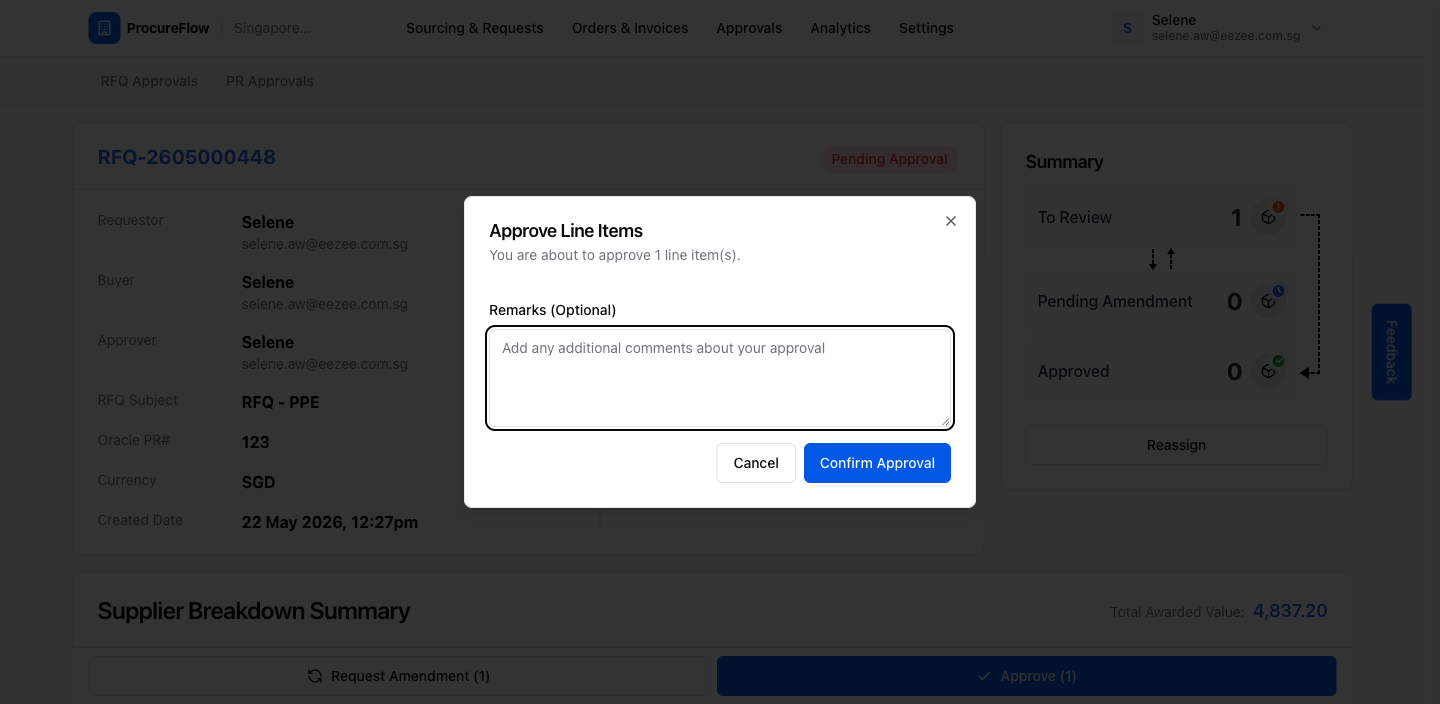
Confirm approval: RFQ moves to PO stage
Click Confirm Approval.
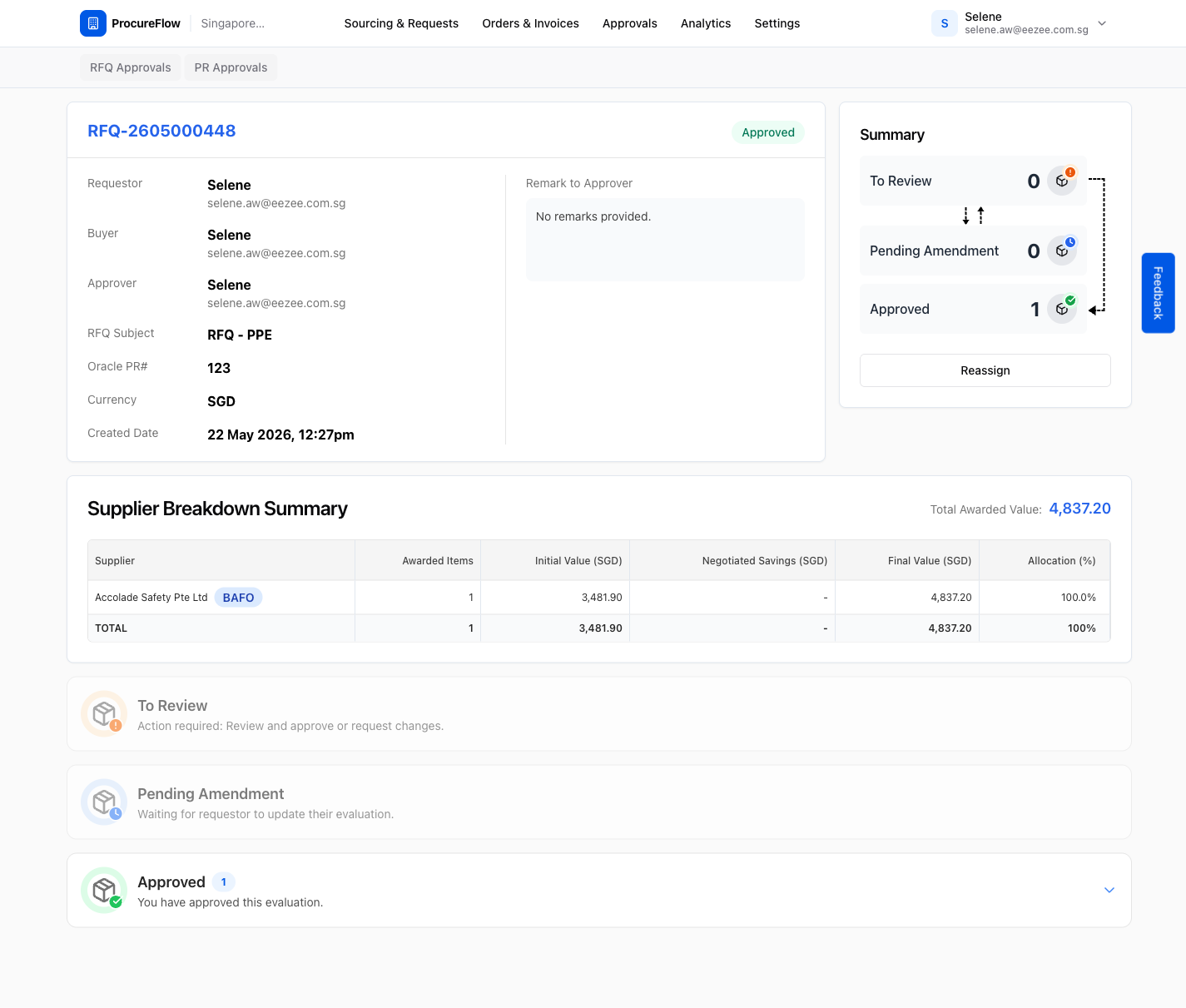
The RFQ status changes to Approved and the Summary shows 1 Approved item.
You can now proceed to create a Purchase Order.