ProcureFlow Docs

Reassign People

Step-by-step guide for administrators to reassign people on a Request for Quotation (RFQ) after it has been created and sent.

Last updated 16 July 2026


Who can use this?

Available to Procurement Admin and Admin.

What You Can Reassign and When

The reassign feature lets administrators change the people responsible for an RFQ without cancelling or recreating it. There are three roles you can reassign:

  • Buyer (sourcedByUserId): the procurement team member managing the RFQ. Must hold a Procurement Buyer or Procurement Admin role.
  • Requestor (createdByUserId): the internal user who raised the requirement. Can be any active user.
  • Approver: the person assigned to approve a specific workflow step. Must be in the eligible approver list defined when the RFQ was submitted for approval.

Who can reassign: Users with the Admin, Procurement Admin, or Developer Employee role. Approvers can also reassign themselves to another eligible person.

When:

  • Buyer/Requestor can be reassigned while the RFQ is in Draft or Open (including Pending Bidding Close) state.
  • Approvers can only be reassigned while their step is in Pending Approver Review.
Important: Reassigning sends email notifications to the outgoing and incoming person. Past activity and audit logs remain attributed to the original assignee.

Open the RFQ

  1. Navigate to Sourcing & Requests from the left-hand navigation.
  2. Open the RFQ you want to reassign.

The RFQ must be in Draft, Open, or Pending Bidding Close state for the Reassign button to be active.
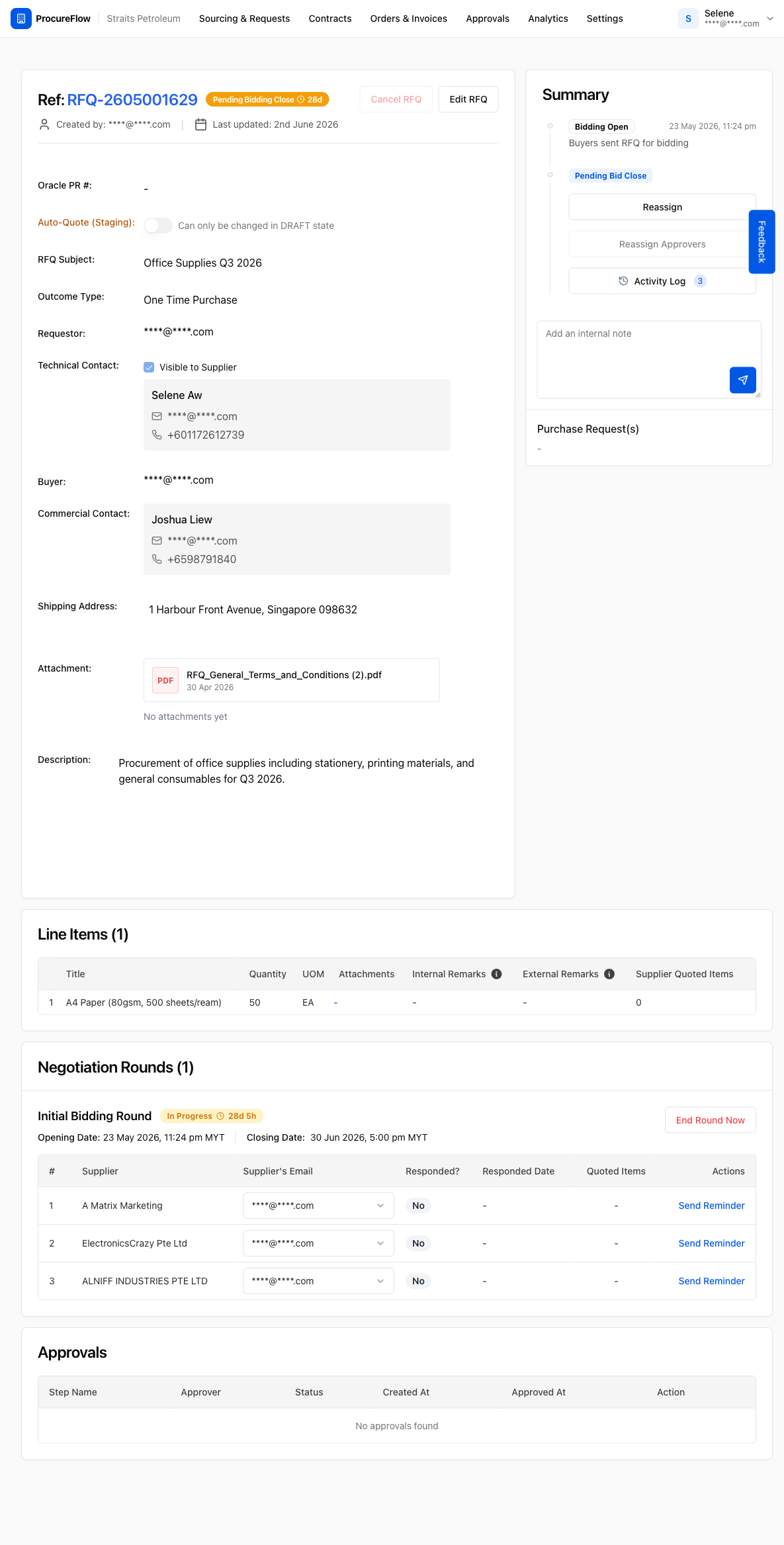
RFQ-2605001629 in Pending Bidding Close state. The Summary panel on the right shows the current workflow stage and the Reassign button.
Tip: The Reassign Approvers button next to it will be greyed out at this stage; it only activates when the RFQ reaches Pending Approval.

Click "Reassign"

Click the Reassign button in the Summary panel.

A dialog will appear showing the current Buyer and Requestor. Both fields are pre-filled with the existing assignees so you only need to change what you want.
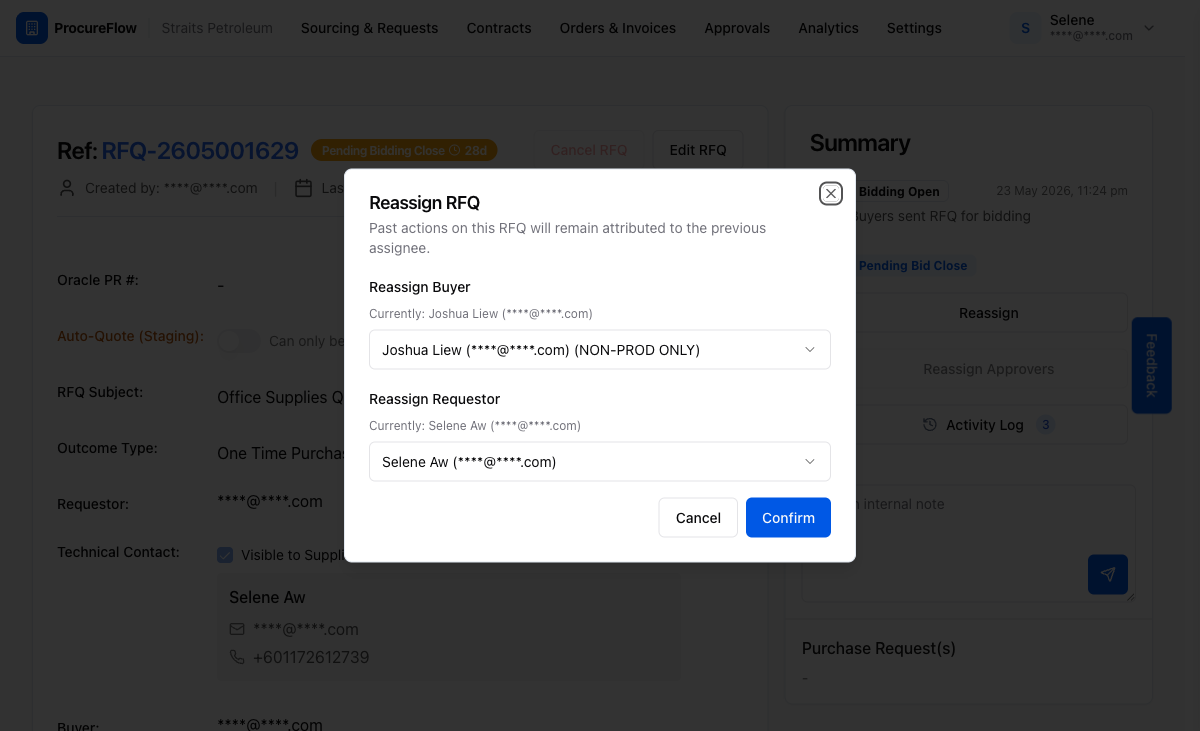
The Reassign RFQ dialog. Both the Buyer and Requestor dropdowns are shown with the current assignees pre-selected.

Select a new Buyer

Click the Reassign Buyer dropdown. The list shows all active users in your organisation who hold a Procurement Buyer or Procurement Admin role.

Click the name of the person you want to assign as the new buyer.
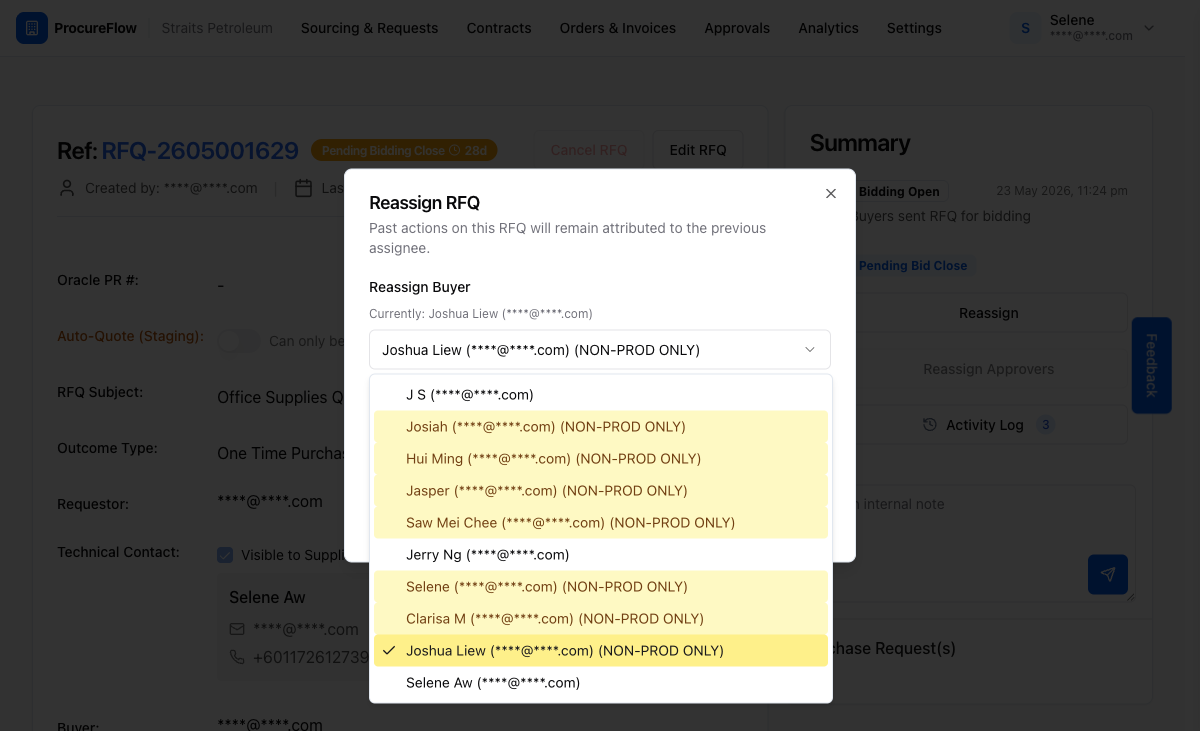
The Buyer dropdown expanded. Only users with the correct procurement role appear here.
Note: You can change only the Buyer, only the Requestor, or both at once. At least one field must change before you can click Confirm.

Select a new Requestor

Click the Reassign Requestor dropdown and select the new requestor.

This list includes all active users in the organisation, not just procurement roles, because requestors can be any internal stakeholder.
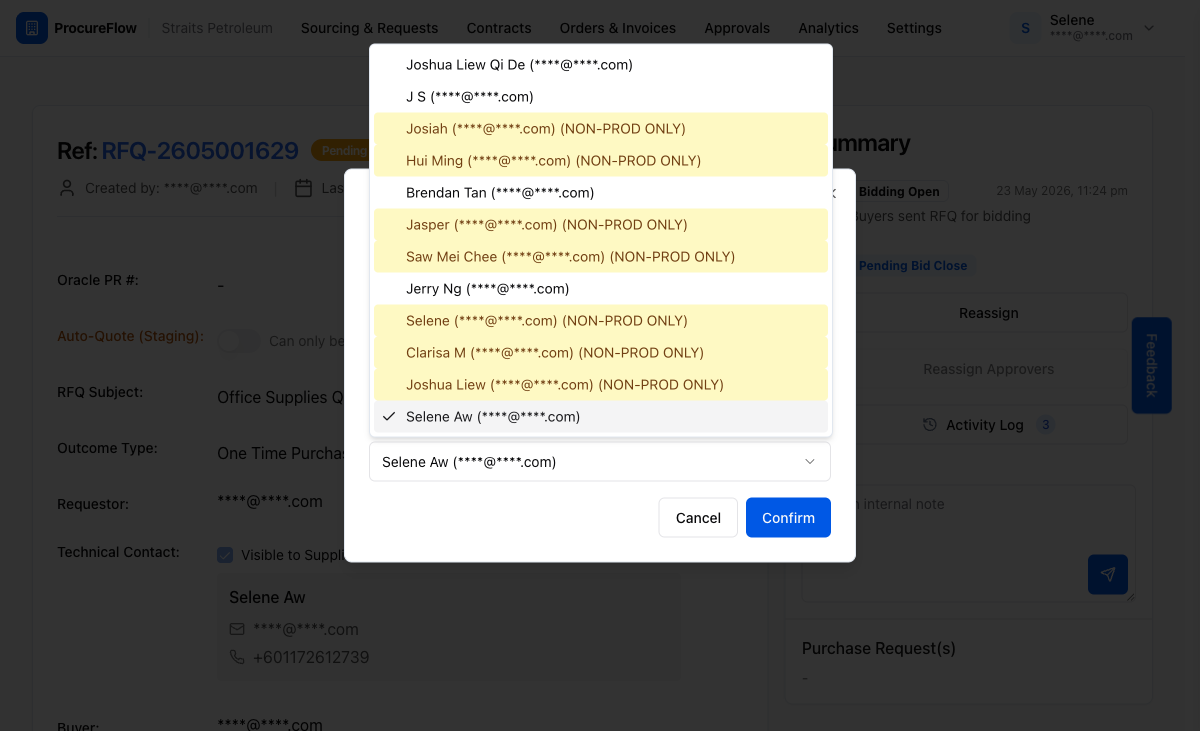
The Requestor dropdown showing a broader list of eligible users compared to the Buyer dropdown.

Confirm the changes

Once you have selected the new assignees for both roles, click Confirm.

The RFQ will be updated immediately and both the outgoing and incoming users will receive an email notification. The page will refresh to show the updated details.
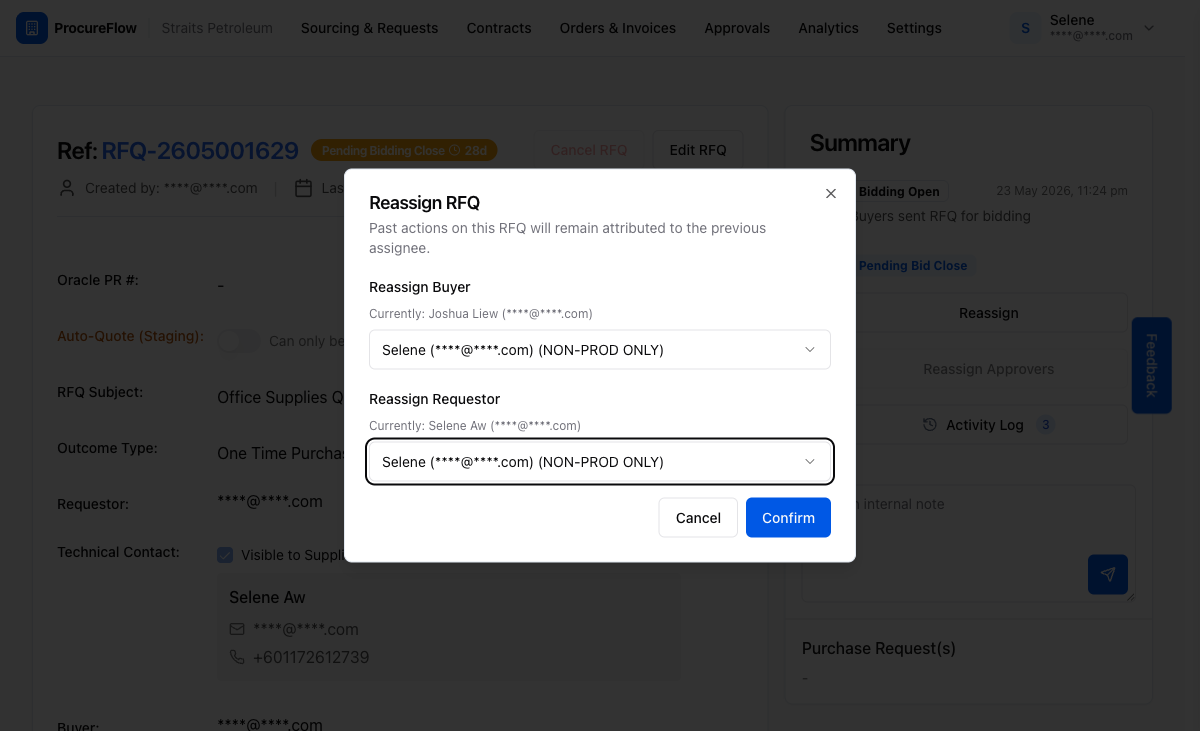
Both fields filled in and ready to confirm. Clicking Confirm triggers the reassignment and sends notification emails.
Important: This action sends emails. Confirm you have selected the correct people before clicking Confirm. Click Cancel or the X icon to exit without saving.

Email Notifications Sent After Buyer Reassignment

After confirming a buyer reassignment, ProcureFlow sends up to three emails automatically.

Outgoing buyer receives a removal notice:
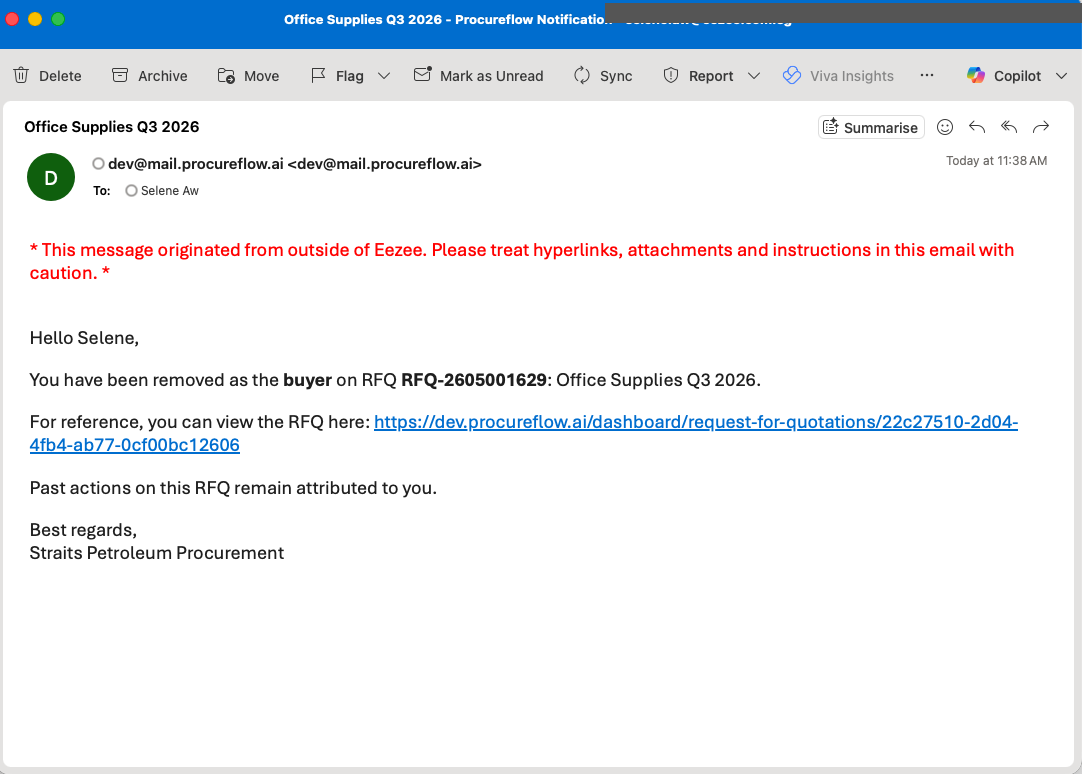
The outgoing buyer is notified they have been removed. The email includes the RFQ reference, subject, and a view link. Past actions remain attributed to them.

Incoming buyer receives an assignment notice:
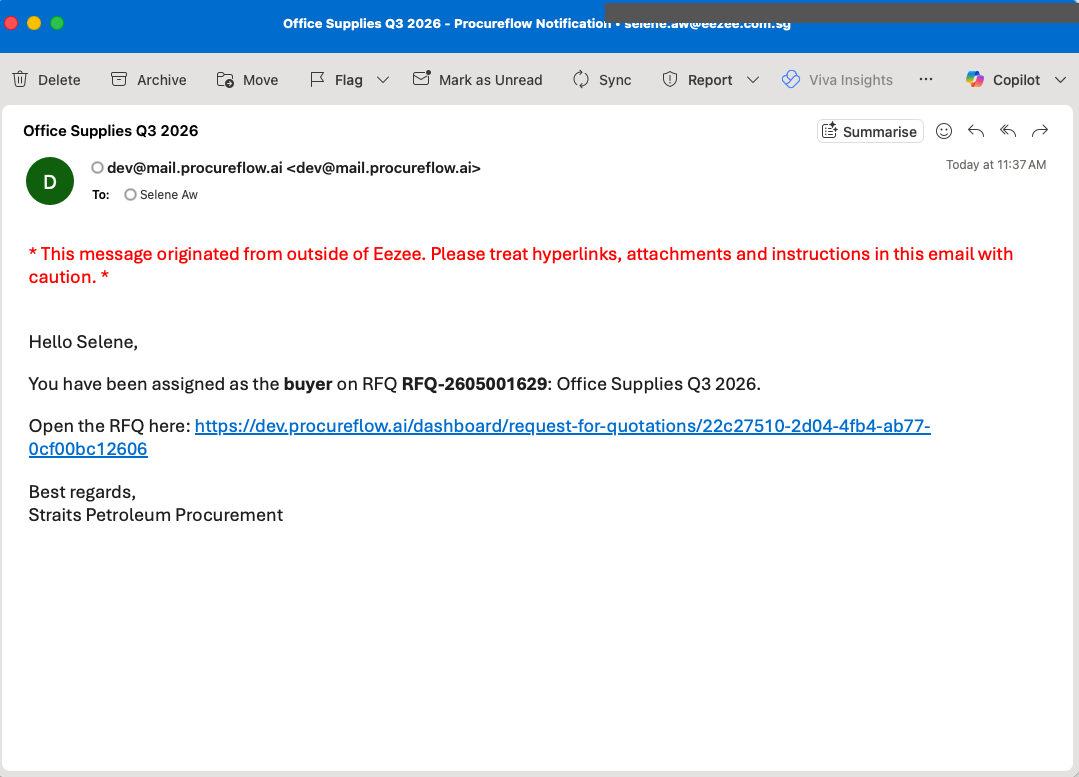
The incoming buyer is notified they have been assigned, with a direct link to open the RFQ.

Suppliers on the RFQ receive a contact update notification:
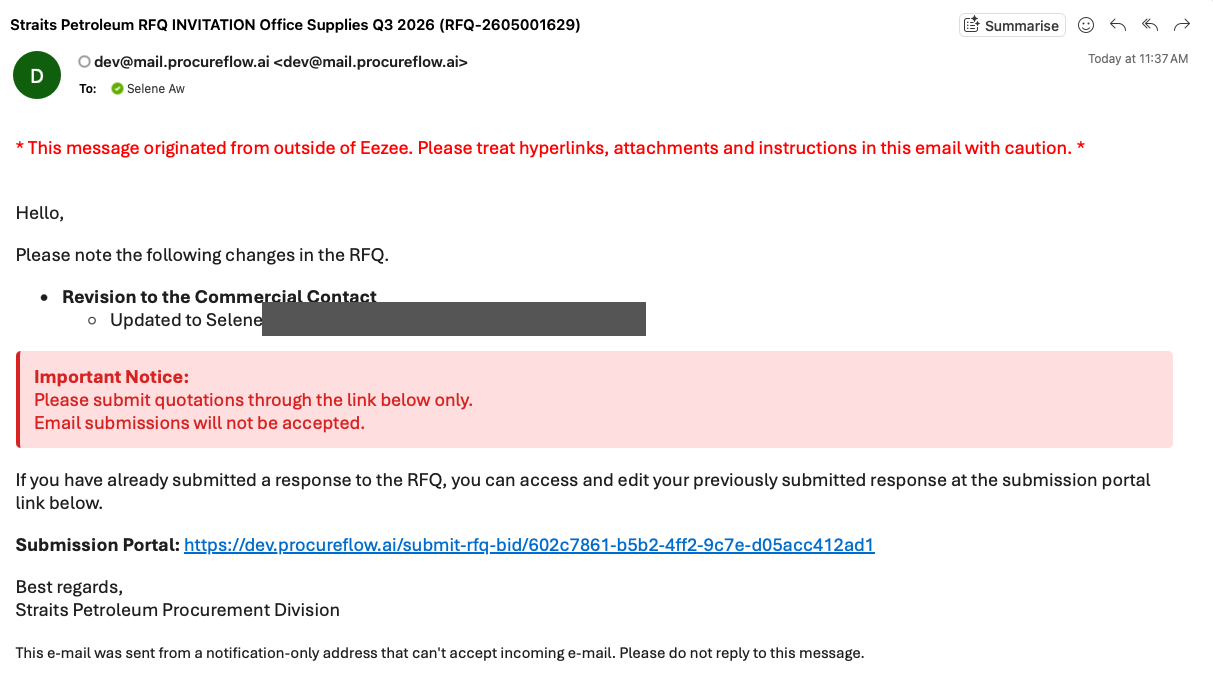
Each invited supplier receives an update email listing the change to the Commercial Contact (buyer). The email also includes their submission portal link.
Note: Reassigning the requestor follows the same pattern: the outgoing requestor receives a removal email and the incoming requestor receives an assignment email.
Important: Suppliers only receive the contact update email if the Technical Contact was set to "Visible to Supplier" when the RFQ was originally posted. If visibility was turned off at posting time, no update email is sent to suppliers on reassignment.

Open an RFQ in Pending Approval

Open the RFQ whose approver you want to change.

The RFQ must be in Pending Approval state and the approval step must still be pending.

You will see both the Reassign button (for buyer/requestor) and the now-active Reassign Approvers button in the Summary panel.
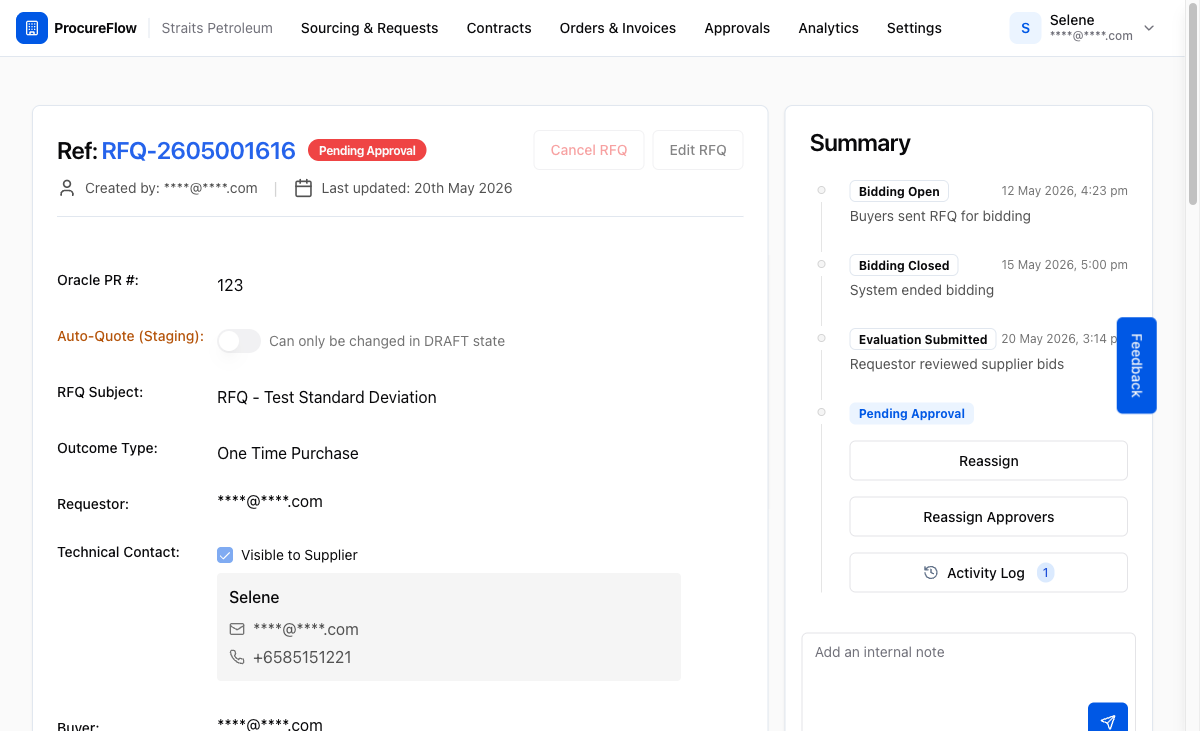
RFQ-2605001616 in Pending Approval state. Both buttons in the Summary panel are now active.

Click "Reassign Approvers" for bulk reassignment

Click Reassign Approvers to open the bulk reassignment dialog. This shows every approval step that is still pending, one row per step, each with its own dropdown for selecting a new approver.
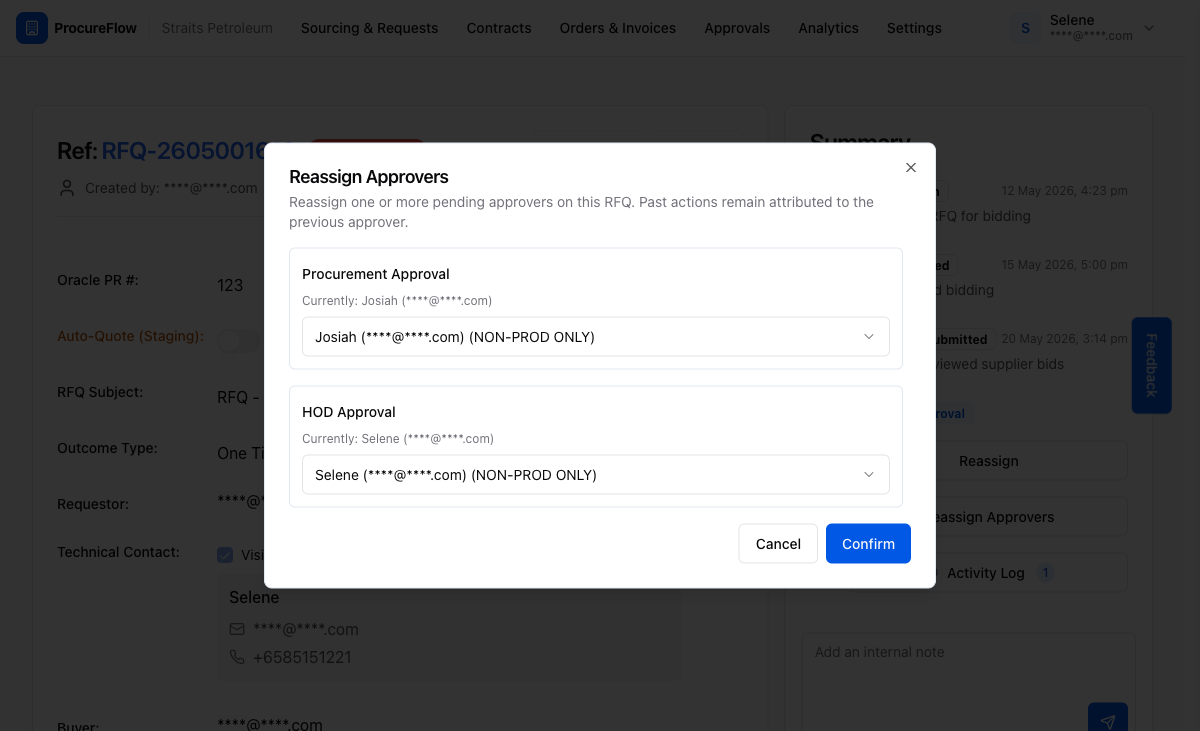
The Reassign Approvers dialog listing all pending steps. Each step shows the current approver and a dropdown to choose the replacement.
Note: Only steps in Pending Approver Review appear in this dialog. Steps that have already been approved or rejected are not shown.

Select new approvers for each step

For each approval step, click its dropdown and choose the new approver. The list is derived from the workflow configuration that was set when the RFQ was submitted for approval, so only eligible approvers for that step are shown.
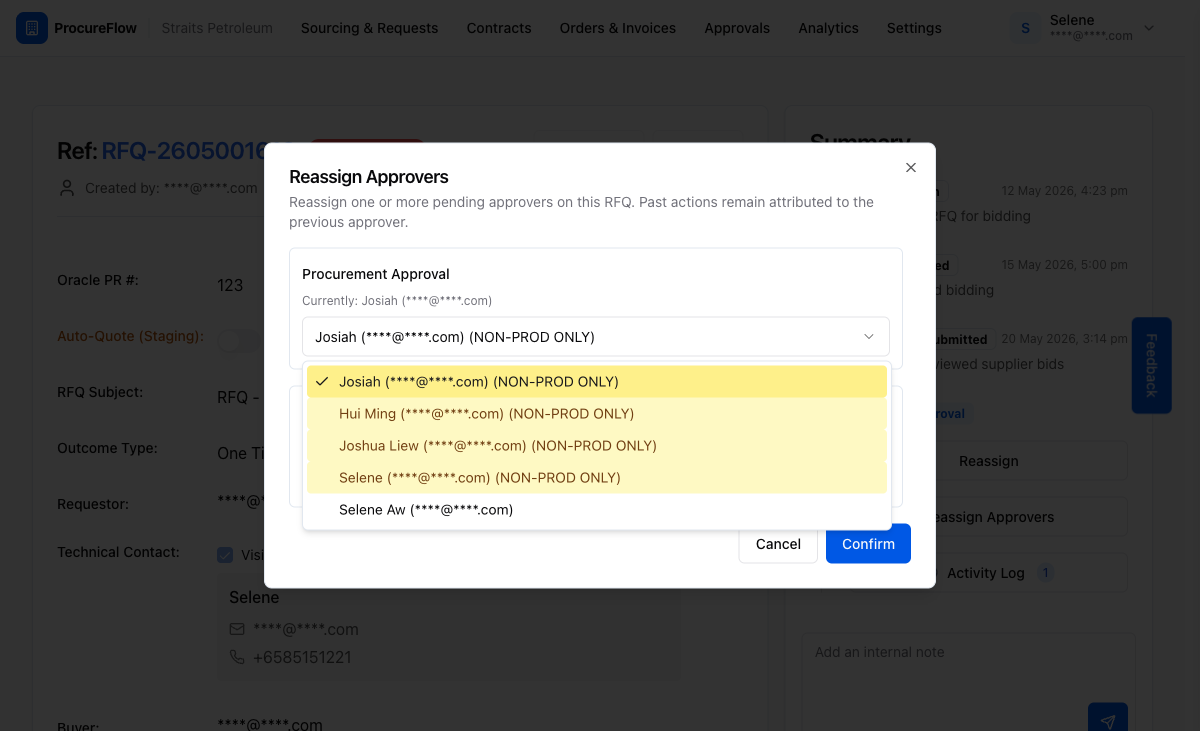
The dropdown for the Procurement Approval step, showing all eligible approvers for that workflow step.

Confirm bulk reassignment

After updating all the steps you want to change, click Confirm.

  • Each reassignment is processed individually, so a partial failure on one step does not block the others.
  • Success or error messages appear per step.
  • Notification emails are sent for every change that succeeds.
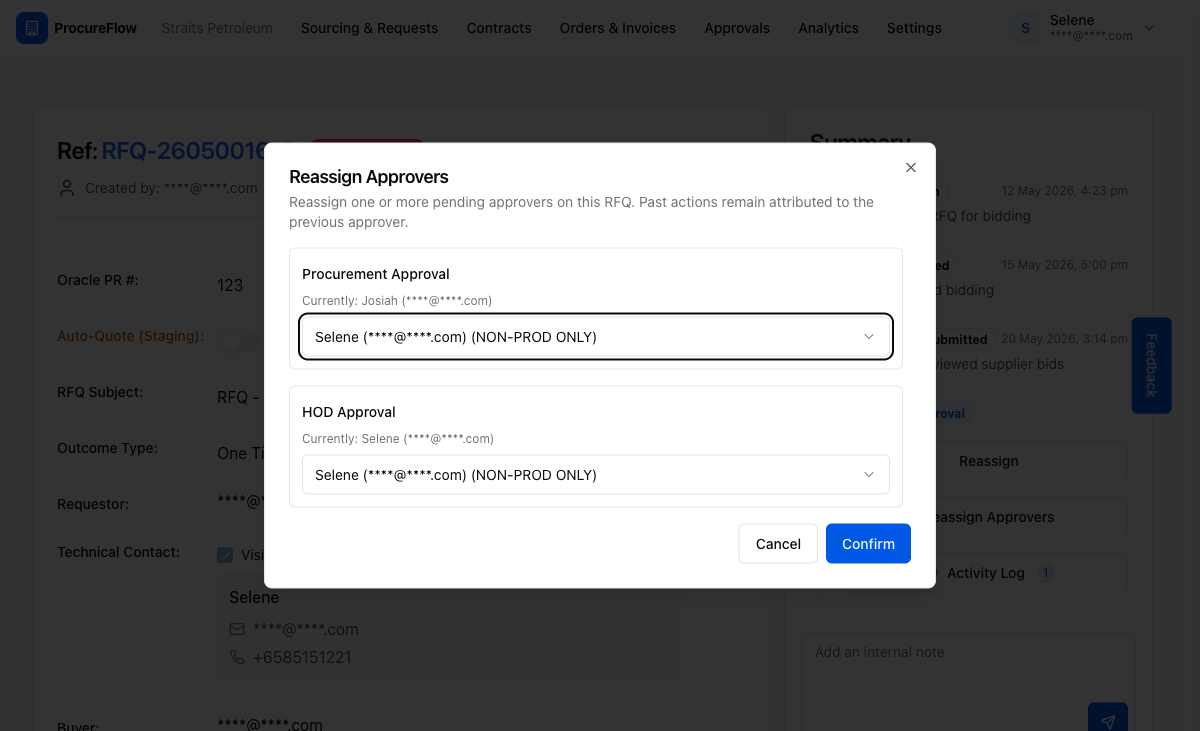
The Procurement Approval step has been updated to the new approver. Click Confirm to apply all changes.

Locate the Reassign button in the Approvals table

Scroll to the Approvals section at the bottom of the RFQ page.

Each pending approval row shows the step name, current approver, status, and an action column with two buttons: View and Reassign.

Click Reassign on the row you want to change.
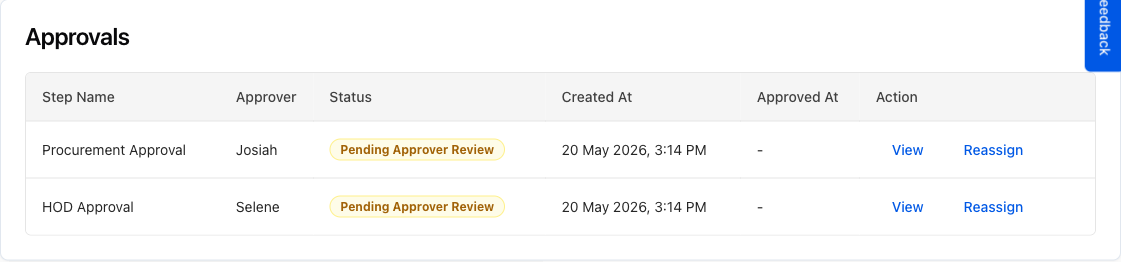
The Approvals table with pending approval rows. The Reassign button appears in the Action column of each row that is still awaiting a decision.
Note: The Reassign button only appears on rows in Pending Approver Review status. Rows that have already been approved or rejected will not have this option.

Reassign a single approver from the Approvals table

Alternatively, you can reassign one specific approver directly from the Approvals table at the bottom of the RFQ page.

Click the Reassign button on any pending approval row to open a targeted dialog for just that step.
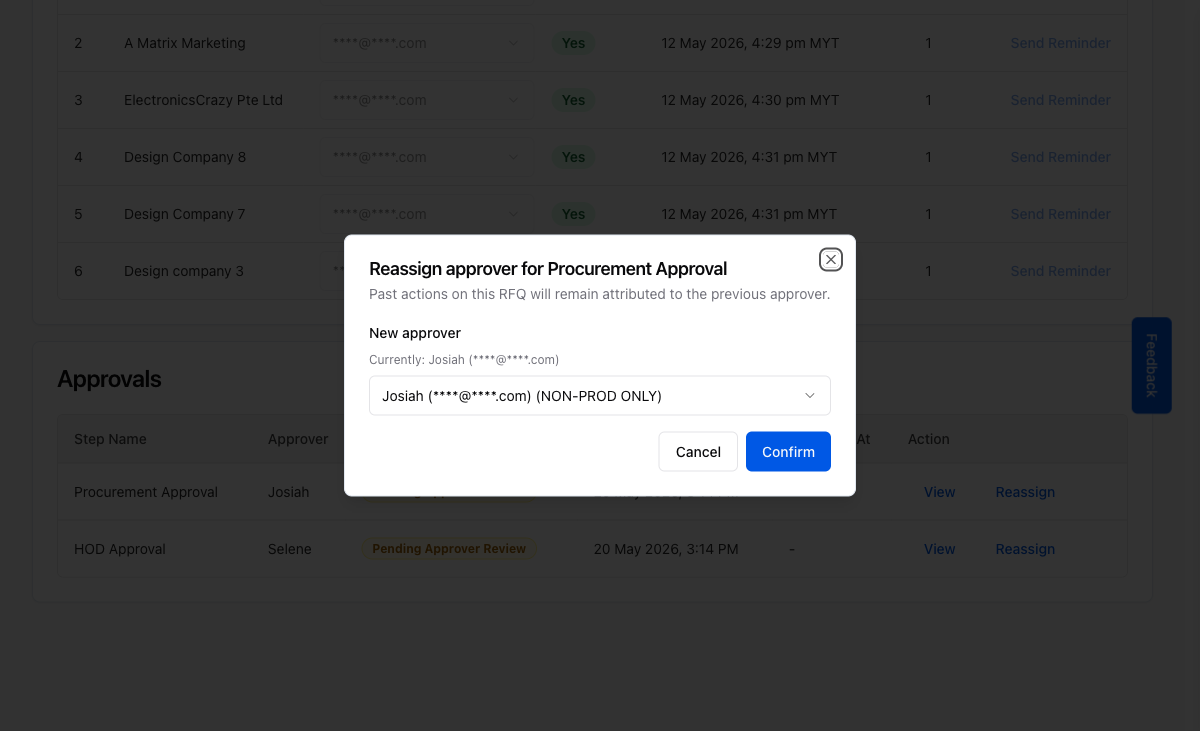
The single-step Reassign Approver dialog, pre-labelled with the step name (e.g. Procurement Approval) and current approver.
Tip: This is useful when you only need to change one step and do not want to open the full bulk dialog.

Select the new approver

Click the New approver dropdown and choose the replacement. As with the bulk dialog, the list is filtered to only show people who are eligible for this specific workflow step.
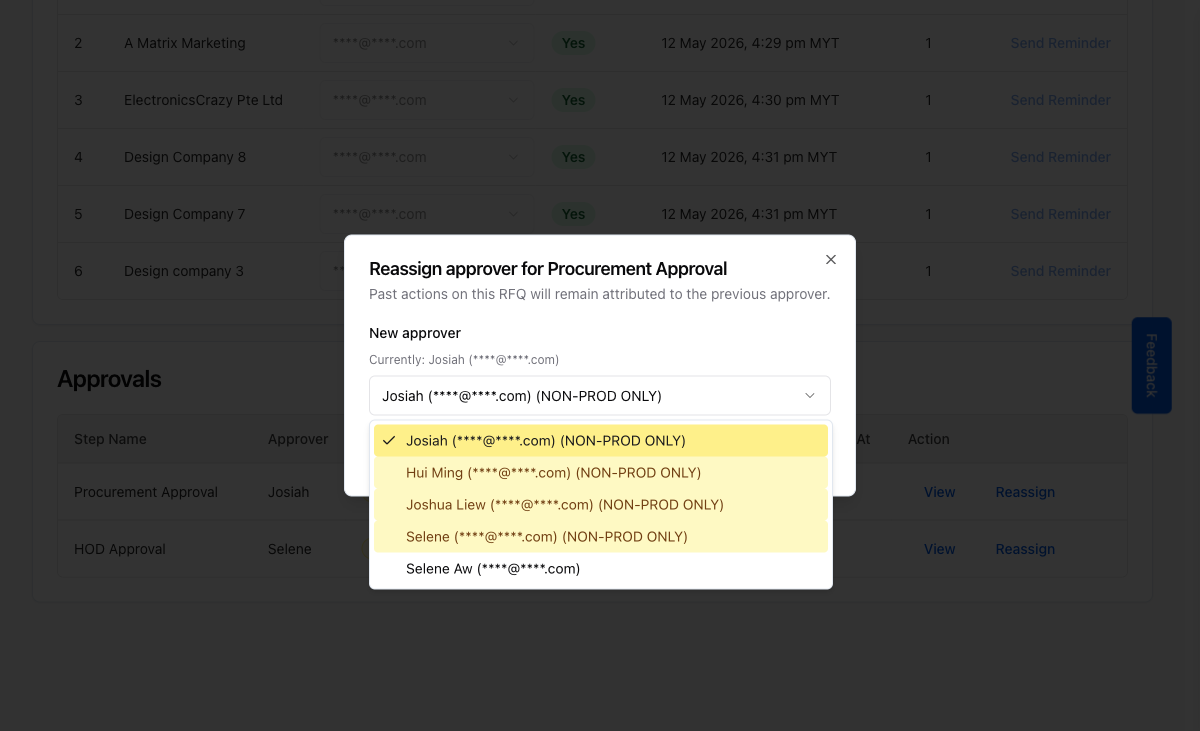
The eligible approver list for the Procurement Approval step. The current approver is highlighted with a checkmark.

Confirm the single-approver change

With the new approver selected, click Confirm.

The approval row updates immediately and both the outgoing and incoming approver receive an email notification. The page will refresh to show the updated approver name in the Approvals table.
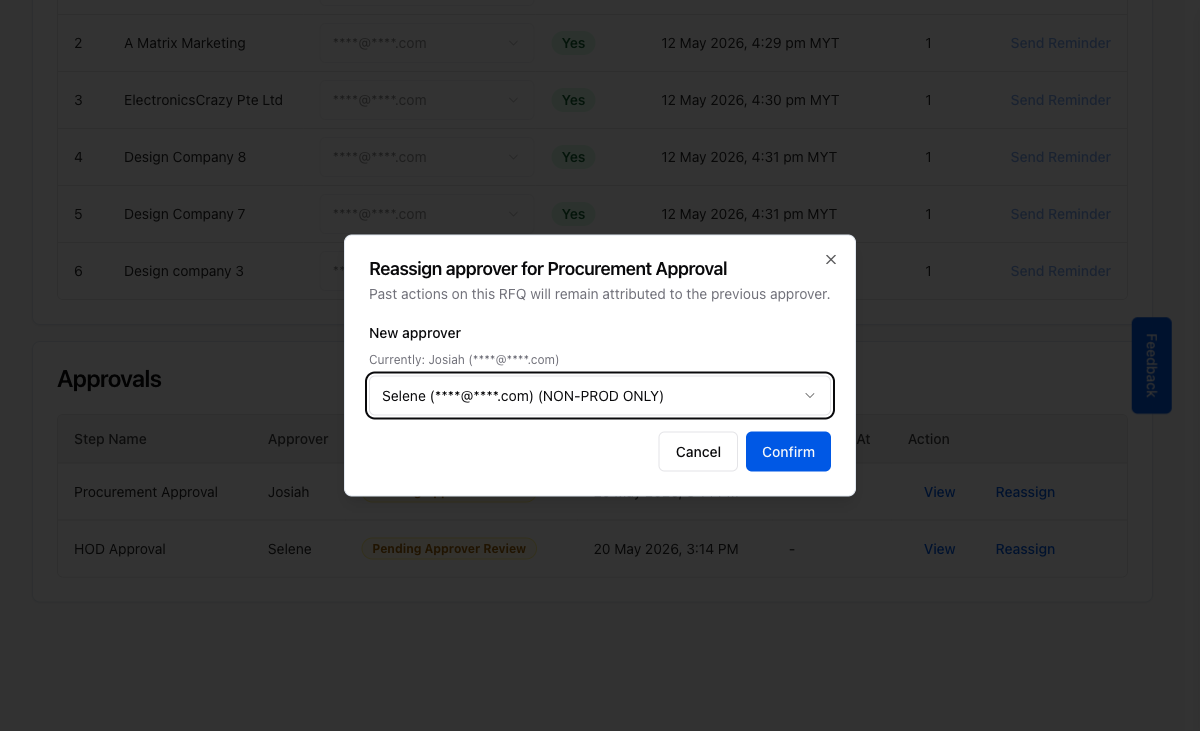
New approver selected and ready to confirm. Clicking Confirm sends notification emails and updates the approval record.
Important: Once confirmed, the outgoing approver immediately loses access to this approval step. The incoming approver will receive an email and can find the pending approval under their Approvals dashboard.

Email Notifications Sent After Approver Reassignment

After an approver reassignment is confirmed, ProcureFlow automatically sends two emails: one to the outgoing approver and one to the incoming approver. Both include a direct link to the RFQ.

Outgoing approver receives a removal notice:
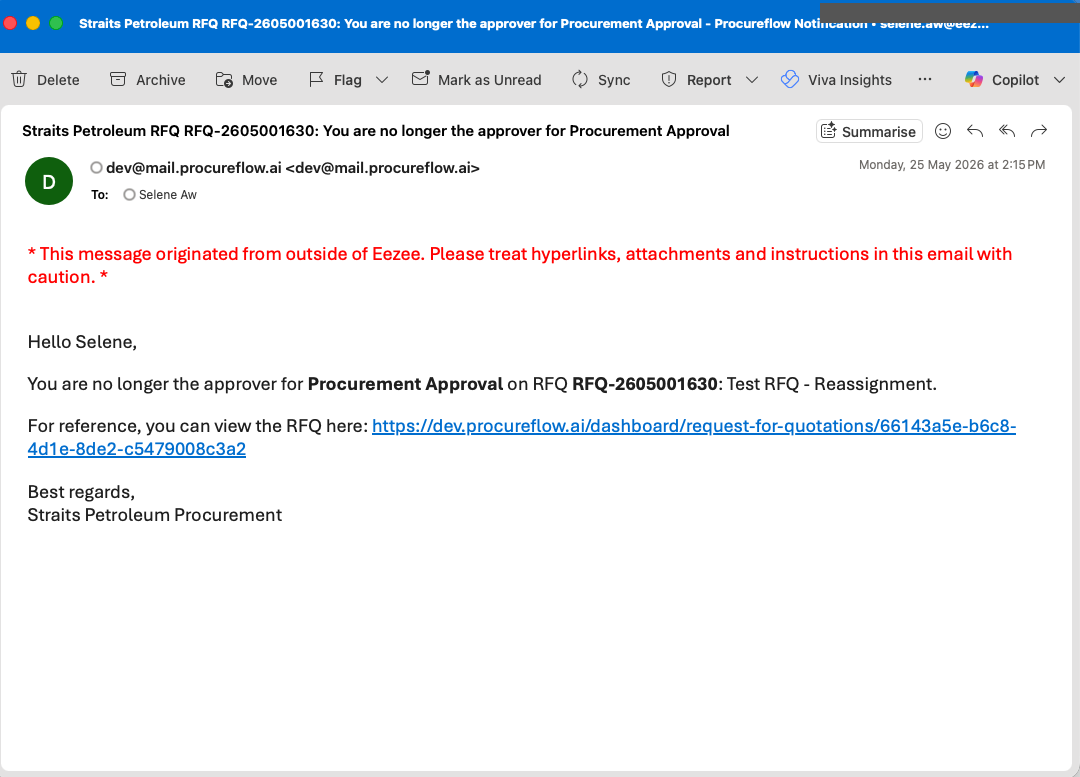
The outgoing approver is notified they have been removed from the approval step. The email includes the RFQ reference number and a link to view it.

Incoming approver receives an assignment notice:
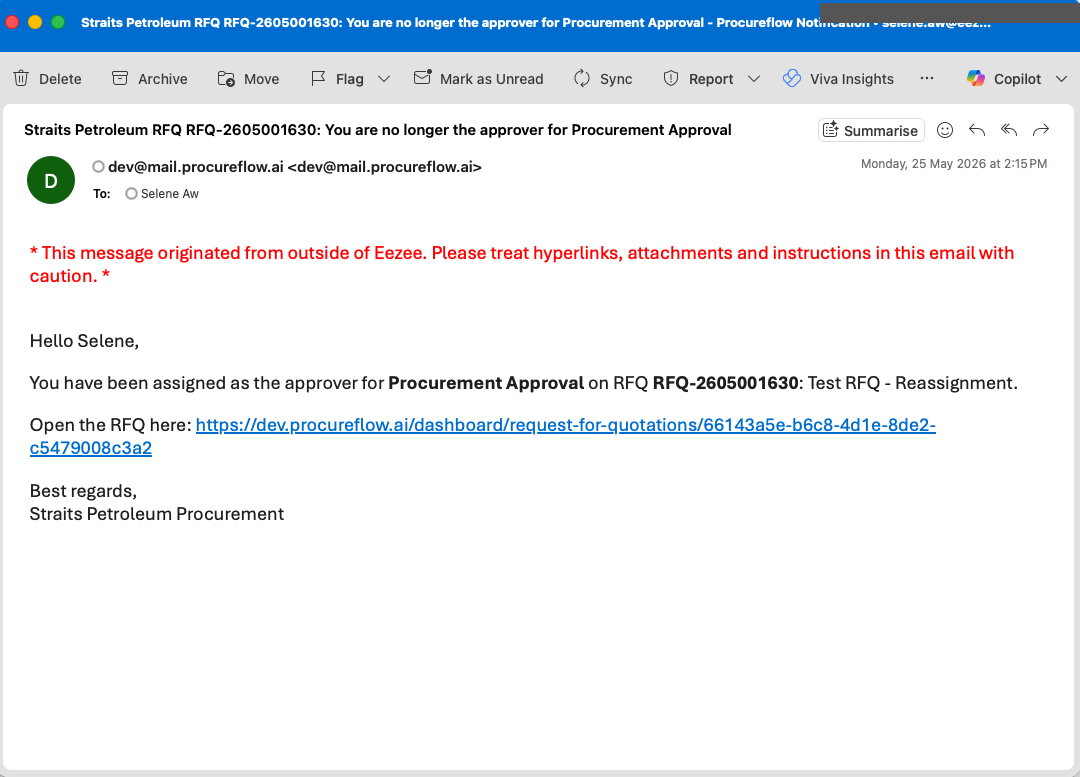
The incoming approver is notified of their new responsibility, with a direct link to open the RFQ and action their approval.
Tip: The incoming approver can also find the pending approval under Approvals in the left-hand navigation without needing the email link.

On this page